

iMIS sign-in troubleshooting
Use this article when Settings > Overview shows a problem on the iMIS sign-in check, or the sidebar shows Sign in to your iMIS site. Each heading is what the check says. The check’s button is the one action that can fix it. How the sign-in works is described in Connecting your iMIS site.
Password not accepted
Section titled “Password not accepted”“iMIS did not accept the password saved for” your username “on” your iMIS site.
Check the following:
- Whether your iMIS password changed, or has expired in iMIS.
- The username. Settings > iMIS, step 2 iMIS sign-in, shows the Saved username.
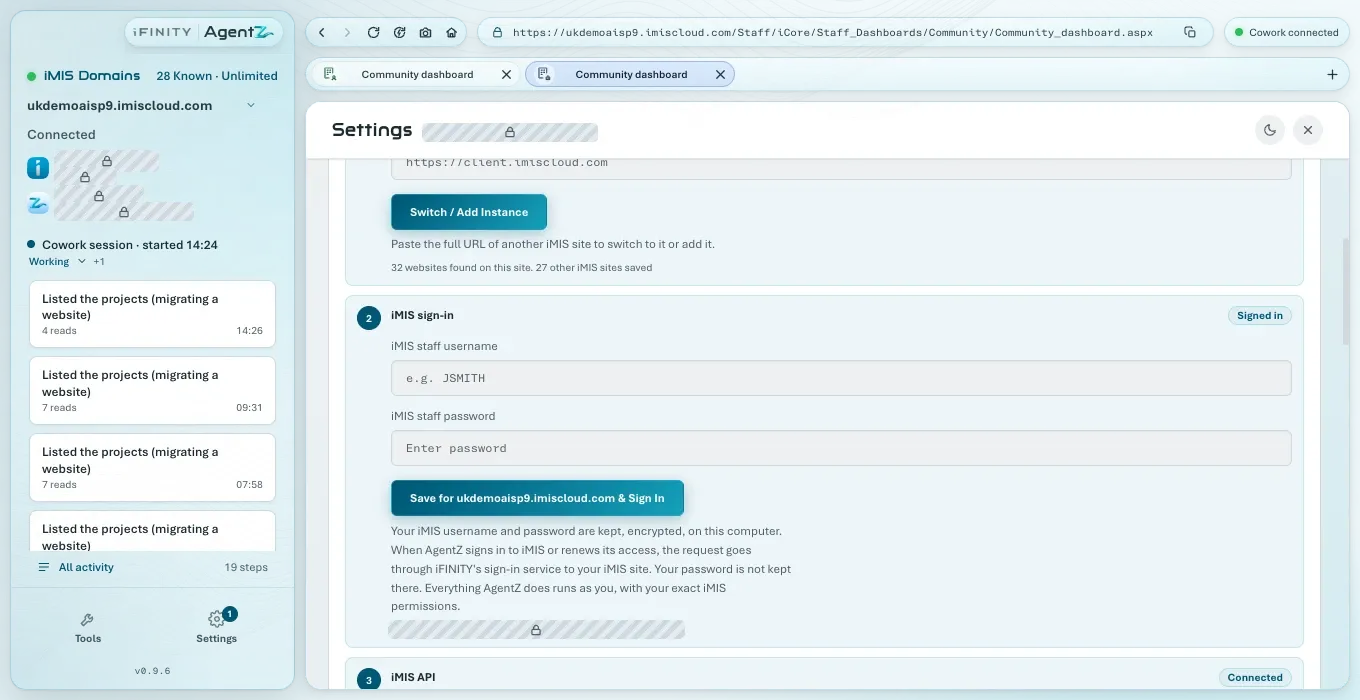
Then click Enter the current password. Step 2 iMIS sign-in shows the form: enter your username and current password, and click Save and sign in to your iMIS site.
Security code not entered
Section titled “Security code not entered”“The security code for” your iMIS site “was not entered in time.”
Your iMIS site asks staff for a security code, and AgentZ waits five minutes for it. Click Sign in again. When the sidebar shows iMIS security code required, enter the code from your device on the iMIS page in the iMIS browser, then click Sign In on that page.
Site did not answer
Section titled “Site did not answer”Your iMIS site “did not answer when AgentZ opened its sign-in page.”
Check the following:
- Your internet connection, and your VPN if you use one.
- Whether your iMIS site is available. Open it in your web browser. iMIS may be down for maintenance.
Then click Try again.
No sign-in form
Section titled “No sign-in form”Your iMIS site “showed a page without its iMIS staff sign-in form. It is open in the AgentZ browser.”
Your iMIS site showed something other than its staff sign-in page, for example a single sign-on page, a maintenance page, or a page asking you to change your password. Click Show the page and read it in the iMIS browser.
- If it asks you to change your password, change it there, then save the new password in Settings > iMIS.
- If your organisation signs staff in with single sign-on, AgentZ cannot sign in with a saved username and password. Contact iFINITY.
Browser in use
Section titled “Browser in use”An agent “was using the AgentZ browser, so the sign-in did not start.”
Wait for the agent to finish, or stop it from All activity (see Stopping and resuming agent work). Then click Sign in to iMIS.
Not signed in
Section titled “Not signed in”“AgentZ could not sign in to” your iMIS site, or “Your iMIS sign-in is saved. Sign in to” your iMIS site “with it.”
Click Try again or Sign in to iMIS. If it fails again, open your iMIS site in your web browser and check you can sign in there with the same username and password.
Signed in as someone else
Section titled “Signed in as someone else”“The AgentZ browser is signed in to” your iMIS site “as” one person, but your saved sign-in is another.
Your AI apps work as the person in your saved sign-in, not the person shown in the iMIS browser. Click Sign in as your saved username to sign the iMIS browser in as the saved person.
Sign-in not saved
Section titled “Sign-in not saved”“You are signed in to” your iMIS site “here, but the iMIS API also needs your iMIS staff username and password saved in AgentZ.”
You signed in on the iMIS page itself, which signs in only the iMIS browser. Click Enter your iMIS username and password, and save them in step 2 iMIS sign-in.
No sign-in saved
Section titled “No sign-in saved”“Enter the iMIS staff username and password AgentZ uses on” your iMIS site. Click Enter your iMIS sign-in. See Connecting your iMIS site.
Not linked yet
Section titled “Not linked yet”“Your AgentZ licence isn’t linked to an iMIS site yet.” This is on the iMIS site check. Ask your Organisation admin, or email helpdesk@ifinity.co.uk.
The iMIS API check says After iMIS sign-in, or its buttons are greyed out
Section titled “The iMIS API check says After iMIS sign-in, or its buttons are greyed out”The iMIS API works with the sign-in saved in AgentZ, so it waits for it. On Settings > Overview, iMIS API shows After iMIS sign-in with one of:
- “The iMIS API connects once you are signed in to iMIS.”
- “The iMIS API connects once your iMIS username and password are saved in AgentZ.”
- “Your organisation’s AgentZ administrator connects the iMIS API for” your iMIS site, when you are a team member and the connection is not set up yet.
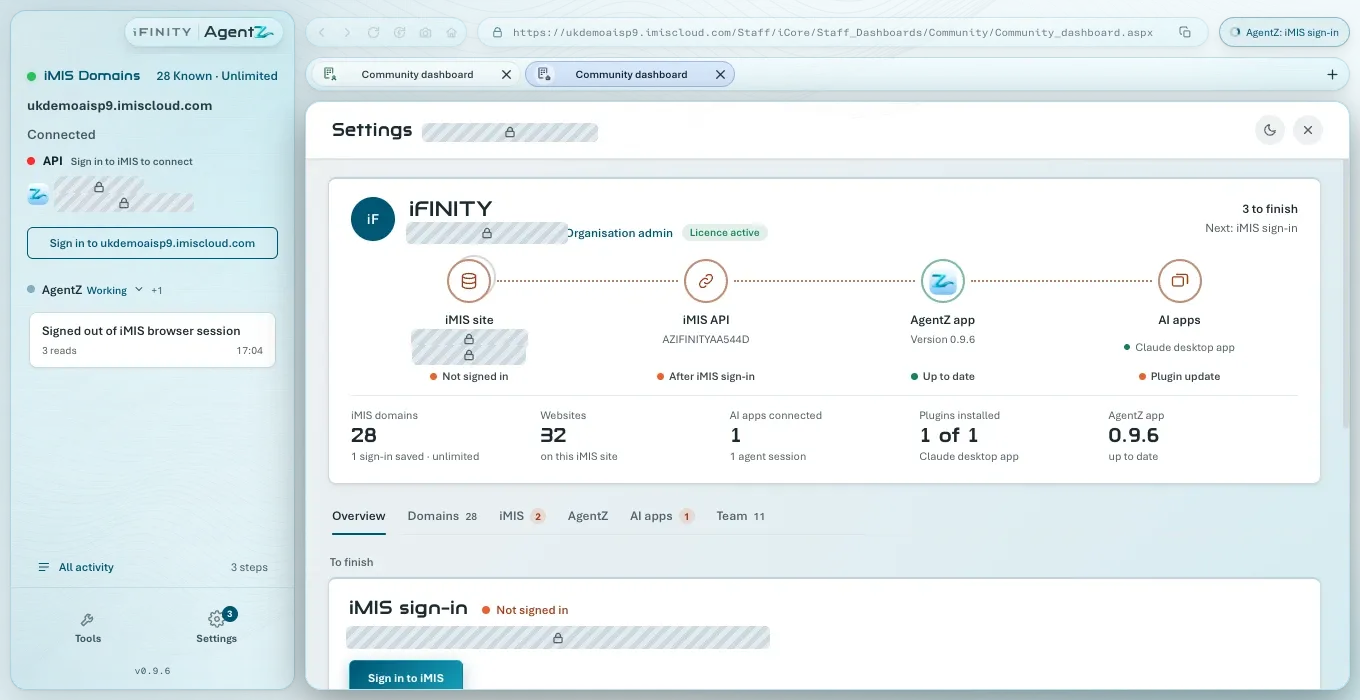
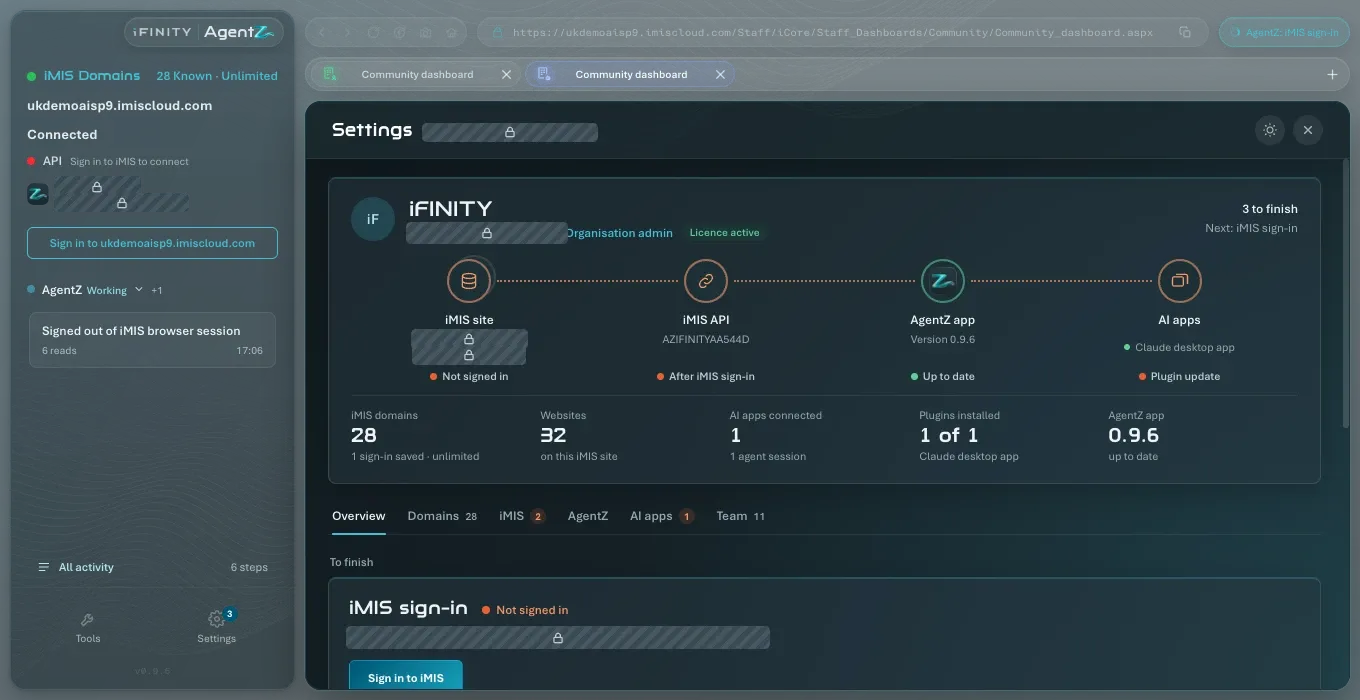
On Settings > iMIS, the API set-up buttons are greyed out until then. Point at one to see what to do first, for example Enter your iMIS sign-in first, After iMIS sign-in or, for Check Sign-in Renewal, Sign in to iMIS first. While an agent is working in the iMIS browser, they are greyed out too, and say what it is doing.
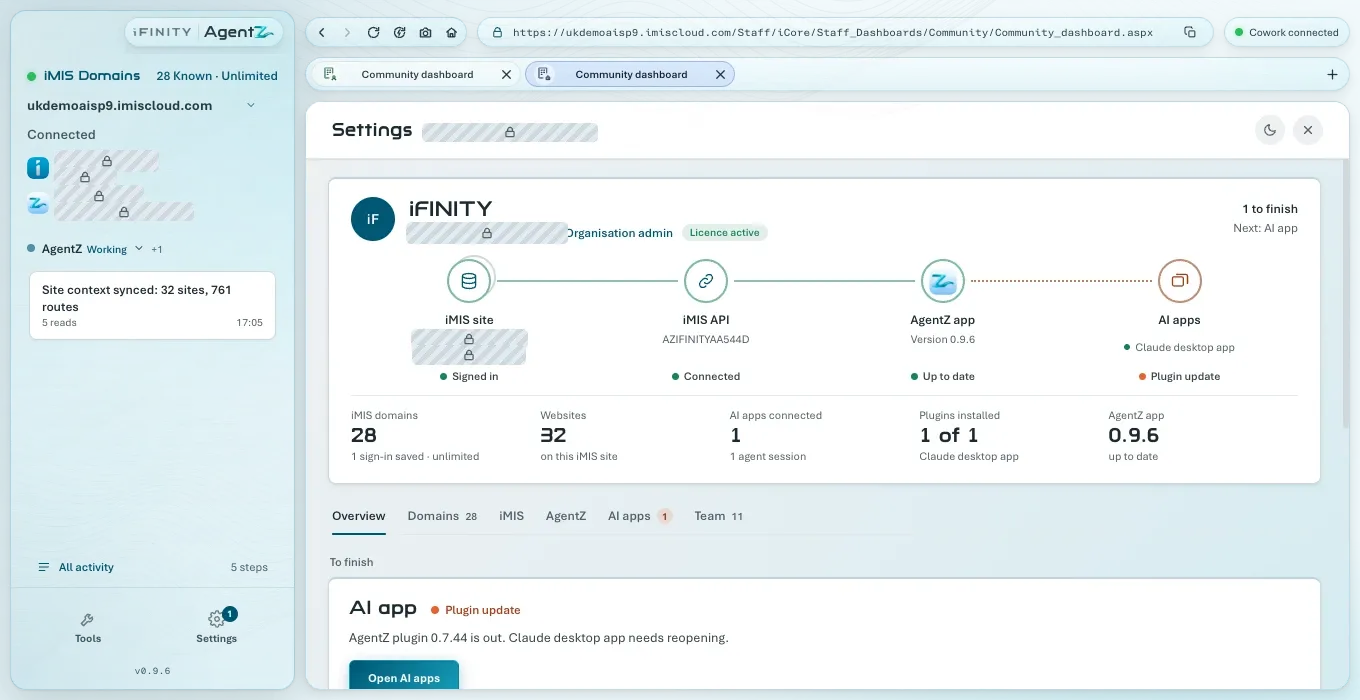
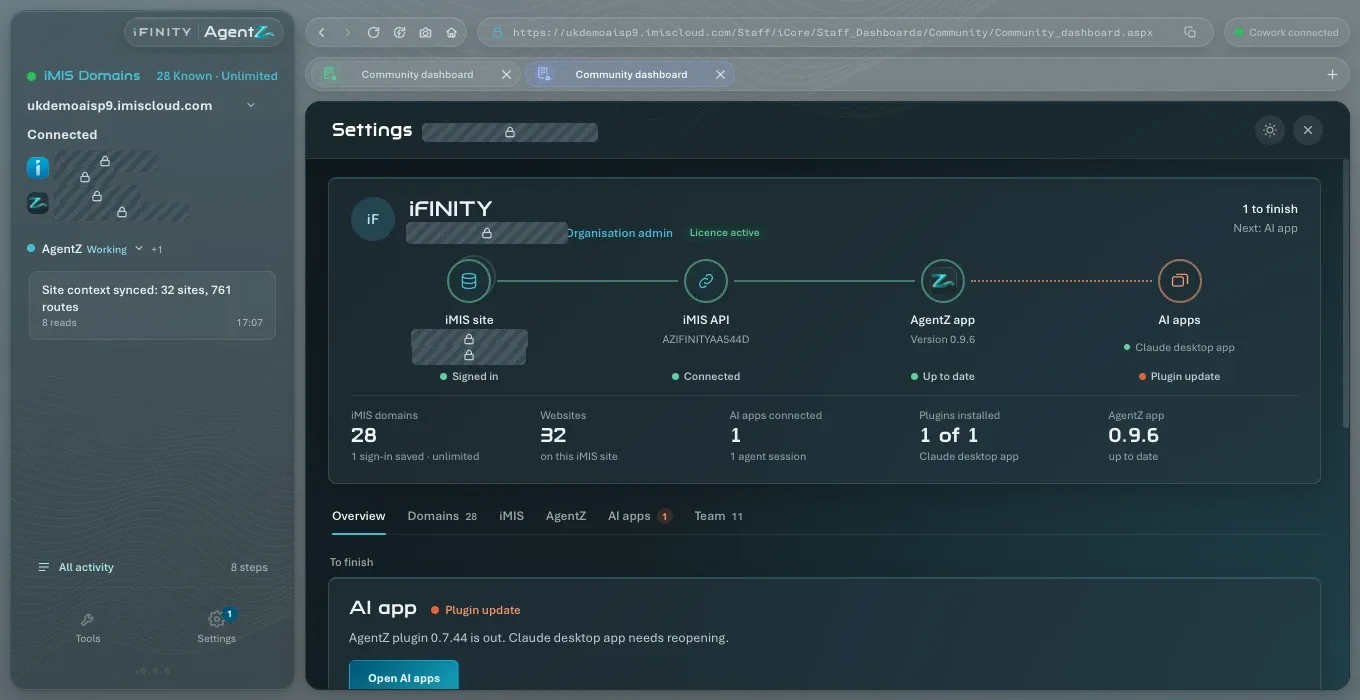
Finish the iMIS sign-in check first. See the headings above for what it shows. Once the iMIS browser is signed in, the iMIS API connects by itself, and both checks show done.
Step 2 iMIS sign-in shows an empty form under Signed in
Section titled “Step 2 iMIS sign-in shows an empty form under Signed in”You clicked Change sign-in for your iMIS site, which replaces the saved sign-in with the empty form. The form has no cancel button. Save your username and password in the form to carry on.
Can I sign in to iMIS in the iMIS browser instead of saving my password? You can use iMIS in the iMIS browser, but AgentZ and your AI apps need your sign-in saved in Settings > iMIS to use the iMIS API as you.
Where is my password kept? See Your iMIS username and password.