

Connecting your AI app
Connecting your AI app adds the AgentZ plugin to it. The plugin is what lets the AI app do work in your iMIS site through the AgentZ app. AgentZ works with Claude Code (command line), Claude desktop app, Codex, OpenCode, GitHub Copilot, Cursor, Grok Build, Devin and Hermes Agent.
Before you begin
Section titled “Before you begin”- An AI app installed on this computer, and signed in to its own account. AgentZ does not provide the AI app or its subscription. If no supported AI app is on the computer, Settings > Overview shows No AI app found for AI app.
- The AgentZ app open and signed in. The plugin connects to the AgentZ app on the same computer, so the AgentZ app must be running while you use AgentZ in your AI app.
- Permission to change your AI app’s settings. For some AI apps you type a command in a terminal window (Terminal on a Mac, PowerShell on Windows). The card for that app gives the exact commands.
Where you see your AI apps
Section titled “Where you see your AI apps”Go to Settings > AI apps. The tab shows:
- AgentZ plugin version: the newest AgentZ plugin, whether every app here is up to date, and Update now.
- Keep the AgentZ plugin up to date automatically: on by default. See Updating AgentZ.
- One card for each supported AI app, with a badge that says whether it is on this computer and whether AgentZ is in it, for example Up to date or Not found on this computer.
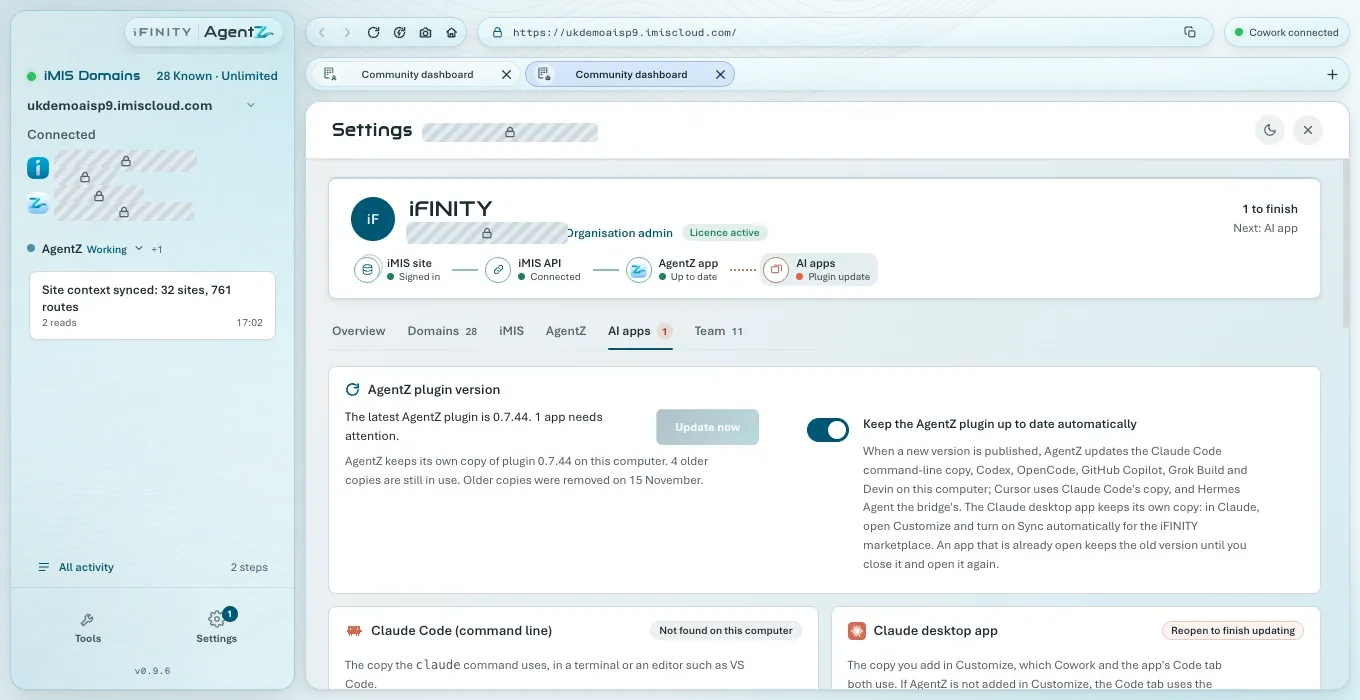
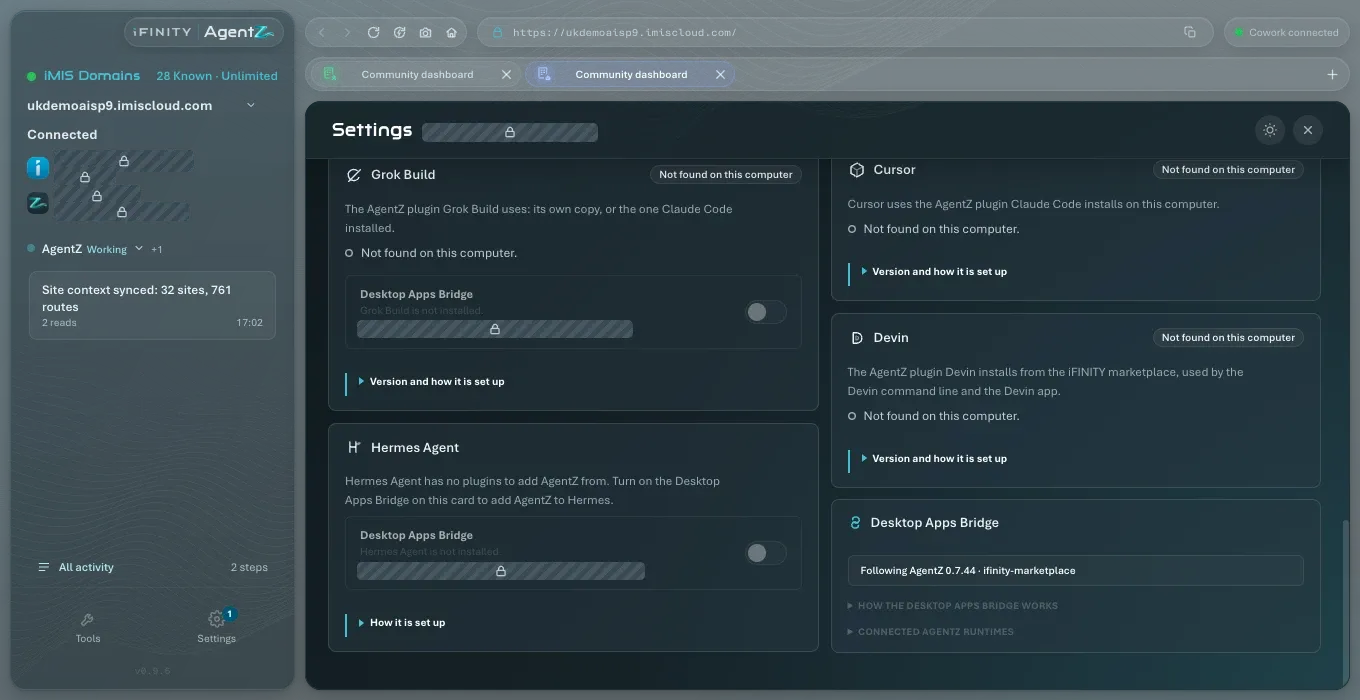
Each card is described in AI apps settings.
How AgentZ is added to each AI app
Section titled “How AgentZ is added to each AI app”AgentZ adds itself to some AI apps, and for others you add it, following the steps on the app’s card.
| AI app | How AgentZ is added |
|---|---|
| Claude desktop app (Chat, Cowork and the Code tab) | You add it in Claude, from the iFINITY marketplace. See Claude desktop app. |
| Claude Code (command line) | Click Install Plugin on its card. |
| Codex | You run two commands in a terminal, then turn on the Desktop Apps Bridge on its card. See Codex. |
| OpenCode, GitHub Copilot, Grok Build and Devin | AgentZ adds itself with the app’s own command when it finds the app on this computer, unless you have taken it out. |
| Cursor | Cursor uses the AgentZ plugin that Claude Code installed. Install it in Claude Code on this computer. |
| Hermes Agent | Turn on the Desktop Apps Bridge on its card. Hermes Agent has no plugins. |
Claude desktop app
Section titled “Claude desktop app”The Claude desktop app keeps its own copy of the AgentZ plugin, which Cowork and the app’s Code tab both use. You add it in Claude.
Do the following to add AgentZ to the Claude desktop app:
- In Claude, click Plugins in the sidebar, then Add, then Add marketplace, then Add from a repository.
- In URL, enter
iFINITY-Ltd/ifinity-marketplace, then click Sync. - In Plugins, search for
agentz, choose Agentz, then click Add. - Go back to Plugins, click Add, then Manage marketplaces. Open the … menu on ifinity-marketplace, turn on Sync automatically, then click Done. Claude then fetches new versions of AgentZ for you.
- Reopen Claude, so that it starts AgentZ:
- On a Mac: Quit Claude completely: choose Claude, then Quit Claude (or press Command-Q). Then open Claude again. Closing its window is not enough.
- On Windows: Quit Claude completely: right-click the Claude icon next to the clock (it may be behind the ^ arrow) and choose Exit. Then open Claude again. Closing its window is not enough.
In AgentZ, the Claude desktop app card shows Up to date.
If your organisation cannot use the marketplace, the card also offers Download ZIP: in Claude, click Plugins > Add > Upload plugin, and drop the ZIP into the upload panel.
Codex starts AgentZ through the Desktop Apps Bridge, so it needs both the plugin and the bridge.
Do the following to add AgentZ to Codex:
- Open a terminal window (Terminal on a Mac, PowerShell on Windows).
- Run
codex plugin marketplace add iFINITY-Ltd/ifinity-marketplace. - Run
codex plugin add agentz@ifinity. - In AgentZ, go to Settings > AI apps and turn on the Desktop Apps Bridge on the Codex card.
- Close Codex, including any open sessions, and open it again.
The Codex card shows that AgentZ is installed. AgentZ keeps it up to date when Keep the AgentZ plugin up to date automatically is on.
Claude Code (command line)
Section titled “Claude Code (command line)”This is the copy the claude command uses, in a terminal or in an editor such as VS Code. When Claude Code is on this computer, its card shows Install Plugin. Click it, then start a new Claude Code session.
Cursor and Grok Build also use this copy, so installing it gives them AgentZ too. On Windows, Grok Build cannot start AgentZ from this copy: turn on Desktop Apps Bridge on Grok Build’s card in Settings > AI apps.
Checking the connection
Section titled “Checking the connection”Go to Settings > Overview. The AI app check shows Ready and names the apps AgentZ works in, for example “AgentZ works in Claude desktop app.”
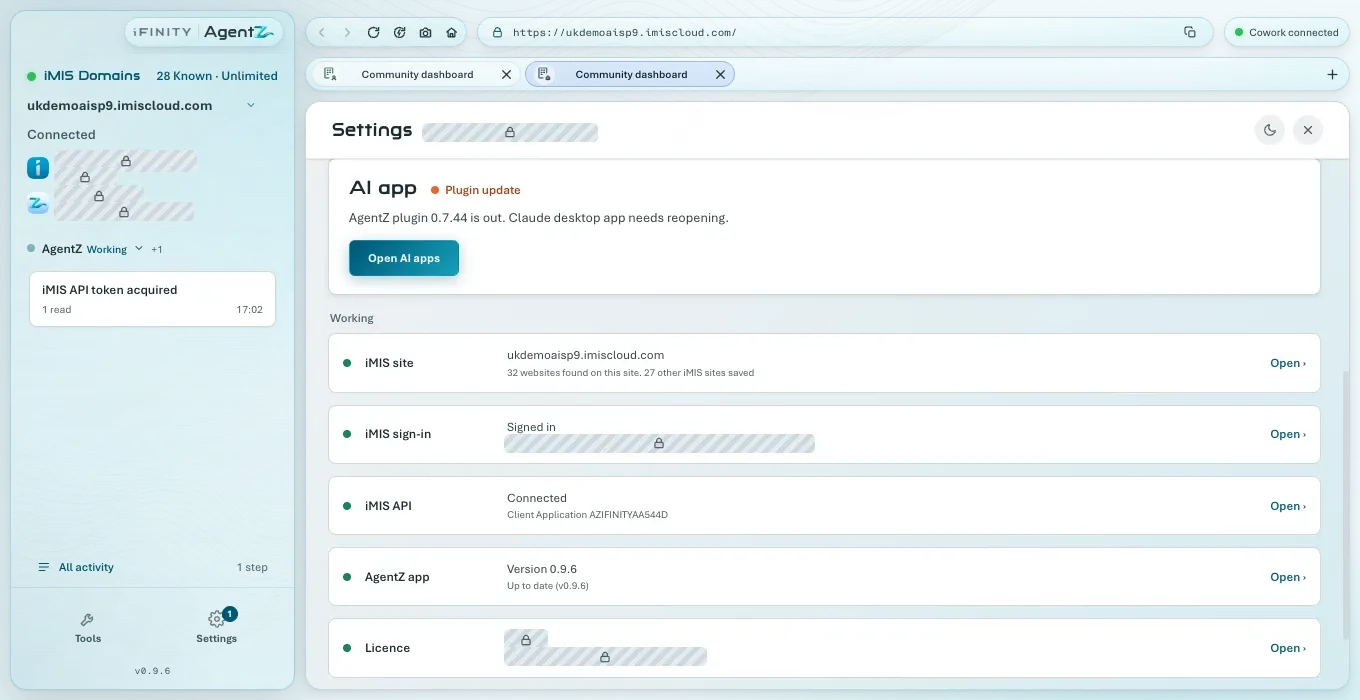
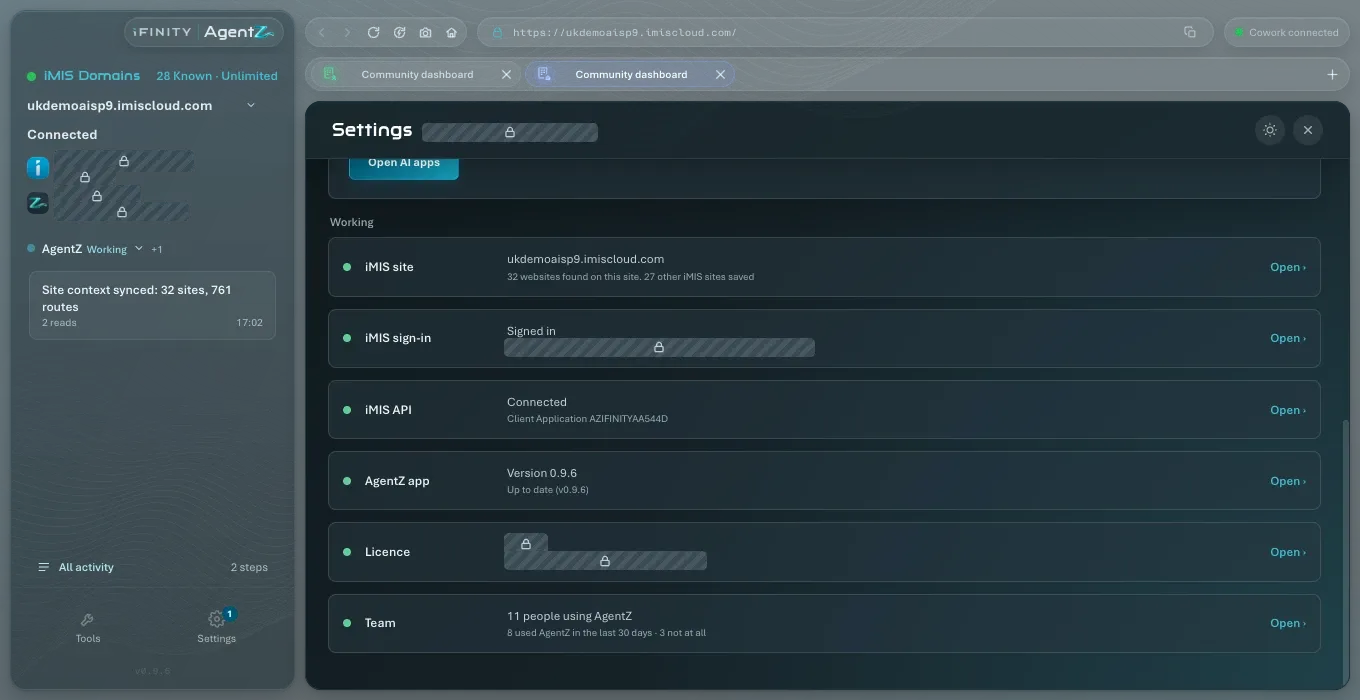
Then ask your AI app something about iMIS. See Making your first request.
If the AI app says AgentZ is not connected, or a card says the app was not found, see AI app connection troubleshooting.
Do I need the AgentZ app running to use AgentZ in my AI app? Yes. The plugin works through the AgentZ app on the same computer, which holds your iMIS sign-in.
Can I use AgentZ in more than one AI app? Yes. Add it to each one. Every AI app you use appears in the AgentZ app’s activity.
Can I install the plugin without the AgentZ app? No. The plugin needs the AgentZ app to sign in to iMIS for it.
Why does Claude show the plugin as “Agentz”? That is how the Claude desktop app shows the plugin’s name in its marketplace. It is the AgentZ plugin.