

Signing in to AgentZ
Signing in to AgentZ connects the AgentZ app on your computer to your organisation’s licence, and gives you a seat. You sign in once on each computer; AgentZ keeps you signed in after that.
Before you begin
Section titled “Before you begin”- Your work email. It must be the address your organisation registered with AgentZ, or at an email domain your organisation registered. If it is not, the email AgentZ sends explains why you cannot sign in yet, and no sign-in link is sent.
- Your email on this computer. You open the sign-in link on the same computer as the AgentZ app. The link opens in your web browser and then returns you to AgentZ. A link opened on your phone cannot sign in the app on your computer.
- A free seat. Each person who signs in takes one seat in your organisation’s licence. If every seat is taken, ask your Organisation admin to free one. See Seats and team members.
- An activated organisation. The first person to use AgentZ in your organisation, normally the Organisation admin, activates it with the auth code iFINITY sent. Until then, nobody in your organisation can sign in with a work email. See Activating AgentZ for your organisation.
Signing in with your work email
Section titled “Signing in with your work email”Do the following to sign in to AgentZ:
-
Open the AgentZ app. The sign-in screen shows Sign in and the Work email field.
-
In Work email, enter your work email, for example
name@yourorganisation.org. -
Click Email me a sign-in link.
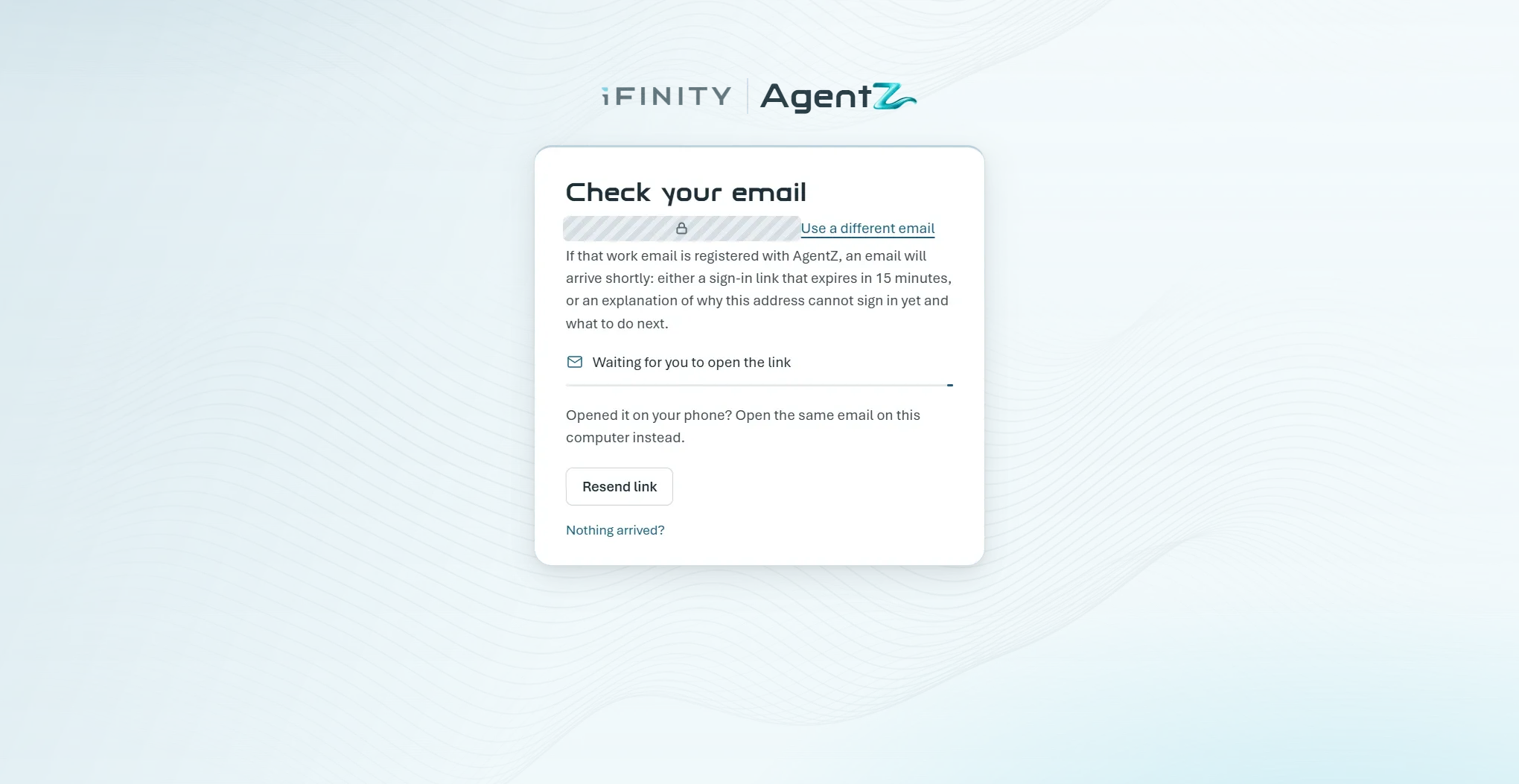
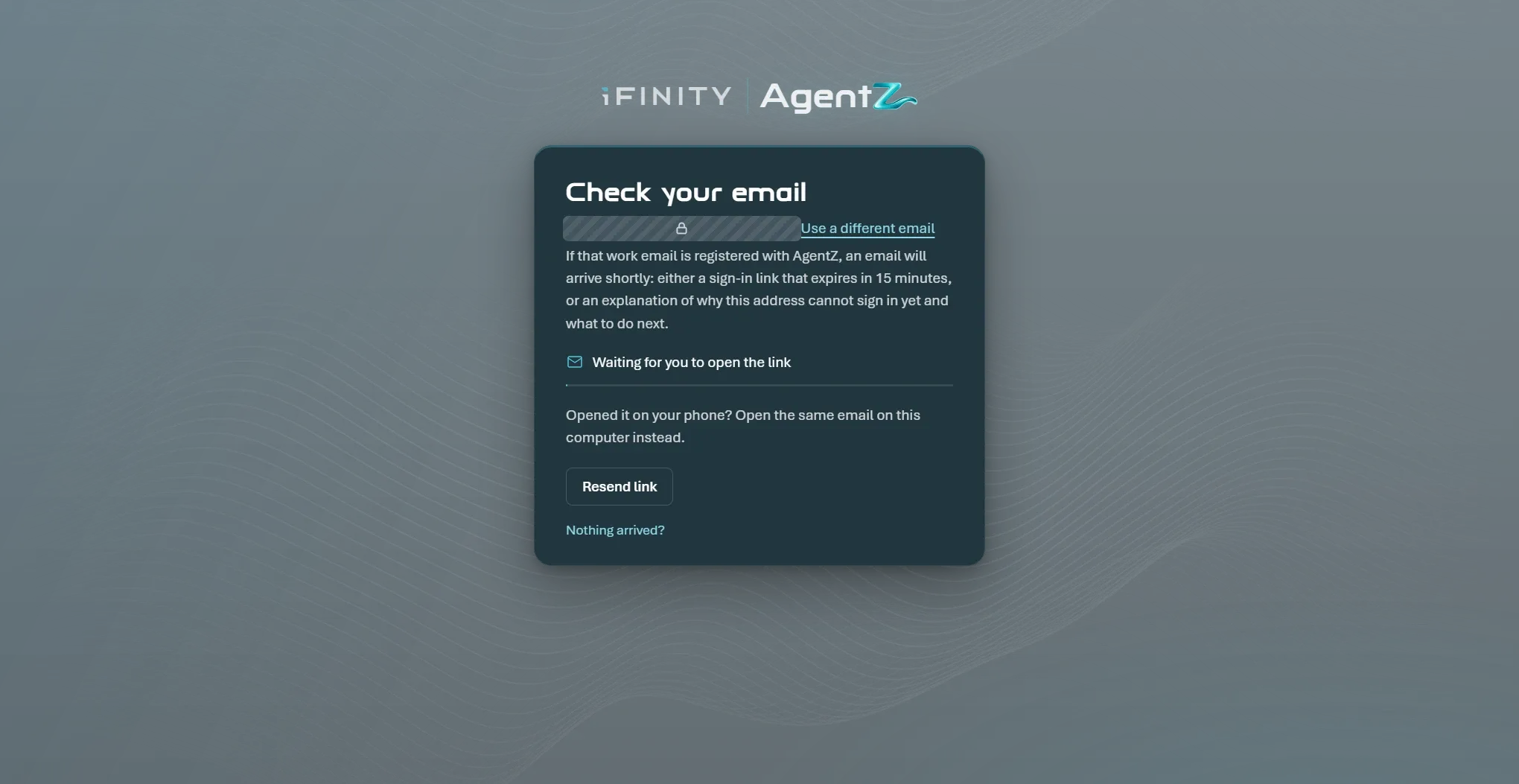
The screen changes to Check your email, with your address and the words Waiting for you to open the link. Below them it reminds you: “Opened it on your phone? Open the same email on this computer instead.”
-
On the same computer, open the email from AgentZ and click its Sign In button.
Your web browser opens a page on ifinityagentz.co.uk that reads “Confirm that you want to sign in to iFINITY AgentZ for” and your organisation’s name, with your email below it.
-
Check that the page names your organisation and your email, then click Sign In on the page.
The page shows Signed In and opens the AgentZ app. Your browser may ask whether to open iFINITY AgentZ: allow it.
The AgentZ app shows Finishing setting up and “You’re signed in. AgentZ will reopen in a moment to finish.” AgentZ then opens its main window.
If the email does not arrive
Section titled “If the email does not arrive”The Check your email screen shows Resend link in 30 s, which becomes Resend link after 30 seconds. Under Nothing arrived? it lists what to check:
- Look in your junk or quarantine folder for an email from AgentZ.
- Check this is the work email your organisation registered with AgentZ.
- Still nothing after a few minutes? Email helpdesk@ifinity.co.uk.
To try a different address, click Use a different email.
Activating AgentZ for your organisation
Section titled “Activating AgentZ for your organisation”You activate your organisation once. After that, everyone in it signs in with their work email and never needs the code.
Do the following to activate AgentZ for your organisation:
-
Open the AgentZ app.
-
Under the sign-in card, next to Activating AgentZ for your organisation?, click Use your auth code.
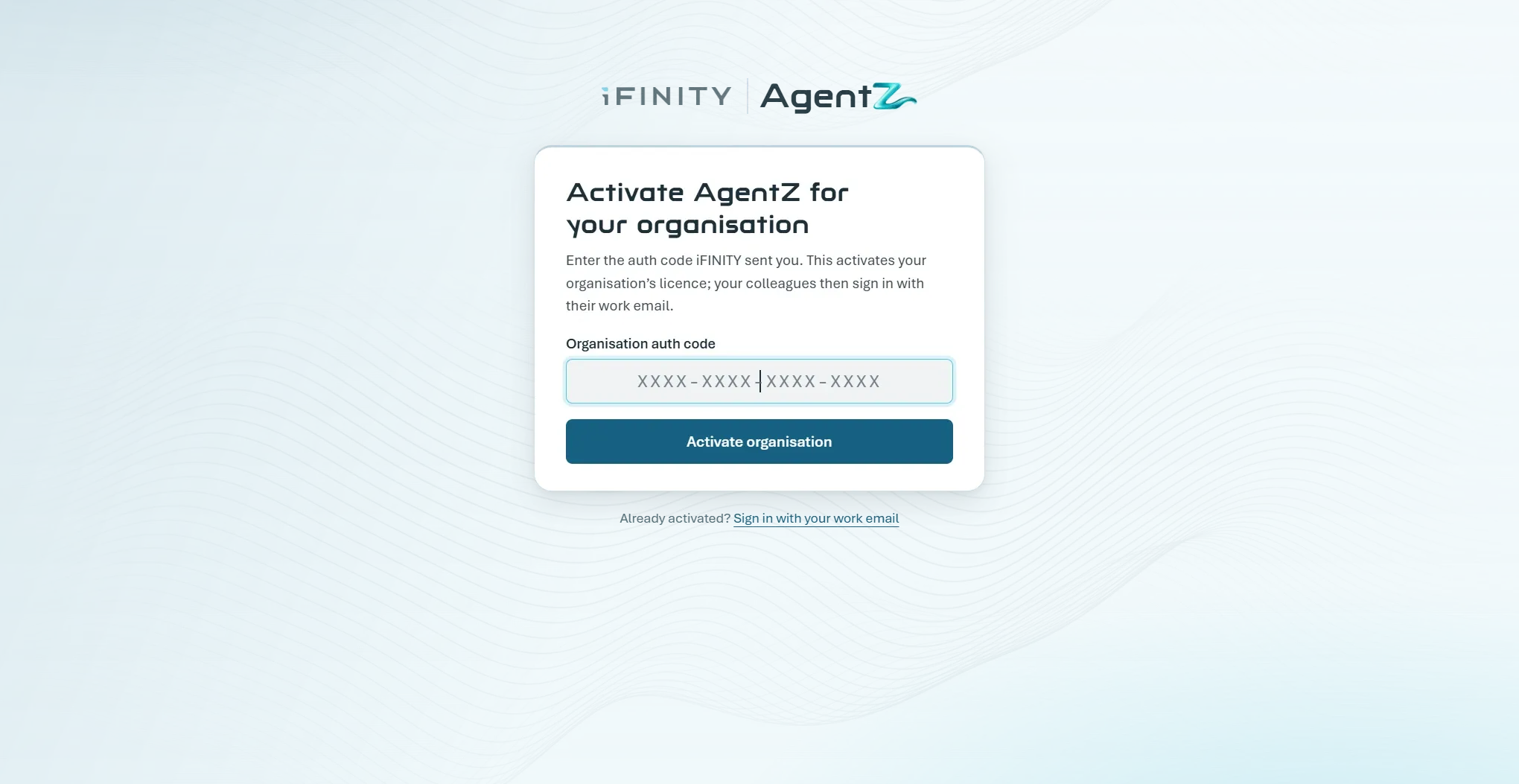
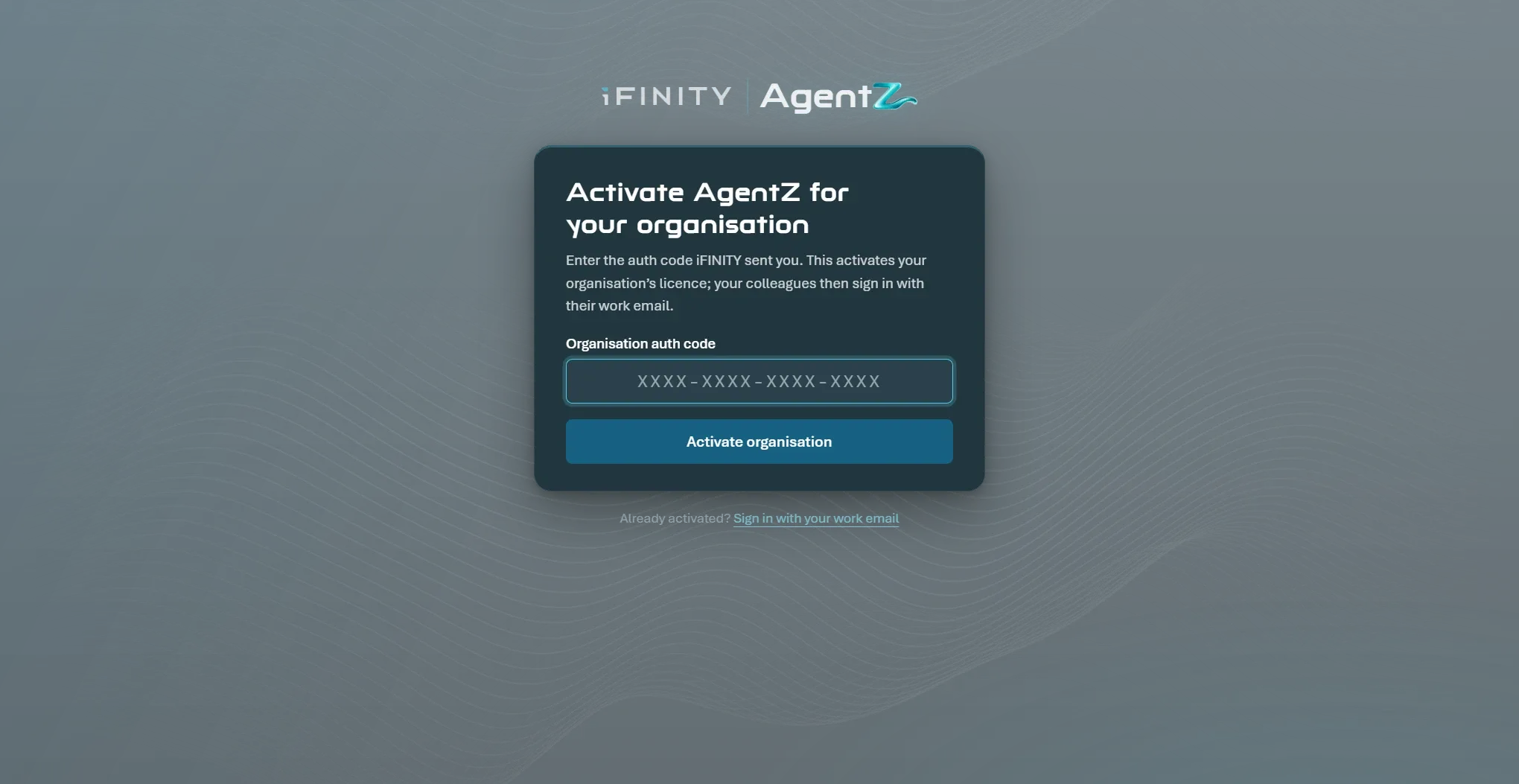
The card shows Activate AgentZ for your organisation.
-
In Organisation auth code, enter the code iFINITY sent you. It has four groups of four letters and numbers; AgentZ adds the dashes for you.
-
Click Activate organisation.
The card shows your organisation’s name and is ready on AgentZ.
-
Click Continue to sign in, then sign in with your work email as described in Signing in with your work email.
Why the sign-in screen is showing
Section titled “Why the sign-in screen is showing”AgentZ shows the sign-in screen again when you need to do something before you carry on. A note at the top of the card says why:
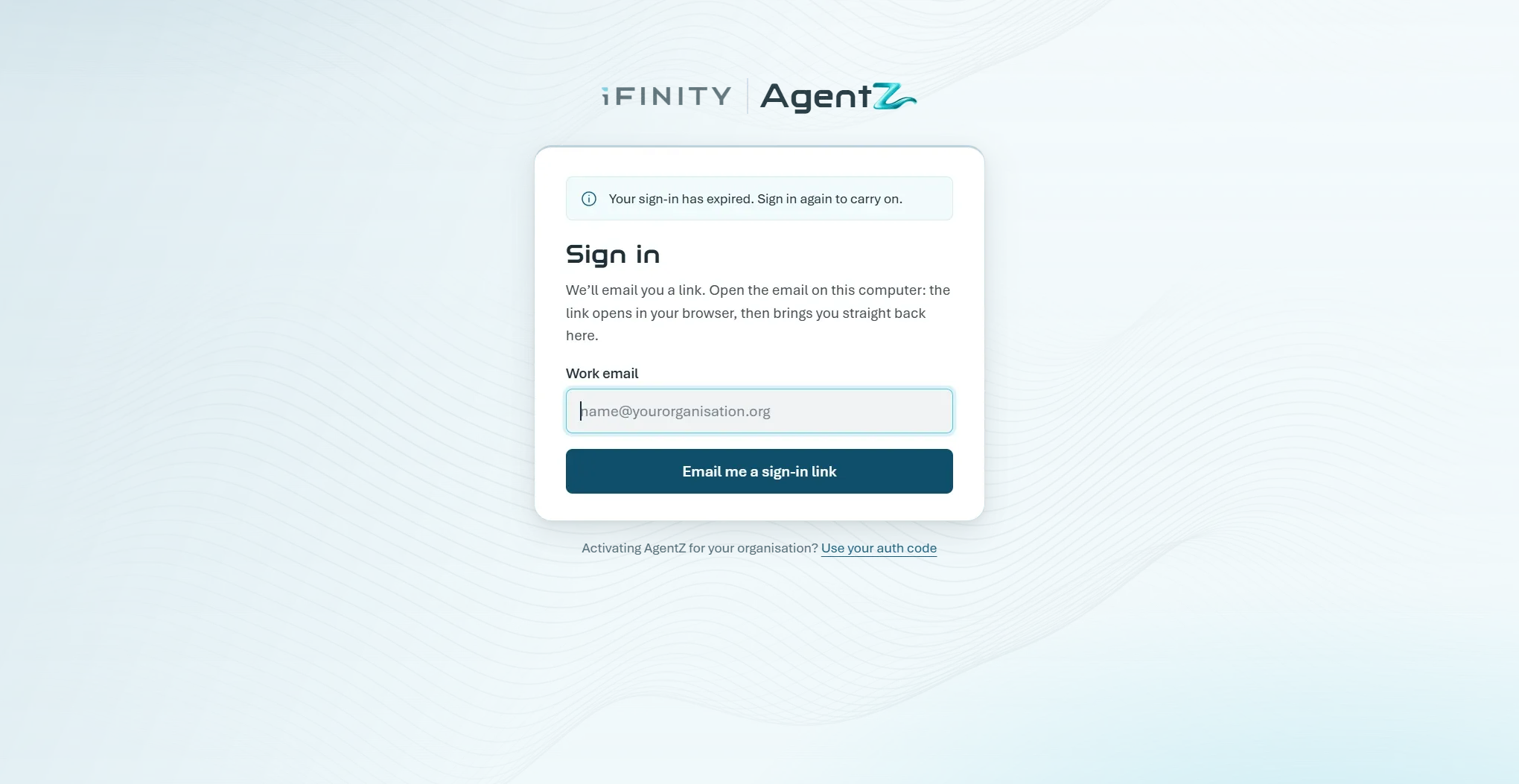
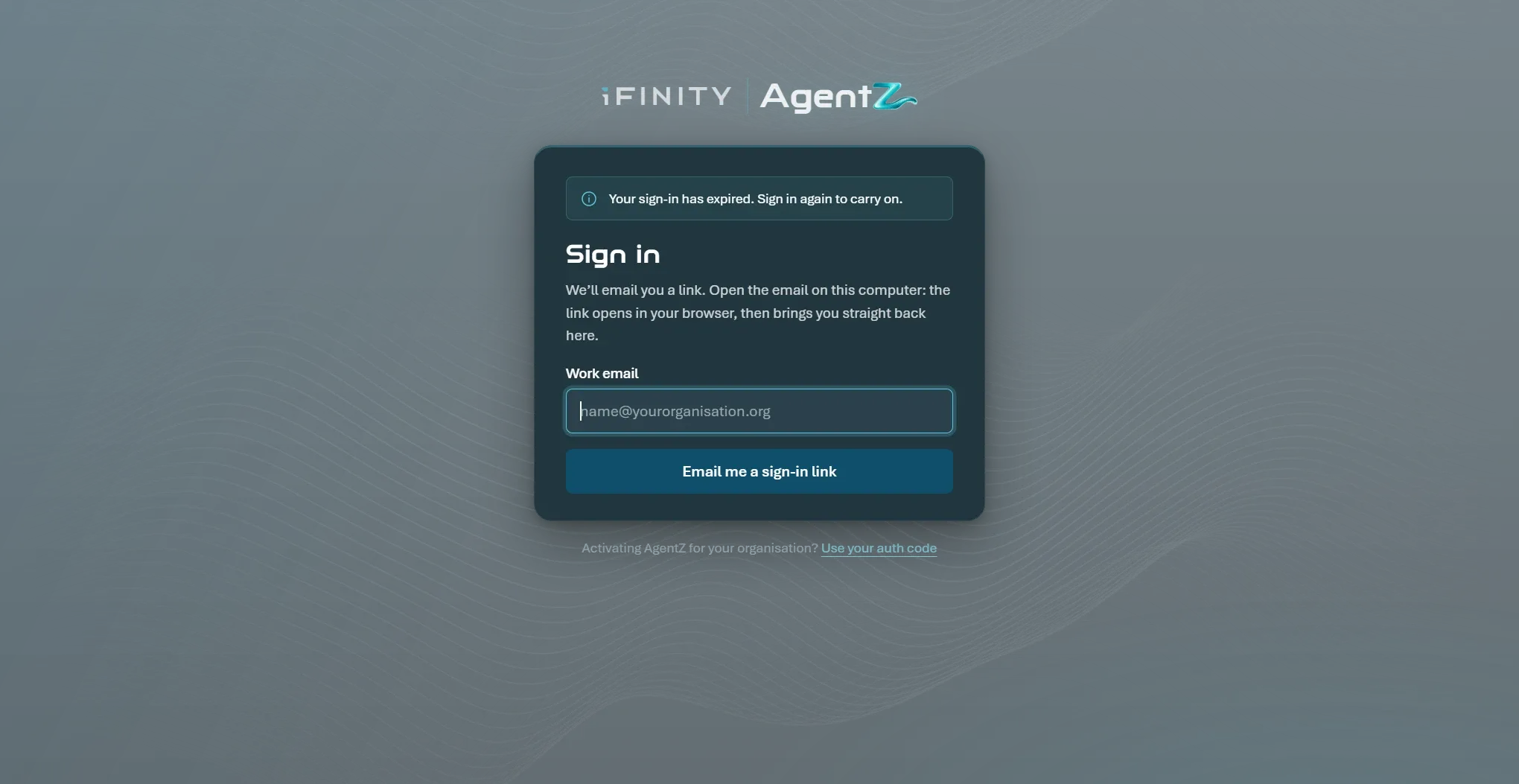
| What the note says | What it means | What to do |
|---|---|---|
| Your sign-in has expired. Sign in again to carry on. | Your AgentZ sign-in on this computer has ended. | Sign in with your work email again. |
| The AgentZ licence for your organisation has ended. | Your organisation’s licence is no longer active. | Ask your Organisation admin to renew it, then sign in again. |
| The AgentZ licence for your organisation is paused. | Your organisation’s licence is paused. | Ask your Organisation admin about it. |
| Your organisation hasn’t been activated on AgentZ yet. | Nobody has entered your organisation’s auth code. | Your Organisation admin activates it. See Activating AgentZ for your organisation. |
| You’ve signed out of AgentZ. Your iMIS settings are kept on this computer. | You, or someone on this computer, clicked Sign out of AgentZ. | Sign in again when you are ready. |
| This computer was signed out of AgentZ. Your iMIS settings are kept on this computer. Sign in again to carry on. | This computer’s AgentZ sign-in was ended before it expired. | Sign in with your work email again. |
If AgentZ cannot reach iFINITY’s service, the card shows AgentZ can’t reach the AgentZ service and Try again. You are still signed in, so you do not need a new link: check your internet connection, and AgentZ keeps trying in the background.
For other problems, see AgentZ sign-in troubleshooting.
Signing out
Section titled “Signing out”To sign out of AgentZ on this computer, go to Settings > AgentZ and click Sign out of AgentZ. Your iMIS sign-in and settings stay on this computer, so when you sign in again you carry on where you were. See AgentZ settings.
If you no longer use AgentZ on this computer, you can remove it without signing in: under the sign-in card, next to No longer using AgentZ on this computer?, click Remove AgentZ. See Removing AgentZ completely.
Do I need the auth code to sign in? No. Only the person who activates your organisation uses it, once. Everyone signs in with their work email.
Can I open the sign-in link on my phone? No. Open the email on the computer where the AgentZ app is installed. The link signs in the app on the computer where it is opened.
Does the sign-in page ask for my iMIS password? No. Signing in to AgentZ only uses your work email. You enter your iMIS username and password in the AgentZ app afterwards. See Connecting your iMIS site.
Do I sign in again every day? No. AgentZ keeps you signed in on this computer until you sign out, your sign-in expires, or your Organisation admin signs this computer out.