

Connecting your iMIS site
Connecting your iMIS site saves your iMIS staff username and password in the AgentZ app, so that AgentZ can sign in to iMIS as you. What that means for your iMIS permissions is described in Security and trust.
Before you begin
Section titled “Before you begin”- Your iMIS staff username and password for your organisation’s iMIS site. You enter them in the AgentZ app, never on a web page. If you do not have a staff sign-in, ask whoever looks after iMIS in your organisation.
- Your iMIS site linked to your licence. AgentZ already knows your organisation’s iMIS site from your licence. If Settings > Overview shows Not linked yet for iMIS site, your licence is not linked to an iMIS site yet: ask your Organisation admin, or email helpdesk@ifinity.co.uk. You cannot connect until it is.
- Your security code device, if your iMIS site asks staff for a security code when they sign in (multi-factor authentication). AgentZ enters your username and password, and you enter the code.
Connecting your iMIS site
Section titled “Connecting your iMIS site”The first time you sign in to AgentZ on a computer, AgentZ opens Settings for you on its Overview tab, which lists what is left to set up. The iMIS sign-in row shows No sign-in saved and the button Enter your iMIS sign-in, which takes you to the step below. See Overview settings.
Do the following to connect your iMIS site:
-
In the AgentZ app, click Setup or Settings in the sidebar.
-
Click the iMIS tab, or Enter your iMIS sign-in on the Overview tab.
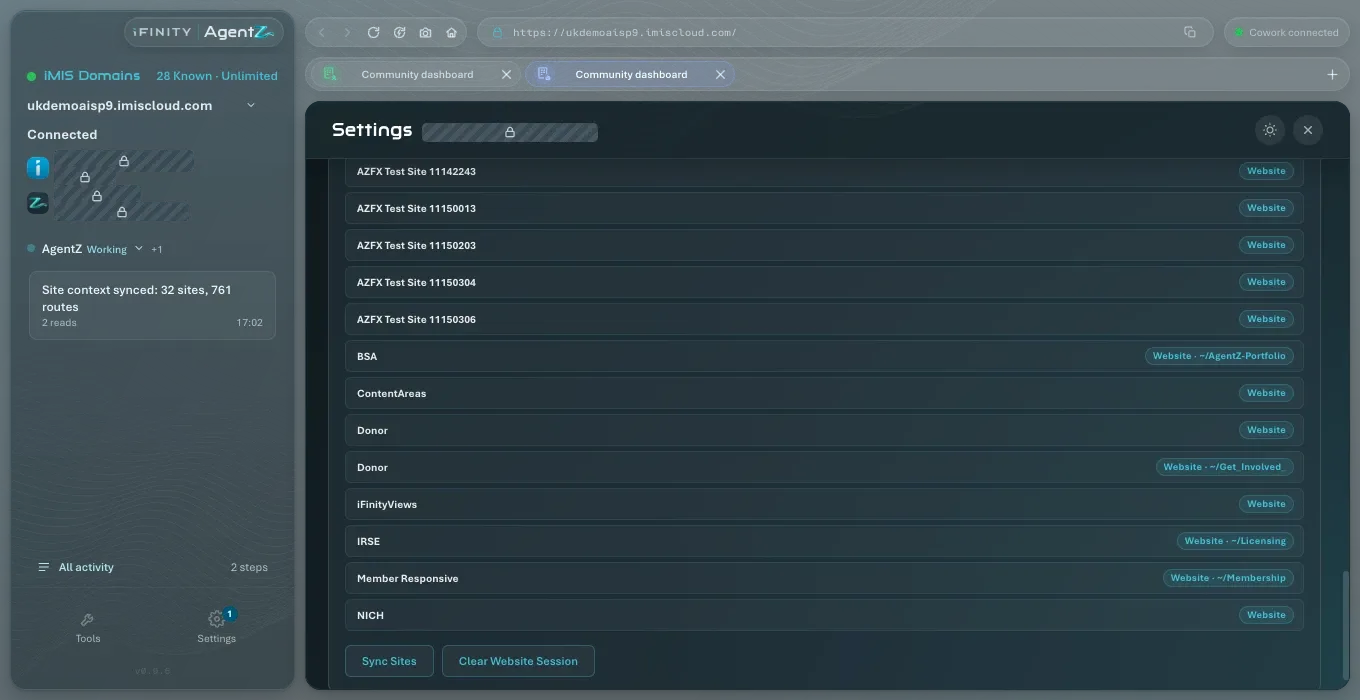
Under Connect iMIS, step 1 iMIS site shows your iMIS site’s address, such as
yourorg.imiscloud.com.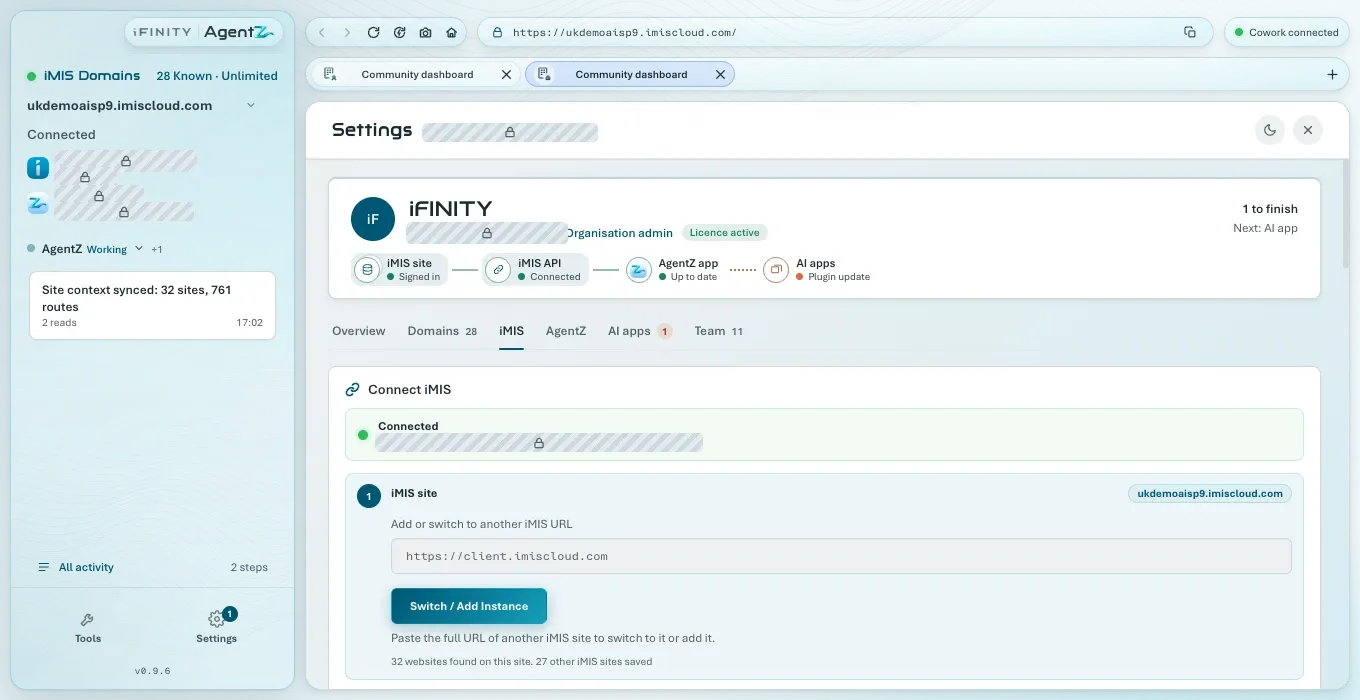
-
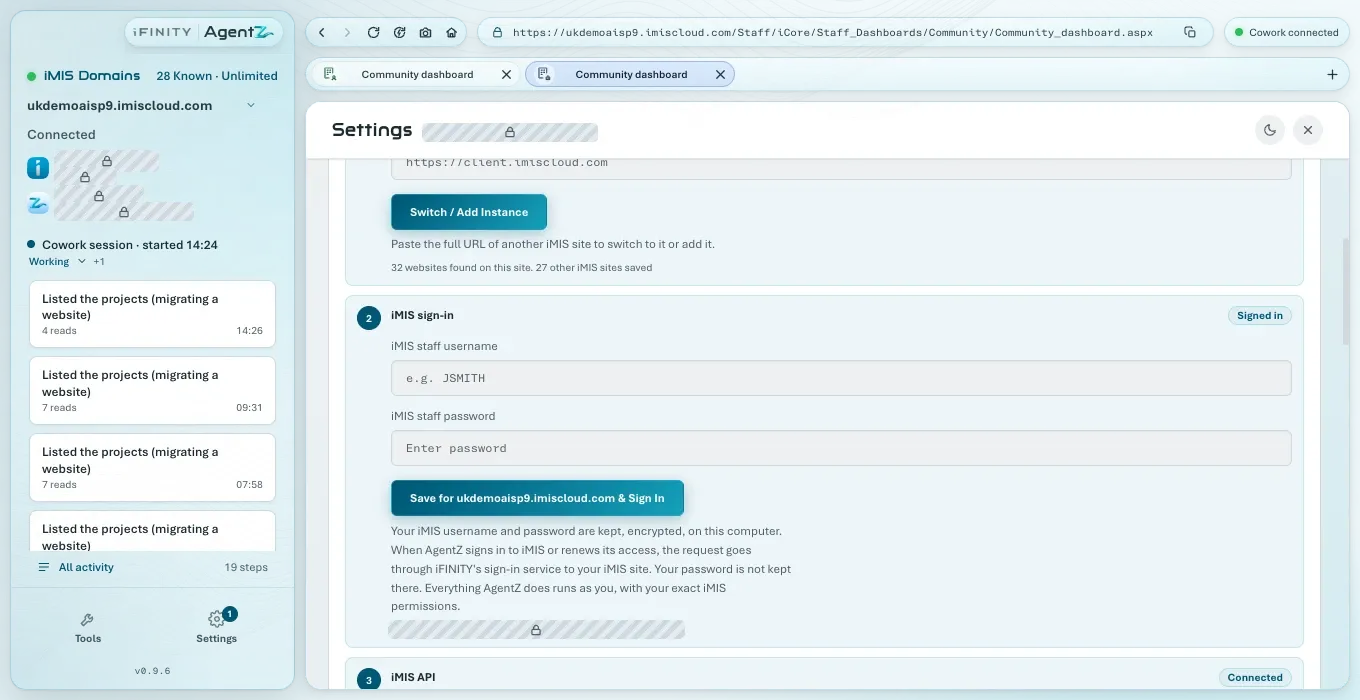
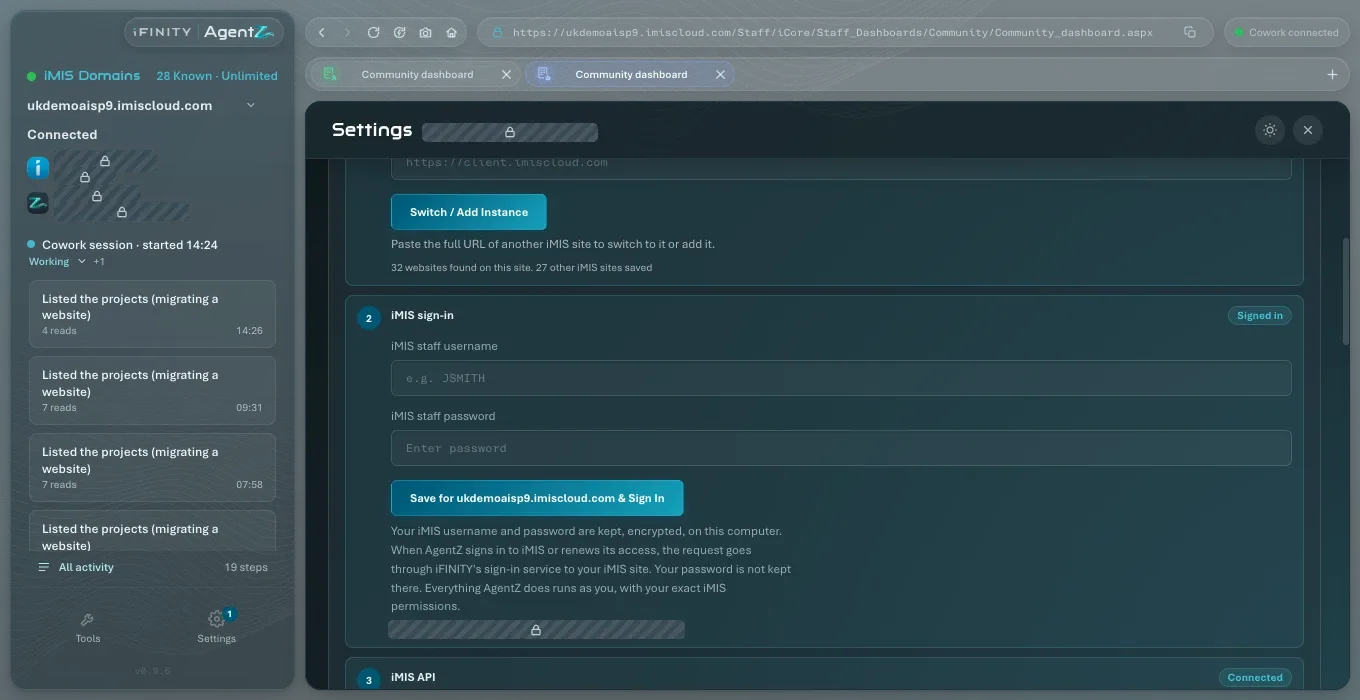
In step 2 iMIS sign-in, enter your username in iMIS staff username and your password in iMIS staff password.
-
Click Save and sign in to your iMIS site.
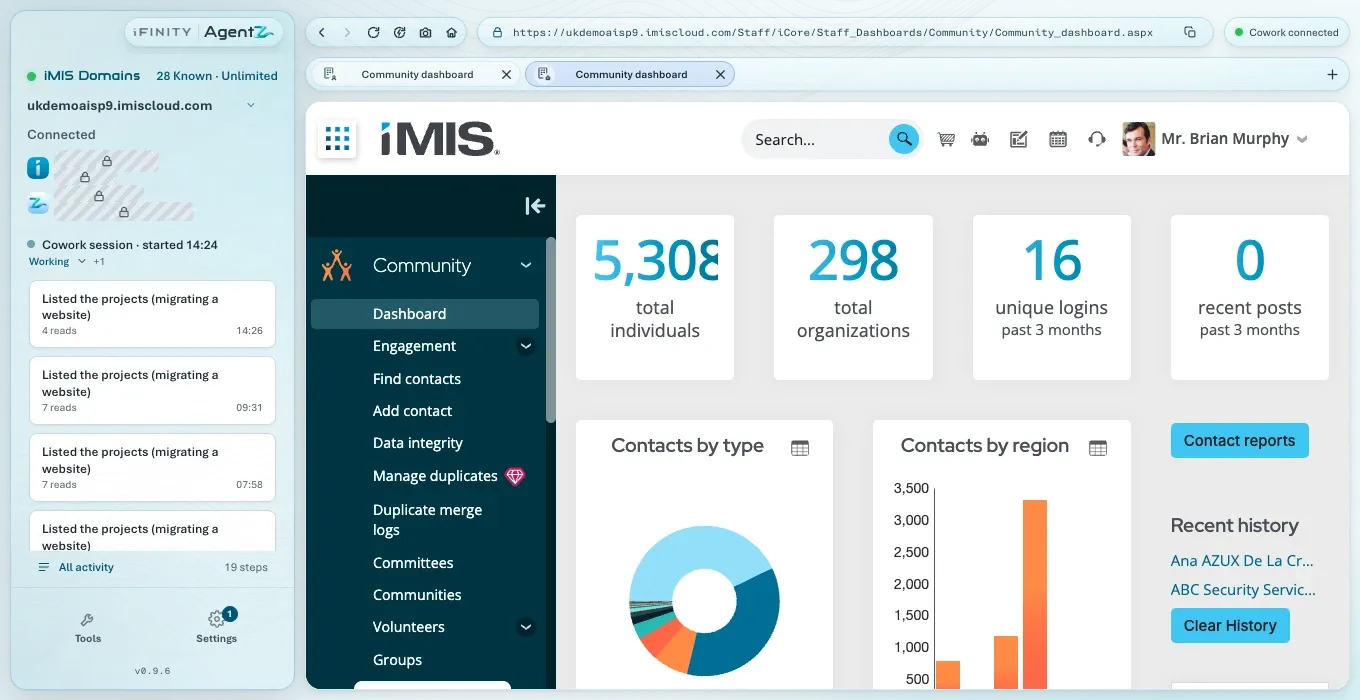
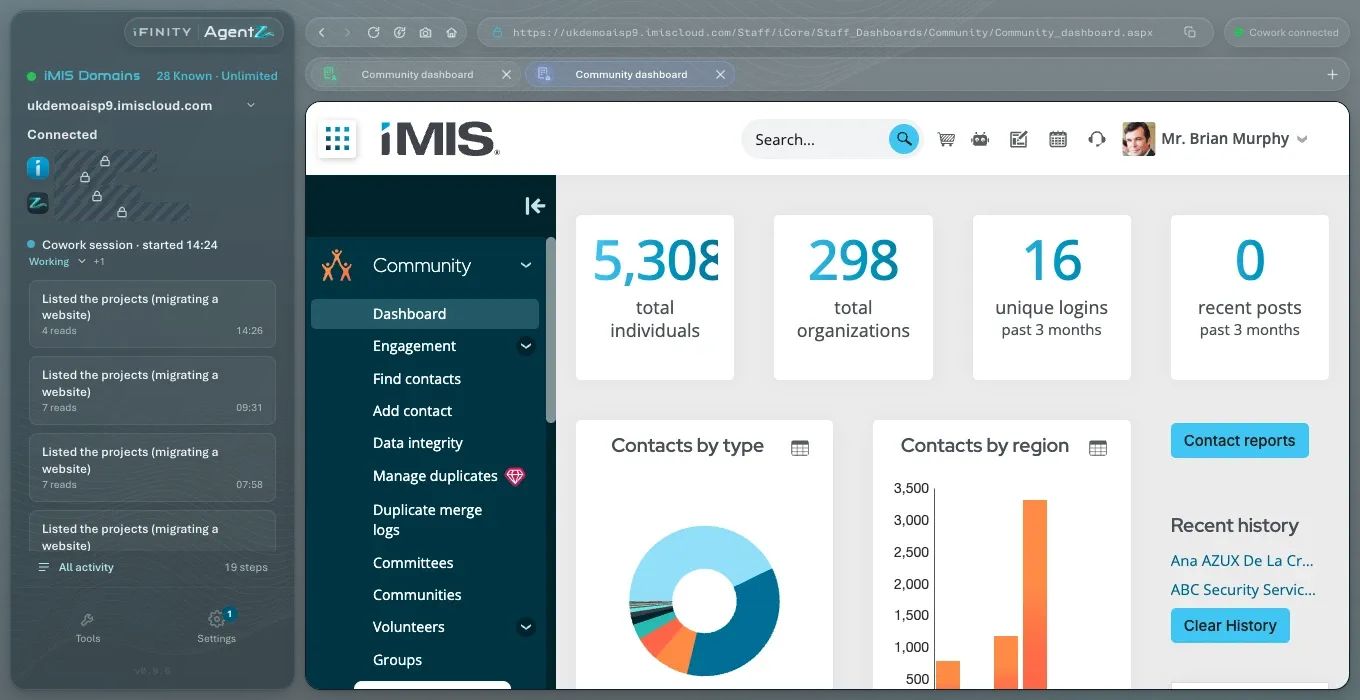
Settings closes. The iMIS browser shows Opening and your iMIS site’s address while AgentZ signs in, and the pill at the top right reads AgentZ: iMIS sign-in.
-
If your iMIS site asks for a security code, the sidebar shows iMIS security code required and “Enter your iMIS security code, then click Sign In”. Enter the code from your device on the iMIS page in the iMIS browser, then click Sign In on that page.
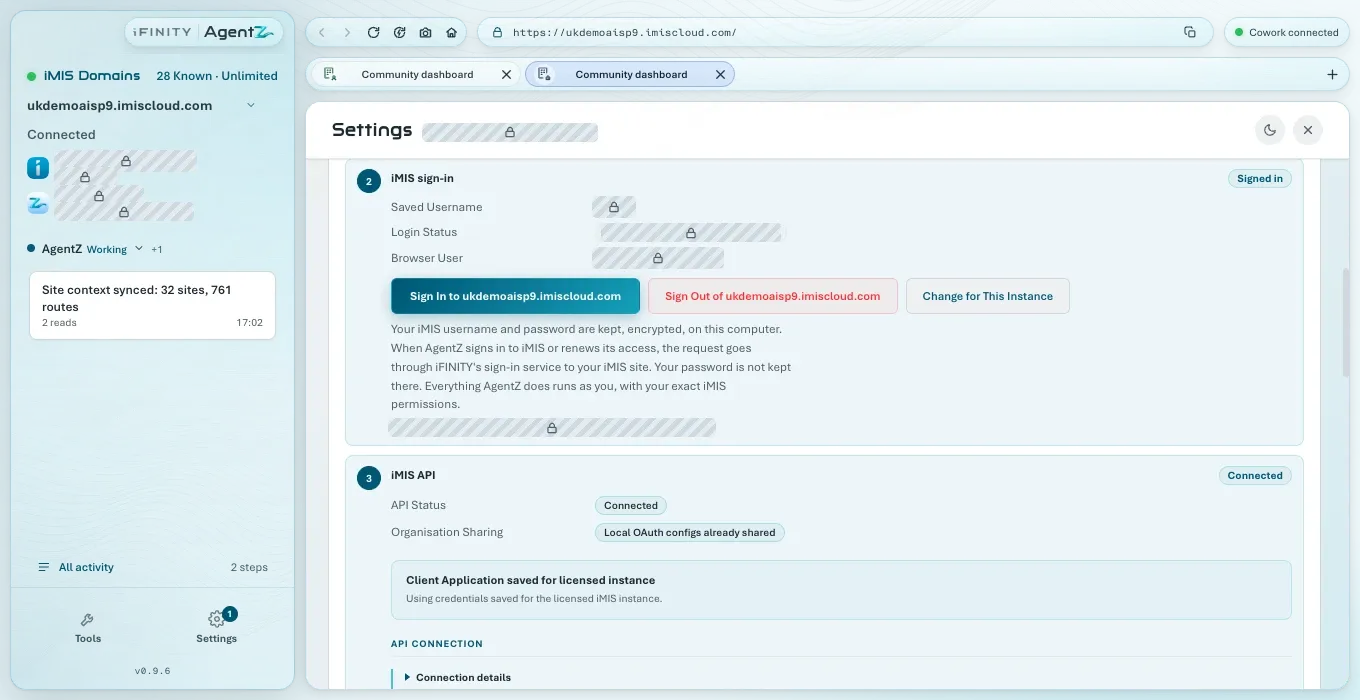
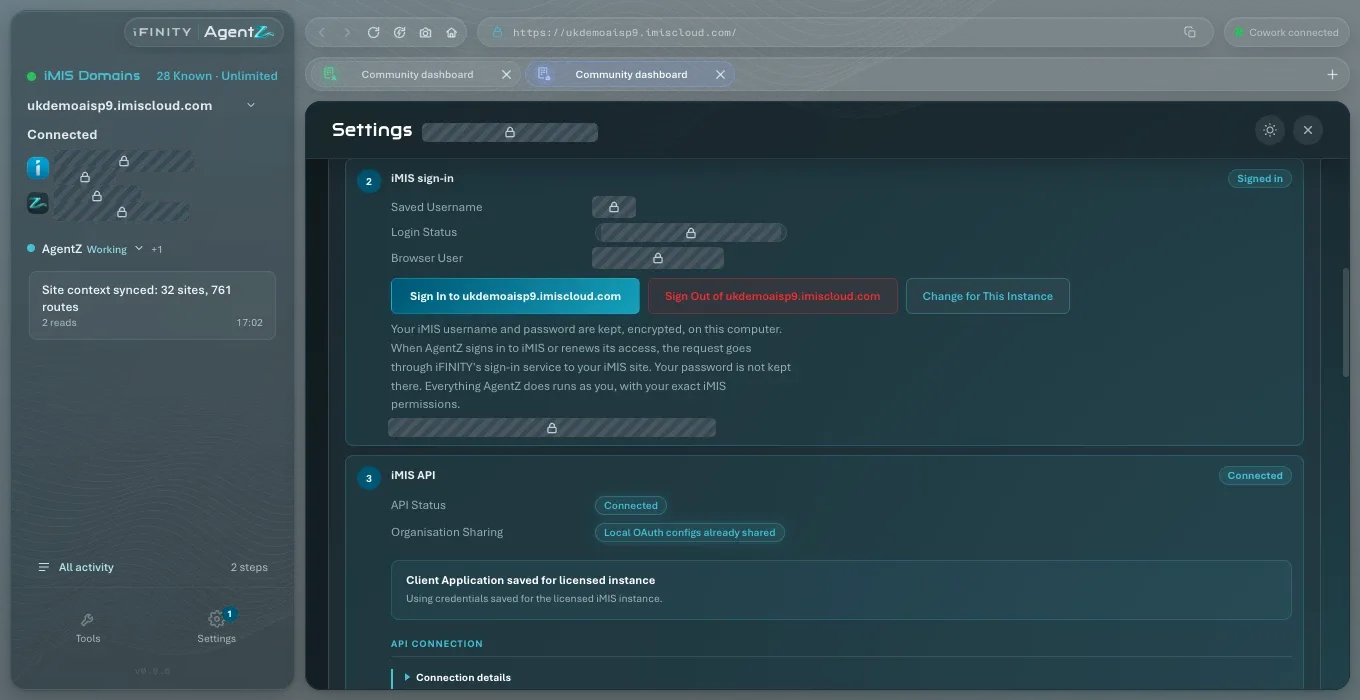
Your iMIS staff site opens in the iMIS browser. The sidebar shows your iMIS site with Connected under it, and your iMIS name. In Settings > iMIS, step 2 iMIS sign-in shows Signed in, your Saved username, and Sign-in status “Signed in as” your name.
The iMIS sign-in step once you are connected
Section titled “The iMIS sign-in step once you are connected”After your sign-in is saved, step 2 iMIS sign-in shows it instead of the form:
- Saved username: the iMIS username AgentZ signs in with.
- Sign-in status: whether the iMIS browser is signed in, and as whom.
- iMIS browser user: the iMIS person the iMIS browser is signed in as.
- Sign in to your iMIS site: signs the iMIS browser out and in again with the saved sign-in. Settings closes while it does.
- Sign out of your iMIS site: signs the iMIS browser out of iMIS. Your saved sign-in stays.
- Change sign-in for your iMIS site: shows the empty form, to save a different username or a new password.
How your iMIS username and password are kept, and where they go, is described in Your iMIS username and password.
What comes next
Section titled “What comes next”Your Organisation admin also sets up the iMIS API connection once for your iMIS site, which lets AgentZ read and change records through the iMIS API as you. Settings > Overview shows it as iMIS API. See Setting up the iMIS API connection.
Then connect your AI app. See Connecting your AI app.
If iMIS does not accept your sign-in, see iMIS sign-in troubleshooting.
Do I sign in to iMIS in the iMIS browser myself? No. You save your username and password in Settings > iMIS once, and AgentZ signs in with them. You only type a security code, if your iMIS site asks for one.
I changed my iMIS password. What do I do? Go to Settings > iMIS, click Change sign-in for your iMIS site, and save your username with the new password.
Can I connect more than one iMIS site? Yes. See Adding another iMIS site.