

iMIS settings
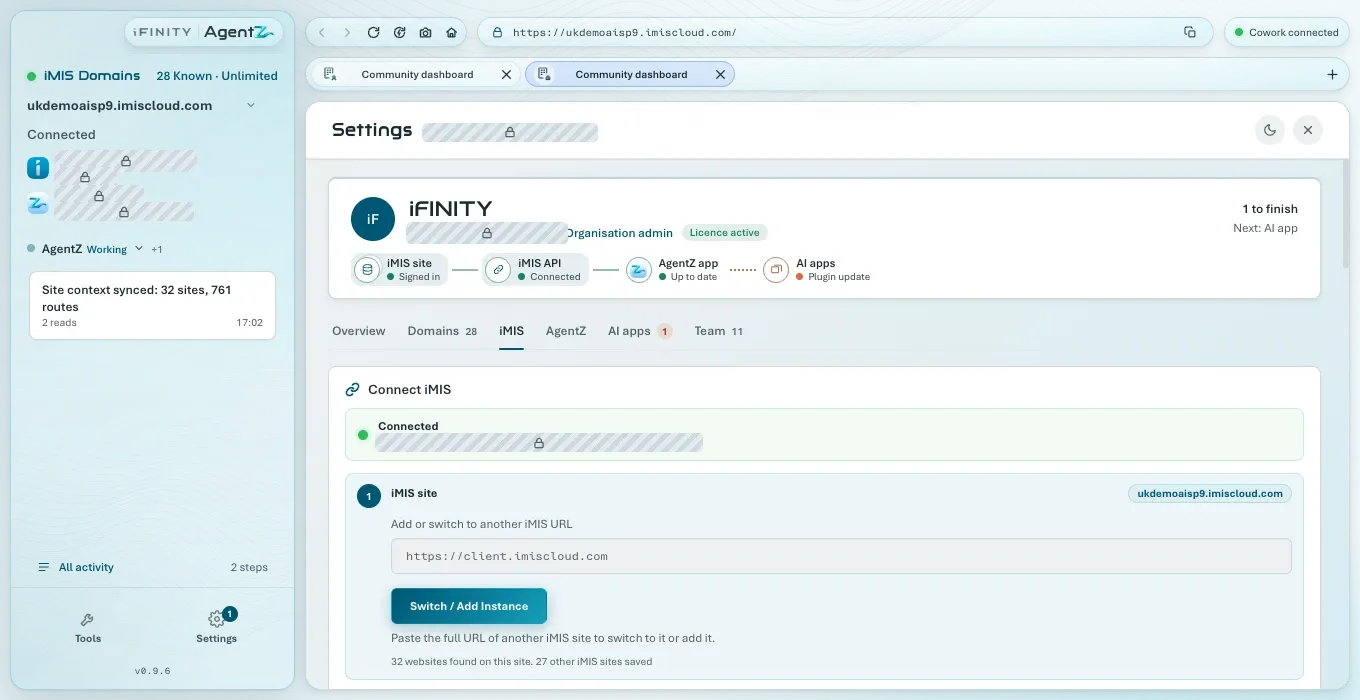
The iMIS tab connects AgentZ to your iMIS site. It has three numbered steps under Connect iMIS, 1 iMIS site, 2 iMIS sign-in and 3 iMIS API, each with a badge that says whether it is done, followed by your websites. The badge at the top reads Connected once all three are.
1 iMIS site
Section titled “1 iMIS site”- iMIS site: the address of the iMIS site AgentZ is working in. For most organisations this is the iMIS site your licence is for.
- Add or switch to another iMIS site and Use this iMIS site: paste the full address of another iMIS site to switch to it, or to add it. This appears only when your licence lets you work with more than one iMIS site. See Adding another iMIS site.
- The line below: how many websites AgentZ found on this iMIS site, and how many other iMIS sites are saved.
2 iMIS sign-in
Section titled “2 iMIS sign-in”Before a sign-in is saved, this step shows iMIS staff username, iMIS staff password and Save and sign in to your iMIS site. See Connecting your iMIS site.
Once it is saved:
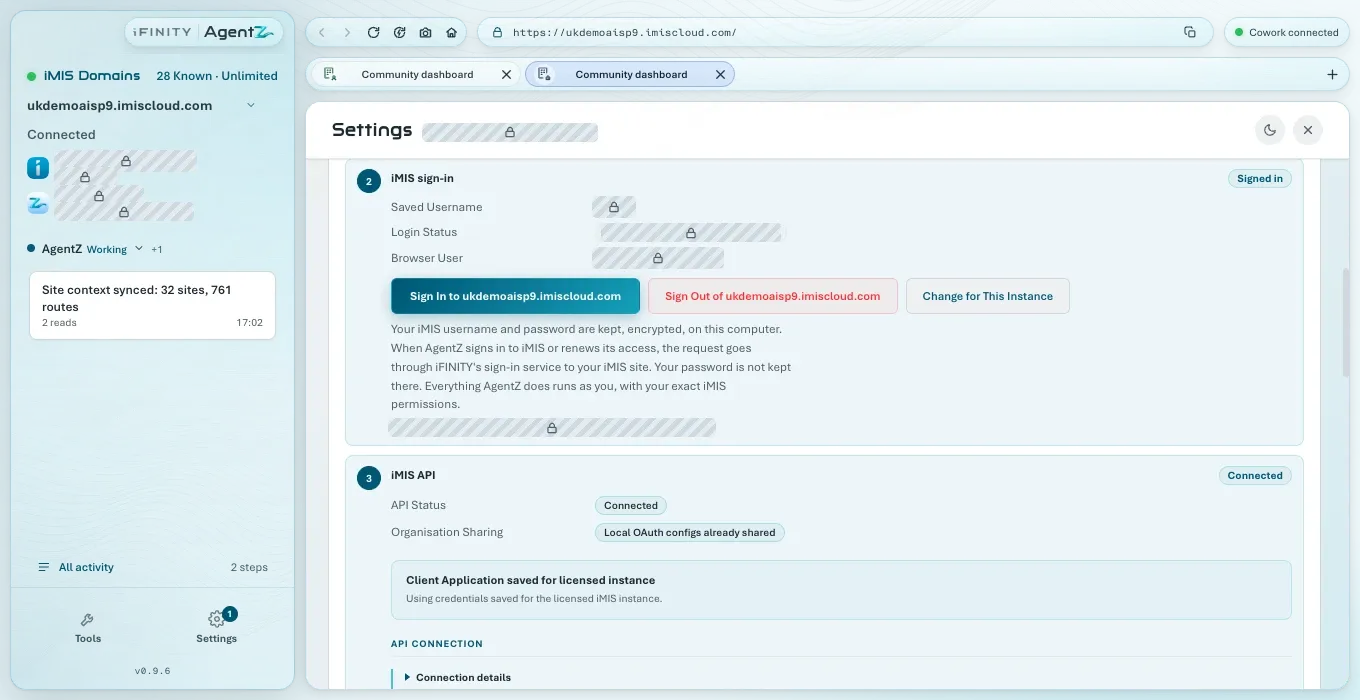
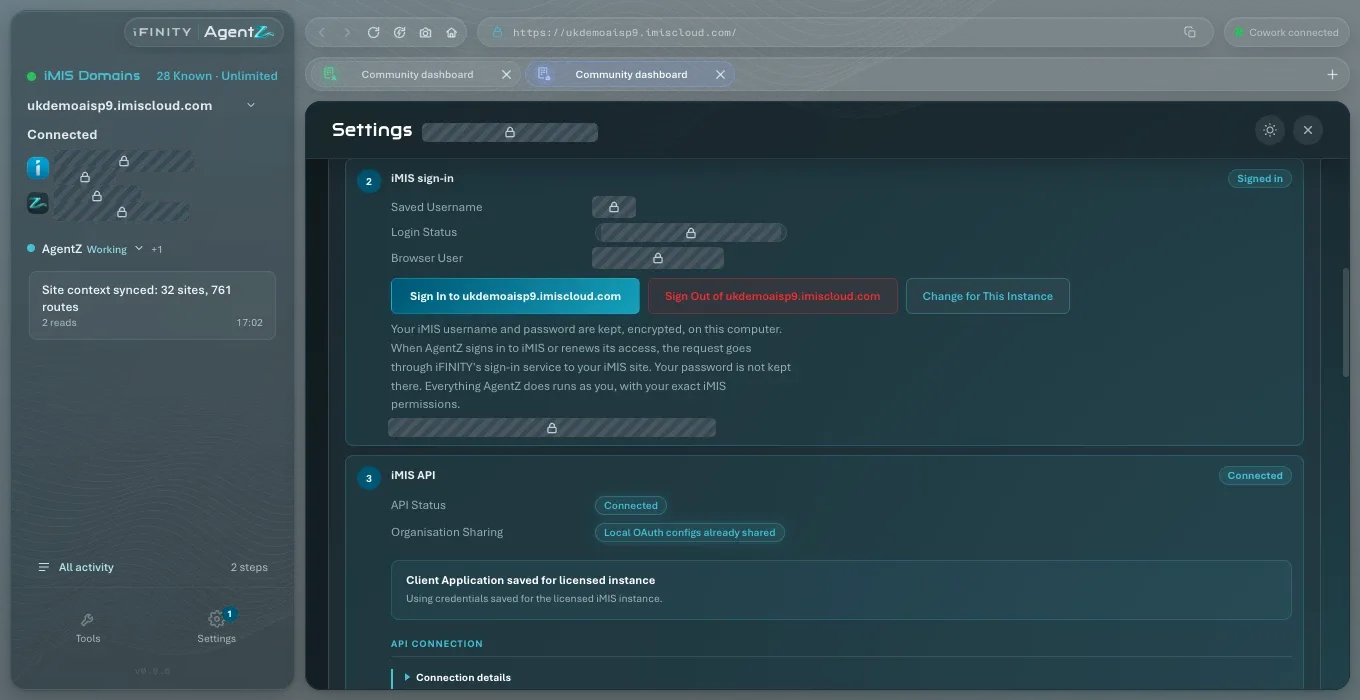
| Field or button | What it shows or does |
|---|---|
| Saved username | The iMIS username AgentZ signs in with |
| Sign-in status | Whether the iMIS browser is signed in, and as whom, for example “Signed in as” and your name |
| iMIS browser user | The iMIS person the iMIS browser is signed in as now |
| Sign in to your iMIS site | Signs the iMIS browser out and in again with the saved sign-in. Settings closes while it does |
| Sign out of your iMIS site | Signs the iMIS browser out of iMIS. The saved sign-in stays |
| Change sign-in for your iMIS site | Shows the empty form, to save a different username or a new password. There is no cancel: once you click it, save a sign-in to carry on |
The note under the buttons says how your iMIS username and password are kept. See Your iMIS username and password.
3 iMIS API
Section titled “3 iMIS API”The iMIS API connection lets AgentZ read and change records through the iMIS API as you. An Organisation admin sets it up once for each iMIS site. See Setting up the iMIS API connection.
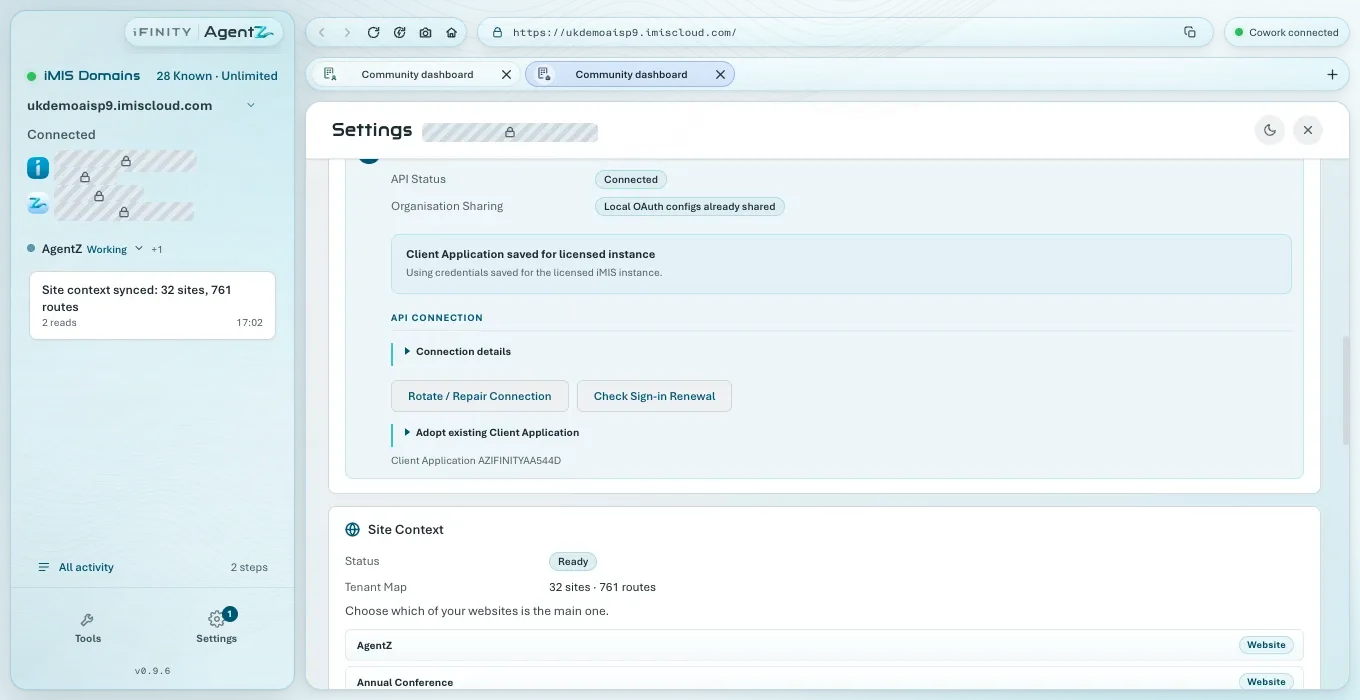
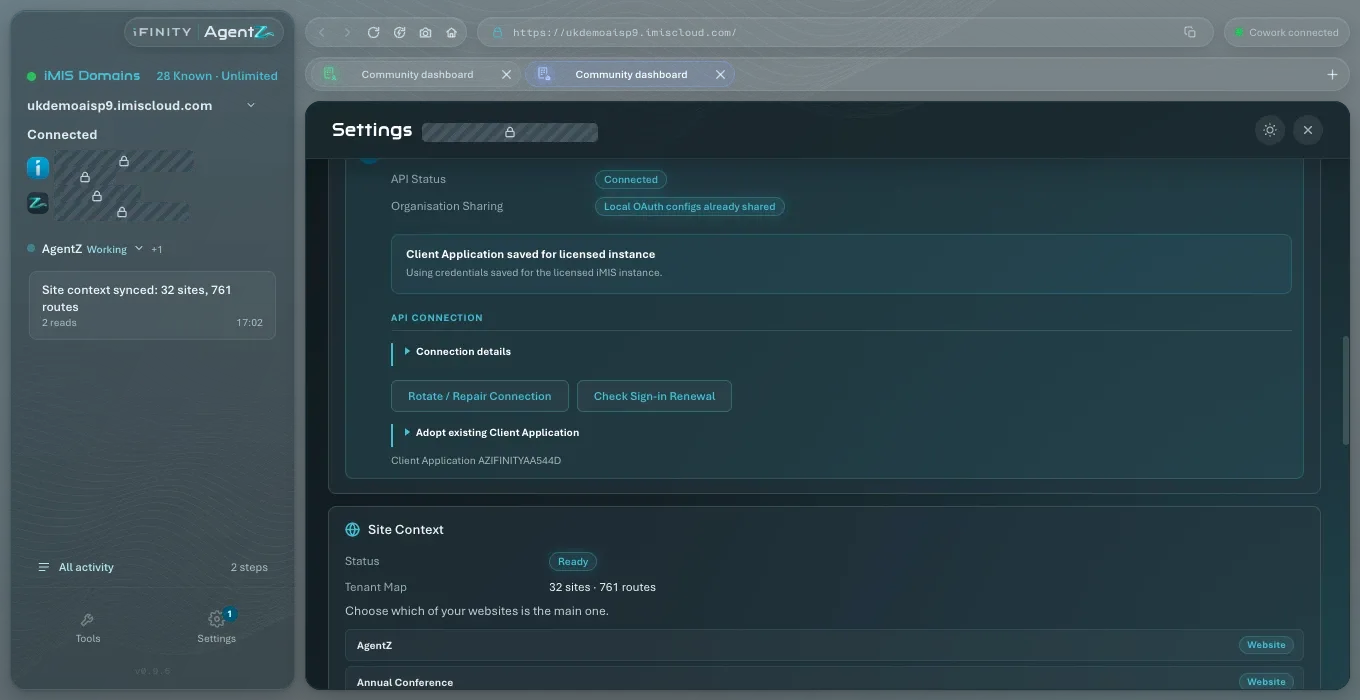
- API Status: Connected or Not connected.
- Organisation Sharing: whether this connection is shared with the rest of your organisation, so that colleagues using this iMIS site do not set it up again.
- The box below: which Client Application the connection uses, and where its details came from.
- Set Up / Adopt API Connection: shown before the connection is set up. As a team member, you see “API connection is managed by your Organisation admin.” instead, unless your Organisation admin lets team members set up connections.
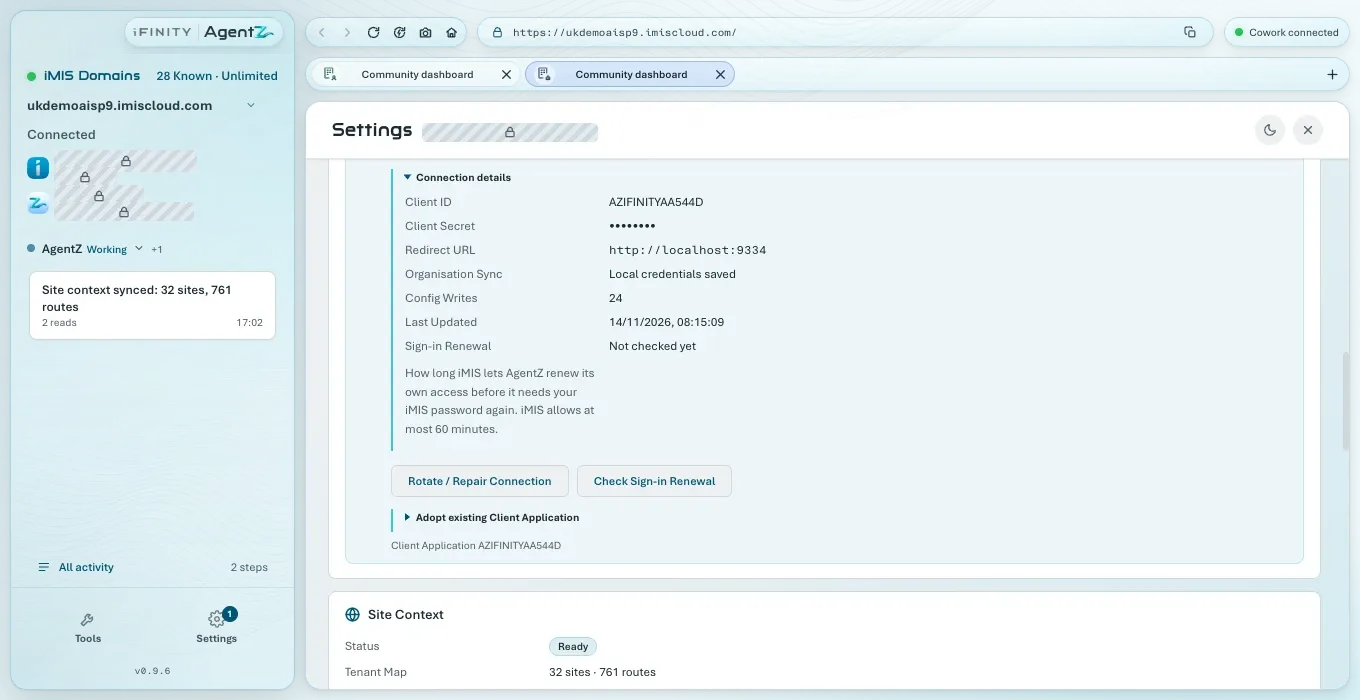
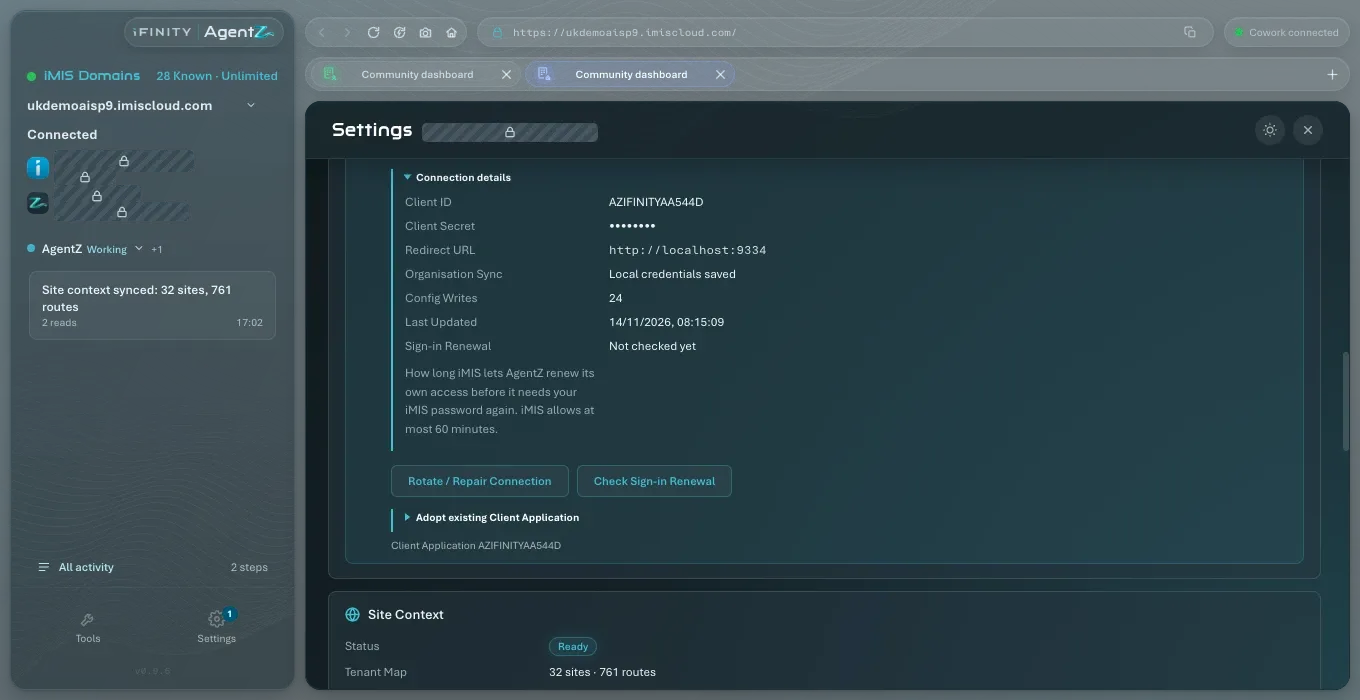
Under API Connection, click Connection details to see:
| Field | What it shows |
|---|---|
| Client ID | The Client Application’s ID, as iMIS lists it under Settings > Contacts > Client applications |
| Client Secret | Always hidden |
| Redirect URL | The address the Client Application in iMIS must name for AgentZ |
| Organisation Sync, Config Writes | Details iFINITY support may ask for |
| Last Updated | When the connection was last changed |
| Sign-in Renewal | How long iMIS lets AgentZ renew its own access before it needs your iMIS password again. iMIS allows at most 60 minutes. It reads Not checked yet until you click Check Sign-in Renewal |
The buttons below, Rotate / Repair Connection, Check Sign-in Renewal and Adopt existing Client Application, are for Organisation admins, and are described in Setting up the iMIS API connection.
Your websites
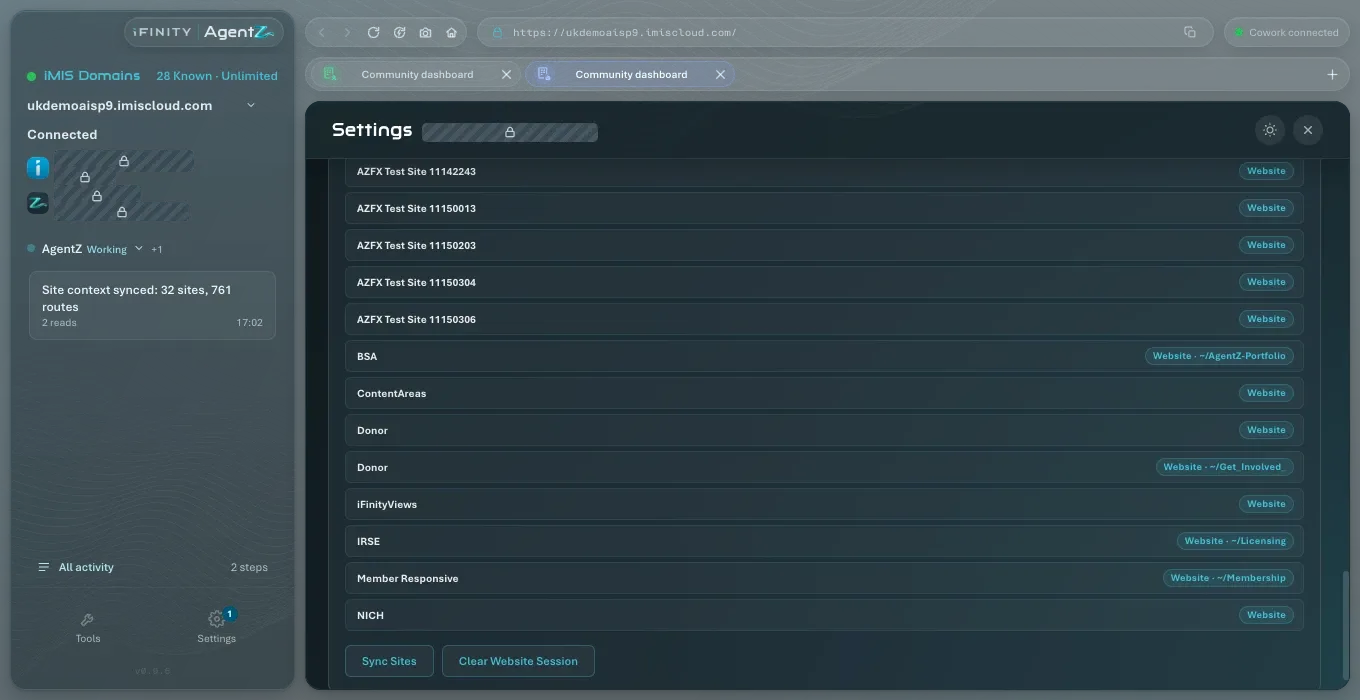
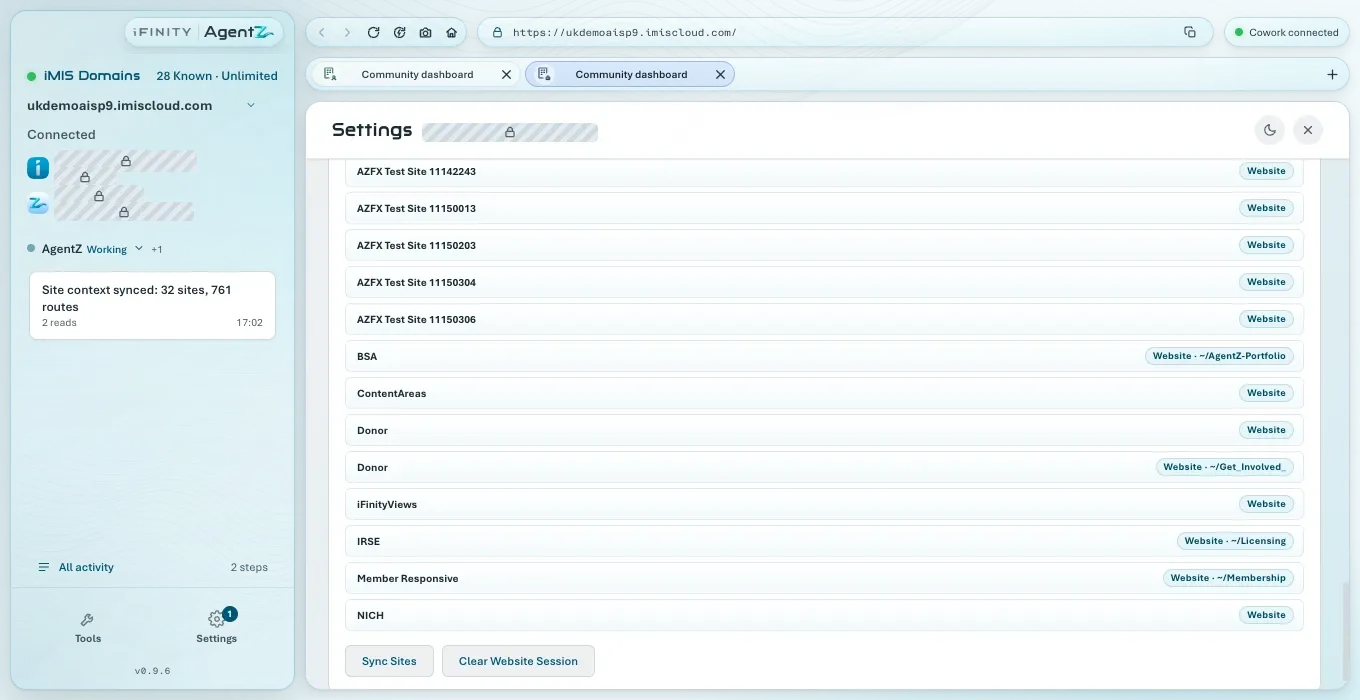
Section titled “Your websites”The last card lists the websites in your iMIS site, which AgentZ reads through the iMIS API.
- Status: Ready, Syncing, Sync failed, or Waiting for API until the iMIS API is connected.
- Websites: how many sites and how many pages (“routes”) AgentZ has read, or No sites synced.
- The line above the list: your main website, or “Choose which of your websites is the main one.” Click a website in the list to make it your main website. See Choosing your main website.
- Sync Sites: reads the list again, for example after a website is added in iMIS. It reads Syncing… while it runs.
- Clear Website Session: clears what the iMIS browser’s Website tabs remember, so the next one opens your website as a new visitor. It cannot be used while an agent is working.
Does Sign out of my iMIS site delete my saved sign-in? No. It signs the iMIS browser out of iMIS. To change the saved sign-in, use Change sign-in for your iMIS site.
Why is Set Up / Adopt API Connection not shown to me? Only an Organisation admin sets up the iMIS API connection, unless your Organisation admin lets team members do it on the Team tab.