

Setting up the iMIS API connection
The iMIS API connection lets AgentZ read and change records in your iMIS site through the iMIS API, as each person who uses it. AgentZ makes it through a Client Application in iMIS. You set it up once for each iMIS site, and everyone in your organisation then uses it.
Before you begin
Section titled “Before you begin”- Your iMIS sign-in saved and signed in. The set-up runs in the iMIS browser, signed in as you. Until Settings > Overview shows iMIS sign-in as Signed in, the set-up button cannot be pressed, and its tooltip names the step to do first.
- System administrator rights in iMIS. AgentZ creates the Client Application under Settings > Contacts > Client applications in iMIS, which only a system administrator can do. If you are not one, the set-up stops and your existing connection, if there is one, is kept.
- No agent using the iMIS browser. The set-up needs the iMIS browser for itself. While an agent is working in it, the set-up buttons cannot be pressed.
Setting up the iMIS API connection
Section titled “Setting up the iMIS API connection”Do the following to set up the iMIS API connection:
-
Go to Settings > iMIS and scroll to step 3 iMIS API.
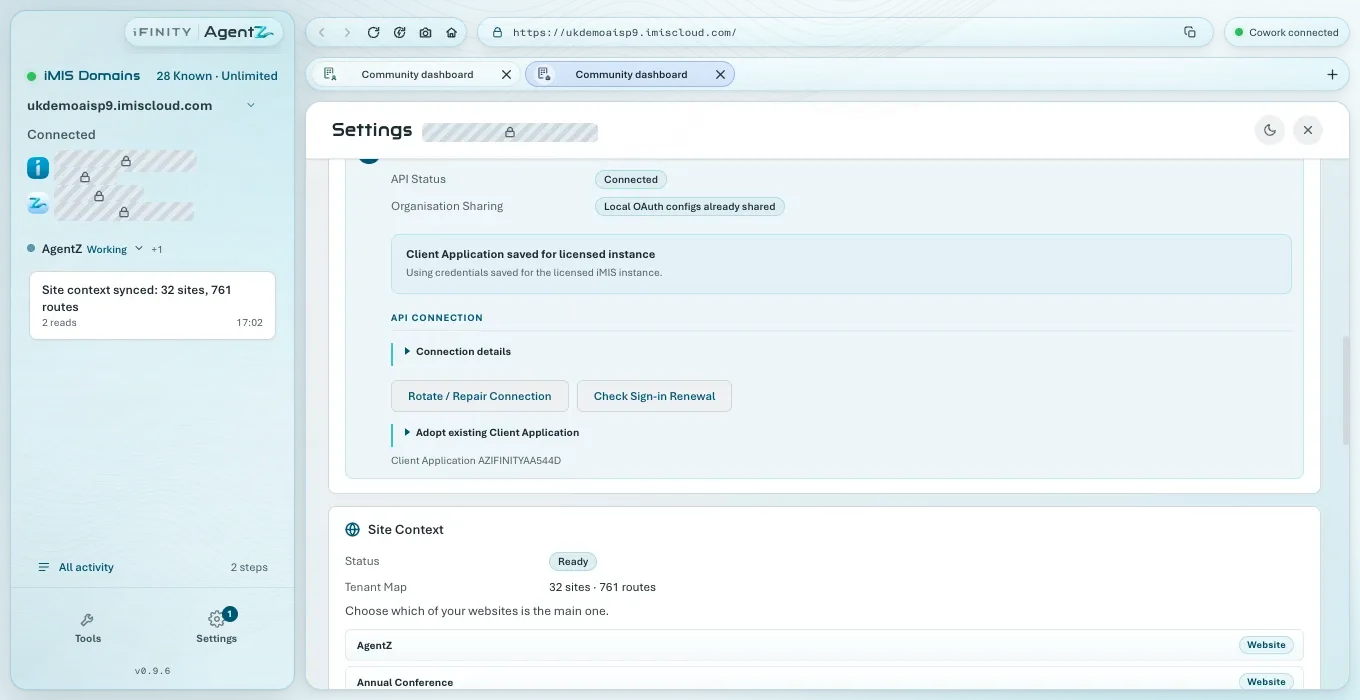
Before it is set up, API Status shows Not connected, and the step says AgentZ creates a new AgentZ API Client Application in your iMIS site and checks that iMIS accepts it.
-
Click Set Up / Adopt API Connection.
Settings closes. The iMIS browser shows AgentZ creating the Client Application in iMIS, and the sidebar shows AgentZ: API connection setup while it works. Leave the iMIS browser alone until it finishes.
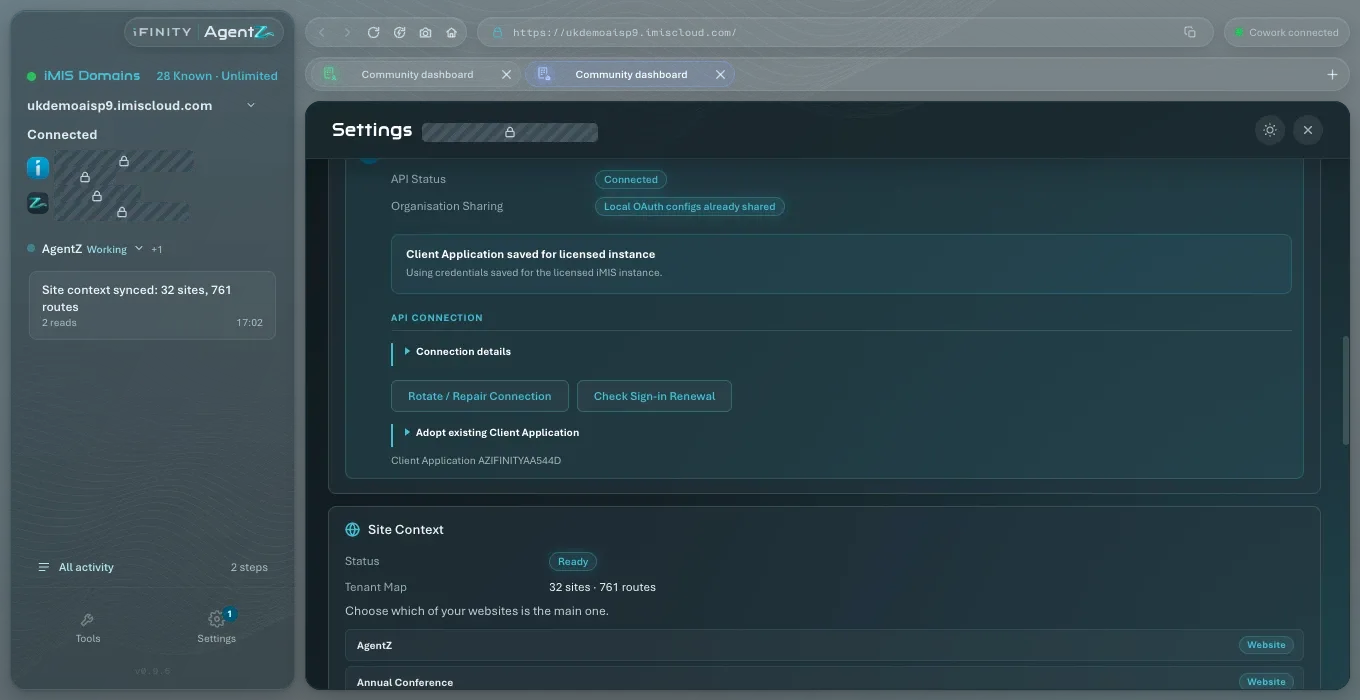
When it finishes, step 3 iMIS API shows Connected, API Status shows Connected, and Settings > Overview shows iMIS API as Connected, with the Client Application’s name, such as Client Application AZ….
What team members see
Section titled “What team members see”A team member who cannot set up the connection sees “API connection is managed by your Organisation admin.” on step 3 iMIS API. Until it is set up, Settings > Overview shows iMIS API as Waiting for your Organisation admin: “Your Organisation admin connects the iMIS API for” your iMIS site. This step is not theirs to do, and nothing is wrong with their setup.
Once you have set it up, team members’ AgentZ uses it. If a team member’s Overview still shows Waiting for your Organisation admin afterwards, they close AgentZ and open it again.
Using a Client Application you created in iMIS
Section titled “Using a Client Application you created in iMIS”If your organisation created the Client Application directly in iMIS, under Settings > Contacts > Client applications, rather than by AgentZ, adopt it instead.
The Client Application in iMIS must use the redirect URL http://localhost:9334, with Skip server endpoint validation ticked.
Do the following to adopt an existing Client Application:
-
Go to Settings > iMIS, step 3 iMIS API.
-
Open Adopt existing Client Application.
-
Enter its Client ID and Client Secret.
-
Click Verify & Adopt.
AgentZ asks you to confirm: “Adopt Client Application” and its name, then “AgentZ will verify it with iMIS before storing it.” If there is already a connection, it says instead “This replaces the current API configuration after AgentZ verifies it with iMIS.”
-
Click OK.
API Status shows Verifying Client Application with iMIS… while AgentZ checks it.
AgentZ checks the Client ID and secret with iMIS, and then uses that Client Application. If iMIS does not accept them, API Status shows Adopt failed - and the reason, and the current connection, if there is one, is kept.
The iMIS API step, field by field
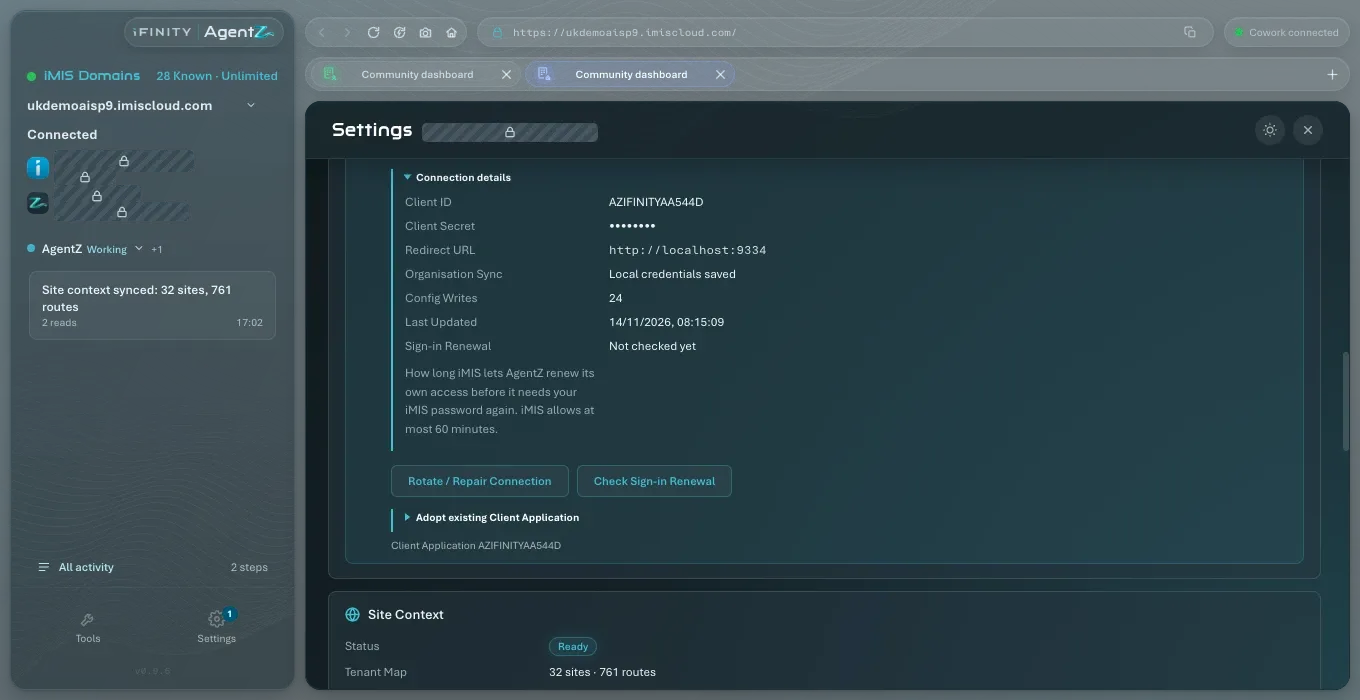
Section titled “The iMIS API step, field by field”Open Connection details to see:
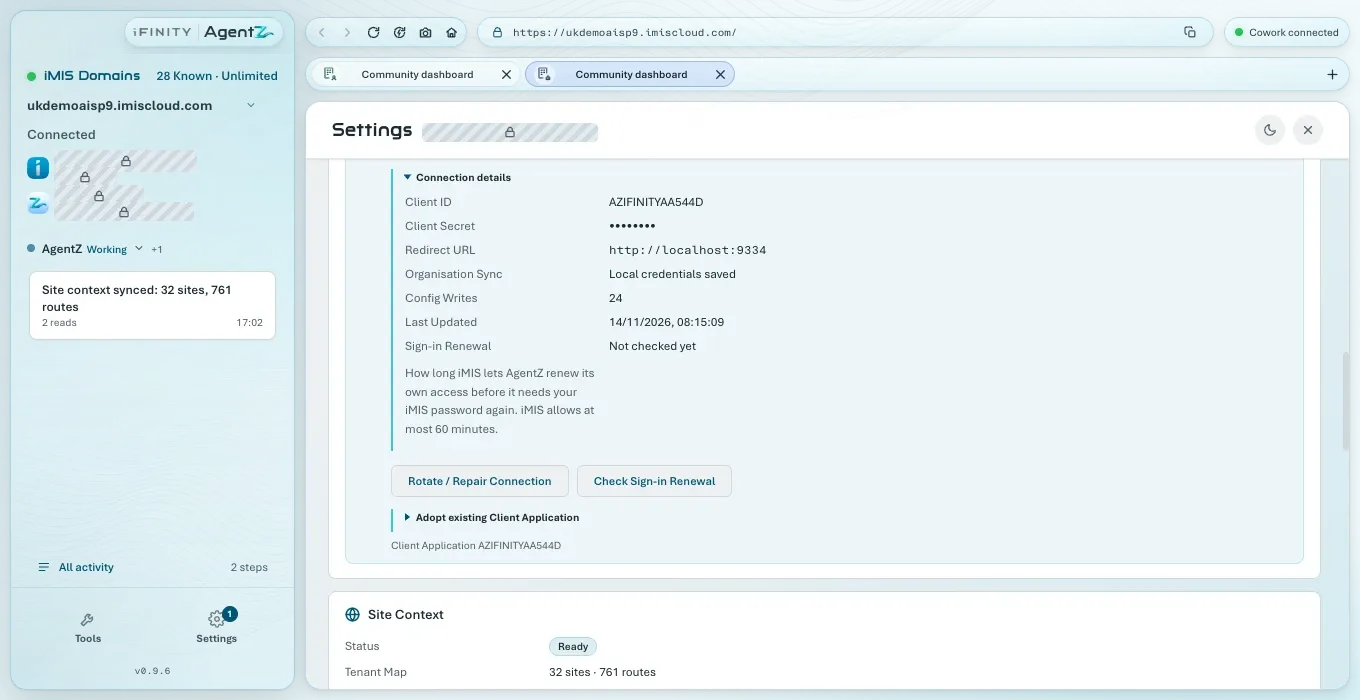
- Client ID: the Client Application AgentZ uses, as iMIS names it.
- Client Secret: never shown.
- Redirect URL:
http://localhost:9334. - Organisation Sync, Config Writes and Last Updated: whether the connection is shared with your organisation, and when it last changed.
- Sign-in Renewal: how long iMIS lets AgentZ renew its own access before it needs your iMIS password again. iMIS allows at most 60 minutes. Not checked yet until you click Check Sign-in Renewal.
The buttons:
- Rotate / Repair Connection creates a fresh AgentZ Client Application and replaces your organisation’s API connection with it. Use it when iMIS no longer accepts the current one. AgentZ asks first: “This will create a fresh AgentZ Client Application and overwrite the organisation API configuration. Continue?” Click OK to go ahead, or Cancel. If the new one cannot be finished, the current connection is kept.
- Check Sign-in Renewal reads the sign-in renewal time from the Client Application in iMIS. It changes nothing. It needs the iMIS browser signed in: until then it is greyed out, with Sign in to iMIS first.
What API Status can say
Section titled “What API Status can say”| API Status | What it means | What to do |
|---|---|---|
| Connected | AgentZ is using the iMIS API. | Nothing. |
| Not connected | The connection is not set up for this iMIS site, or has not connected yet. | Set it up, or click Check the iMIS API on Settings > Overview. |
| Connecting… | AgentZ is connecting. | Wait. |
| Token expired — reconnecting… | AgentZ’s access to the iMIS API ran out and it is getting new access with your saved sign-in. | Wait. If it stays, see iMIS sign-in troubleshooting. |
| Sign in to iMIS before API setup | The set-up needs the iMIS browser signed in. | Sign in on step 2 iMIS sign-in, then set it up again. |
| Setup failed - and a reason, such as iMIS browser is not ready | The set-up stopped. | Fix what the reason says, then click Set Up / Adopt API Connection again. AgentZ carries on with the Client Application it started. |
| Verifying Client Application with iMIS… | AgentZ is checking a Client Application with iMIS. | Wait. |
| Adopt failed - and a reason | iMIS did not accept the Client ID and secret you entered. | Check them against the Client Application in iMIS, and its redirect URL. |
If the step says “Repair the Client Application for” your iMIS site, iMIS no longer accepts the current Client Application: click Rotate / Repair Connection.
How the connection and its access tokens are kept is described in iMIS access tokens.
Does every person need to set up the iMIS API? No. An Organisation admin sets it up once for each iMIS site, and everyone’s AgentZ uses it.
Can team members set it up for another iMIS site? Yes, when Team members can set up API connections is on, on the Team tab. Your licensed iMIS site is always set up by an Organisation admin. See Seats and team members.
How do I replace the Client Application? Use Rotate / Repair Connection. It creates a fresh one and replaces the connection once it works.