

AgentZ settings
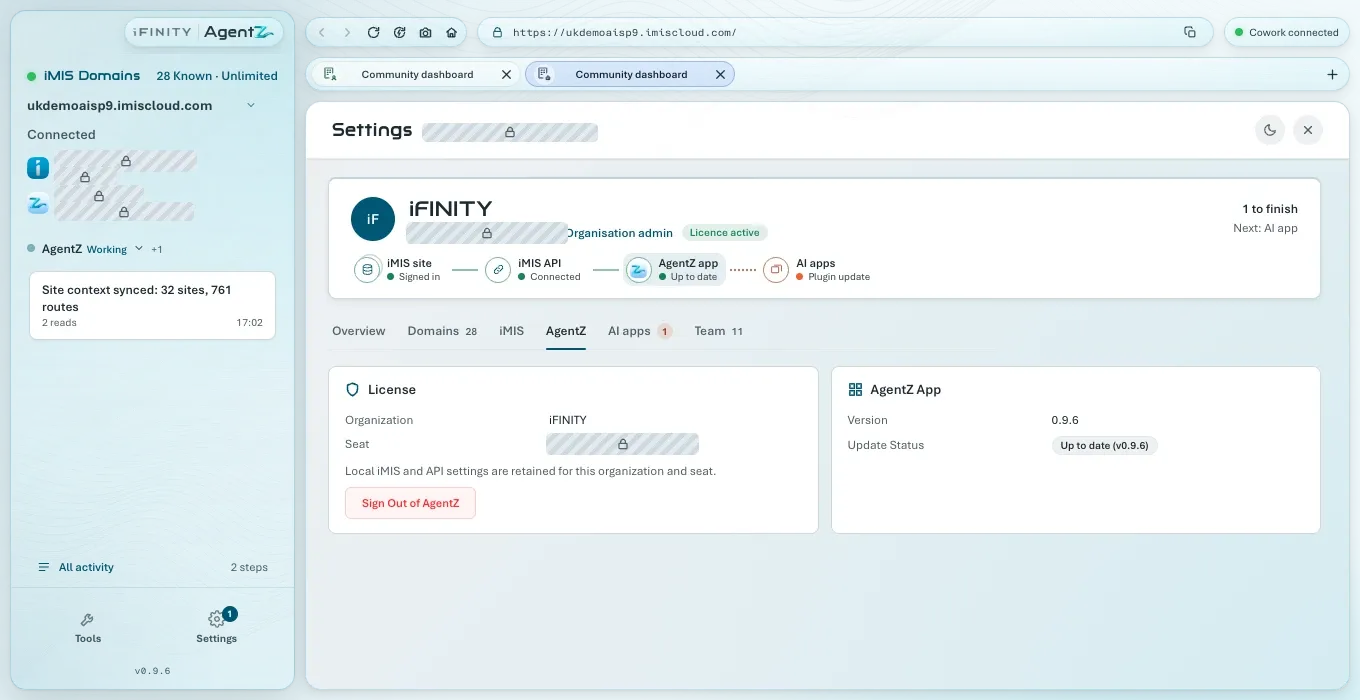
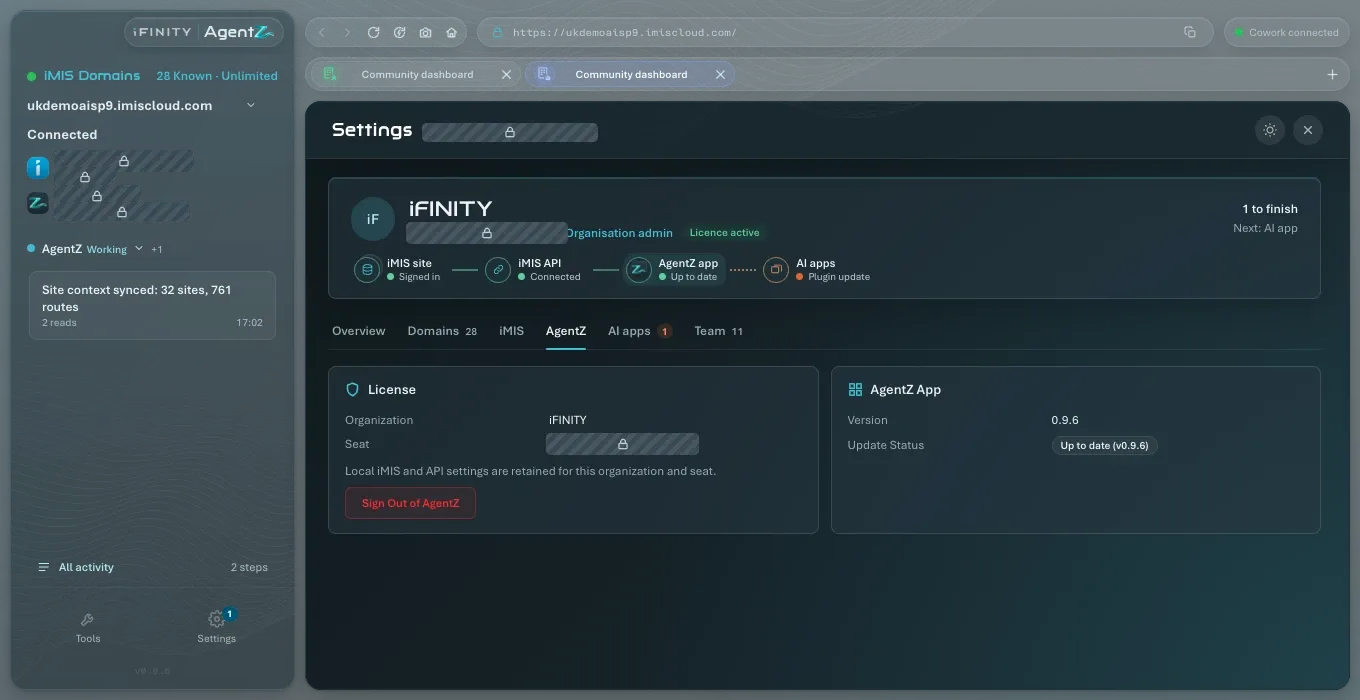
The AgentZ tab shows which organisation and seat this computer is signed in with, and which version of the AgentZ app it runs. It is also where you sign out of AgentZ, or remove AgentZ from this computer.
Licence
Section titled “Licence”| Field or button | What it shows or does |
|---|---|
| Organisation | Your organisation’s name, as your licence holds it |
| Seat | The work email you signed in to AgentZ with |
| Sign out of AgentZ | Signs this computer out of AgentZ and returns to the sign-in screen, after asking you to confirm. The line above it says what stays: “Signing out keeps your iMIS and API settings on this computer for this organisation and seat.” |
Signing out of AgentZ
Section titled “Signing out of AgentZ”Do the following to sign out of AgentZ on this computer:
- Go to Settings > AgentZ.
- Click Sign out of AgentZ.
- When asked “Sign out of AgentZ on this computer?”, confirm.
The sign-in screen opens, with the note “You’ve signed out of AgentZ. Your iMIS settings are kept on this computer.” Your saved iMIS sign-in and API connection stay, so when you sign in again with the same work email you carry on where you were. See Signing in to AgentZ.
AgentZ app
Section titled “AgentZ app”| Field or button | What it shows or does |
|---|---|
| Version | The AgentZ app’s version on this computer |
| Update status | Up to date and the version, a download in progress, or that an update is ready to install. If AgentZ could not check for updates, it says why |
| Remove AgentZ | Takes AgentZ off this computer, after showing you what it will do. The line above it says: “Remove AgentZ signs this computer out, takes AgentZ out of your AI apps and deletes everything it saved on this computer. You then delete the app.” It cannot be undone |
AgentZ updates itself. See Updating AgentZ.
For the steps, what Remove AgentZ deletes and what stays, see Removing AgentZ completely.
Earlier activity to sort
Section titled “Earlier activity to sort”This card appears only on a computer that kept AgentZ activity from before AgentZ kept history for each person, while you are signed in. It lists that earlier activity: the date and time, the first task’s name (or No task named), the iMIS sites (or No iMIS site recorded) and the number of steps.
Do the following to file a piece of earlier activity under your history:
- On the row of activity you did yourself, click File under my history.
- If AgentZ asks whether to file it under your history, click It’s mine, file it. To leave it, click Cancel.
The row then says Filed, and the activity joins your History in All activity. See Activity and approvals. A row can also say:
- Already filed: it is already in someone’s history.
- Recorded by someone else: it was recorded with another person’s seat, so it is not yours to file.
- Couldn’t file this. Try again.: AgentZ could not file it just now.
File only the activity you did yourself. Leave the rest.
Does signing out free my seat? No. Your seat stays yours. Your Organisation admin frees a seat by removing someone on the Team tab. See Removing a team member.
Does signing out delete my iMIS sign-in from this computer? No. Your iMIS and API settings are kept on this computer for your organisation and seat.
Where do I see which AgentZ plugin version my AI apps have? On the AI apps tab. See AI apps settings.