

Activity and approvals
The AgentZ app shows every agent at work, each step it takes in your iMIS site, and its result. Use it to follow work as it happens, to answer an agent that needs you, and to look back at finished work.
Activity in the sidebar
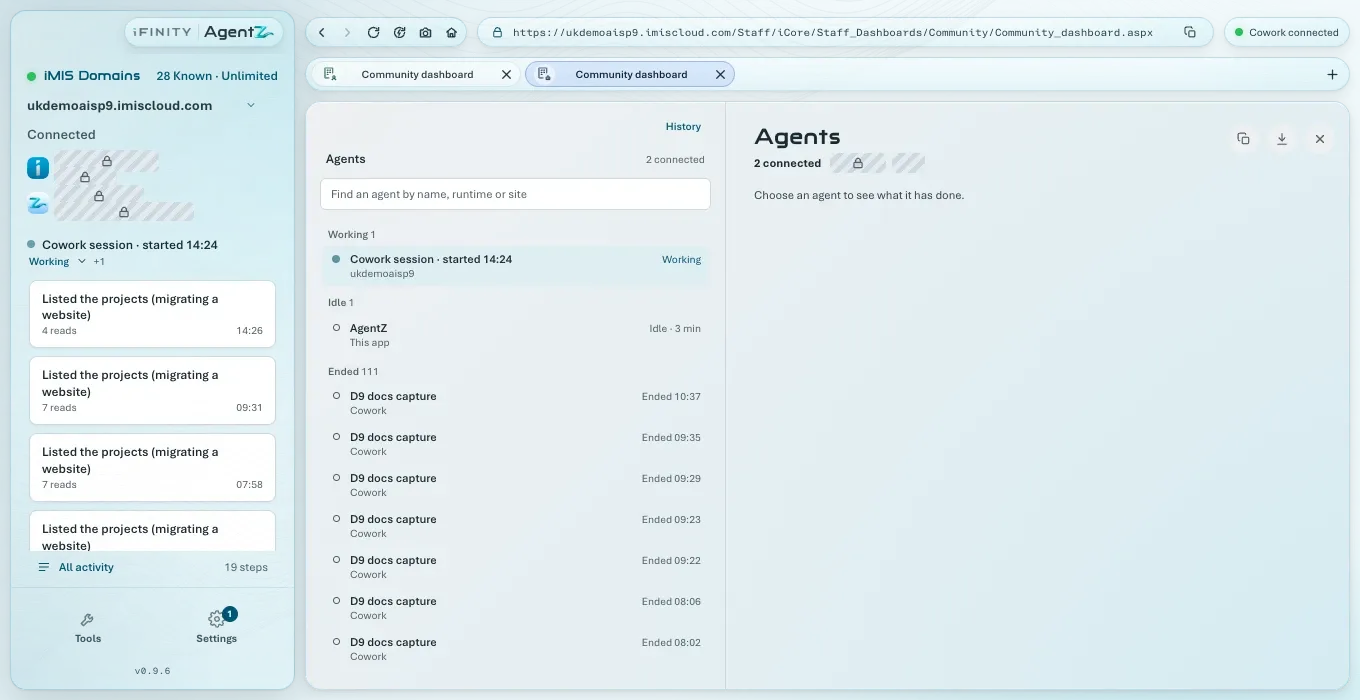
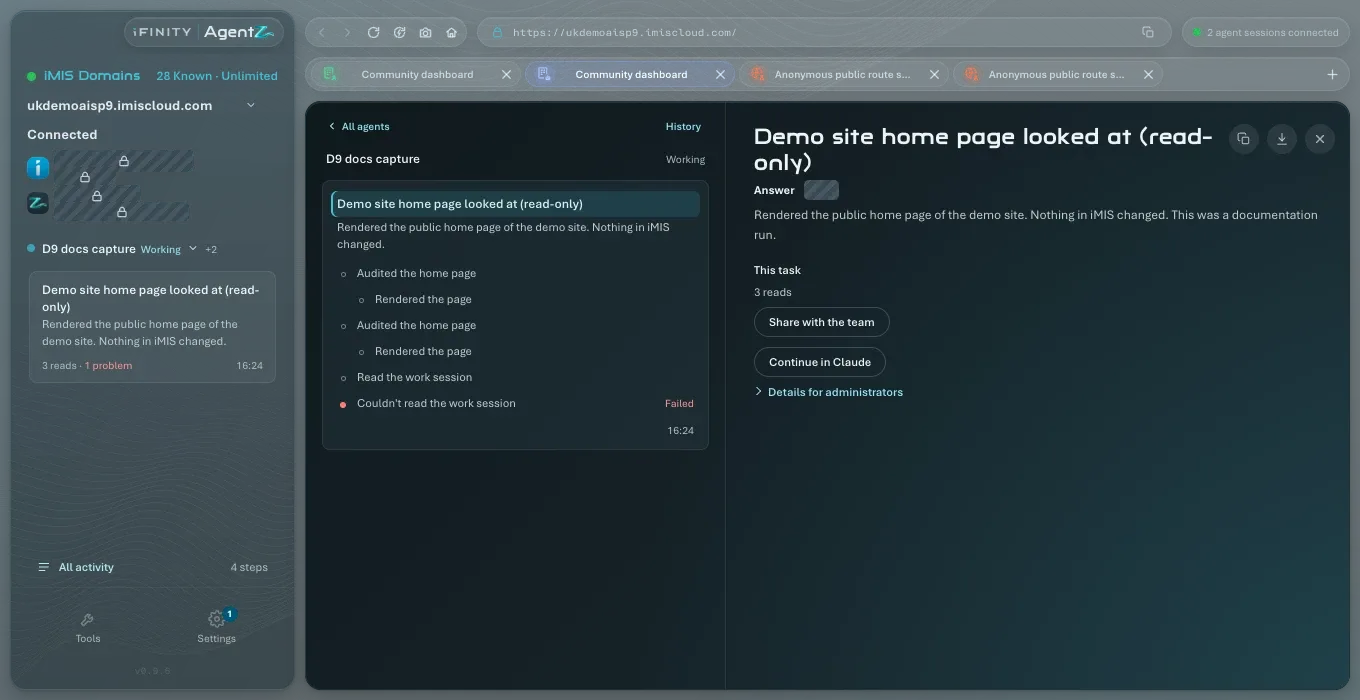
Section titled “Activity in the sidebar”The middle of the sidebar follows one agent: its name, its state, and a card for its current piece of work. Each card shows what the agent said it was doing, the steps under it, how many reads it has made, any problem, and the time.
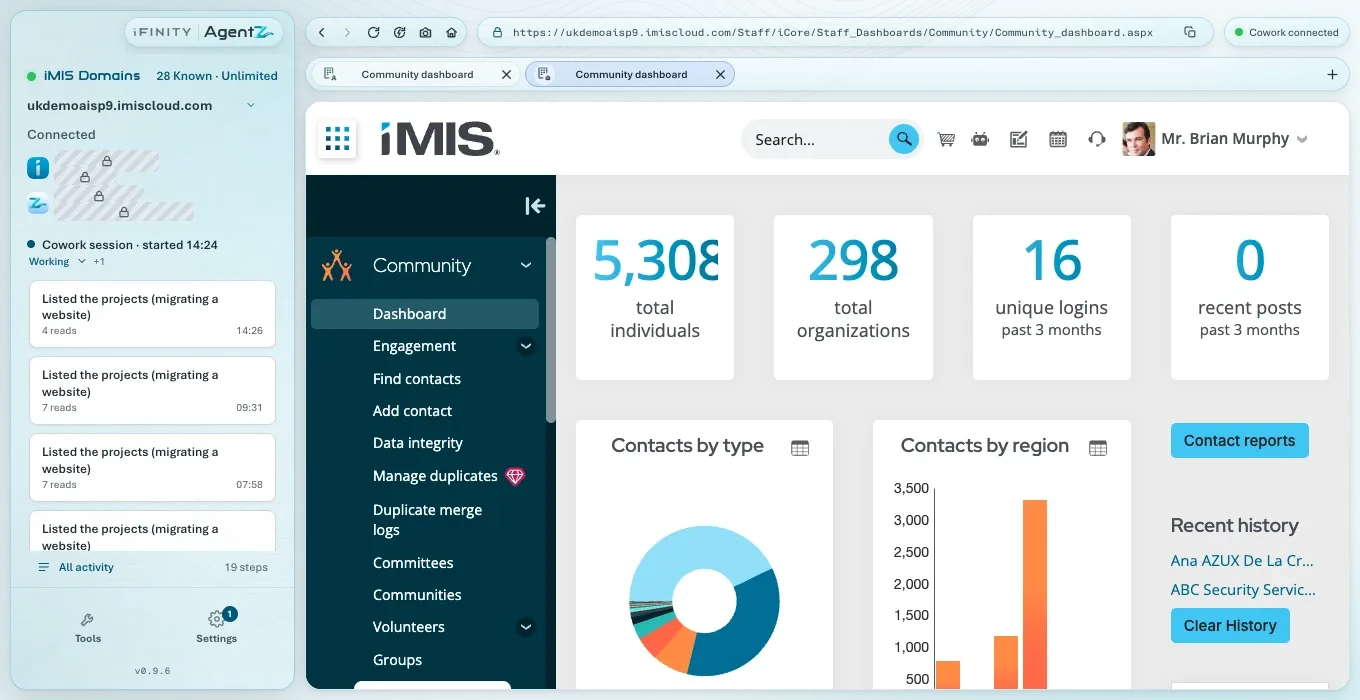
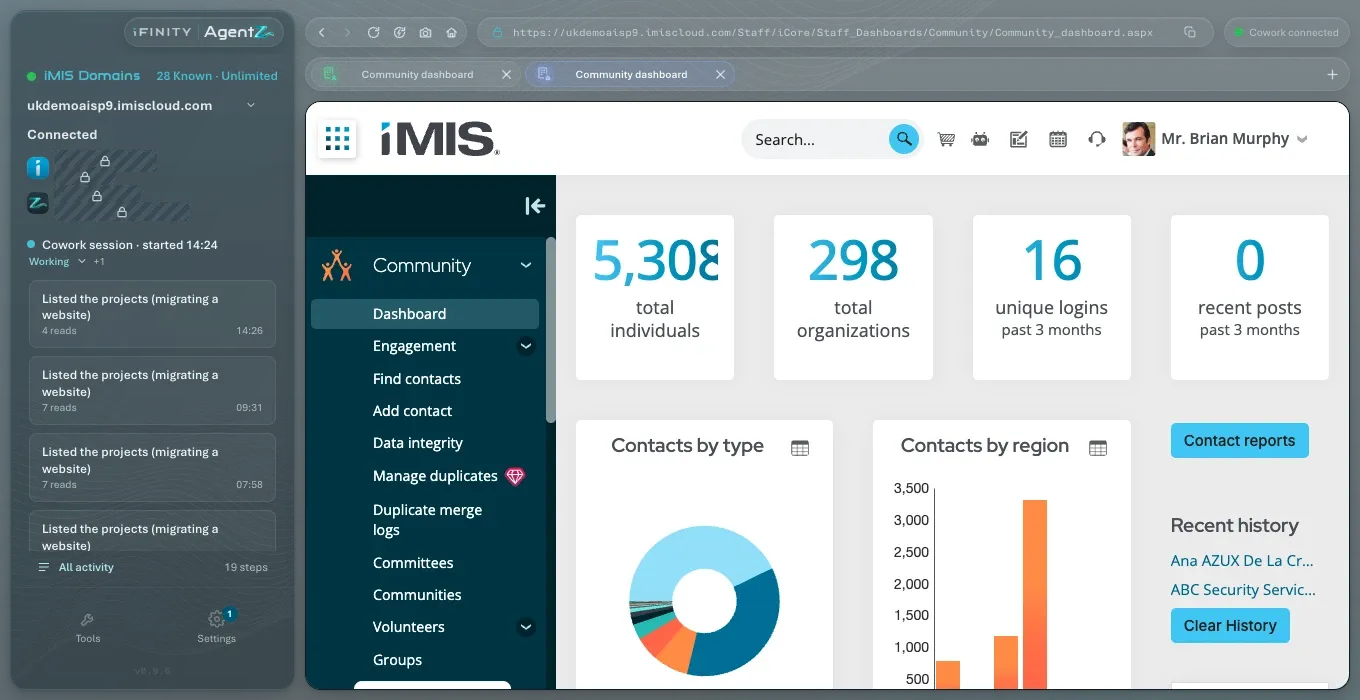
An agent’s state is one of:
- Working: it is taking steps now.
- Idle: it is connected and not doing anything.
- Waiting: it needs you, for example to answer a question or hand back the iMIS browser.
- Stopped: you stopped it, and it does nothing until you resume it.
- Over to you: you have taken over the iMIS browser from it.
AgentZ is the app’s own work, such as signing in to iMIS or renewing its access. It is listed as This app.
All activity
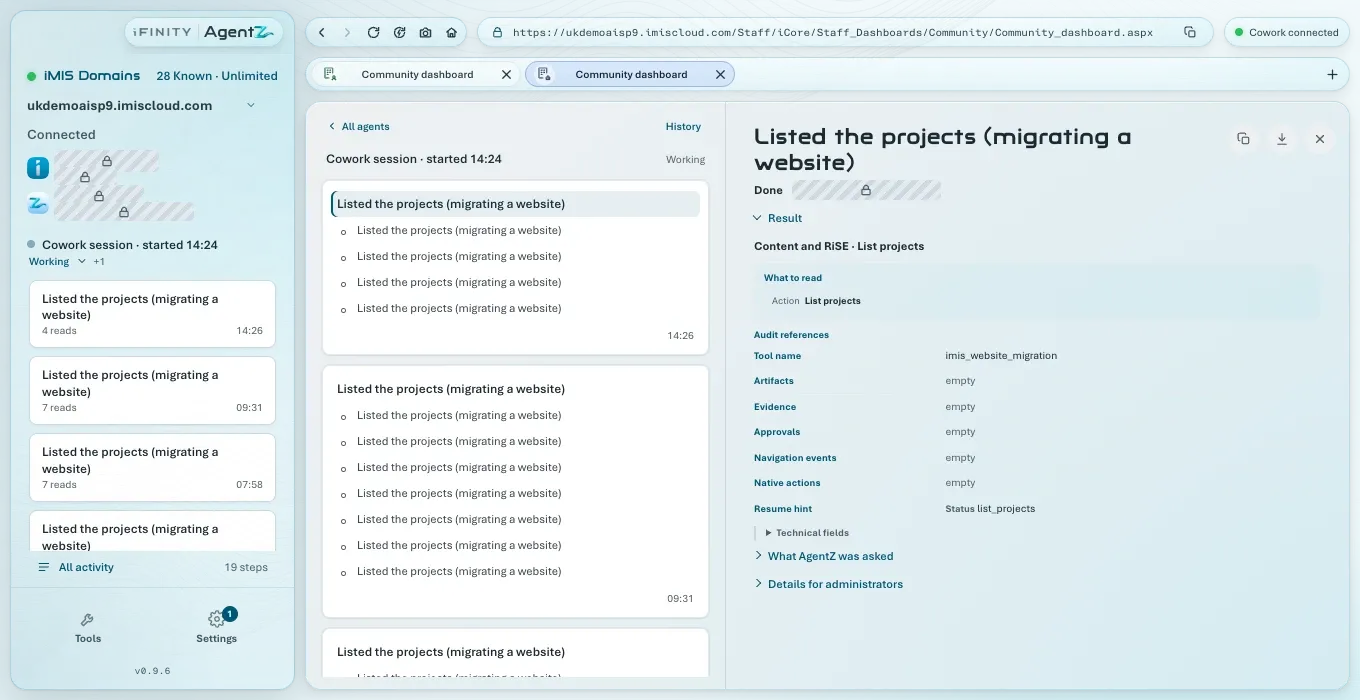
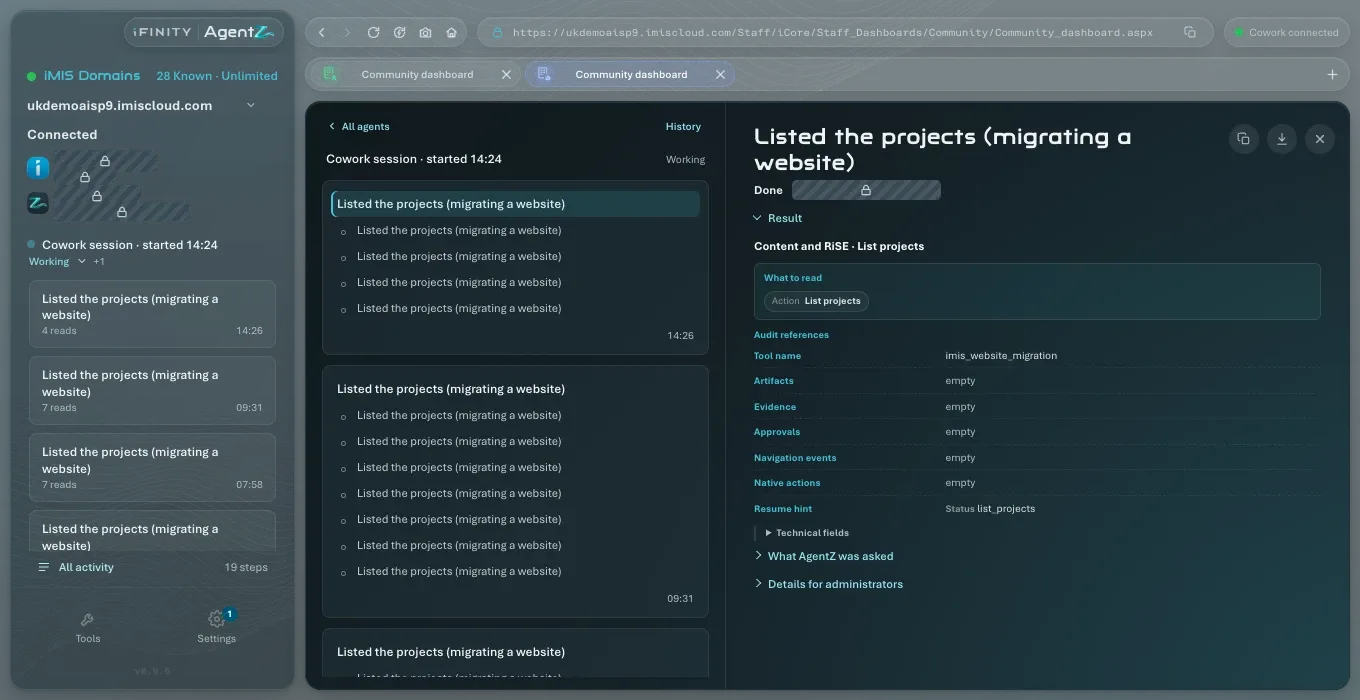
Section titled “All activity”Click All activity at the foot of the activity cards. The page has two lists: All agents and History.
All agents
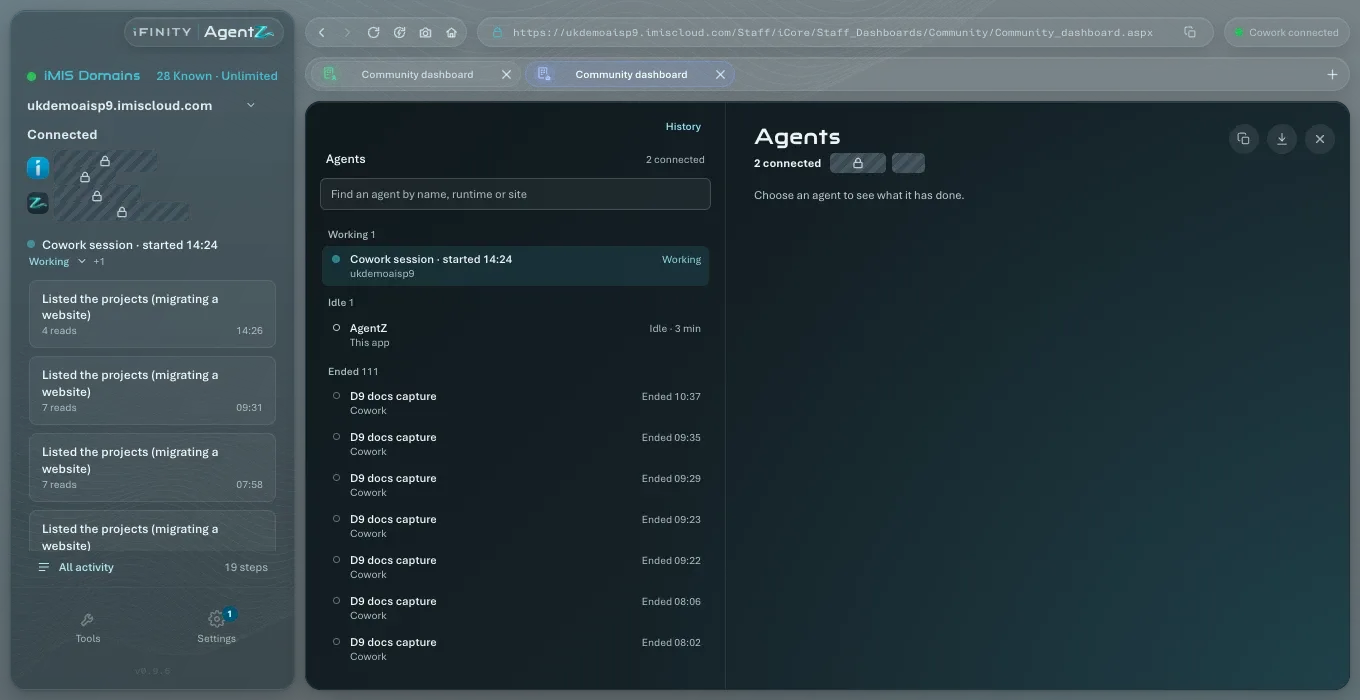
Section titled “All agents”All agents lists every agent, grouped as connected, Idle and Ended, with the AI app each came from and when it started or ended. Type in Find an agent by name, runtime or site to narrow the list; if nothing matches, it says No agent matches that search. Choose an agent to see what it has done.
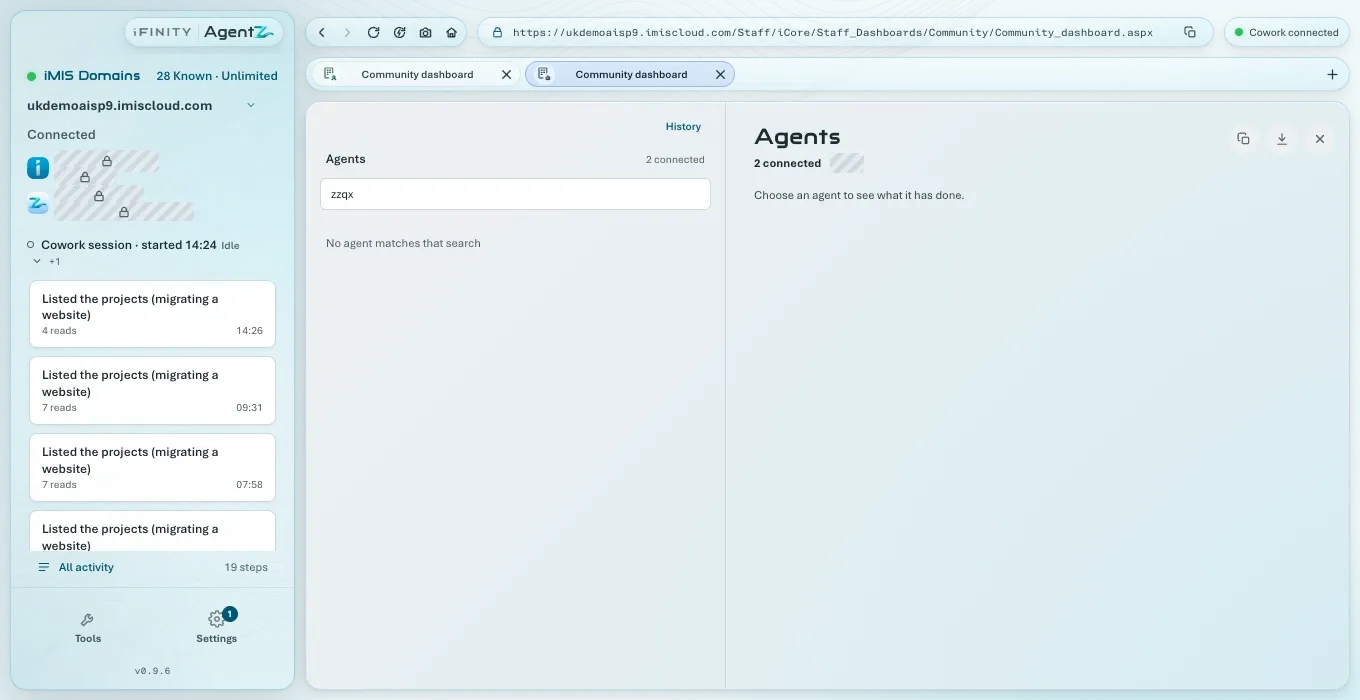
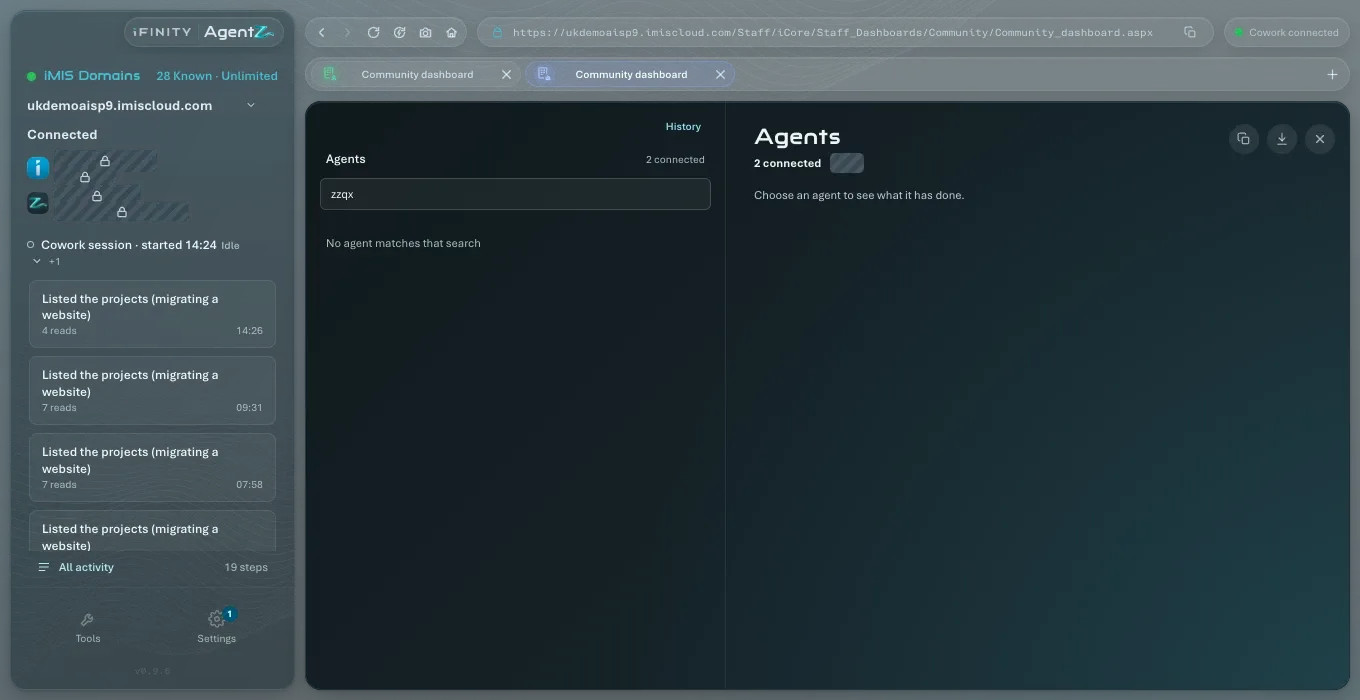
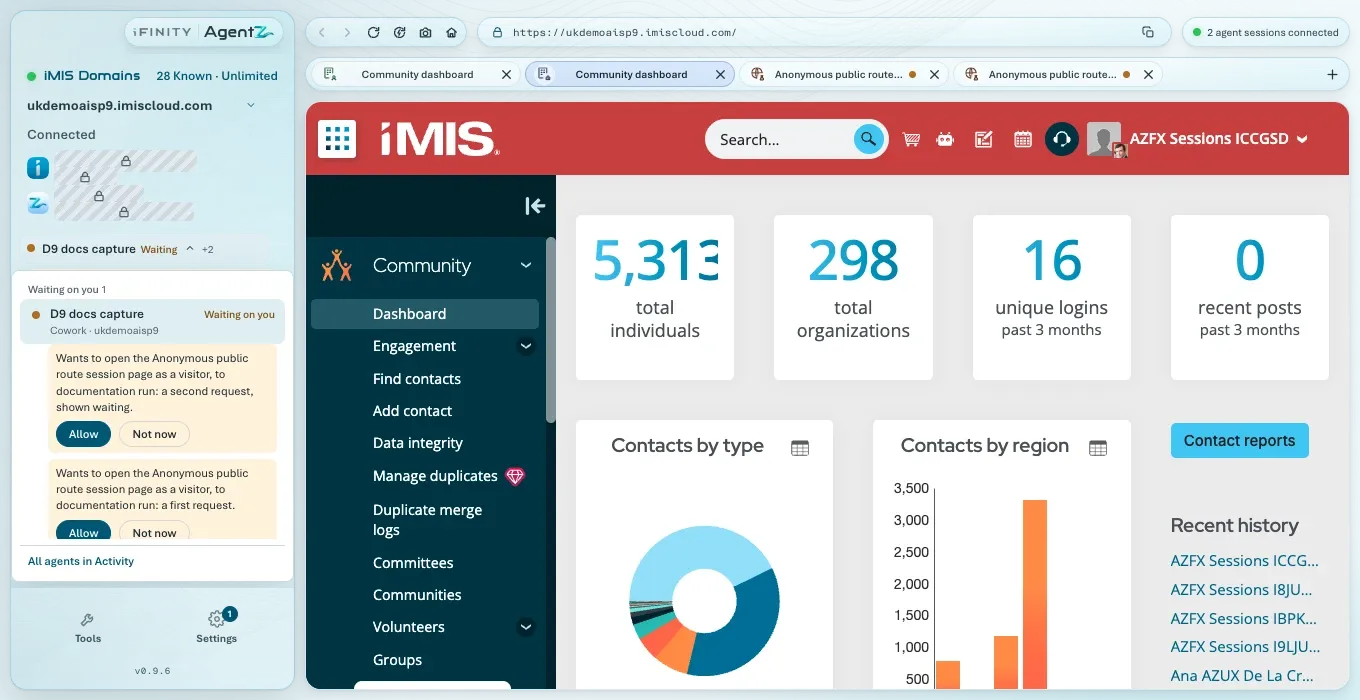
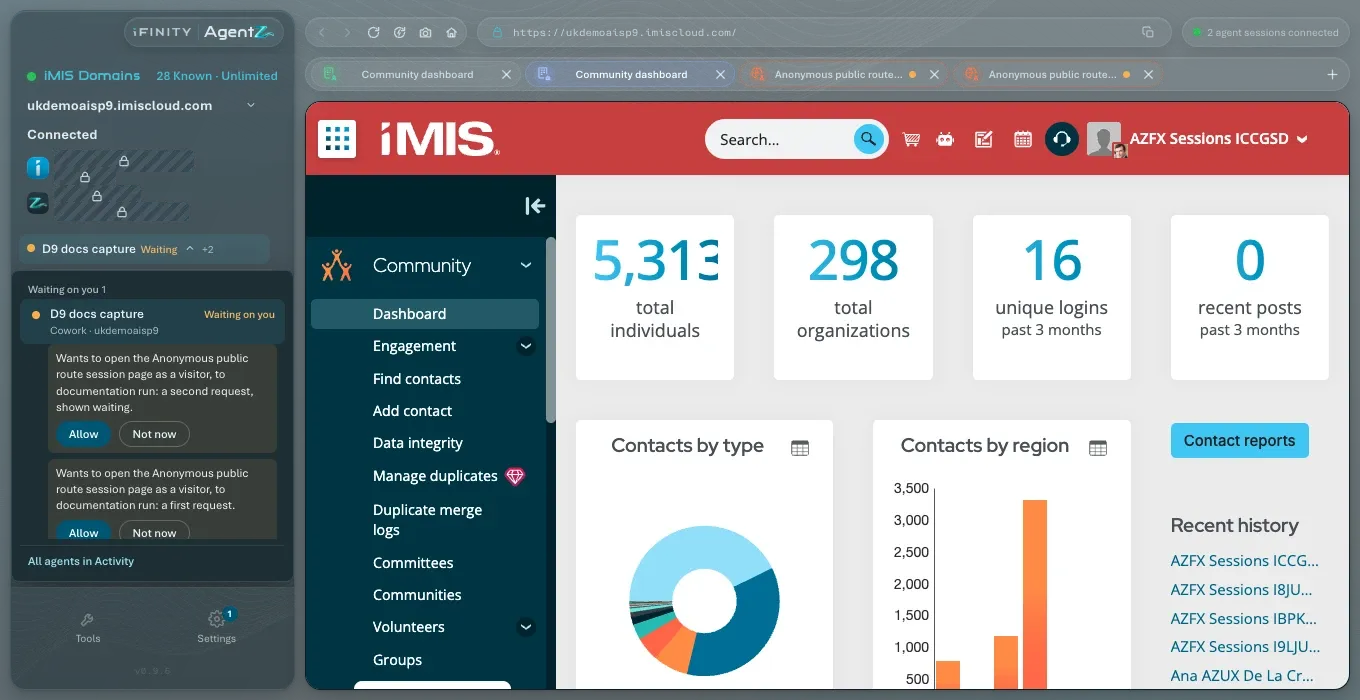
In the sidebar, the agent list (opened from the agent’s name above the activity cards) has the same search when there are more than eight agents. An agent waiting for you shows its question under its name there, such as Allow and Not now, or Hand back the browser. When there is more than one question waiting, the sidebar card shows the first, with and a number more.
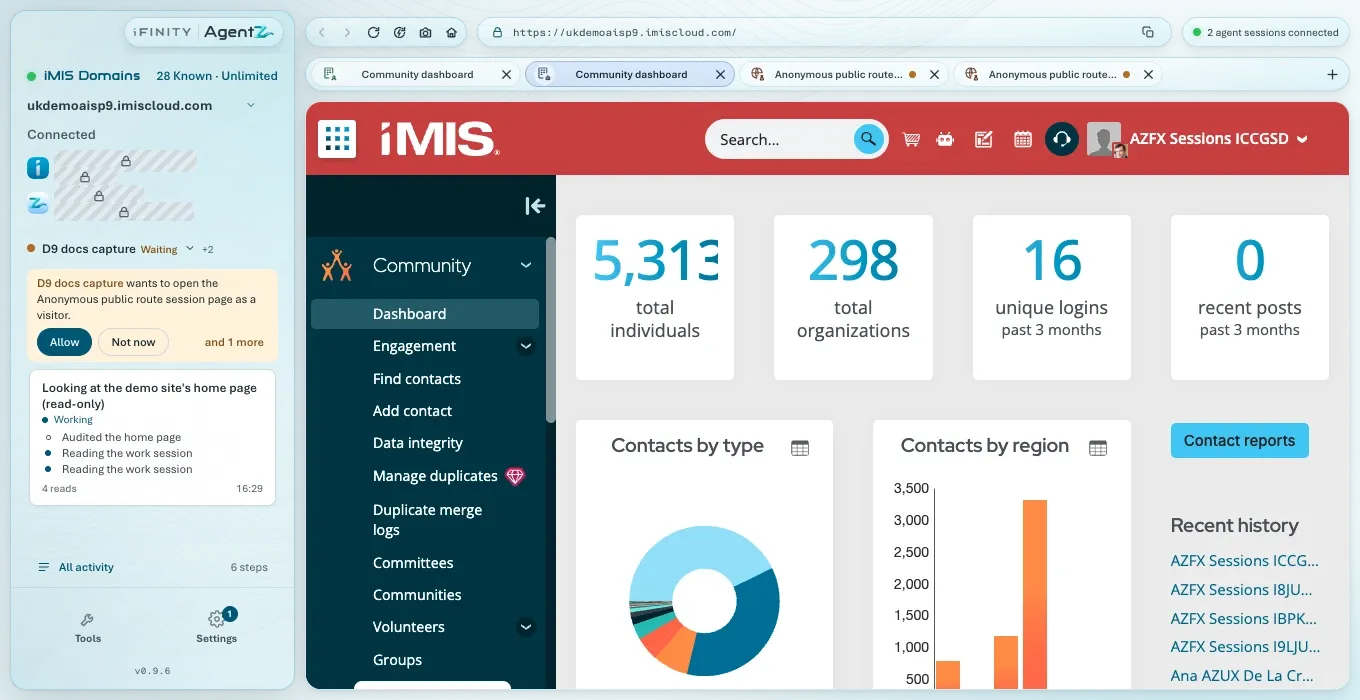
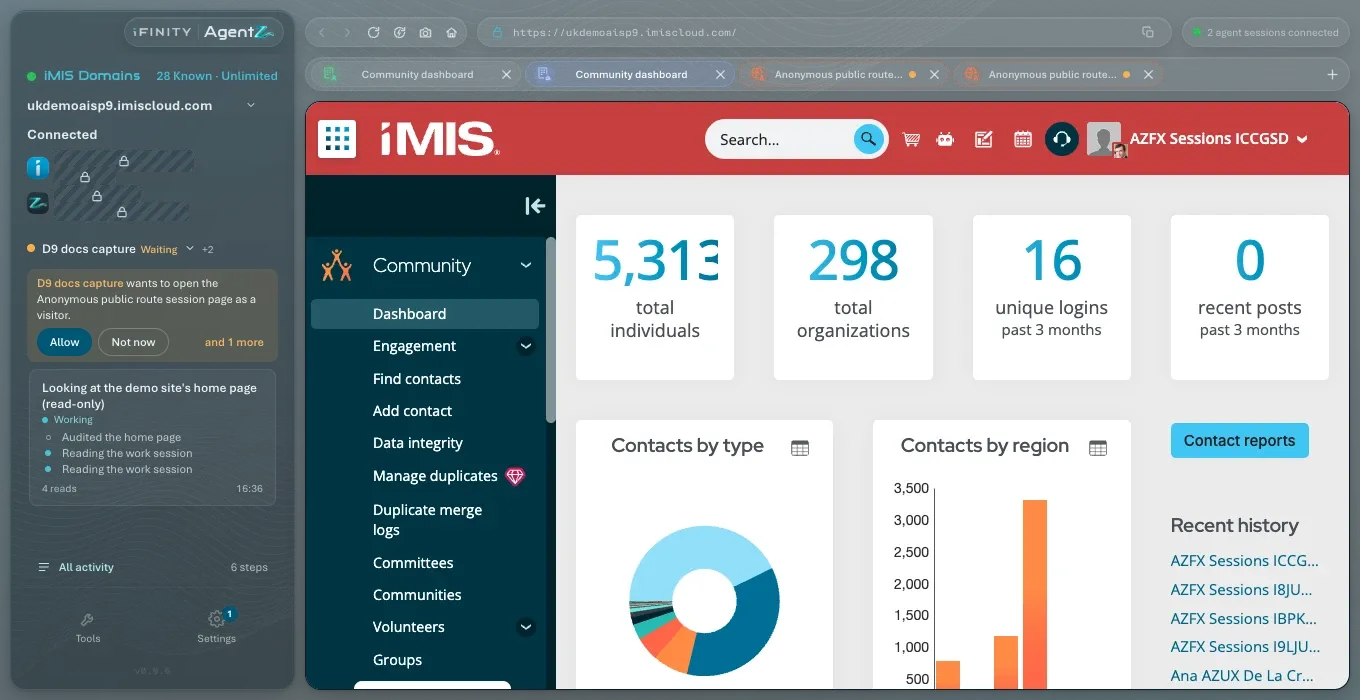
Click and … more to open the list showing only the agents waiting on you, each request with its own Allow and Not now. Show all agents shows everyone again.
Until an agent has done something, the sidebar shows No activity yet: “What agents do in iMIS appears here as they work”. All agents shows “Sessions appear here once an agent connects” until one does.
One agent
Section titled “One agent”Choose an agent, then its name above its list of work. The page shows:
- its name, its state, the AI app it came from, your iMIS site, and Connected since;
- Stop or Resume, and Take over the browser or Hand back the browser;
- Now: the step it is taking, with Cancel this step while one is running, and Show its page to bring its iMIS page to the front;
- Holds: the iMIS browser tabs it is using;
- So far: how many answers, changes and reads it has made;
- Details for administrators: technical details iFINITY support may ask for.
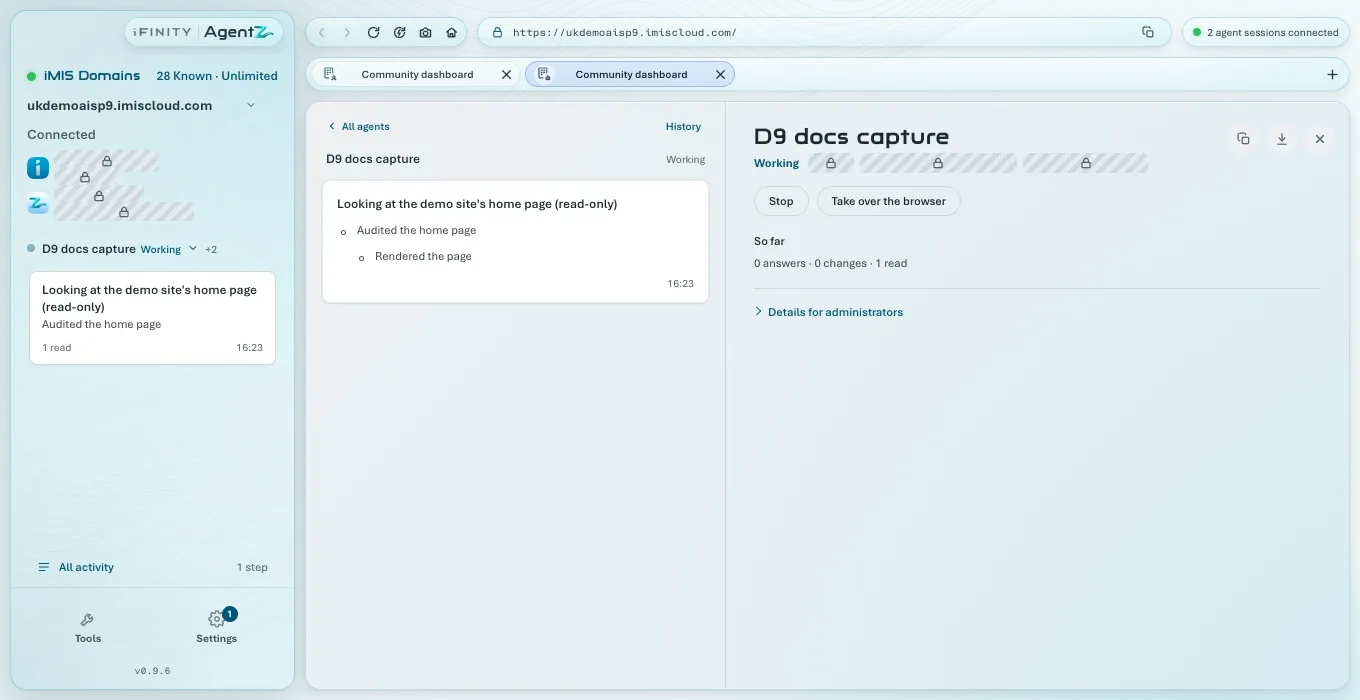
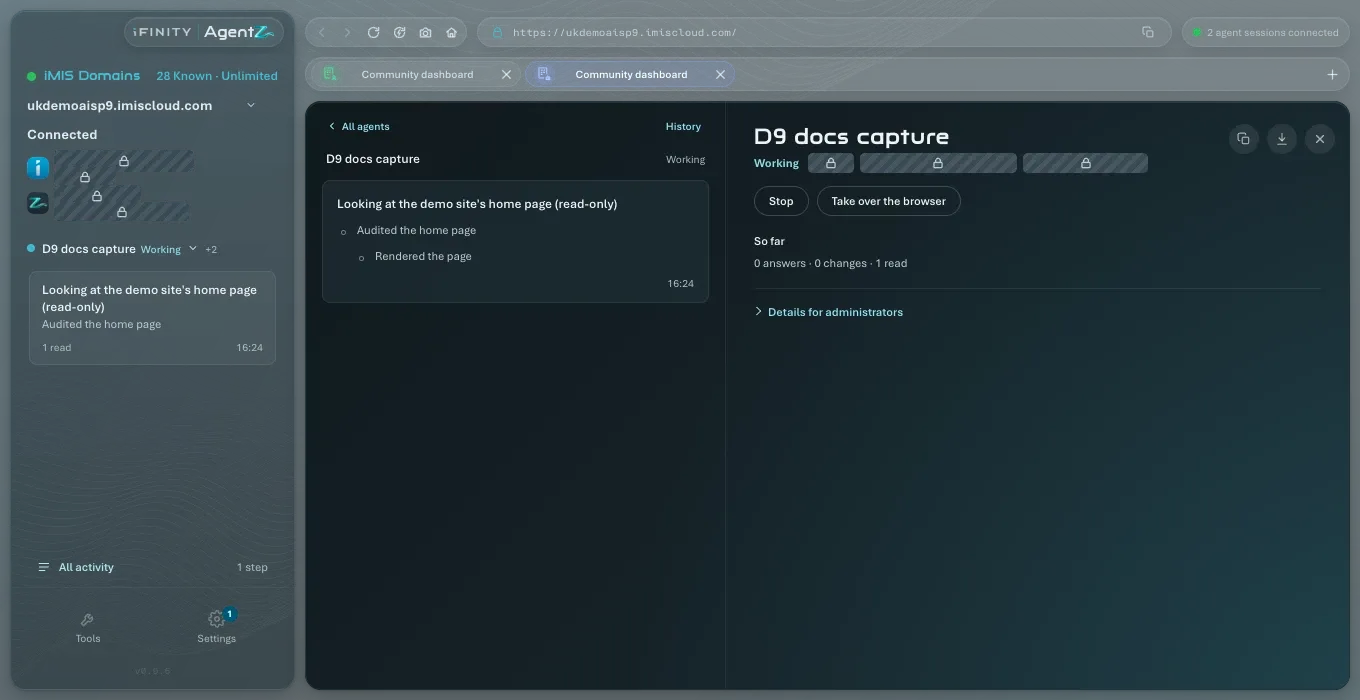
The buttons at the top right of the page:
- Copy this agent’s activity as text: copies every step to your clipboard, to paste into an email or a support request.
- Export this session: saves the agent’s activity as a file. Your computer’s own save window, Export activity feed, opens; choose where to save it and whether as JSON or Markdown.
- ×: closes the page.
Cancel this step stops only the step running now: “Cancelled. The agent carries on with its next step.”
Files an agent saves
Section titled “Files an agent saves”When an agent exports something from iMIS for you, such as a query’s results as a CSV file or a report as a PDF or Excel file, AgentZ saves it straight into your computer’s Downloads folder. No save window opens. If a file with the same name is already there, the new one is saved beside it with a number, such as “Members (2).csv”, and the earlier file is left as it was.
On a Mac, the first time an agent saves a file, your computer asks whether AgentZ may access files in your Downloads folder: “AgentZ saves the files your agents export from iMIS into your Downloads folder.” Choose Allow. If AgentZ is not allowed, the file is not saved, and the agent is told: “AgentZ is not allowed to save into your Downloads folder, so the file was not saved. You can allow it in your computer’s privacy settings.”
The step in the agent’s activity says Saved to your Downloads folder. Click Show in folder to open the folder with the file selected.
If the file has since been moved, renamed or deleted, Show in folder says “This file is no longer in your Downloads folder. It may have been moved, renamed or deleted.”
The step names the file the agent exported, but the activity never records where the file is on your computer. If you share or export the activity, the file’s name goes with it and its location does not.
History
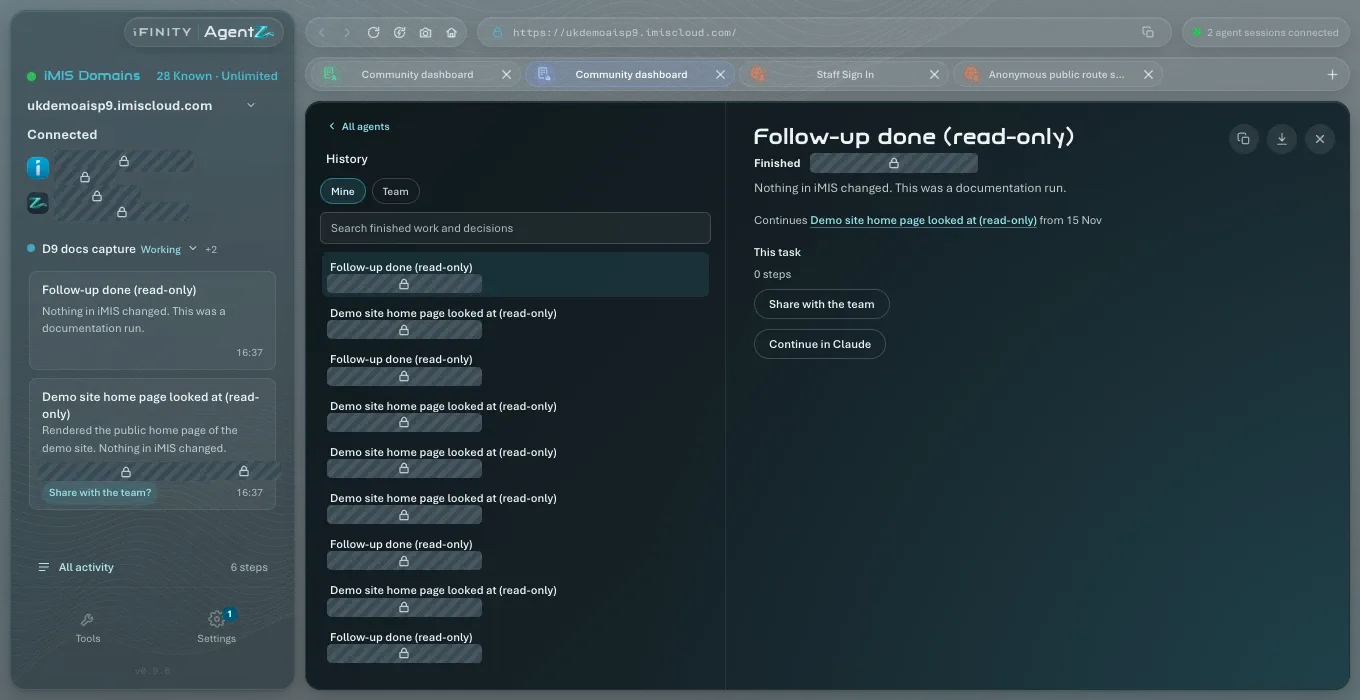
Section titled “History”History lists finished work and decisions, with Mine and Team: yours from this computer, and the work your team has shared. Type in Search finished work and decisions to narrow the list. Choose one to see what was done and why.
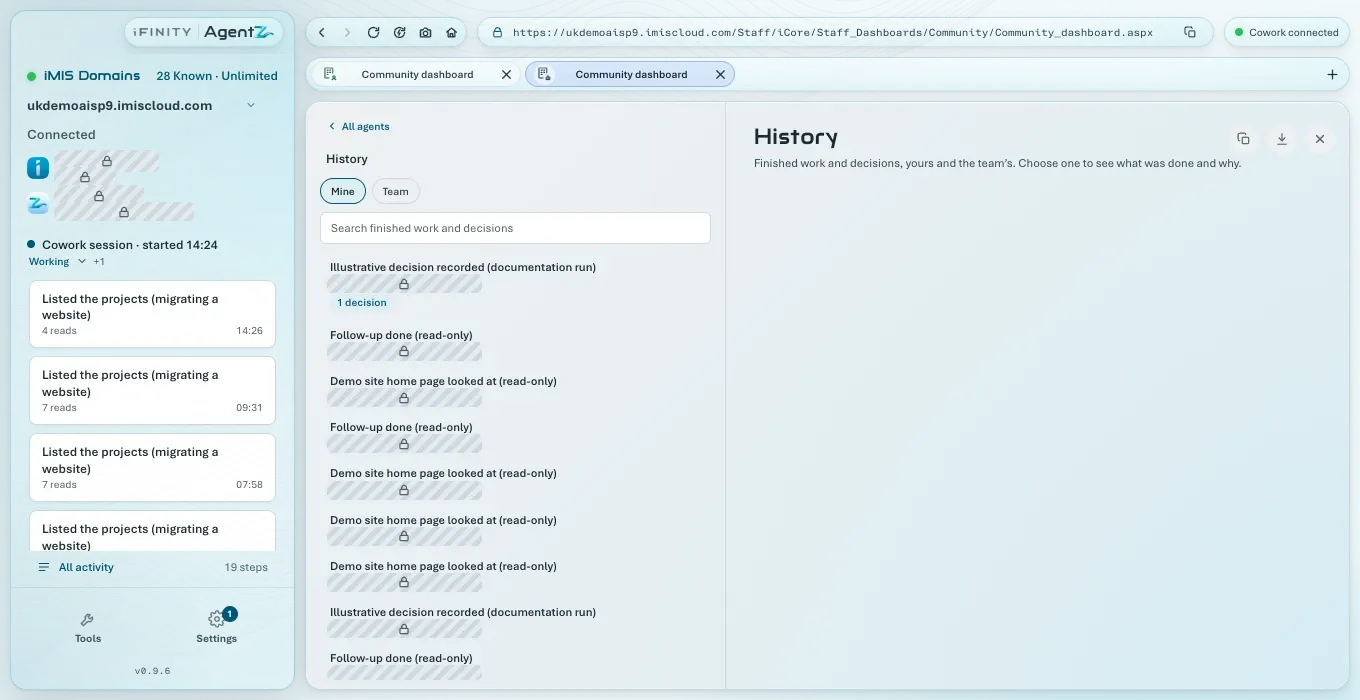
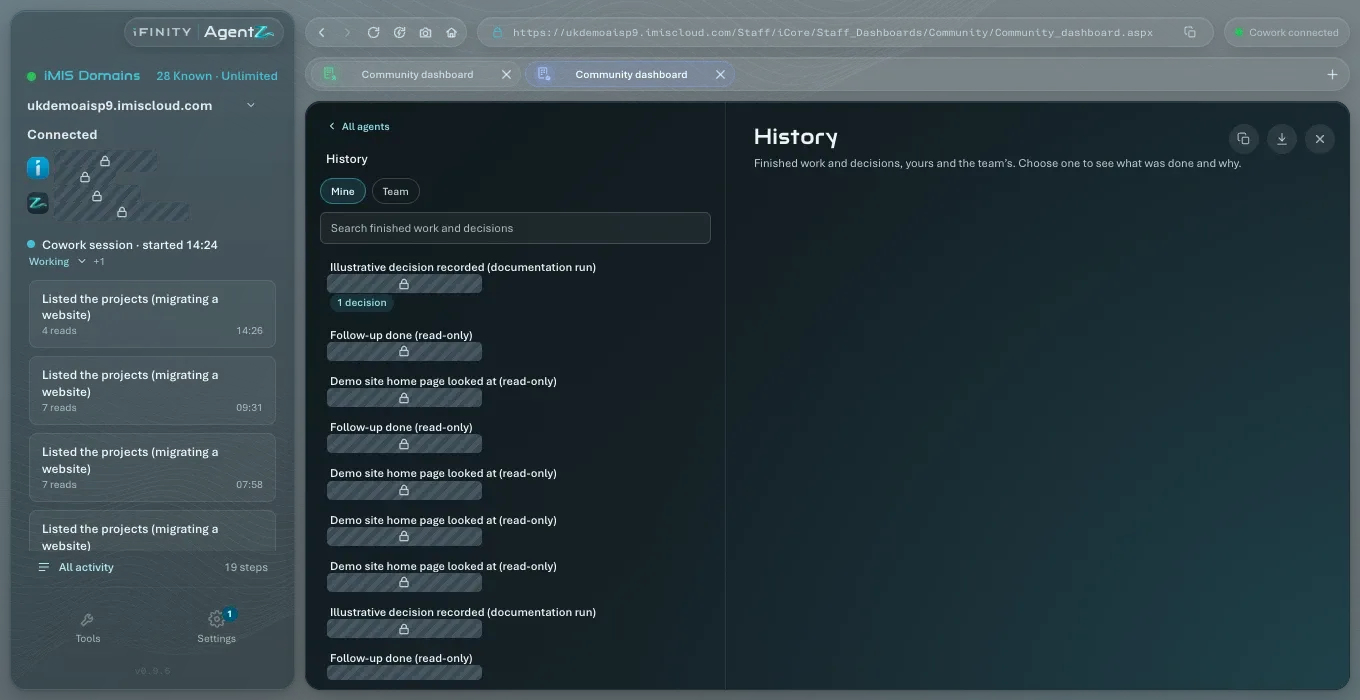
Work that carries on from an earlier task says Continues and names the earlier task, which you can click to open.
When an agent needs your approval
Section titled “When an agent needs your approval”Changes in iMIS
Section titled “Changes in iMIS”Before AgentZ makes a change in iMIS, your AI app shows you a preview of what will change, and asks you to approve it in the chat. AgentZ then makes the change and reads it back from iMIS. The step appears in the agent’s activity with its result. The AgentZ app itself has no Allow button for a change: you approve it in your AI app.
While a change is waiting for your approval in the chat, the step shows in the activity as not done, ending ”: it needs your approval”. Steps that could not run because the iMIS browser was busy end in the same way with the reason, such as ”: you are using the browser” or ”: another agent is using the browser”. How your AI app shows the preview is described in Working with your AI app.
Opening a page as a visitor
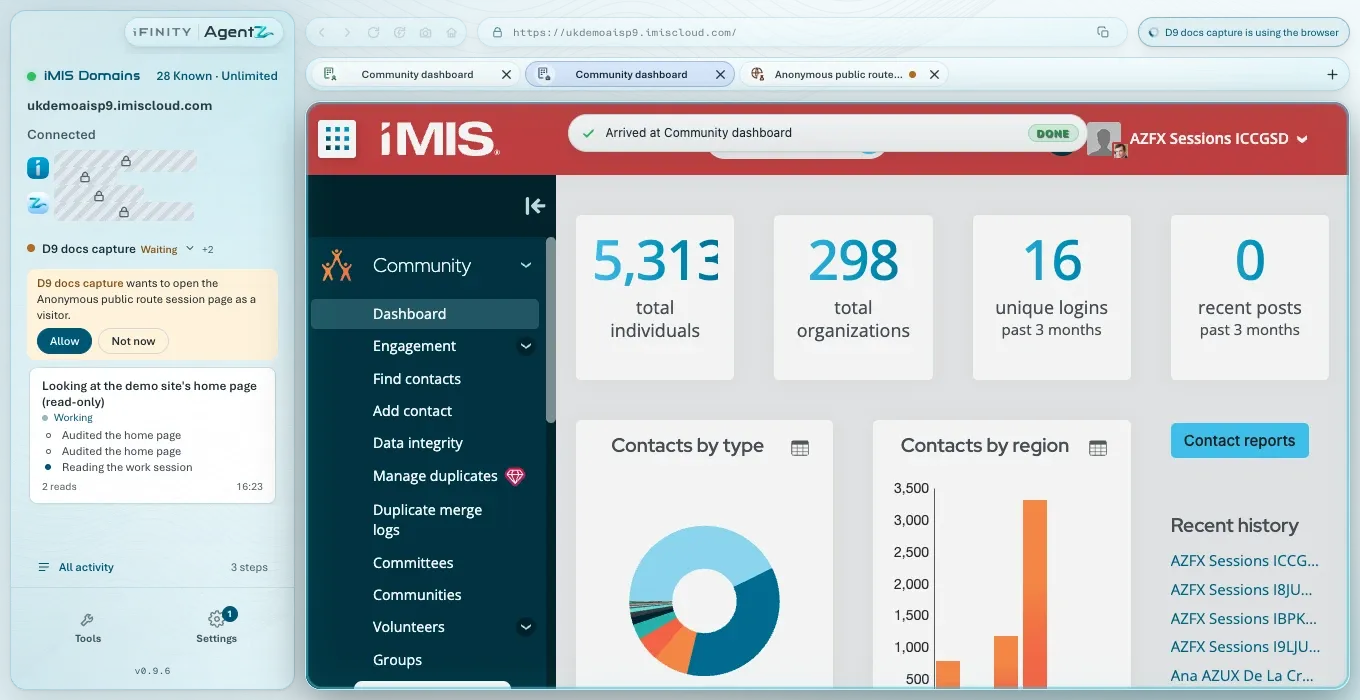
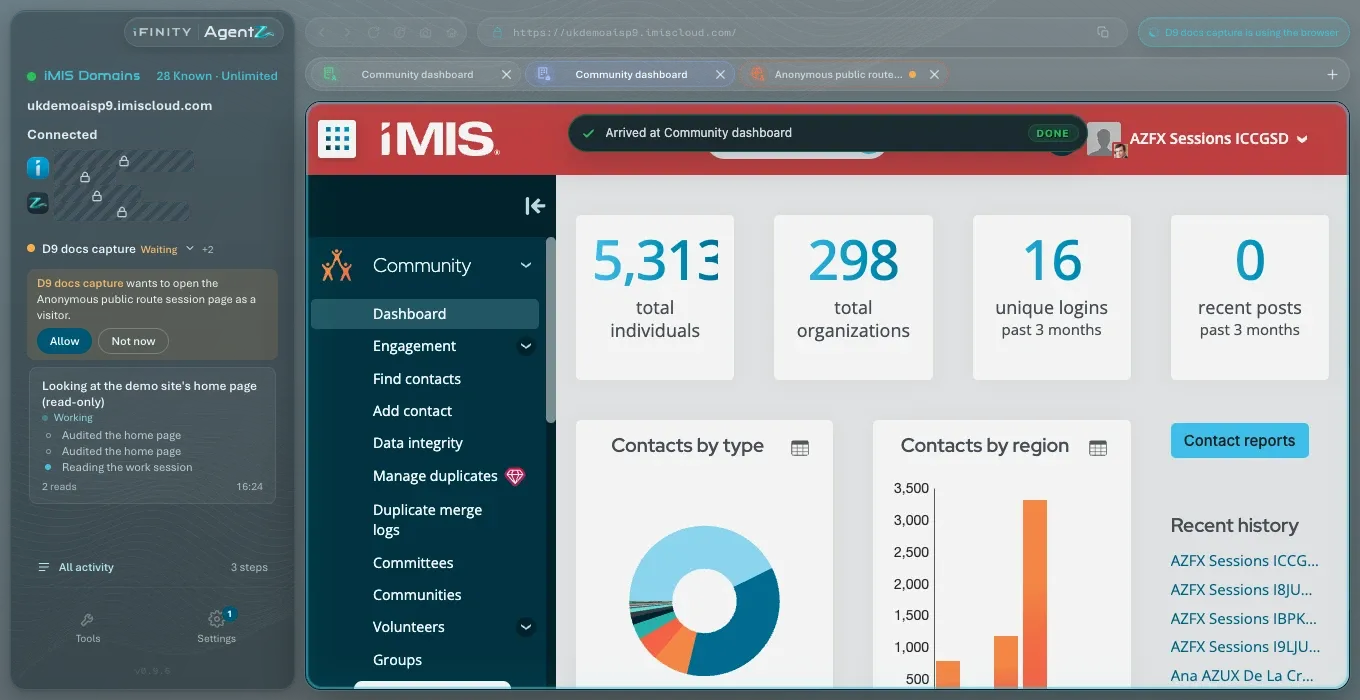
Section titled “Opening a page as a visitor”When an agent wants to open a page of your website as a visitor would see it, rather than as you, the AgentZ app asks you first. A card in the sidebar names the agent and the page, with Allow and Not now, and the agent’s state is Waiting.
-
Allow: the page opens in a new tab in the iMIS browser, and the agent carries on.
For a page of your website, the card also says “Allow covers the public pages and the signed-in member pages of” your site. The agent can then use that tab on your website’s public pages and, once someone signs in as a member in that tab, its member pages. It cannot use that tab on your staff site, on cart, checkout or payment pages, or on another site. For a cart, checkout or payment page, the card says “Allow covers the cart, checkout and payment pages of” your site instead, and the agent can use that tab on those pages only.
-
Not now: the page does not open. The agent is told, and the step shows as failed.
Finished work
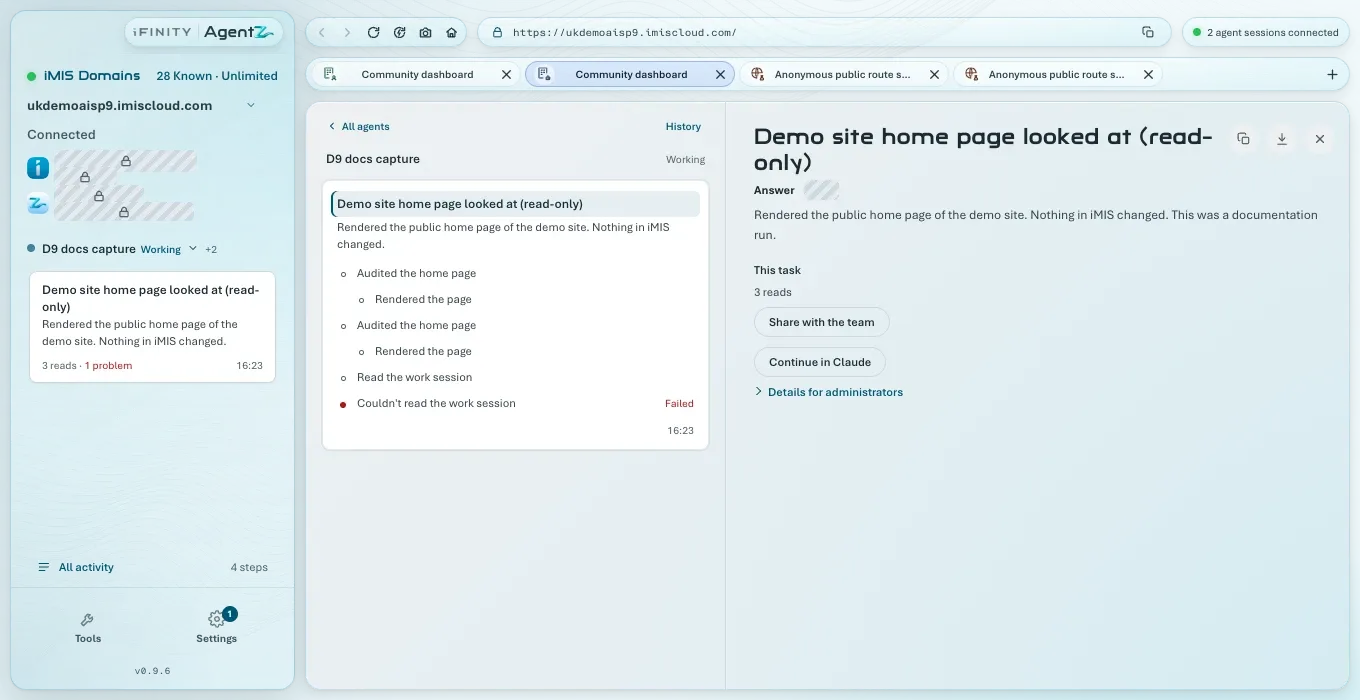
Section titled “Finished work”When an agent finishes a piece of work, its card says what it did. In All activity, the finished work has a section This task, with:
- Share with the team: shares what was done with the rest of your organisation, after showing you exactly what they will receive. AgentZ may suggest it with Share with the team?.
- Continue in Claude: copies a summary of the work, to paste into any agent to carry on. The page says “Copied. Paste it into any agent.”
Shared work appears under History > Team for everyone in your organisation, as Team notes.
Earlier activity to sort
Section titled “Earlier activity to sort”If this computer kept activity from before AgentZ kept history for each person, Settings > AgentZ shows Earlier activity to sort. File only the activity you did yourself, with File under my history.
Is the activity kept on my computer? Yes. The Activity record of what each agent did is kept on this computer. Work you share with the team is kept by the AgentZ service. See What iFINITY’s licensing service receives and stores.
Can my colleagues see my activity? No, only what you share with the team.
Does stopping an agent undo what it already did? No. Stopping prevents its next step. What it already changed in iMIS stays changed.
Why does an agent show as Cowork when I used another Claude conversation? The label names the copy of the AgentZ plugin the agent runs from, not the conversation.