

Overview settings
The Overview tab is the first tab of Settings. It brings every part of your AgentZ setup onto one page: who you are signed in as, whether each part is working, and the one thing to do next if something is not. Setup in the sidebar opens it.
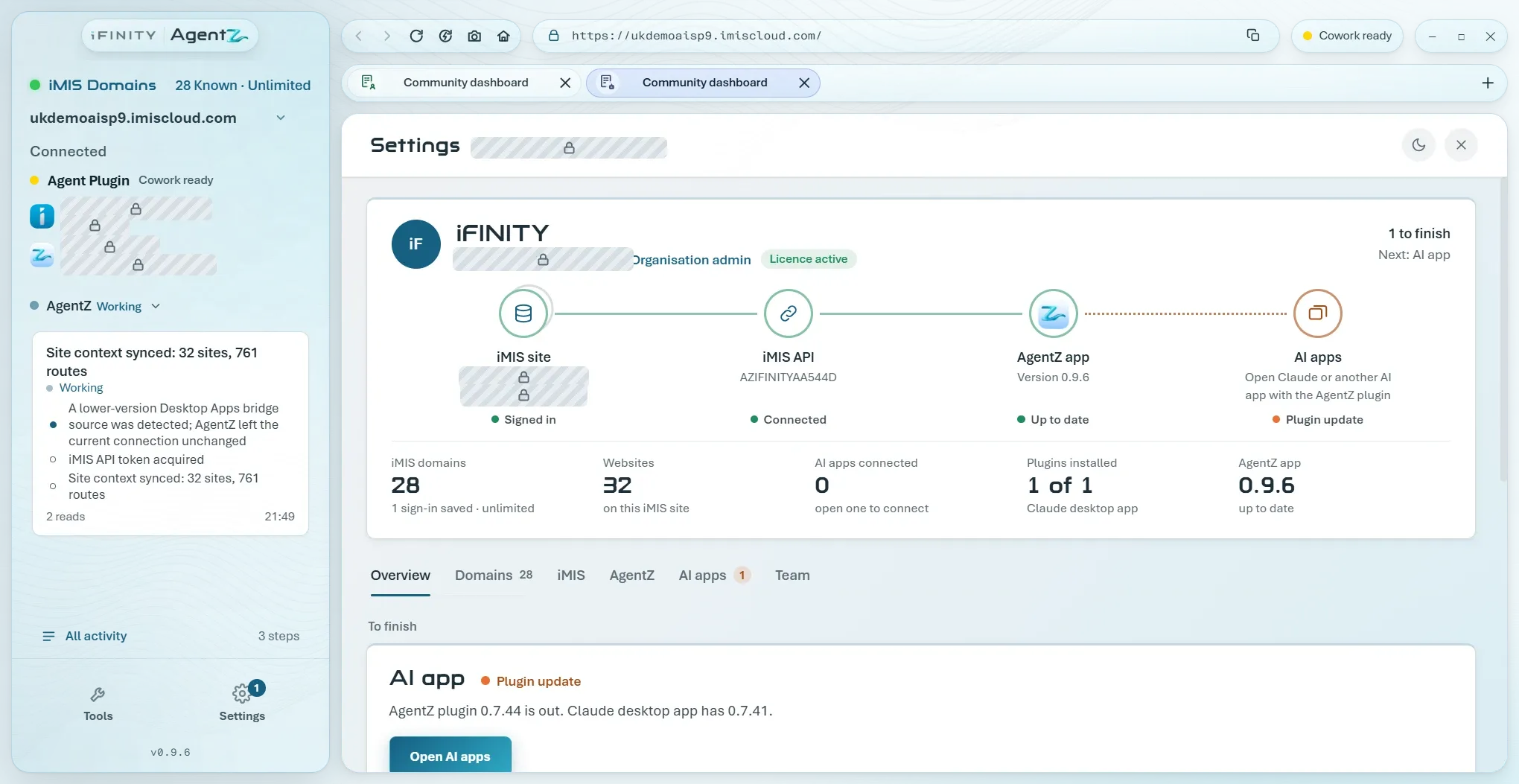
The header
Section titled “The header”The top of the tab shows the same header on every Settings tab.
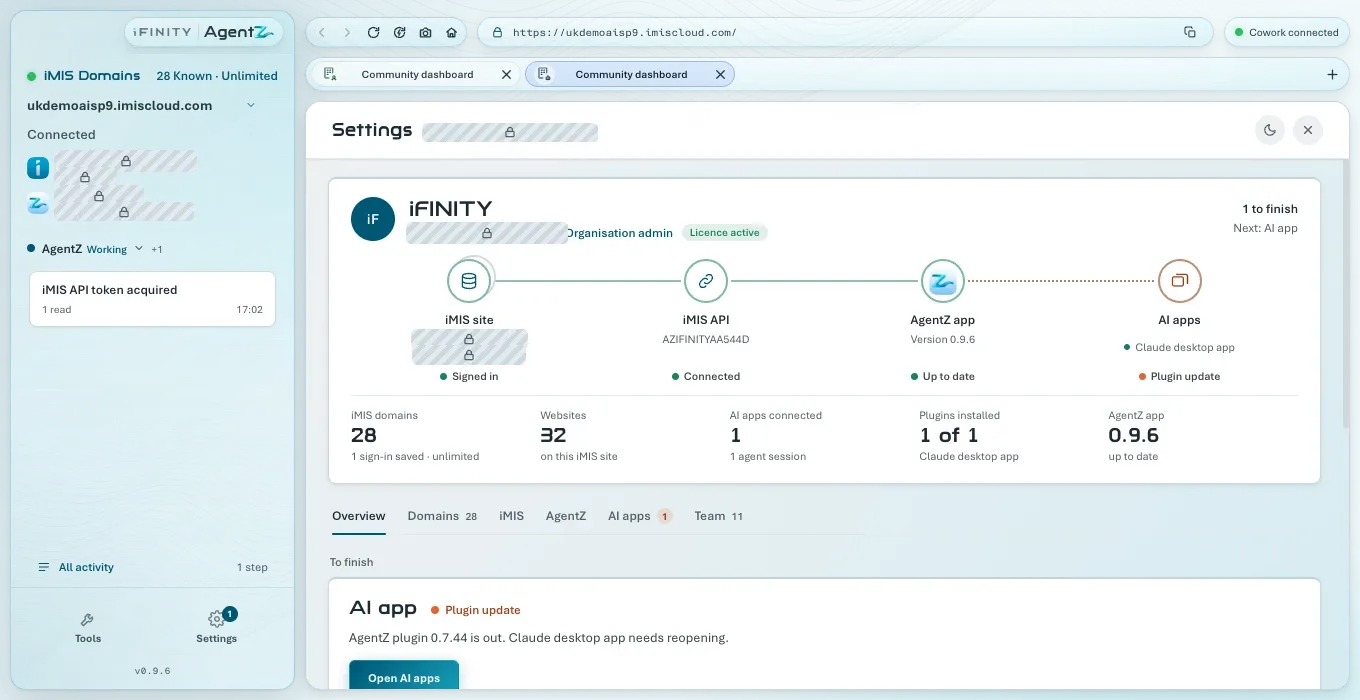
- Your organisation, with its initials, and below it your work email, your role (Organisation admin or Team member) and Licence active. As an Organisation admin, clicking Organisation admin opens the Team tab.
- On the right: Everything is working and “AgentZ is ready for” your iMIS site, or how many things are left, such as 1 to finish, and Next: followed by the part to finish.
- The map: four parts joined by a line, iMIS site, iMIS API, AgentZ app and AI apps, each with a short description and a state, such as Signed in, Connected, Up to date or Ready. A part that needs attention shows in orange with what is wrong, for example Plugin update.
- The figures: iMIS sites (how many iMIS sites are saved, how many have a sign-in saved, and your limit), Websites on this iMIS site, AI apps connected (and how many agents), Plugins installed, and the AgentZ app version. Which figures appear depends on your setup.
- The tabs: Overview, iMIS sites (when your licence lets you work with more than one iMIS site), iMIS, AgentZ, AI apps and Team (Organisation admins only). A number beside a tab is a count, such as the number of iMIS sites; an orange number means that tab has something to finish.
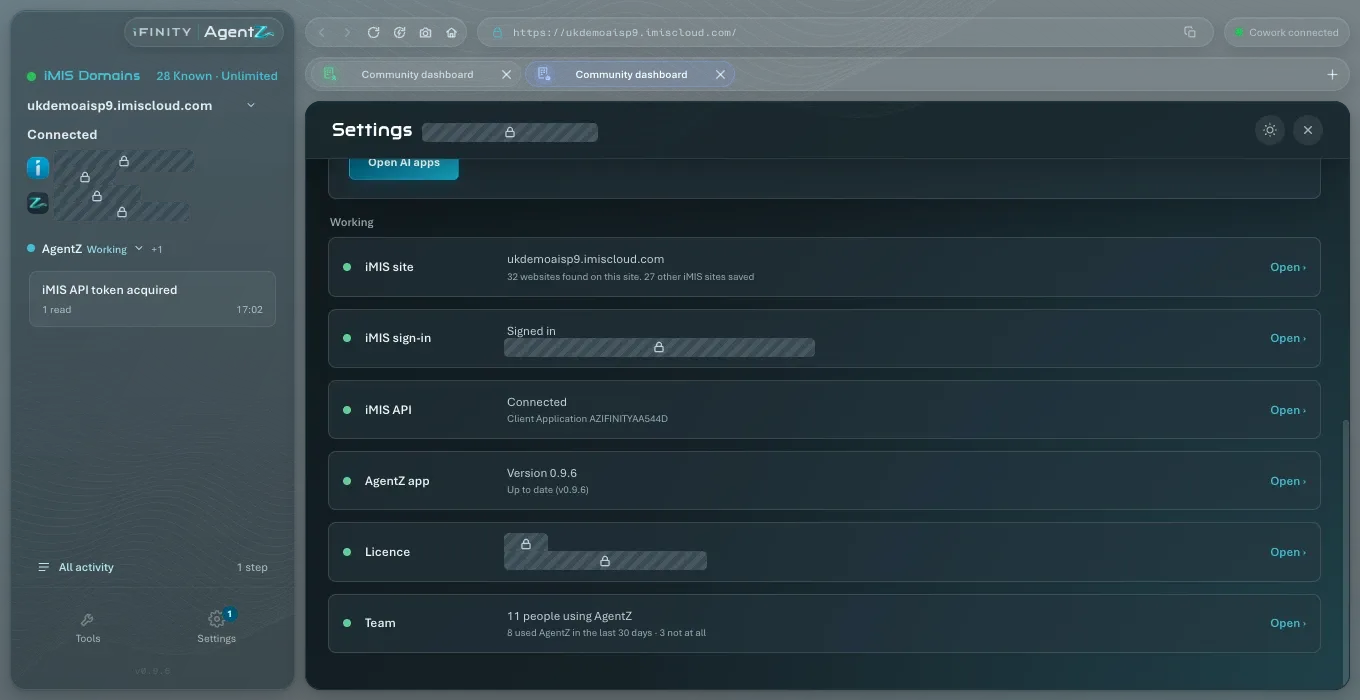
At the top right of Settings, the moon button switches the app between light and dark, and × closes Settings.
Setting up for the first time
Section titled “Setting up for the first time”On a computer where you have not yet finished setting AgentZ up, the Overview is your setup guide:
- AgentZ opens it for you. Once your iMIS page has settled, and while no agent is working, AgentZ opens Settings on the Overview tab by itself, if there is a step you can take now. It does this at most once every 12 hours.
- Setup appears in the sidebar, with the number of steps left that are yours to take. It opens the Overview. Once every step is done, Setup goes away for good on this computer. After that, if something stops working, the number shows on Settings instead.
To finish, Waiting and Working
Section titled “To finish, Waiting and Working”The checks are grouped:
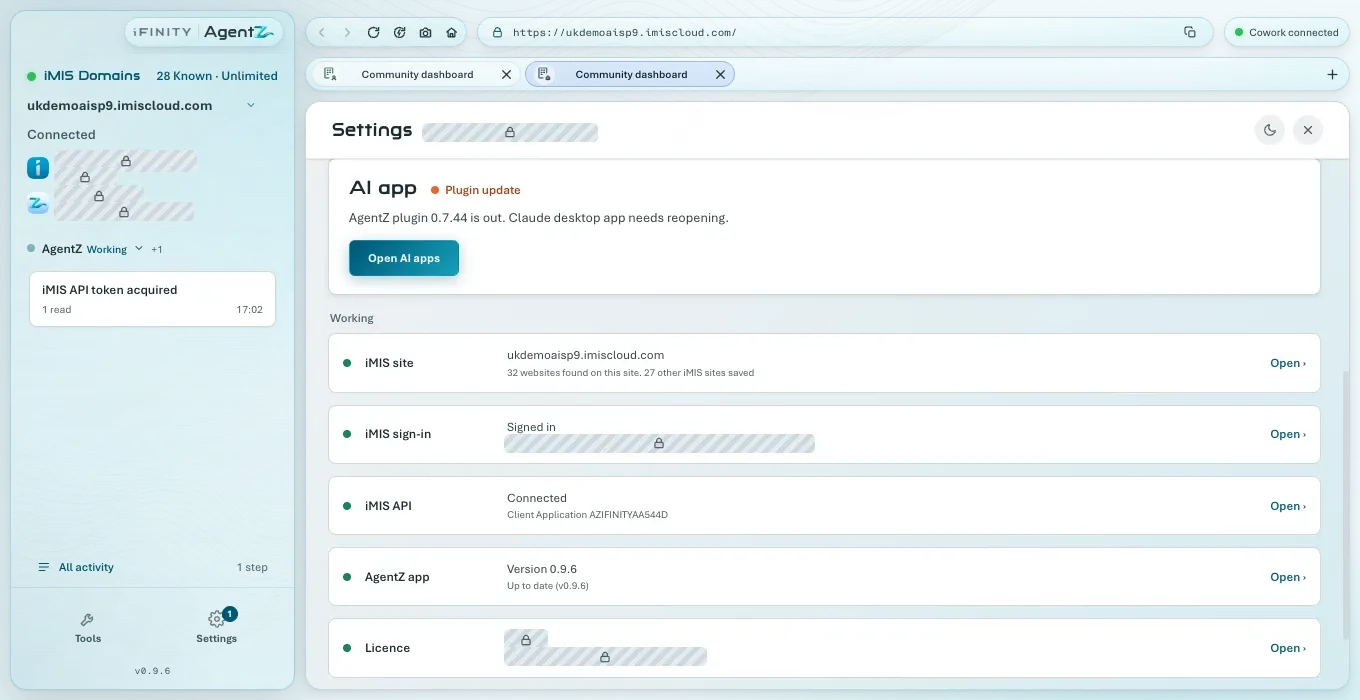
- To finish: what is left for you to do. The first one is shown large: its name, what is wrong, sometimes You should see: followed by what to expect once it is done, and one button named for what to do, such as Open AI apps or Enter your iMIS sign-in.
- Waiting: steps that wait for someone or something else, such as Waiting for your Organisation admin for the iMIS API. Nothing on them is yours to do.
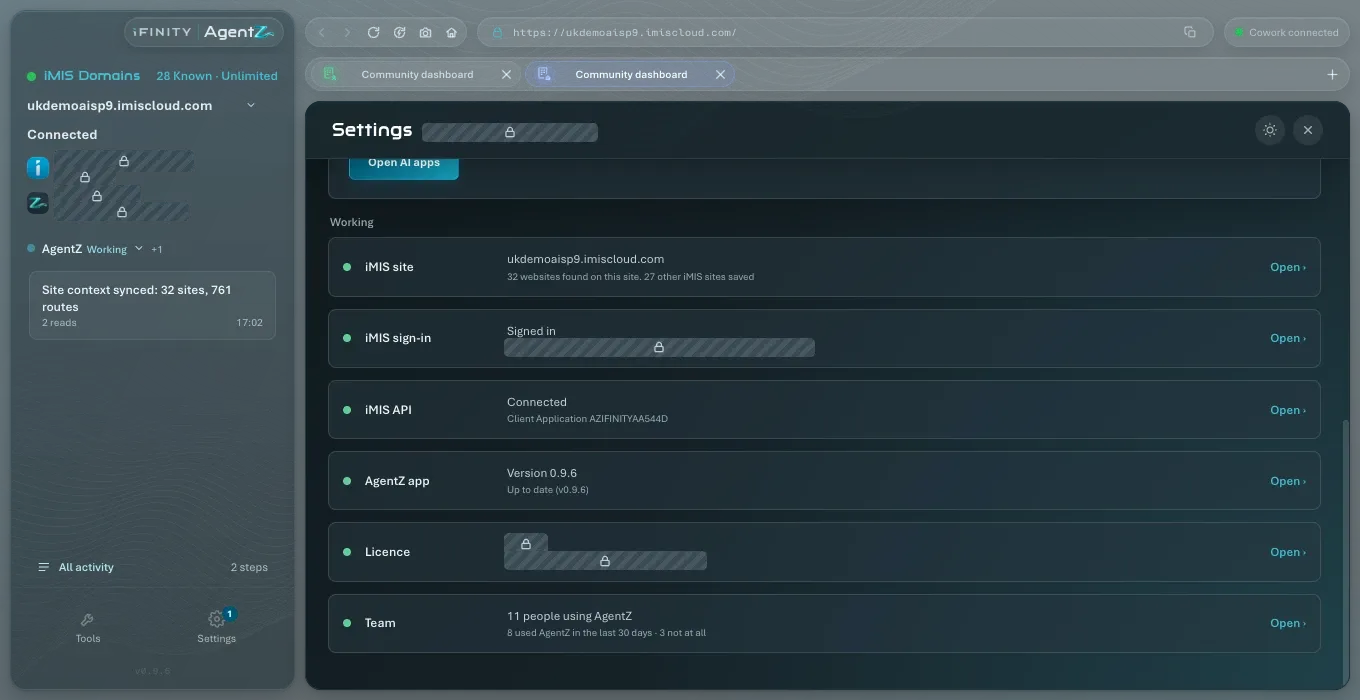
- Working, or All working when nothing is left or waiting: the parts that are done.
The checks
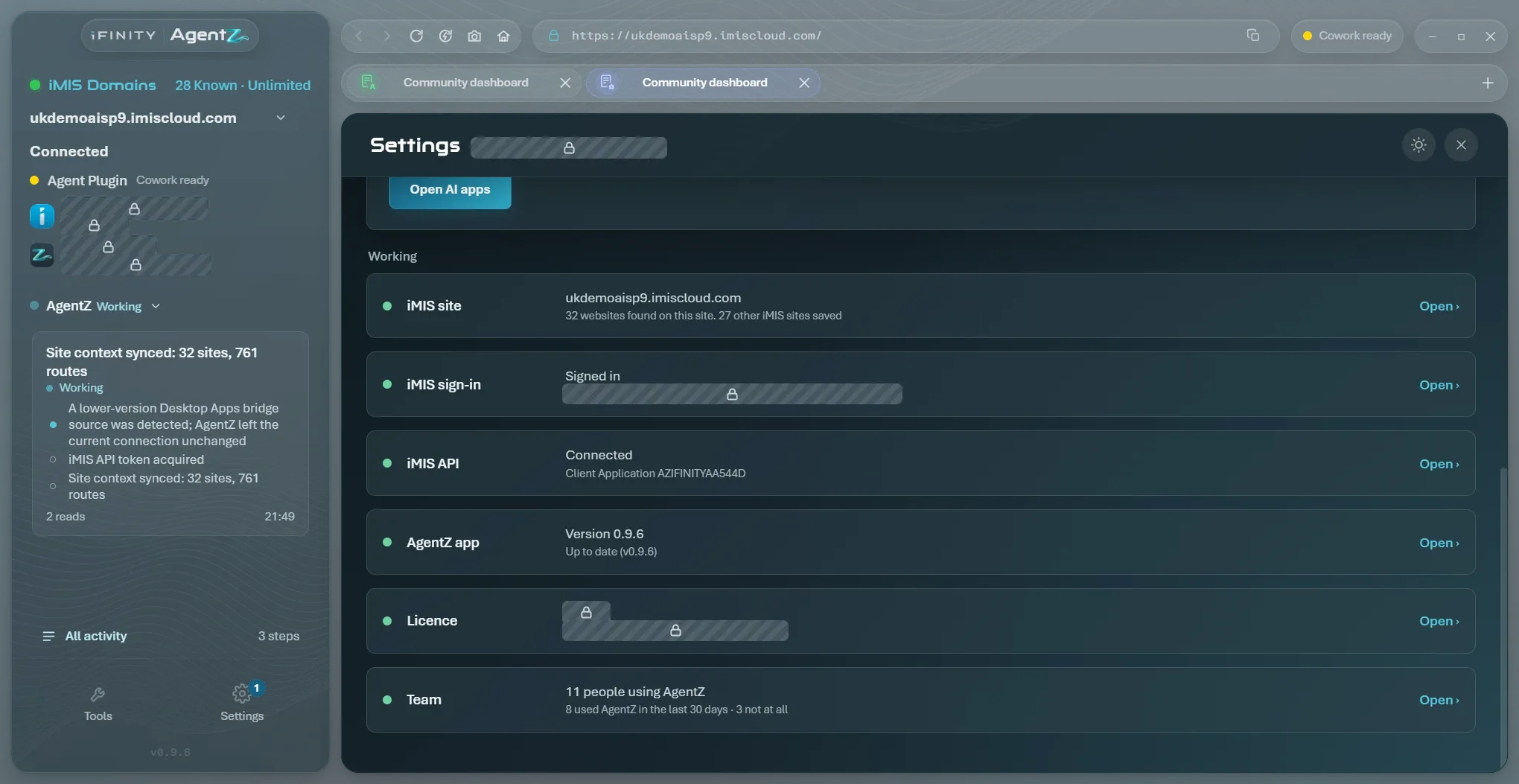
Section titled “The checks”Below, one row for each part of AgentZ: its name, its state, a line about it, and Open, which takes you to the tab where it is changed. A row that is not done has a button instead, named for the one thing to do.
| Check | What it shows |
|---|---|
| iMIS site | Your iMIS site’s address, how many websites AgentZ found on it, and how many other iMIS sites are saved |
| iMIS sign-in | Whether AgentZ is signed in to iMIS, and as whom |
| iMIS API | Whether the iMIS API is connected, and the Client Application it uses |
| AI app | Whether AgentZ is ready in your AI apps, and which ones |
| First answer | Whether your AI app has worked with iMIS through AgentZ yet. Shown until it has, with Copy the question |
| AgentZ app | The version, and Up to date, or “An update is ready. Restart AgentZ to finish updating.” |
| Licence | Your organisation, your work email and Licence active, or Reconnecting to the AgentZ service while AgentZ cannot reach it |
| Team | How many people use AgentZ and how many used it in the last 30 days. Organisation admins only |
Every state each check can show, and what to do about it, is listed in Checking your setup.
A check that waits for someone else, such as Waiting for your Organisation admin for the iMIS API, is not counted in To finish: nothing on it is yours to do.
Does the Overview change anything? No. It only shows the state of each part. Its buttons take you to the place where you make the change.
Why does the Overview say Everything is working when my AI app shows an older plugin? The AI app check looks at the AI apps it can see on this computer. An AI app that was already open keeps the plugin it started with until you close it and open it again.
Settings opened by itself when I started AgentZ. Why? You have not finished setting AgentZ up on this computer, and there is a step you can take now. Close it if you are busy: it opens by itself at most once every 12 hours, and Setup in the sidebar opens it at any time.
Where has the Setup button gone? It goes once you have finished setting up on this computer. Open Settings instead.
Can I hide the Team check? No. It is shown to every Organisation admin, and to nobody else.