

Using AgentZ with the keyboard and a screen reader
You can move around the AgentZ app with the keyboard, and a screen reader such as Narrator on Windows or VoiceOver on a Mac reads out what agents are doing as it happens. This article lists the keys the app itself responds to and what it announces.
Moving with the keyboard
Section titled “Moving with the keyboard”-
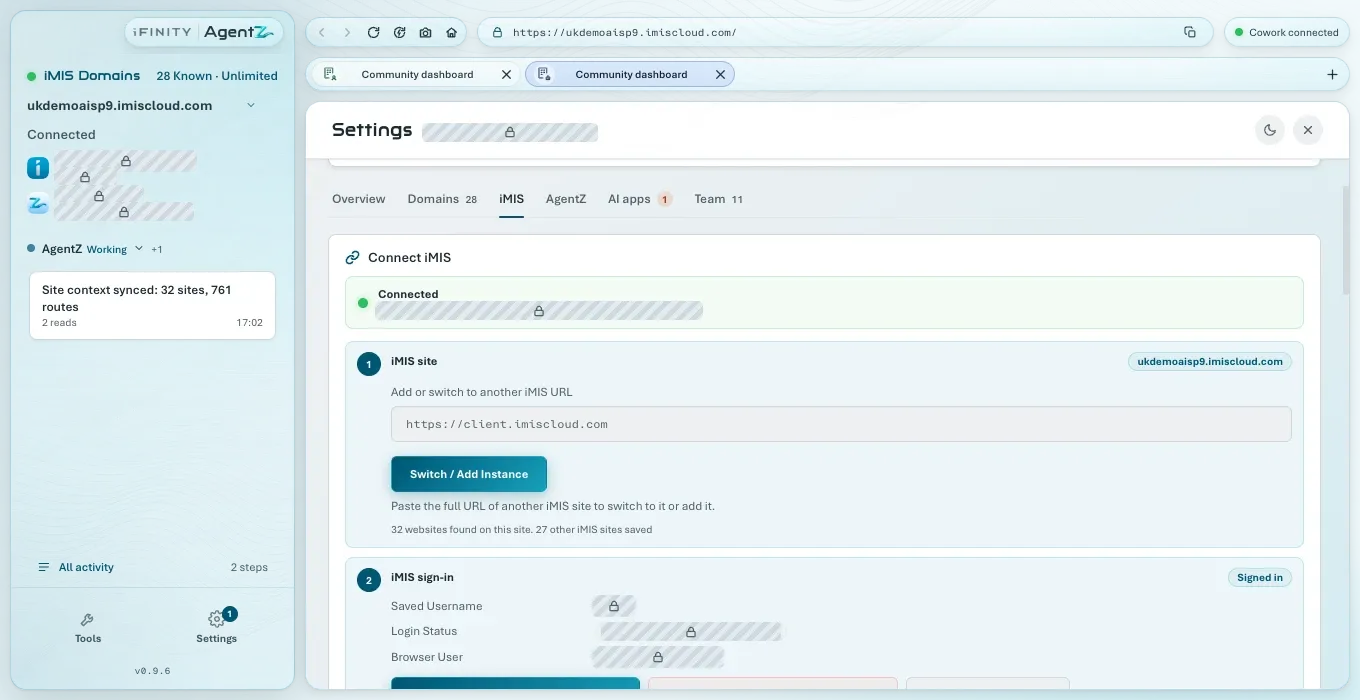
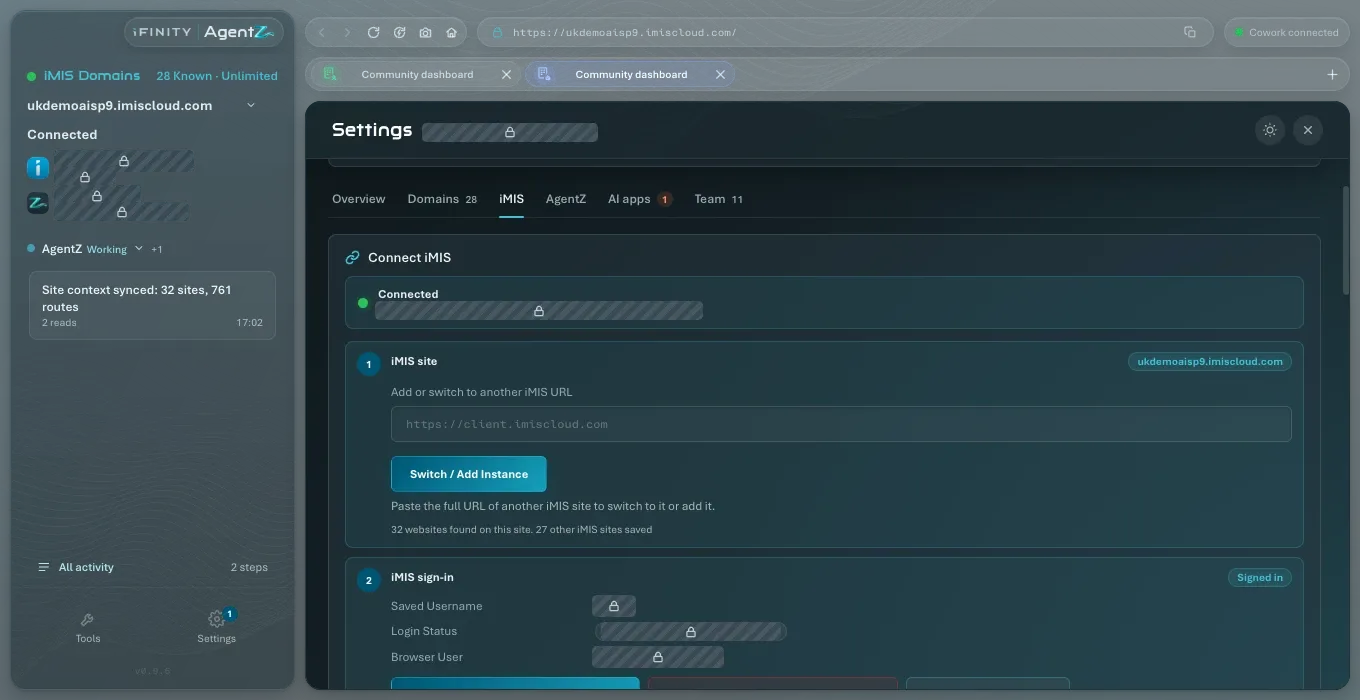
Tab and Shift+Tab move between the buttons, fields and links of the app, in the order they appear. The control you are on is outlined.
-
Enter or Space presses the button you are on.
-
In Tools, the tabs Design, Migration and BuildHub are one stop for Tab. Use the Left and Right (or Up and Down) arrow keys to move between them, and Home and End to go to the first or last. Moving to a tab opens it.
Closing things with Escape
Section titled “Closing things with Escape”Press Escape to close:
- the connection details that open from the padlock in the iMIS browser’s address bar;
- a change to the address in the address bar, which puts the page’s address back;
- the menu that opens from + at the end of the iMIS browser’s tabs;
- the list of agents that opens from the agent’s name in the sidebar;
- the All activity page.
In All activity, when the search box Find an agent by name, runtime or site has text in it, Escape clears the text first.
What a screen reader hears
Section titled “What a screen reader hears”While agents work, the AgentZ app announces changes without moving your focus:
- when an agent needs you: its name followed by “is waiting on you”, with what it is waiting for (this one interrupts, because it needs you). When several requests arrive at once, it says how many instead, for example “2 agents are waiting on you.”, even when one agent made both;
- when an agent starts work: its name followed by “started working.”;
- when you stop or resume an agent: its name followed by “has stopped.” or “has resumed.”;
- when you take over the iMIS browser: “You have the browser.”;
- the result of each control you press, such as Stop or Hand back the browser.
Other changes are announced politely, without interrupting what is being read, for example:
- the iMIS browser’s “Opening” and the iMIS site’s address while a page loads, and why a page did not open;
- the summary at the top of Settings > Overview;
- the result of signing in to iMIS on Settings > iMIS;
- the plugin version line on Settings > AI apps, and the Desktop Apps Bridge status.
See Activity and approvals for what each agent state means.
Does AgentZ read out every step an agent takes? No. It announces when an agent starts, stops, resumes or needs you, and the result of what you press. Open All activity to read every step.
Will a screen reader tell me when an agent is waiting for me? Yes. That announcement interrupts, so that you hear it straight away.