

Sharing across your organisation
When an agent finishes a piece of work in iMIS, the record of it stays on your computer. You can choose to share it, and any decisions behind it, with the rest of your organisation as Team notes. Agents your colleagues use can then find it and build on it, instead of working it out again.
What is shared and what stays on your computer
Section titled “What is shared and what stays on your computer”| Where it is kept | Who sees it | |
|---|---|---|
| Every agent’s steps, as listed in All activity | On this computer | You |
| Your finished work and decisions under History > Mine | On this computer | You |
| Work and decisions you share with the team, under History > Team | By the AgentZ service, as Team notes | Everyone in your organisation, and the agents they use |
Nothing is shared until you click Share with the team and see exactly what the team will receive. How long the AgentZ service keeps Team notes is chosen by your Organisation admin on the Team tab, under Data we keep for your organisation. See Team settings. What the AgentZ service receives and keeps is described in What iFINITY’s licensing service receives and stores.
History
Section titled “History”Click All activity, then History. It has two lists:
- Mine: your finished work and decisions on this computer.
- Team: what people in your organisation have shared.
Type in Search finished work and decisions to find one. Each row can carry a label: Shared, the number of decisions, Decision, Superseded or Retracted.
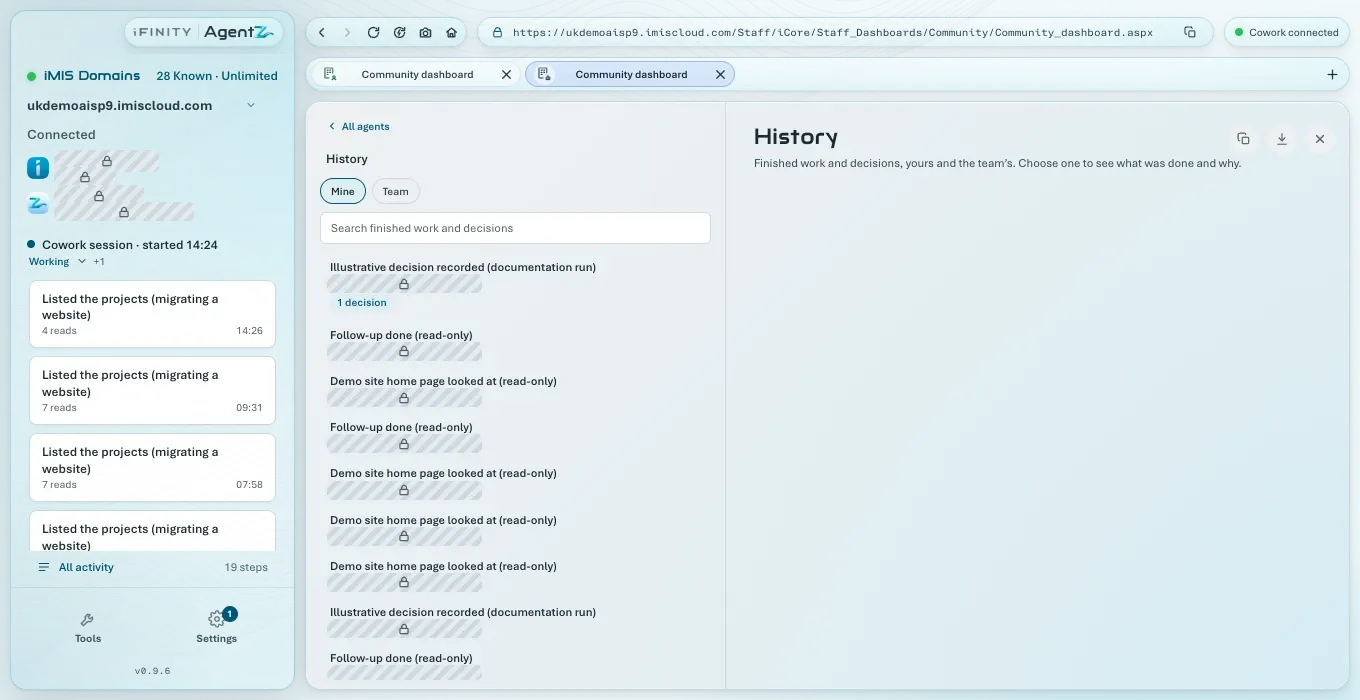
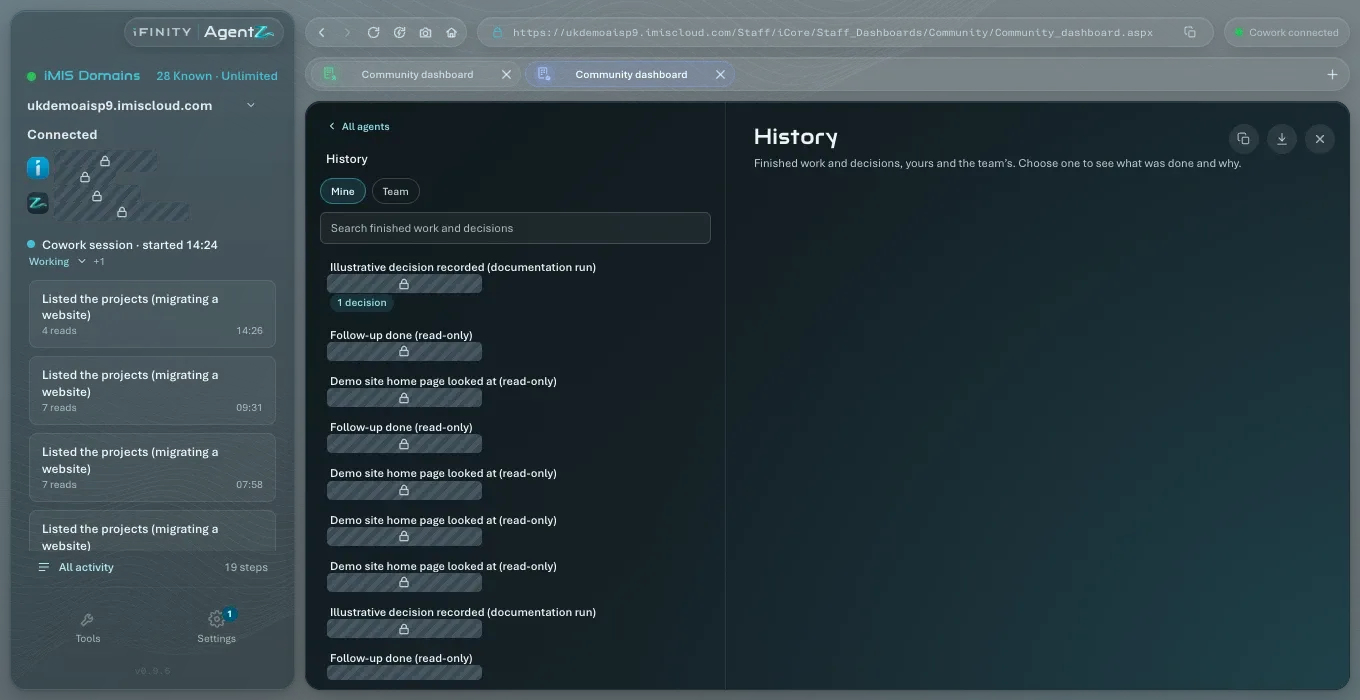
Choose a row to see it in full:
- whether it Finished or Finished with problems, or for a decision, the Decision and its Outcome;
- Why, and any Rejected options;
- Decisions taken during the work;
- Earlier work it used, and for a task that carries on from another, “Continues” and the earlier task, or “Continued by” and the later one;
- Related team work: work your colleagues shared on the same iMIS records.
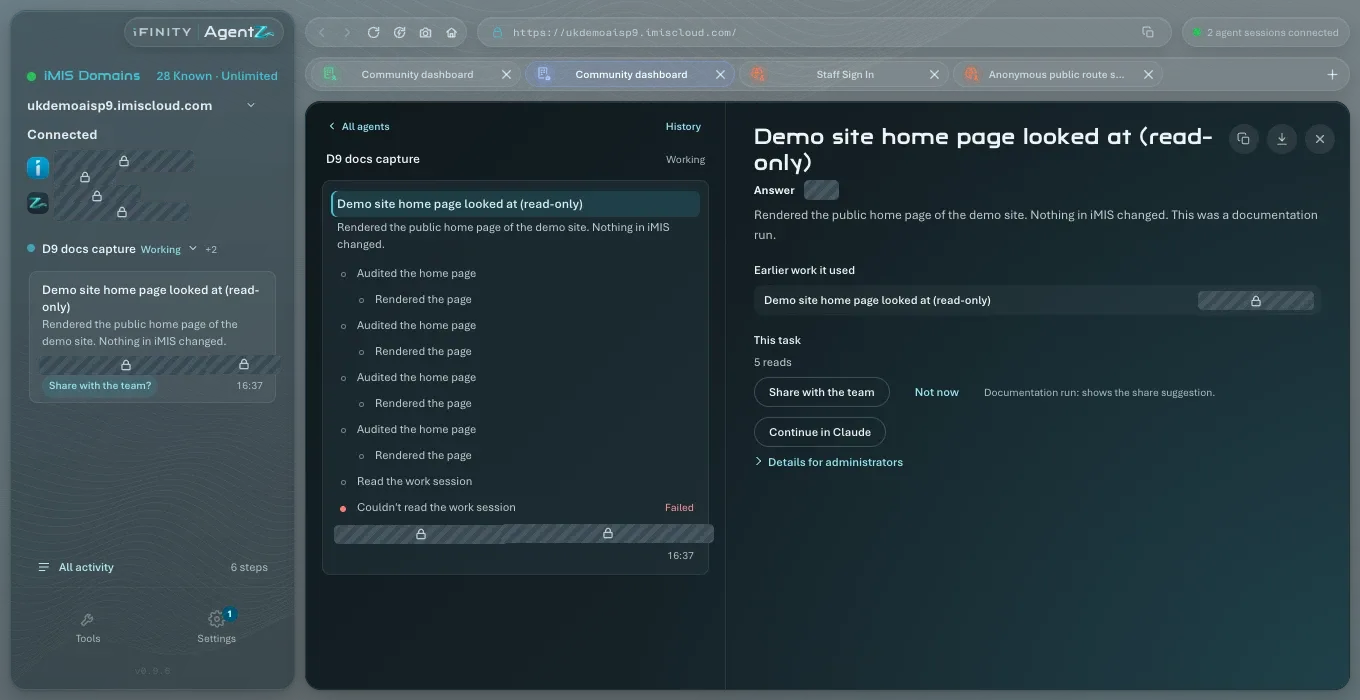
If you shared it, it says Shared by you, with Retract.
Sharing work with the team
Section titled “Sharing work with the team”Do the following to share a finished piece of work:
-
Click All activity, choose the agent, then the finished work.
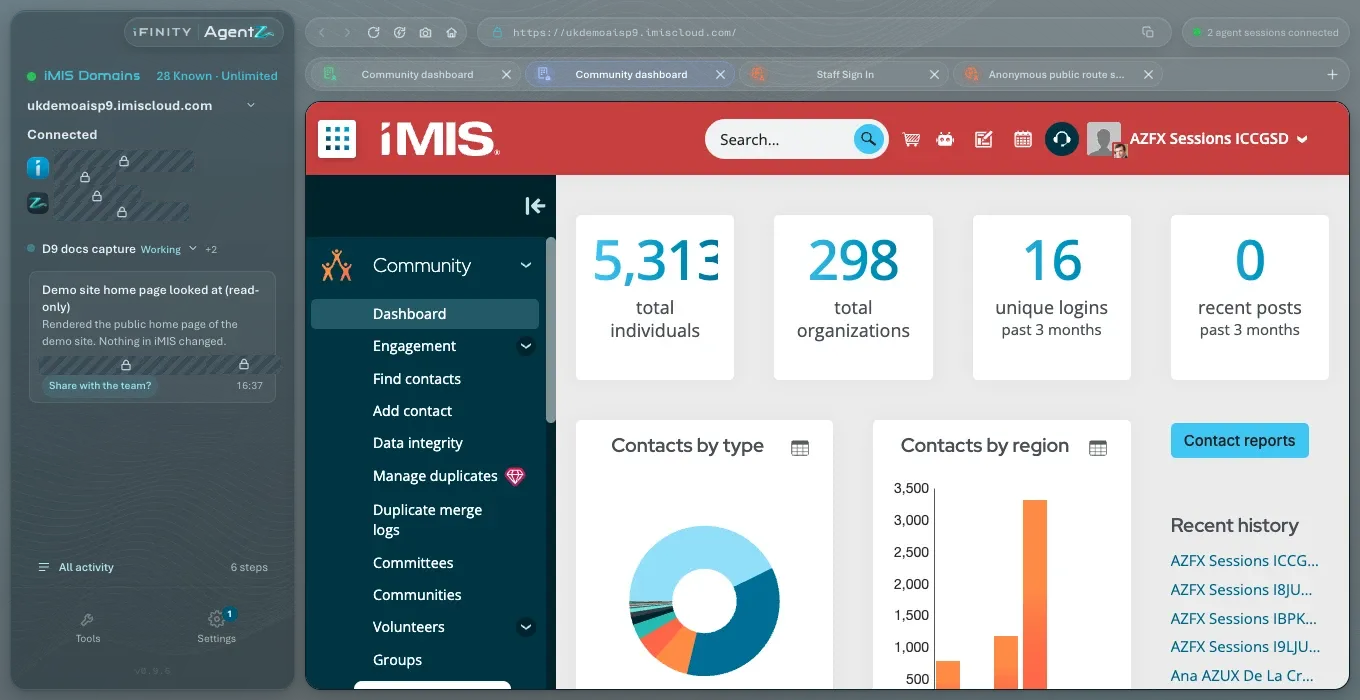
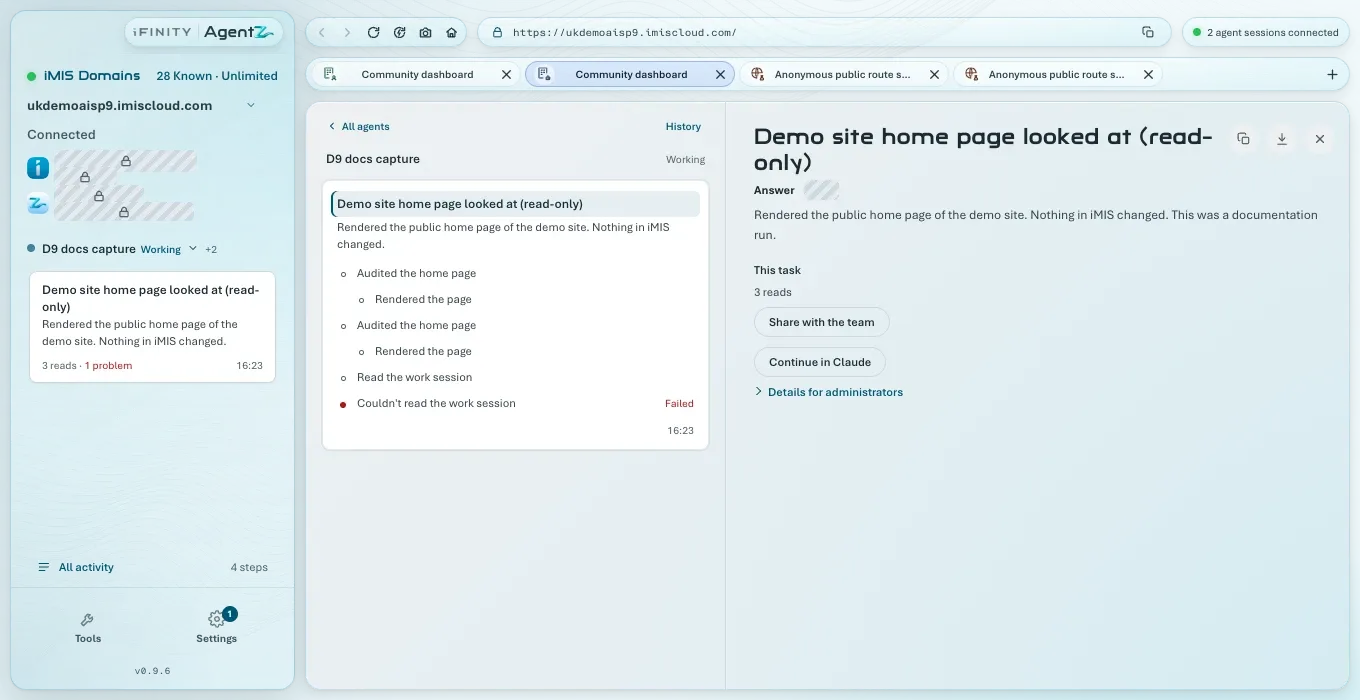
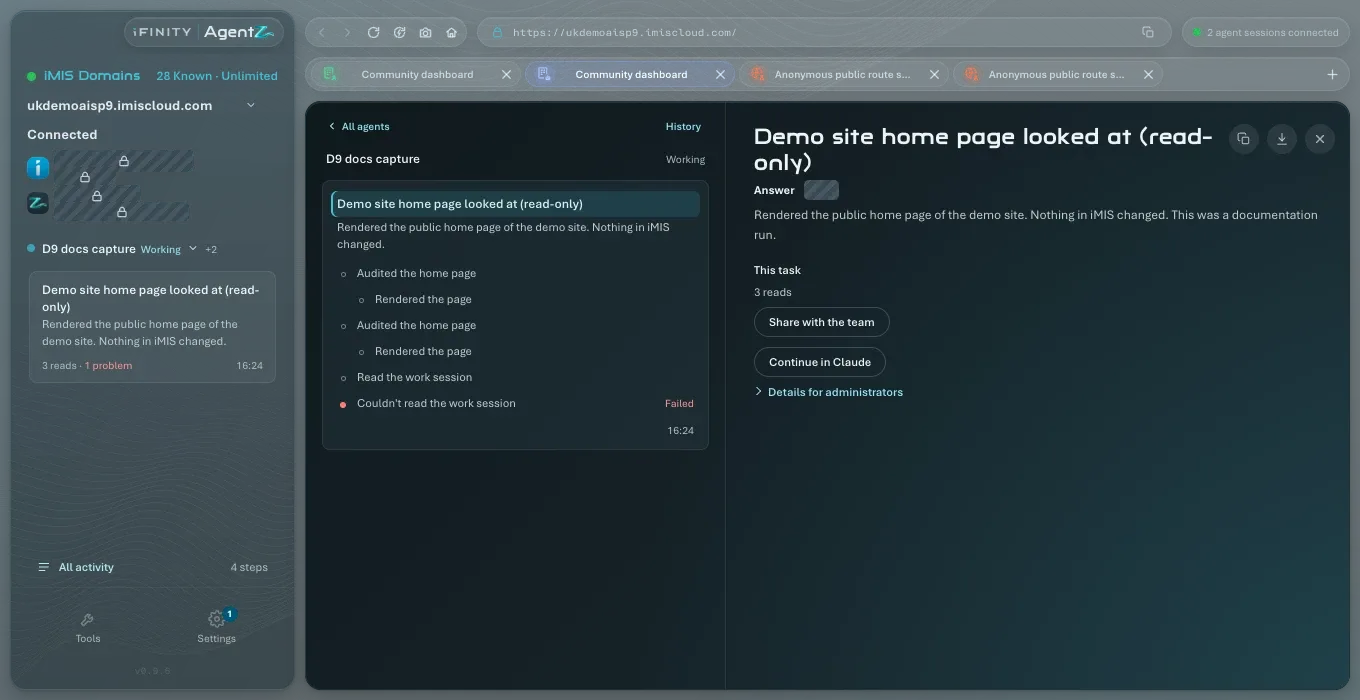
Under This task, AgentZ shows what the work did, Share with the team, and Continue in Claude. If the agent suggested sharing it, its card in the sidebar shows Share with the team?, which opens the work here, and Share with the team has Not now beside it, with the agent’s reason.
-
Click Share with the team.
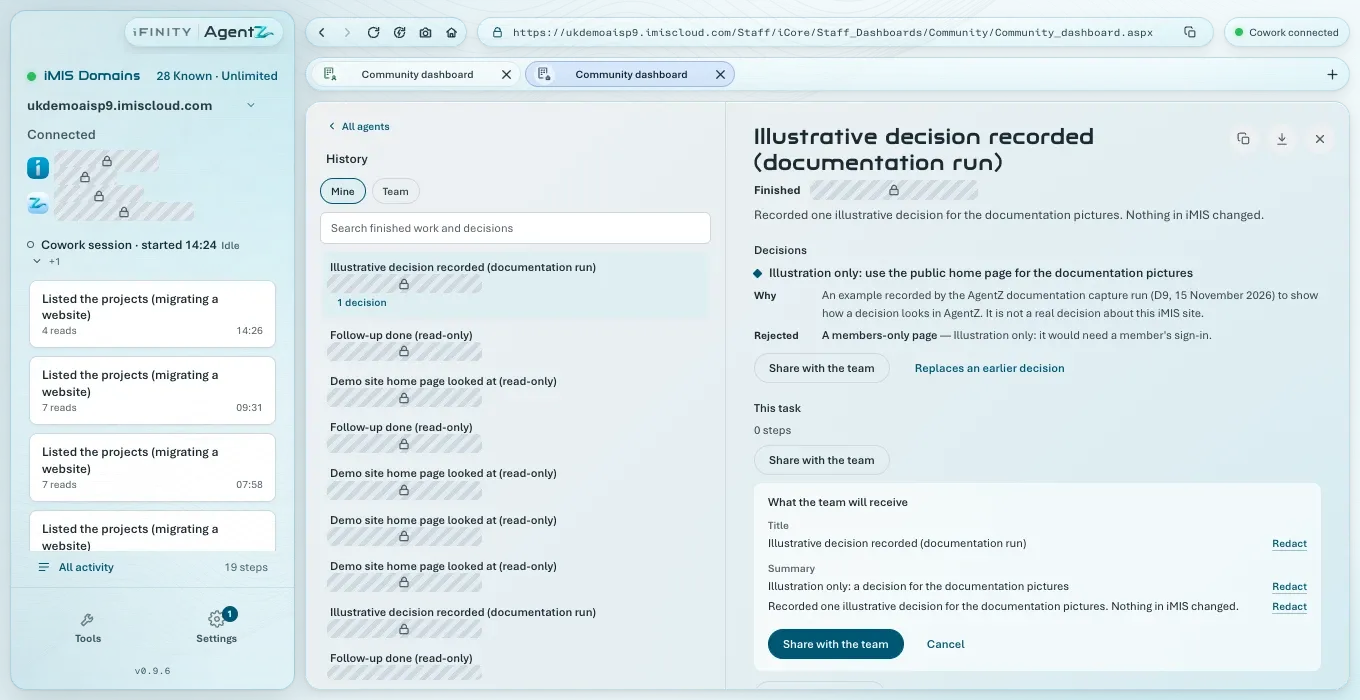
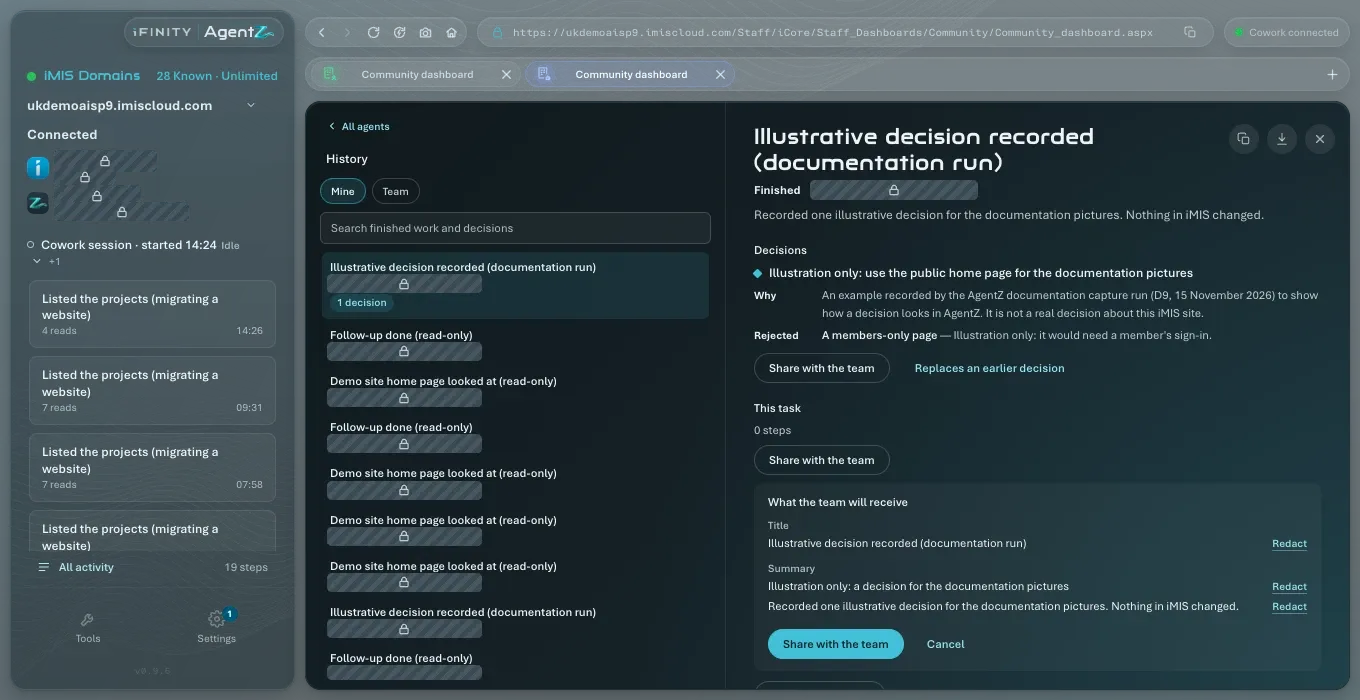
AgentZ shows What the team will receive: the Title, Summary, Why, any rejected options and what it Applies to, line by line.
-
To leave a line out, click Redact beside it. Undo puts it back. The button now reads Share, with the number of lines redacted.
-
Click Share with the team (or Share, with … redacted). To share nothing, click Cancel.
AgentZ says “Shared with the team. Agents in your organisation can now find it.” The work appears under History > Team for everyone in your organisation.
Replacing an earlier decision
Section titled “Replacing an earlier decision”A decision that replaces one your team shared before can say so. Beside the decision’s share button, click Replaces an earlier decision, then answer Which of the team’s decisions does it replace?, or choose Keep both to share it without replacing anything. A replaced decision is marked Superseded, and points to the newer one. If the team has none to replace, AgentZ says “The team has no shared decisions to replace.”
Retracting something you shared
Section titled “Retracting something you shared”Do the following to take back something you shared:
- Click All activity > History > Team, and choose the item. It says Shared by you.
- Click Retract.
- Optionally, say Why are you retracting it?, then click Retract. To leave it shared, click Keep it shared.
AgentZ says “Retracted. Agents no longer receive it.” The item stays in History, marked Retracted.
Continuing work in another conversation
Section titled “Continuing work in another conversation”Continue in Claude copies a summary of the work, ready to paste into any agent so that it can carry on where this one stopped. AgentZ says “Copied. Paste it into any agent.”
Do my colleagues see everything my agents do? No. They see only what you share with the team. Your activity stays on your computer.
Can I share part of a piece of work? Yes. Click Redact on each line you want to leave out before you share.
Can I undo a share? Yes. Retract it. Agents no longer receive it, and it is marked Retracted in History.
Can a team member share, or only an Organisation admin? Anyone with a seat can share their own work and retract what they shared.