

The iMIS browser
The iMIS browser is the browser inside the AgentZ app where your iMIS site opens. AgentZ signs it in to iMIS with your saved iMIS sign-in, and you and your agents use it in turn. When an agent opens an iMIS page, you see it happen here.
The controls
Section titled “The controls”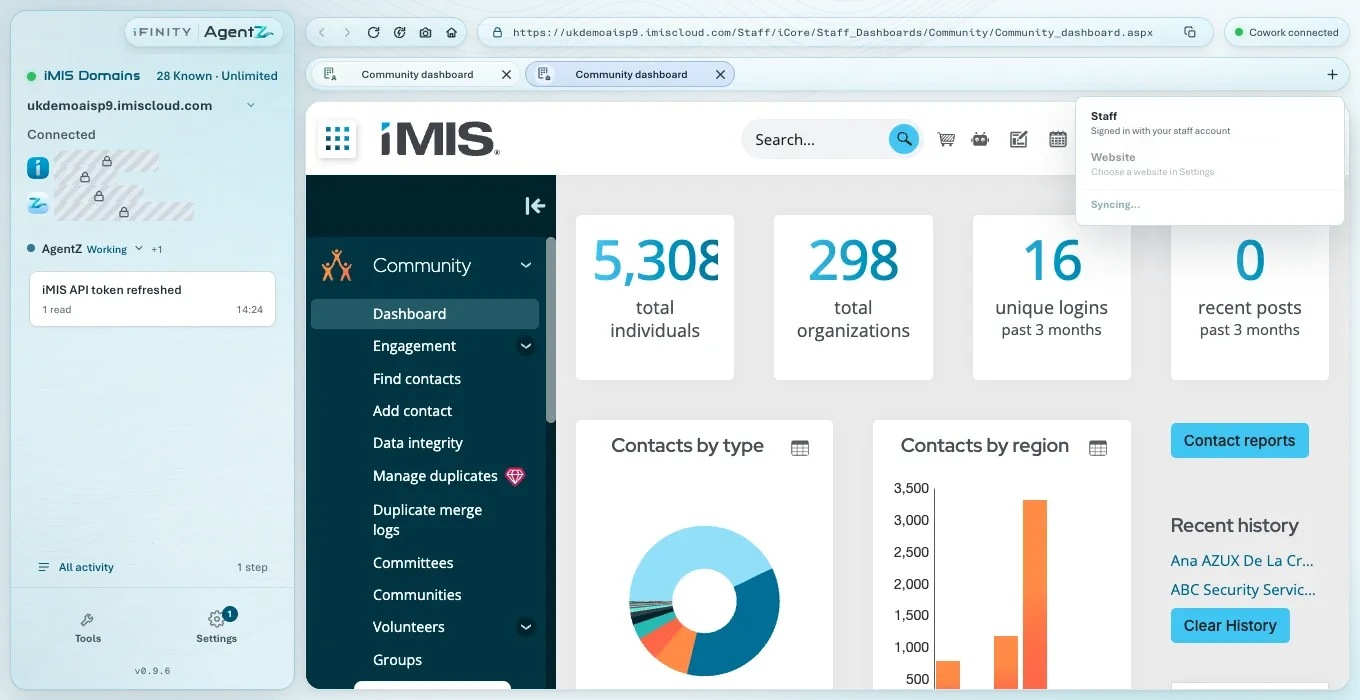
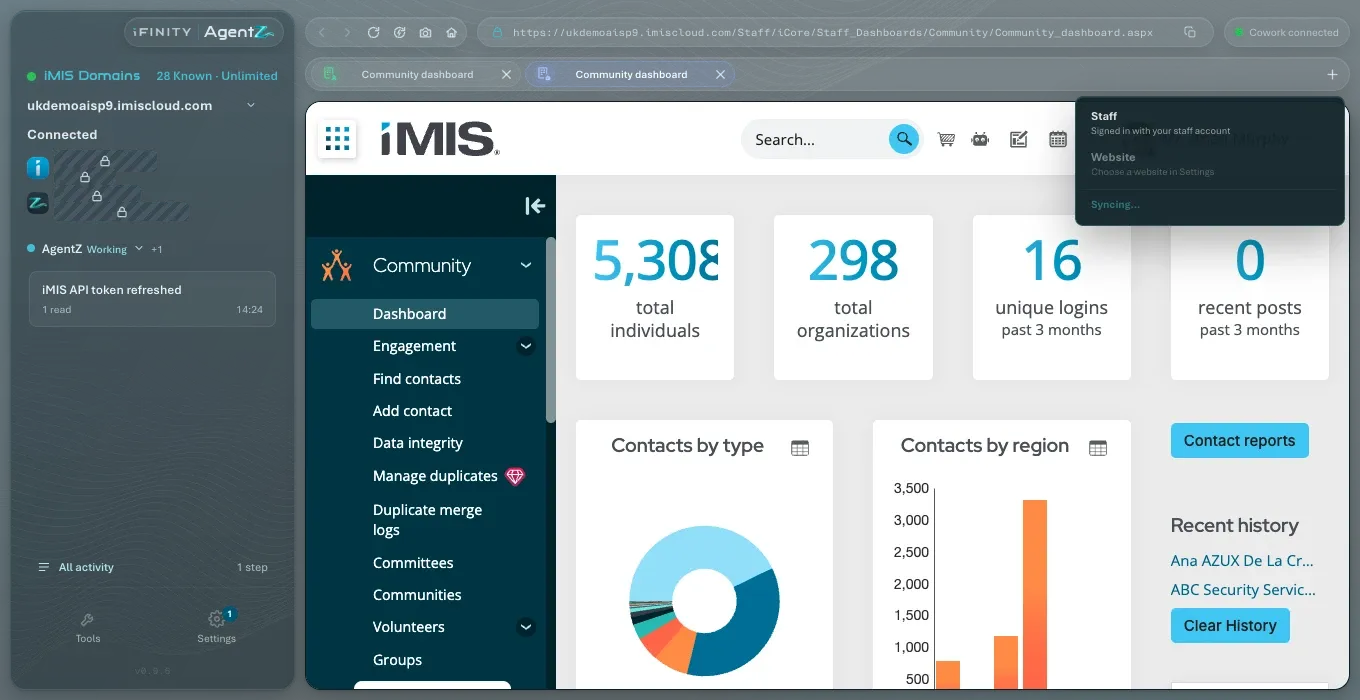
From left to right along the top:
- Back and Forward: the previous and next page in this tab. While an agent is working in the browser they are greyed out, with the tooltip “Browser locked while workflow is running”.
- Reload: loads the page again.
- Hard refresh current tab: loads the page again without anything the browser kept from before. Use it when a page looks out of date.
- Capture full-page screenshot: saves a picture of the whole page, including the parts you would scroll to. The picture appears in the activity of AgentZ, with Copy; you can also drag it out, or right-click it for Copy Screenshot.
- Staff home: goes to your iMIS staff site’s home page.
- The address bar: the address of the page, with the padlock (Connection security) at its left and Copy page address at its right. Before the first page loads it reads Waiting for iMIS. Copy page address copies the full address and briefly reads Copied. To open another page of your iMIS site in this tab, change the address; see Opening a page by its address.
- The connection pill: whether AgentZ is ready for your AI apps, or which agents are connected.
Opening a page by its address
Section titled “Opening a page by its address”You can open any page of the iMIS site AgentZ is working in by typing or pasting its address. For example, to open the public sign-in page of your site in the current tab:
- Click the address in the address bar. Your iMIS site’s address, for example
https://yourorg.imiscloud.com, stays fixed at the left, and the rest of the page’s address is ready to change. - Type or paste the rest of the address, for example
/iCore/Contacts/Sign_In.aspx?LoginRedirect=true. You can also paste a page’s full address, if it is on the same iMIS site. - Press Enter. The page opens in the current tab.
Press Escape to put the address back without opening anything.
The address bar opens pages on your iMIS site only. An address on any other site does not open, and the address bar says so, for example “Only pages on yourorg.imiscloud.com open here.” To open another site, use your usual web browser. While an agent is working in the browser, the address cannot be changed.
Each tab is one iMIS page. Click a tab to bring it to the front, drag it to change the order, and click its × (Close tab) to close it; the × shows when more than one tab is open. Each tab is named for what it shows, such as Staff home, the page’s name, Agent tab or iMIS popup, and its small mark shows whose it is (yours, an agent’s, shared, a test or AgentZ’s own) and what kind of session it uses. Hold the pointer over a tab to see its session, for example Staff session or Website session.
When a page in iMIS opens a pop-up window, it opens as a new tab in the iMIS browser, named after the page, never as a separate window.
A tab that is waiting for your answer, for example an agent’s request to open a page as a visitor, shows a waiting mark.
Click + at the end of the row of tabs to open a new tab:
- Staff: a new tab on your iMIS staff site, signed in with your staff account.
- Website: a new tab on your main website, as a visitor sees it. Until you choose a main website it is greyed out and reads Choose a website in Settings (or Sync sites to choose). See Choosing your main website.
- Sync sites: reads the list of websites on your iMIS site again, and reads Syncing… while it does. It is greyed out until the iMIS API connection is set up.
Press Escape to close the menu without choosing.
Connection security
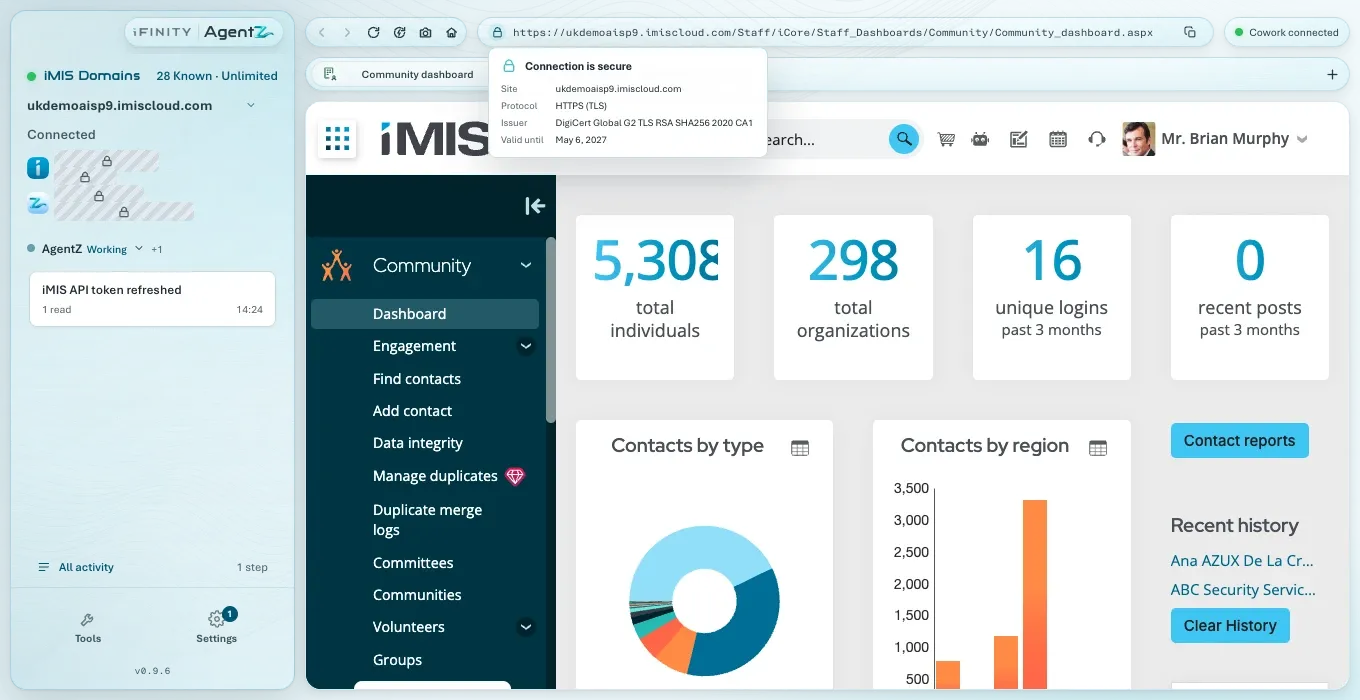
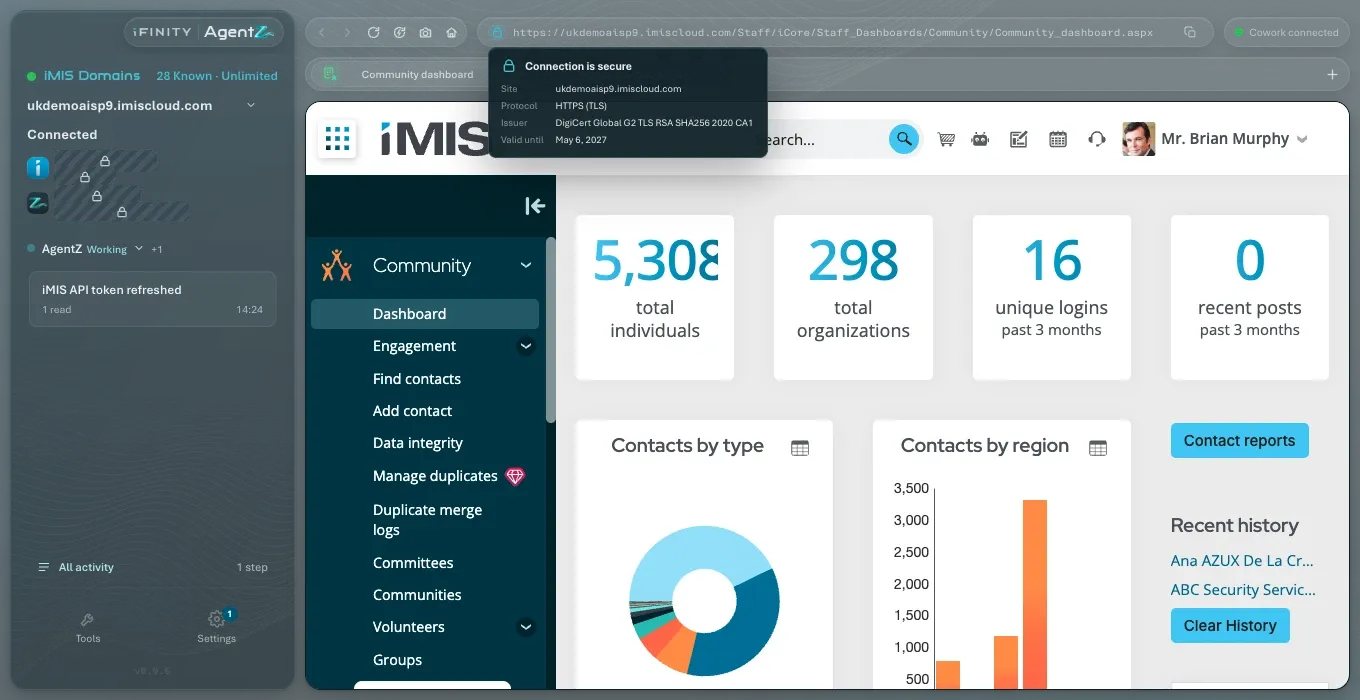
Section titled “Connection security”Click the padlock in the address bar to see the page’s connection: Connection is secure or Connection is not secure, the Site, the Protocol (HTTPS (TLS), or HTTP — not encrypted), the certificate’s Issuer and the date it is Valid until. If no page has loaded, it says No page loaded. Press Escape, or click elsewhere, to close it. The padlock does nothing while Settings, Tools or All activity is open over the browser.
The right-click menu
Section titled “The right-click menu”Right-click in an iMIS page to see what you can do there. What the menu offers depends on what you clicked:
- Anywhere on the page: Back, Forward (greyed out when there is nowhere to go), Reload, Hard Refresh, Go to Staff Home, Copy Page URL, and Open Page in Browser, which opens the page in your usual web browser.
- On a link: Copy Link Address (or Copy Email Address for an email link), Open Link in Browser, and, for a link to your own iMIS site, Open Link in AgentZ Tab with Open in Current Tab, Open in New User Tab, Open in New Agent Tab, Open in Website Tab (not for staff pages) and Open in Isolated Tab.
- On an image: Copy Image, Copy Image Address and Save Image As….
- On selected text: Copy, and on a Mac, Look Up the selected words.
- In a field you can type in: Cut, Copy, Paste and Select All; on a misspelt word, up to five suggestions (or No Guesses Found) and Add to Dictionary.
Right-click outside the iMIS page, in the AgentZ window, for Settings….
Downloads
Section titled “Downloads”Files you download from iMIS in your own tabs are downloaded as in any browser. A tab an agent opened as a visitor does not download files.
When a page does not open
Section titled “When a page does not open”If an iMIS page cannot load, the browser shows We couldn’t open and your iMIS site’s address, a sentence saying why in plain words, Try again, and Technical details for iFINITY support. For example, “This computer is offline. Check your internet connection, then try again.”
If AgentZ cannot start its iMIS browser at all, it says AgentZ couldn’t start its iMIS browser: “Try again. If it keeps happening, restart AgentZ.”
If your licence is not linked to an iMIS site yet, the browser says Your AgentZ licence isn’t linked to an iMIS site yet, with Check again and Sign out. Ask your Organisation admin, or email helpdesk@ifinity.co.uk.
Sharing the iMIS browser with agents
Section titled “Sharing the iMIS browser with agents”While an agent is using the iMIS browser, a glowing ring surrounds the page with Agent is working… (or the name of the work), and the page does not take your typing or clicks. You see the pages it opens, and the sidebar shows what it is doing. When AgentZ itself needs you to type, for example an iMIS security code while it signs in, the ring stays but the page takes your typing again. To use the browser yourself, take it over from the agent, then hand it back. See Taking over from an agent.
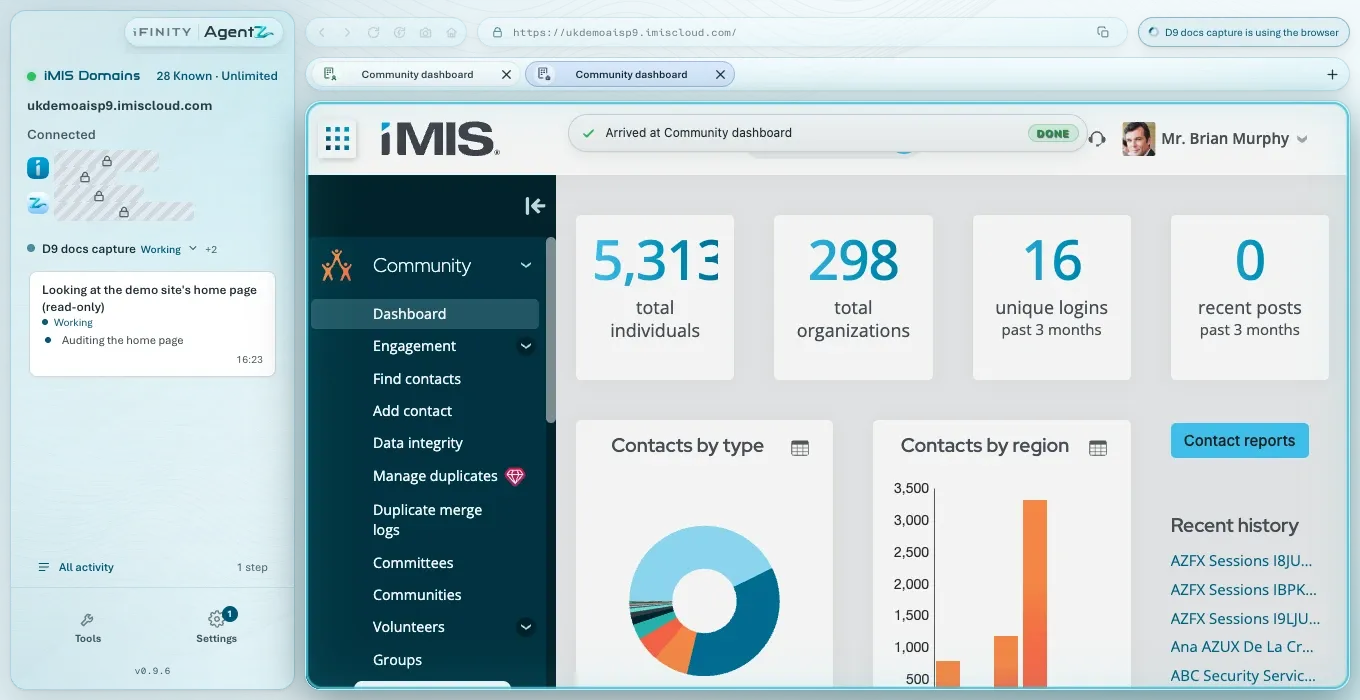
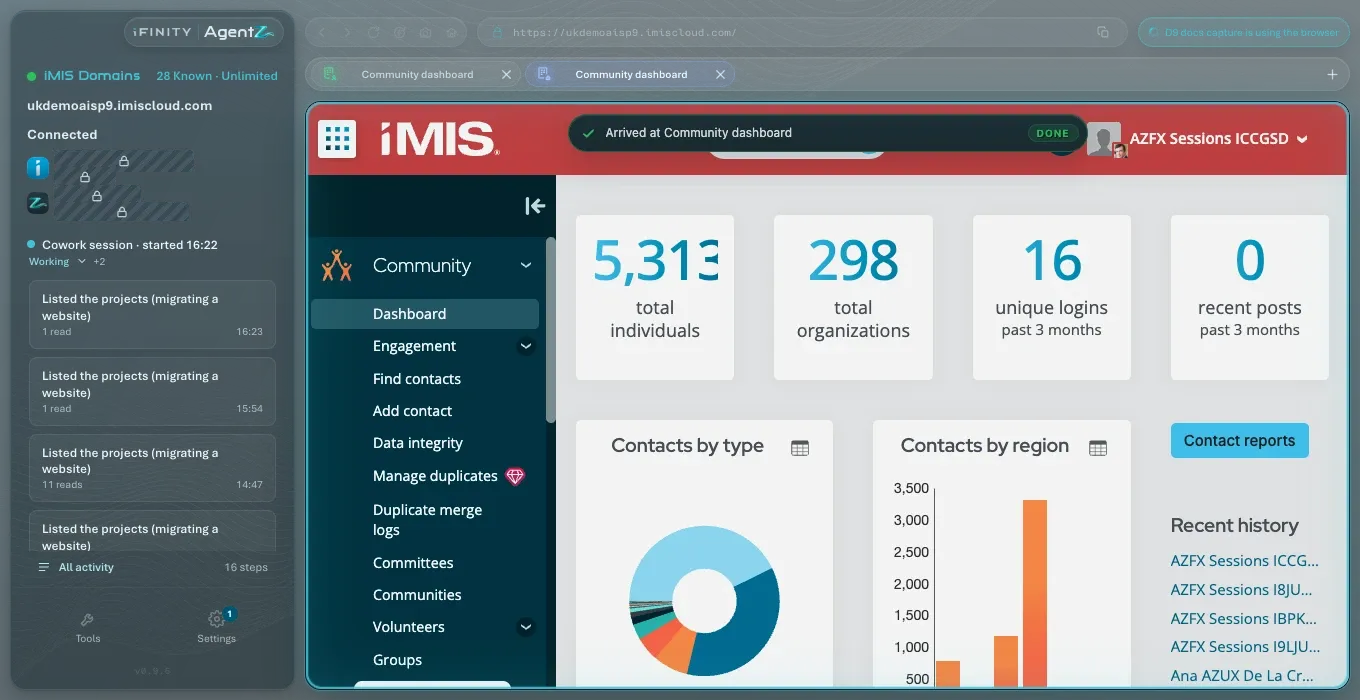
If an agent asks to open a page of your website as a visitor, AgentZ asks you first with Allow and Not now. See Activity and approvals.
What else to know
Section titled “What else to know”- Settings, Tools and All activity open over the browser. The page underneath stays where it was.
- Signing in from Settings closes Settings. While AgentZ signs in, the browser shows Opening and your iMIS site’s address.
- A page can show at phone or tablet size for a moment. When an agent checks how a page looks on a phone or a tablet, the browser shows the page at that width while it checks, then goes back to its own size. If the check is interrupted, the browser goes back by itself within two minutes.
- Messages from iMIS are iMIS’s own. A cookie banner, a security code page or an iMIS error message comes from your iMIS site.
- AgentZ answers only the iMIS questions it expects. When an agent publishes or deletes something in the iMIS browser, AgentZ answers iMIS’s usual question for that step, such as “Are you sure you want to delete … and all of their children?”. If iMIS asks anything else, for example that someone else has the page open, AgentZ answers Cancel, stops, and tells the agent what iMIS asked. If the change may already have started, the agent checks the record in iMIS.
Can I sign in to iMIS by hand in the iMIS browser? You do not need to. AgentZ signs in with your saved iMIS sign-in. If your iMIS site asks for a security code, you type only the code in the browser.
Can I open iMIS in my own web browser as well? Yes. The iMIS browser is separate from your usual web browser, so each has its own sign-in.
Can I open the page I am looking at in my usual web browser? Yes. Right-click the page and choose Open Page in Browser. Your usual browser has its own iMIS sign-in.
Why can’t I click the page? An agent is working in it. Wait for it to finish, or take the browser over. See Taking over from an agent.
Where does a full-page screenshot go? It appears in the activity of AgentZ (the app’s own work). From there you can copy it, or drag it out into another app.