

Managing your team's BuildHub listings
Your team can publish its own configurations from iMIS to BuildHub, so that your team, or other organisations, can install them. In the BuildHub tab of Tools you choose who can see each of your team’s listings, take one out of the catalogue, or remove it for good.
Before you begin
Section titled “Before you begin”- An AI app connected to AgentZ. Publishing happens in a conversation with your AI app, not on the BuildHub page. See Connecting your AI app.
- The configuration on your iMIS site, finished and checked. AgentZ exports what is there.
- Your organisation’s sharing limit. A listing can never be seen more widely than your organisation allows. See Your organisation’s sharing limit.
Publishing a configuration
Section titled “Publishing a configuration”Click Tools, then BuildHub, then How to publish at the top. The card Publish from an agent session explains how publishing works.
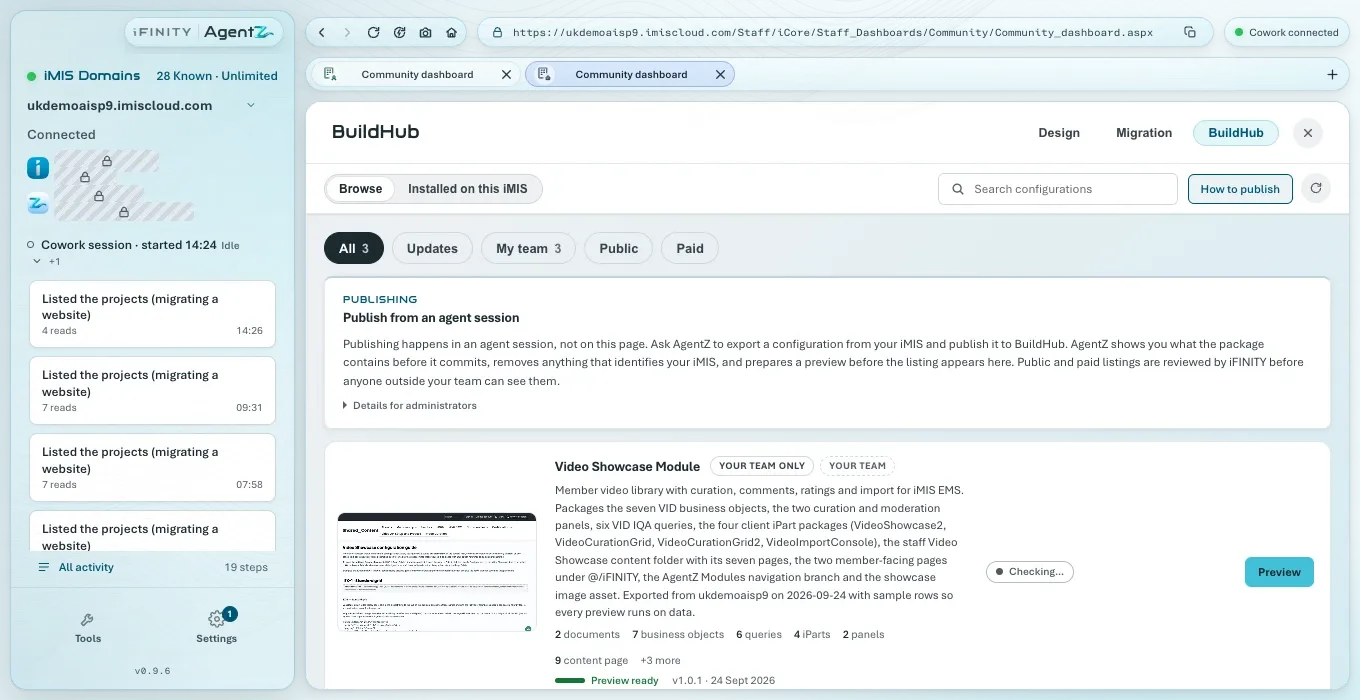
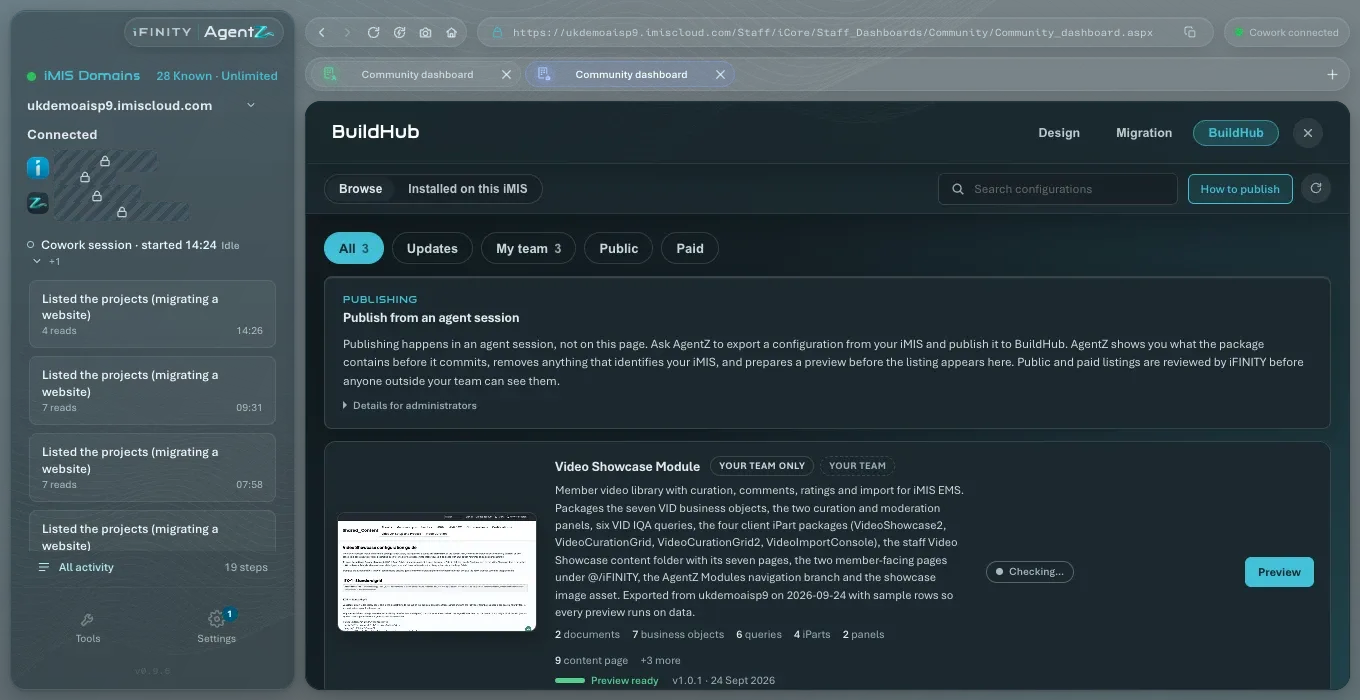
Do the following to publish a configuration:
- In your AI app, ask AgentZ to export the configuration from your iMIS site and publish it to BuildHub, naming the configuration.
- Read what AgentZ shows you before it publishes: what the package contains. AgentZ removes anything that identifies your iMIS site.
- Approve it in your AI app.
AgentZ prepares a preview of the package before the listing appears in BuildHub. The new listing shows under My team, visible to Your team only unless you chose otherwise within your organisation’s sharing limit.
Choosing who can see a listing
Section titled “Choosing who can see a listing”Your team’s own listings have a card Manage · your team on the listing’s Versions tab. It says who can see the listing now:
- Visible to your team only.
- Visible to everyone.
- Visible to everyone; installing needs an entitlement.
Do the following to change who can see a listing:
- Open the listing, then its Versions tab.
- In Who can see it, choose Your team only, Public or Paid.
- Click Apply.
BuildHub says what changed above the listing. If the change was refused, the message starts Change not applied: and says why, for example that it is wider than your organisation’s sharing limit.
Delisting and relisting
Section titled “Delisting and relisting”Delisting takes a listing out of every other organisation’s catalogue. Your team keeps it, nothing is deleted, and you can relist it at any time.
- Delist: “Removes it from everyone else’s catalogue; your team keeps it and can relist.” BuildHub then says “This listing is delisted. Nobody outside your team can see it now; your team can relist it at any time.”
- Relist: “Puts it back in the catalogue with the audience it had before. A public or paid listing goes through iFINITY review again first.” BuildHub then says “This listing is back in the catalogue.”
While a listing is delisted, Who can see it is hidden: relist it first, then change who can see it.
Removing a listing for good
Section titled “Removing a listing for good”You can remove a listing from BuildHub for good only when it is delisted and only your team ever saw it. A listing that was ever shared outside your team stays delisted instead.
Do the following to remove a listing:
-
Open the listing, then its Versions tab. It must show as delisted and Visible to your team only.
-
In Remove permanently, type the listing’s short name exactly as shown.
-
Click Remove from BuildHub.
AgentZ checks the listing again, then asks Remove from BuildHub: “Remove” the listing “from BuildHub for good?” Its versions, preview material and install records are deleted from BuildHub.
-
Click Remove for good, or Cancel to keep it. Cancel is the default.
BuildHub says “The listing was removed from BuildHub.” and returns to the catalogue.
Your organisation’s sharing limit
Section titled “Your organisation’s sharing limit”Under the listings, Who can see your team’s listings shows your organisation’s sharing limit: the widest audience any of your team’s listings can have. Every publish and every change of who can see a listing is held within it.
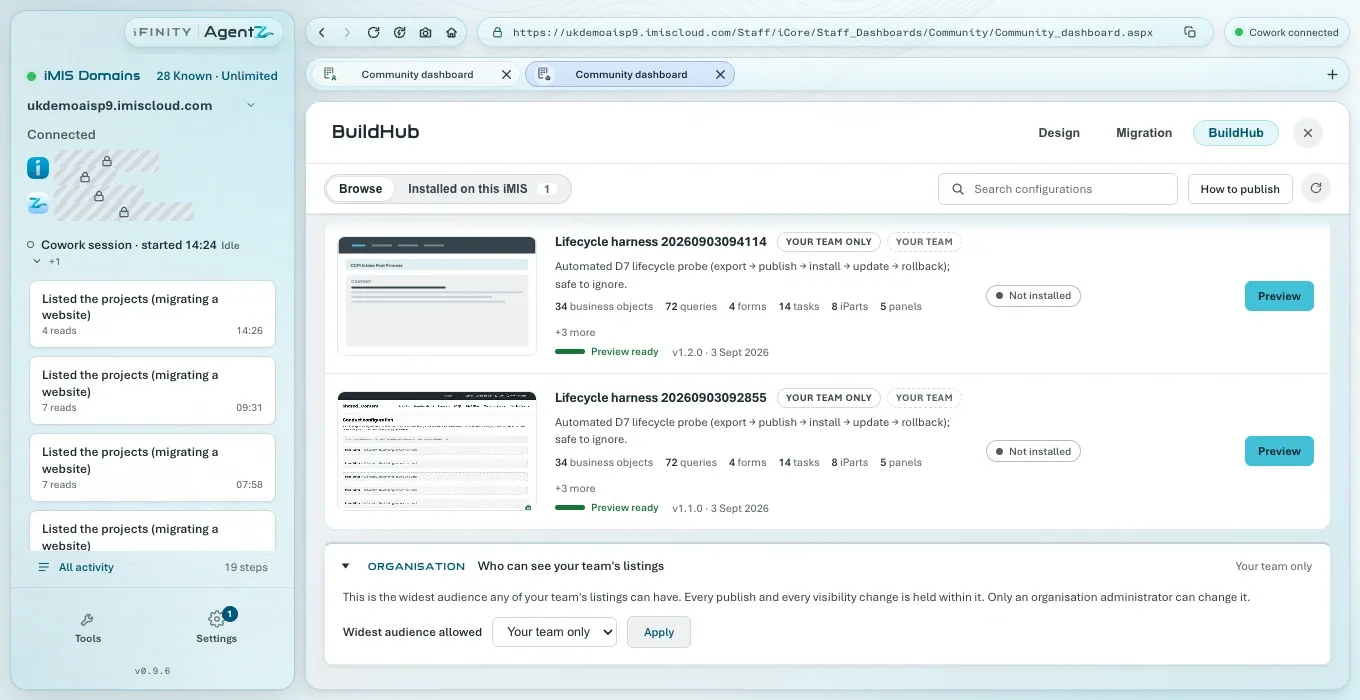
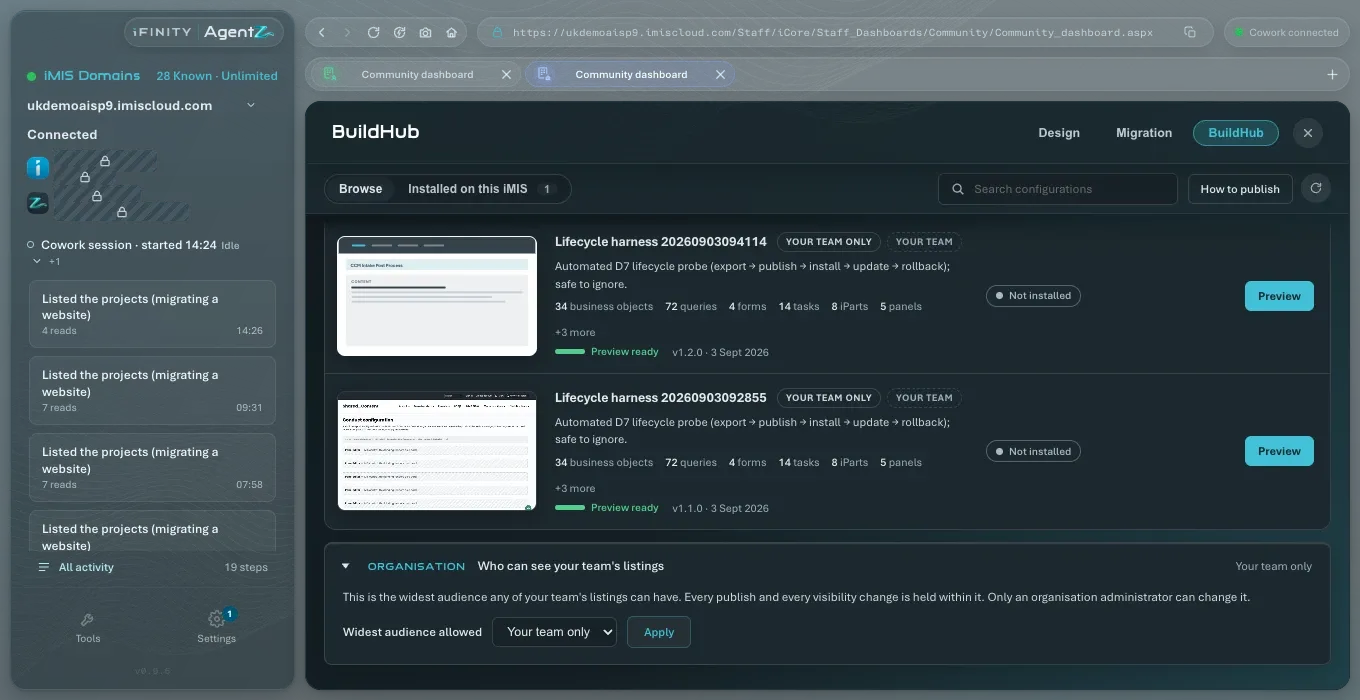
Do the following to change the sharing limit (Organisation admins):
- Click Who can see your team’s listings to open it.
- In Widest audience allowed, choose Your team only, Public or Paid.
- Click Apply.
If the limit has not loaded, BuildHub says “Your organisation’s sharing limit has not loaded yet, so it cannot be changed until it does.” Open BuildHub again in a moment.
Does delisting delete anything? No. The listing, its versions and its install records stay. Only other organisations stop seeing it.
Can someone outside my team see a new listing straight away? No. A new listing is visible to your team unless you chose otherwise, and public or paid listings are reviewed by iFINITY first.
Why can’t I remove a listing? It is either not delisted, or it was shared outside your team at some time. Delist it instead.