

Updating AgentZ
AgentZ keeps itself up to date. The AgentZ app checks for a new version when it starts and every 30 minutes after that, downloads it by itself, and asks you to restart to finish. The AgentZ plugin in your AI apps is updated by the AgentZ app, apart from the Claude desktop app’s copy, which Claude updates.
Before you begin
Section titled “Before you begin”- Finish what you are doing in the iMIS browser before you restart. AgentZ closes and opens again to finish an update, and your agents cannot work in iMIS while it is closed.
- Know which AI apps you use. An AI app that is already open keeps the plugin it started with until you close it and open it again.
Updating the AgentZ app
Section titled “Updating the AgentZ app”When a new version is published:
- A notice appears in the AgentZ app: Downloading update with the version, then the download’s progress.
- When the download has finished, the notice says Update v followed by the version and ready, with Update & Restart.
- Click Update & Restart.
AgentZ closes, installs the new version and opens again. Settings > AgentZ shows the new Version and Update status Up to date.
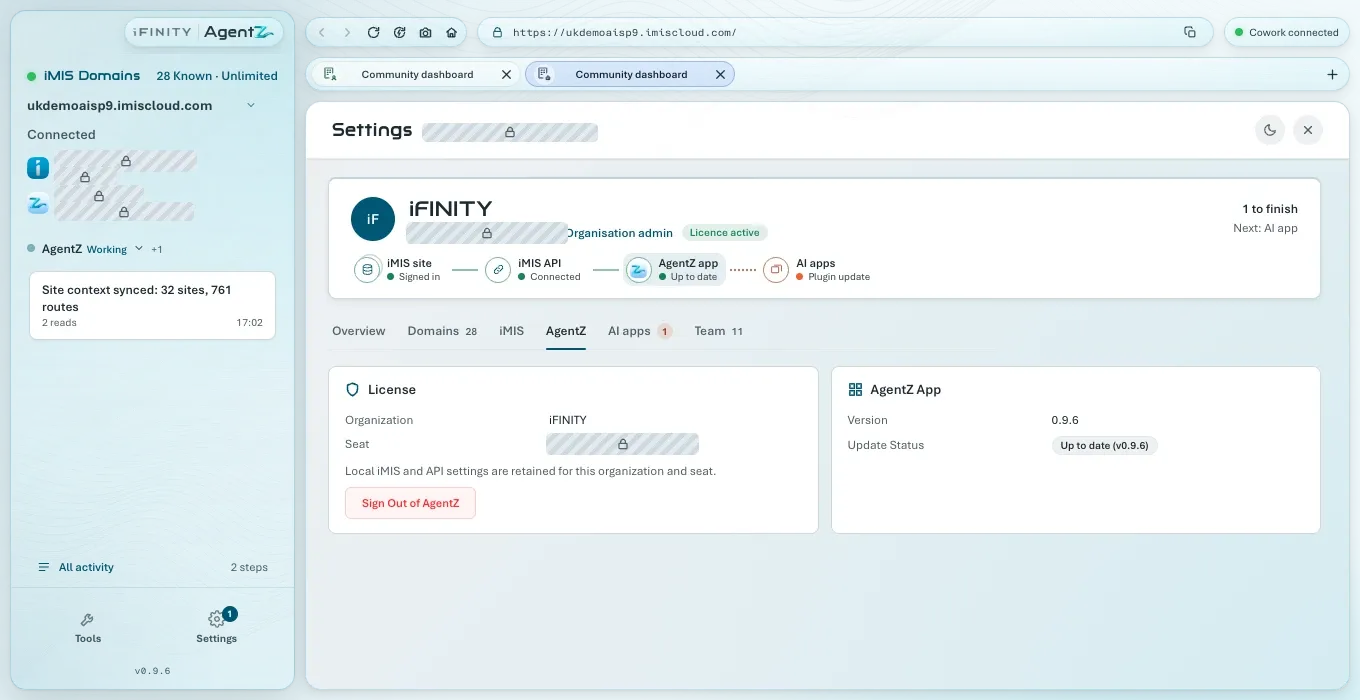
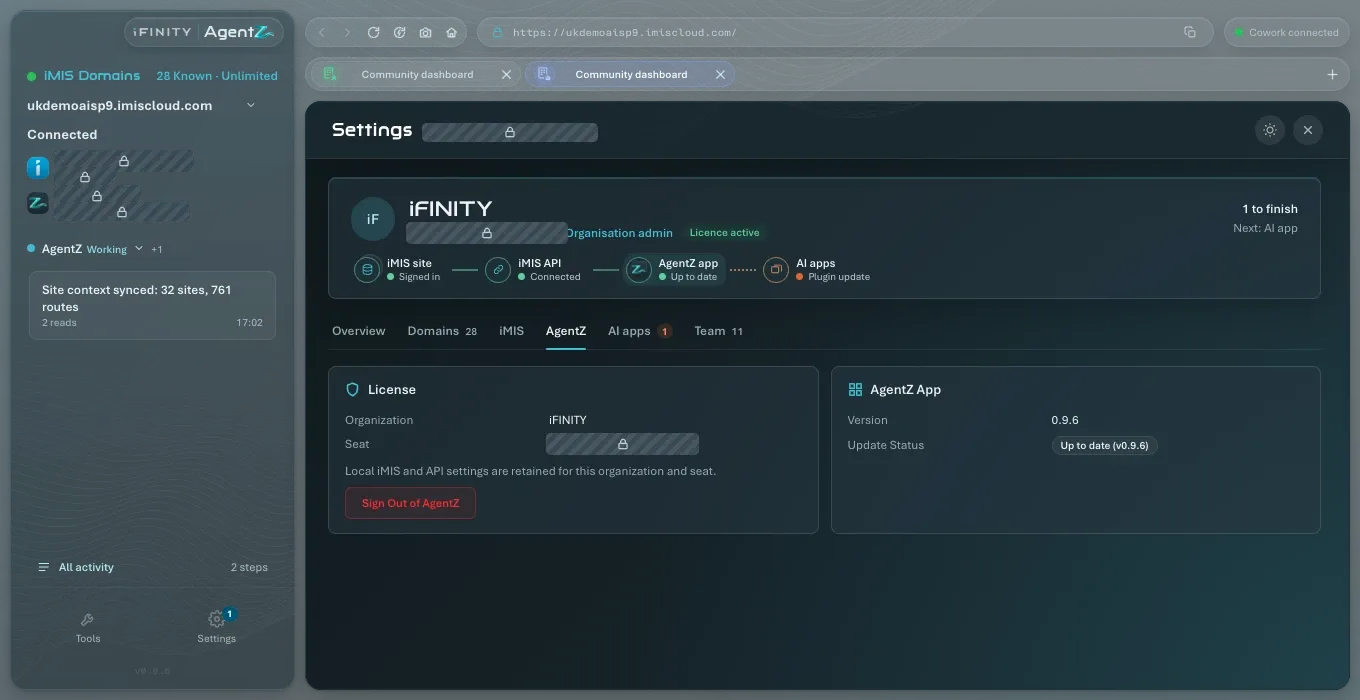
If you do not click Update & Restart, AgentZ installs the update the next time you quit it. Until then, Settings > Overview shows “An update is ready. Restart AgentZ to finish updating.”
If AgentZ cannot check for updates, the notice says Update check failed and Settings > AgentZ gives the reason under Update status. AgentZ tries again at the next check. If the update service is not ready, Update status reads “Update feed not ready; will retry”, and AgentZ tries again by itself.
Update status on Settings > AgentZ follows each stage: Checking for updates…, Downloading update v and the version, Update v and the version ready, and Up to date with the version.
Your AI apps during an update on Windows
Section titled “Your AI apps during an update on Windows”On Windows, updating the AgentZ app leaves AgentZ running in the AI apps you have open. Claude and your other AI apps keep working with AgentZ, and start the new version the next time you close them and open them again.
The first update that installs AgentZ this way stops AgentZ in the AI apps that are open, once. The AgentZ plugin version card on Settings > AI apps then says “This AgentZ update stopped AgentZ in the AI apps that were open. Quit Claude, and any other AI app that uses AgentZ, completely and open it again.” The message goes once an AI app has connected to AgentZ again.
When a screen asks you to restart
Section titled “When a screen asks you to restart”Until you restart to finish an update, a few screens that need the new version say so instead of working, for example “AgentZ needs to restart to finish updating before you can add an iMIS site.” or “…before you can manage your team.” Click Update & Restart on the update notice, or quit AgentZ and open it again.
Intel Macs
Section titled “Intel Macs”AgentZ is made for Macs with Apple silicon. On a Mac with an Intel processor, once a new version is no longer built for it, Update status says that the version you have “is the last version for Intel Macs. It keeps working; new versions are for Apple Silicon Macs and Windows.” AgentZ then stops offering updates on that Mac. See AgentZ requirements.
How updates are signed and checked is described in AgentZ updates and code signing.
Updating the AgentZ plugin in your AI apps
Section titled “Updating the AgentZ plugin in your AI apps”Go to Settings > AI apps. The AgentZ plugin version card shows the newest plugin, and whether every app is up to date.
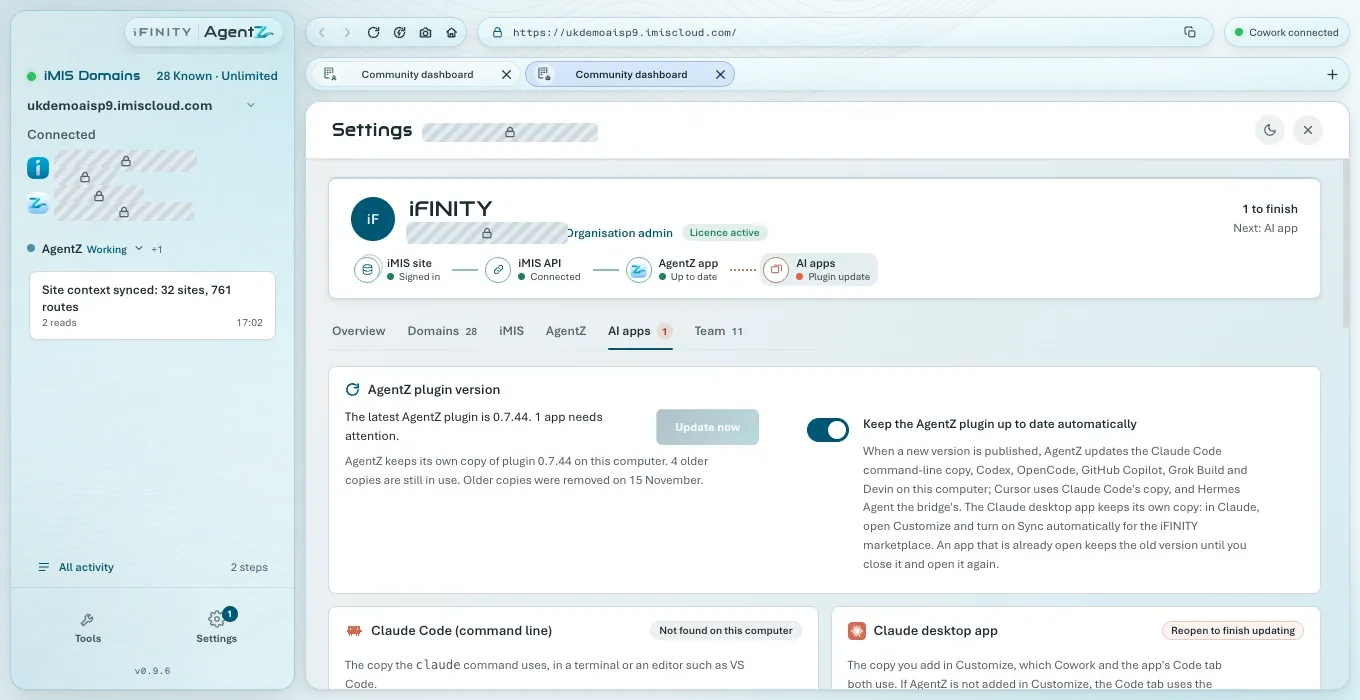
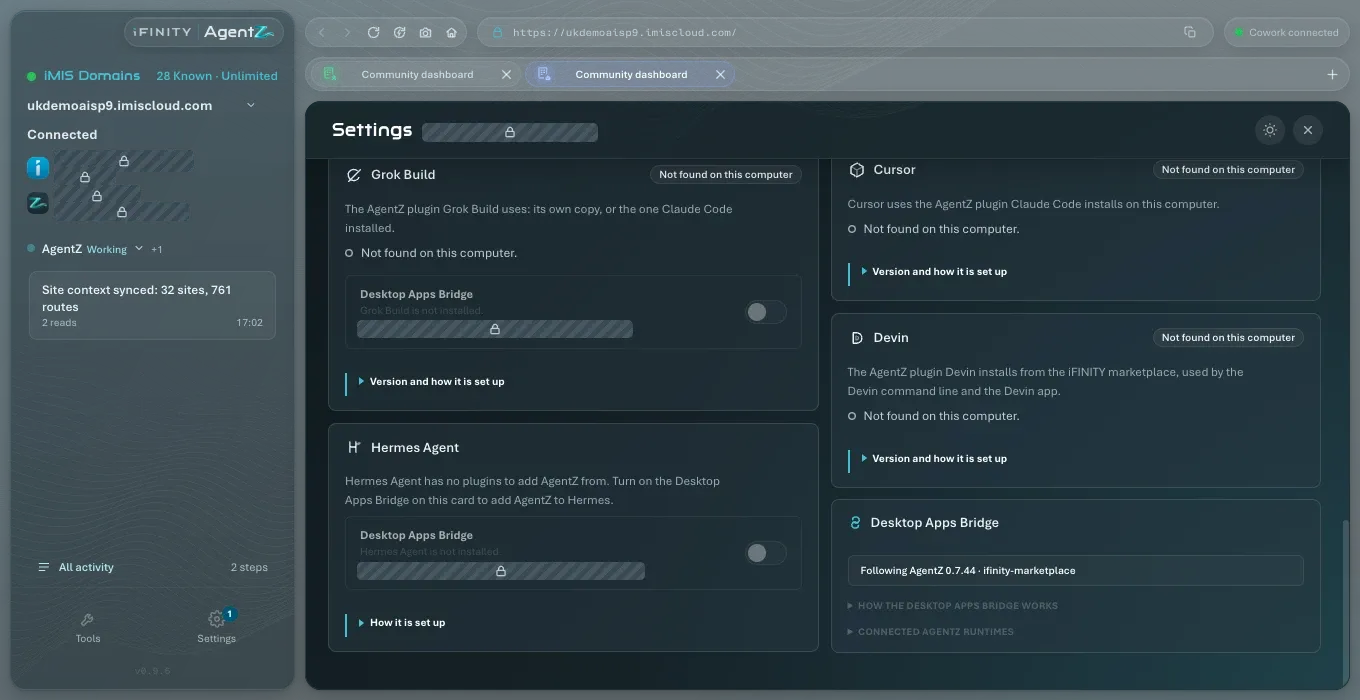
- Keep the AgentZ plugin up to date automatically is on by default. When a new plugin is published, AgentZ updates the Claude Code command-line copy, Codex, OpenCode, GitHub Copilot, Grok Build and Devin. Cursor uses Claude Code’s copy, and Hermes Agent the bridge’s.
- Update now updates them straight away. It is greyed out when there is nothing to update.
The Claude desktop app keeps its own copy, which Cowork and its Code tab use. To have Claude update it for you, turn on Sync automatically for the iFINITY marketplace: in Claude’s Plugins, click Add > Manage marketplaces, then the marketplace’s … menu. To update it now: In Claude, choose Plugins in the sidebar. Under Your plugins, choose Show all, then Agentz, then Update. If Update is greyed out and shows "On latest version", Claude already has the new version.
Then reopen each AI app, so that it starts the new plugin. Until you do, its card on Settings > AI apps may show Reopen to finish updating, with the steps for that app. For the Claude desktop app:
- On a Mac: Quit Claude completely: choose Claude, then Quit Claude (or press Command-Q). Then open Claude again. Closing its window is not enough.
- On Windows: Quit Claude completely: right-click the Claude icon next to the clock (it may be behind the ^ arrow) and choose Exit. Then open Claude again. Closing its window is not enough.
Reopen to finish updating gives the steps for every AI app.
If an AI app keeps an older plugin, see Plugin update troubleshooting.
Do I have to update? Yes. AgentZ updates itself, and an AgentZ plugin much older than the AgentZ app cannot connect to it.
Will updating lose my settings or sign-ins? No. Your AgentZ sign-in, iMIS sign-in and settings stay on this computer.
Do my colleagues update at the same time? Each person’s AgentZ app updates itself, at its own next check.
What changed in this version? See What’s new.