

Website Migration
Website Migration follows a project that moves an existing website, such as your organisation’s old public site, into a website in your iMIS site. AgentZ reads the old site, sorts its pages, plans where each one goes, shows you what it will create, and writes it only after you approve. The Migration tab of Tools shows each project and each stage, and lets you run them yourself.
Before you begin
Section titled “Before you begin”- An AI app connected and working. The Migration tab runs each stage through a connected agent. With no agent connected, the tab shows only a message saying that an agent session with the AgentZ plugin is needed, and nothing to press. Start a conversation in your AI app first.
- The address of the website to move, which must be public.
Migration projects
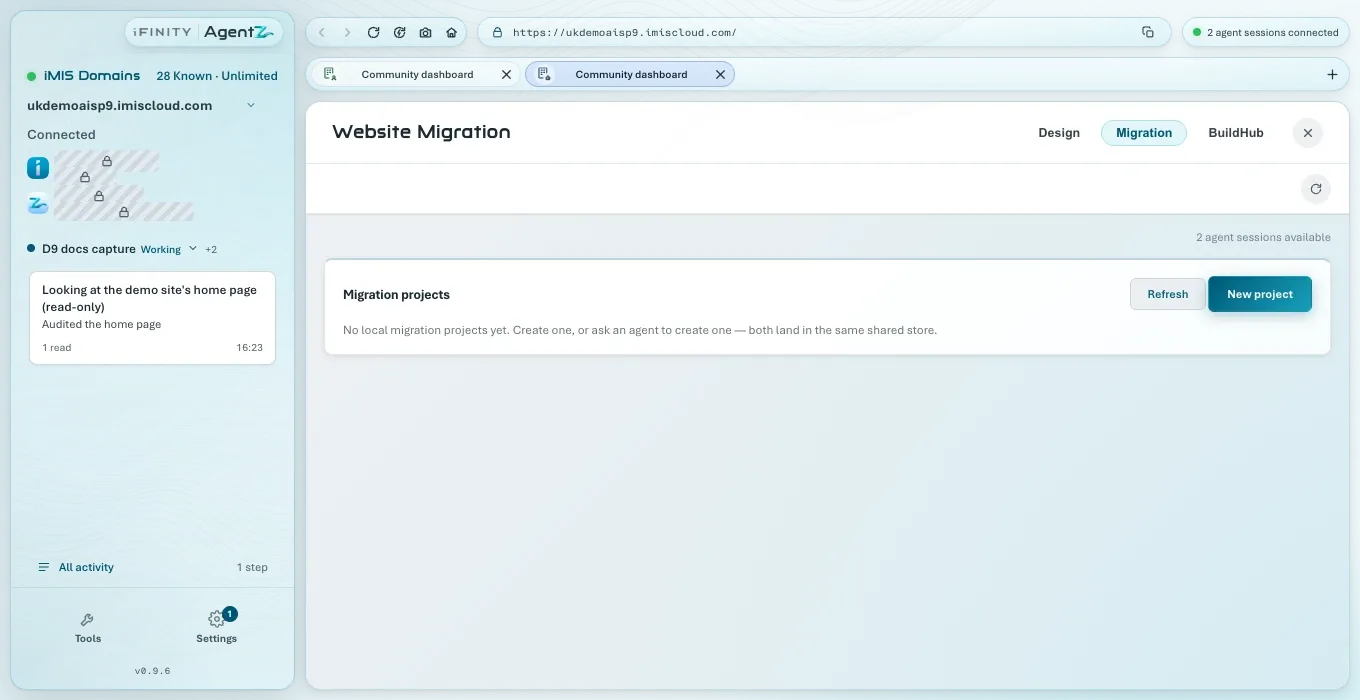
Section titled “Migration projects”With an agent connected, the tab opens on Migration projects. The line at the top right says how many agent sessions are available to run it.
-
Refresh (and the round button above) reads the list of projects again.
-
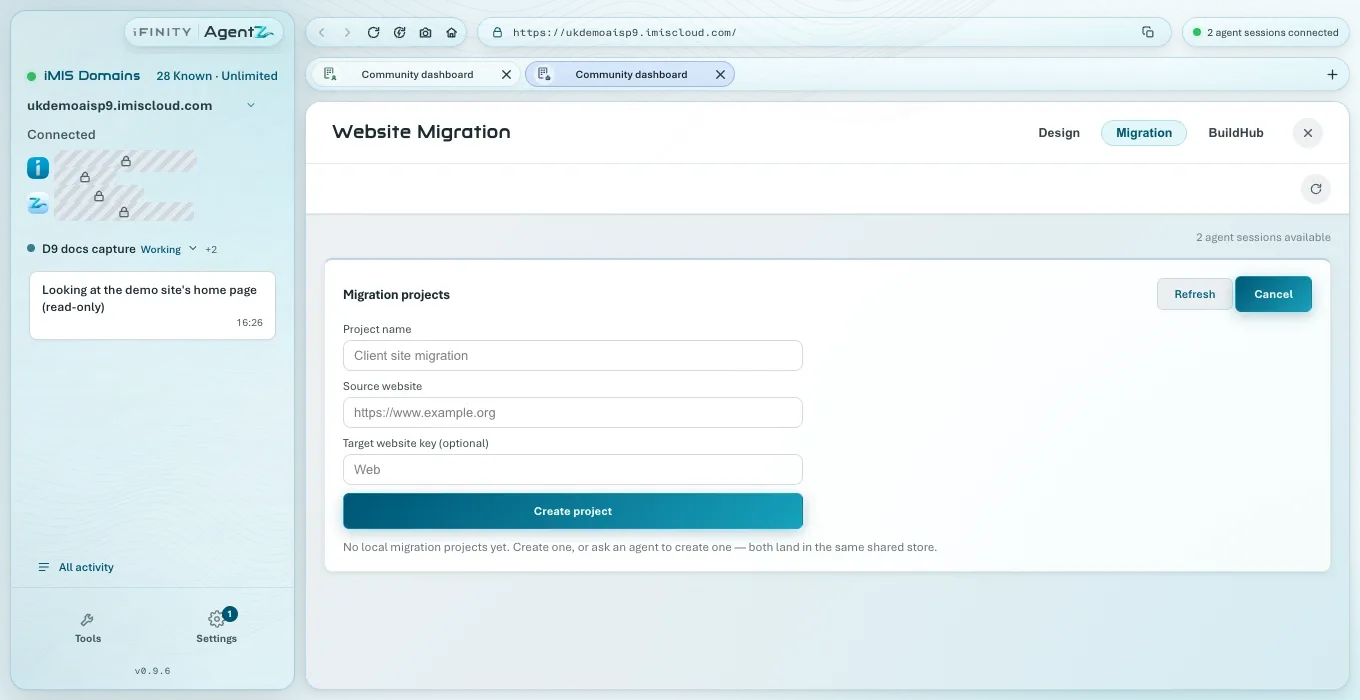
New project opens a short form: Project name, Source website (the address of the old site) and, if you know it, Target website key (the iMIS website the pages go into). Click Create project, or Cancel.
-
Each project is a row with its name, the old site’s address, and how many pages and plan rows it has. Click a row to open it.
Projects you create here and projects your agents create are the same projects: each sees the other’s.
Inside a project
Section titled “Inside a project”A project shows its counts (pages, assets, classified, manual review, plan rows, batches) and the stages, as numbered buttons. Each button is available once the stage before it has run.
| Stage | What AgentZ does |
|---|---|
| 1 · Crawl | Reads the old website’s pages and files, following its own rules for which pages it may read. Progress shows in All activity |
| 2 · Classify | Sorts each page by kind, such as a news article, an event or a plain page. Pages it cannot sort go to the Manual review queue |
| 3 · Map | Plans where each page goes in your iMIS website, and in which order |
| 4 · Preview batch | Builds the next batch of pages to create, and shows exactly what it will create, and anything already at that place in iMIS |
| 5 · Write batch… | Writes the batch to iMIS, after you click Confirm & write. AgentZ checks the batch against iMIS again first, and refuses if anything has changed since the preview |
| 6 · QA batch | Checks the written pages as they appear on your website |
After a batch is written, Roll back… removes what that batch created, after its own preview and confirmation. Folders that another batch also uses stay until that batch is rolled back too.
AgentZ records which iMIS site each batch is written to, and rolls a batch back only on that iMIS site. This needs the AgentZ plugin in your AI app to be up to date: an older plugin does not check the iMIS site and shows no warning. See Updating AgentZ. A batch written before AgentZ kept that record shows Check the iMIS site first. on its rollback plan, because nothing shows which iMIS site it went to. To roll it back, do the following:
- Check that the batch was written to the iMIS site you are using now.
- Tick I have checked that this batch was written to the iMIS site I am using now. Confirm rollback is not available until you do.
- Click Confirm rollback. AgentZ deletes the items the plan marks for deletion from the iMIS site you are using now. Items the plan keeps or skips stay.
The tick applies to that plan only. If you click Cancel and roll back again, tick it again.
The project also shows:
- The page gallery: the old site’s pages. Choose one to see it beside the version AgentZ extracted from it.
- Save snapshot: saves the project to your iMIS site, after you confirm, so another agent connected to the same iMIS site can carry it on.
- Approval batches and Written batches: each batch, and how many pages were created, reused, handed over to you or failed.
Does AgentZ change anything in iMIS before I approve? No. Crawling, sorting, mapping and previewing read only. Only 5 · Write batch…, after Confirm & write, creates pages in iMIS.
Can I undo a migration? Yes, batch by batch, with Roll back….
Can I roll back a batch while I am using another iMIS site? No. AgentZ rolls a batch back only on the iMIS site it was written to. For a batch written before AgentZ recorded that, you confirm the iMIS site yourself before it is rolled back.
Why does the Migration tab say I need an agent? The tab runs each stage through a connected agent. Start a conversation with AgentZ in your AI app, then open the tab again.