

BuildHub
BuildHub is the catalogue of ready-made work for iMIS: configuration packages that bring together queries, pages, panels, business objects, iParts and the rest of a working feature. The BuildHub tab of Tools lets you look inside each one, see its pages drawn before anything is installed, check what is already on your iMIS site, and install it.
The same catalogue is on the web at ifinityagentz.co.uk/buildhub.
Browse
Section titled “Browse”Click Tools, then BuildHub at the top right. BuildHub opens on Browse.
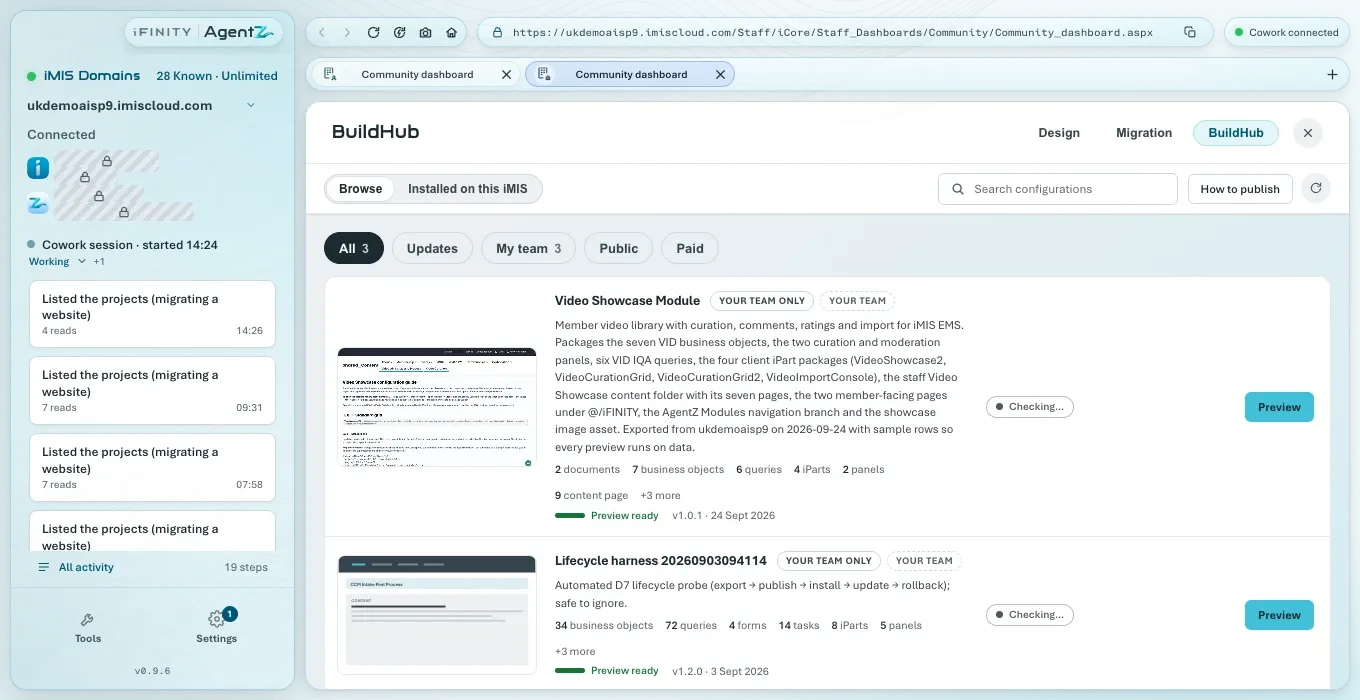
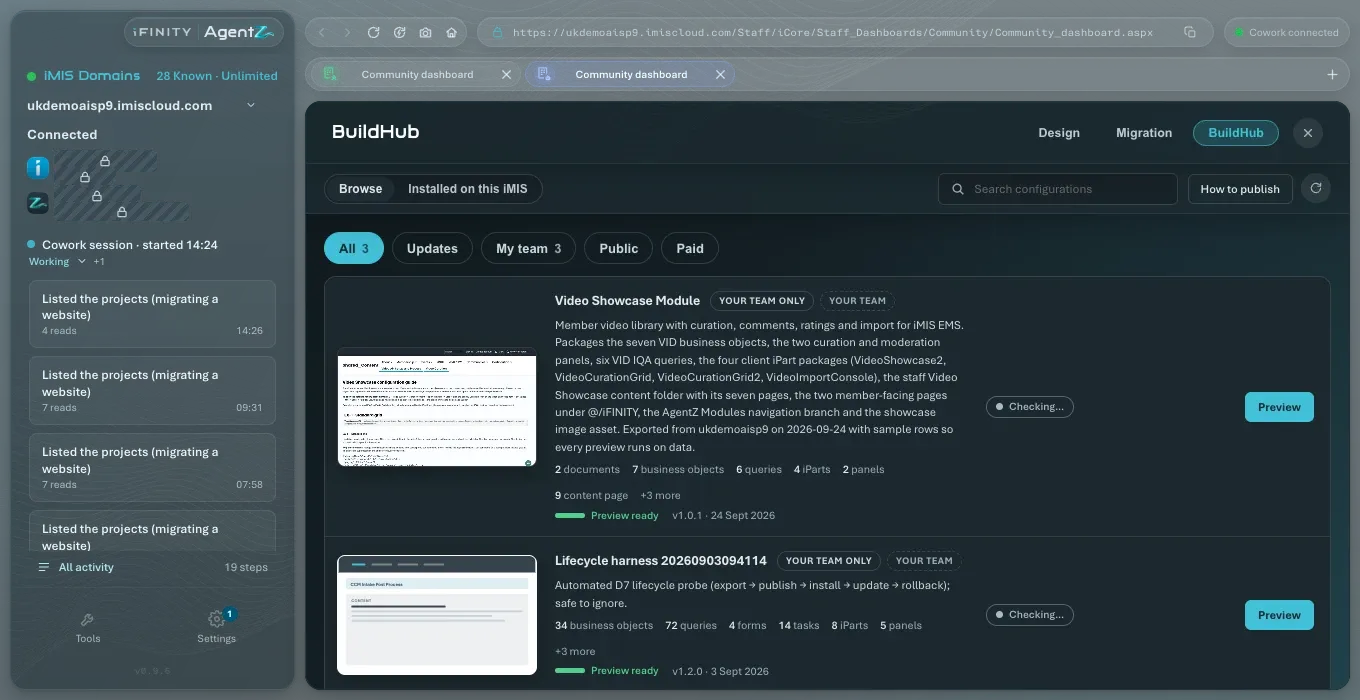
- Browse and Installed on this iMIS switch between the catalogue and what is installed on the iMIS site you are using.
- Search configurations narrows the list. If nothing matches, BuildHub says “Nothing matches that search or filter.”
- How to publish explains how your team publishes its own configurations to BuildHub.
- The round button reads the listings again.
- The filters: All, Updates (installed configurations with a newer version), My team (your team’s own listings), Public and Paid, each with how many it holds.
Each listing shows its name, who can see it (for example Your team only), its description, what it installs (such as documents, business objects, queries, iParts, panels and content pages), whether its preview is ready, its version and date, and its state on this iMIS site. AgentZ checks each listing against your iMIS site when the tab opens: Checking… while it does, then whether it is installed here. Click Preview or the listing’s name to open it.
A listing
Section titled “A listing”A listing has five tabs.
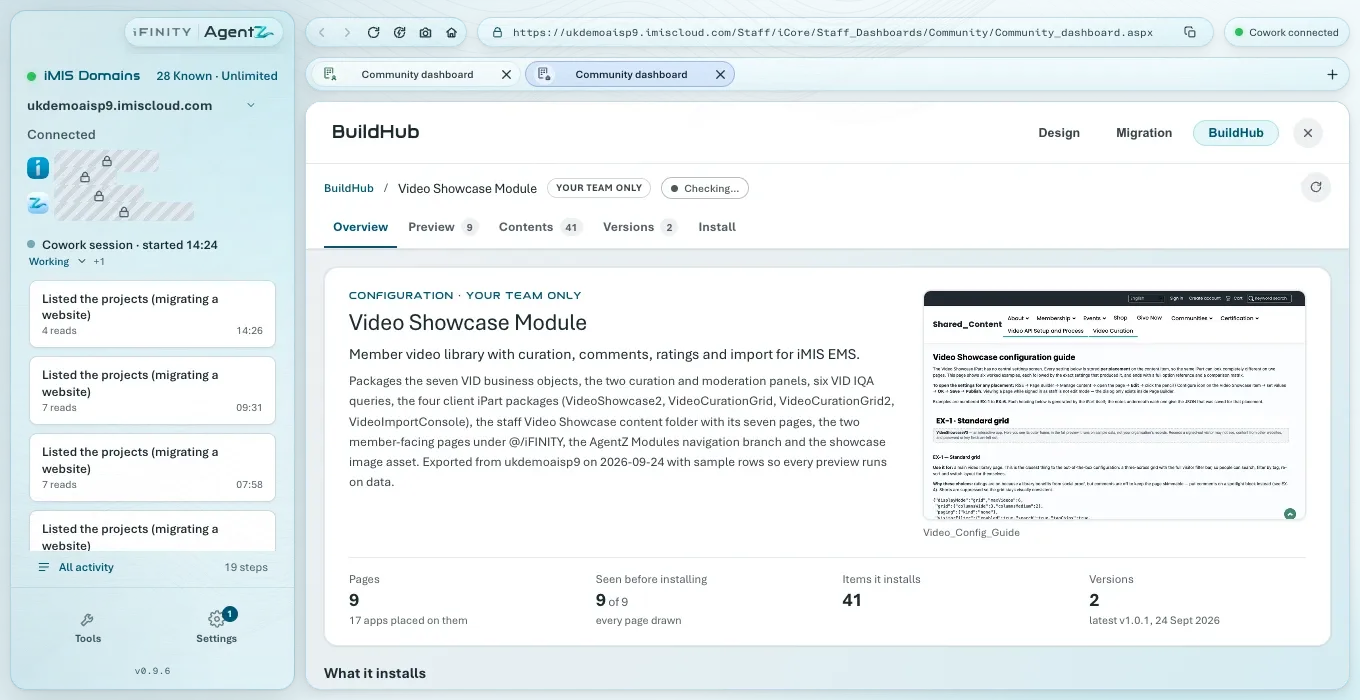
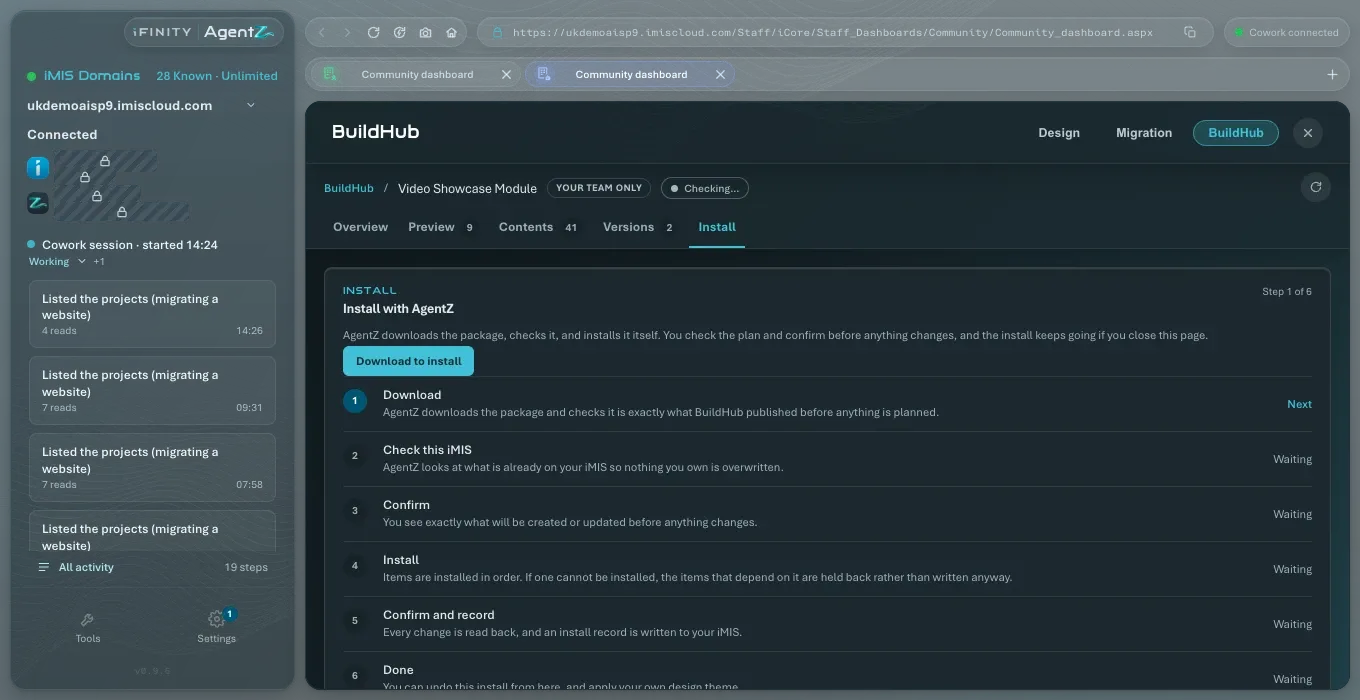
| Tab | What it shows |
|---|---|
| Overview | What the configuration is for, its pages, how many items it installs, its versions, and What it installs, by kind |
| Preview | Each page, drawn as iMIS would show it, without installing anything. A page marked runs is shown with the package’s sample data; drawn shows every part as iMIS lays it out; partly means one or more parts need your live site. Switch between Staff and Member, and Phone, Tablet and Desktop |
| Contents | Every item it installs, grouped as Data, Queries, iParts, Site and Other, with Relationships showing how they fit together. Choose an item to see its definition, its fields, where it is used, and whether it is already on your iMIS site |
| Versions | Each version, with its date, its notes, and Signed by BuildHub |
| Install | Installing it on your iMIS site. See Installing a BuildHub package |
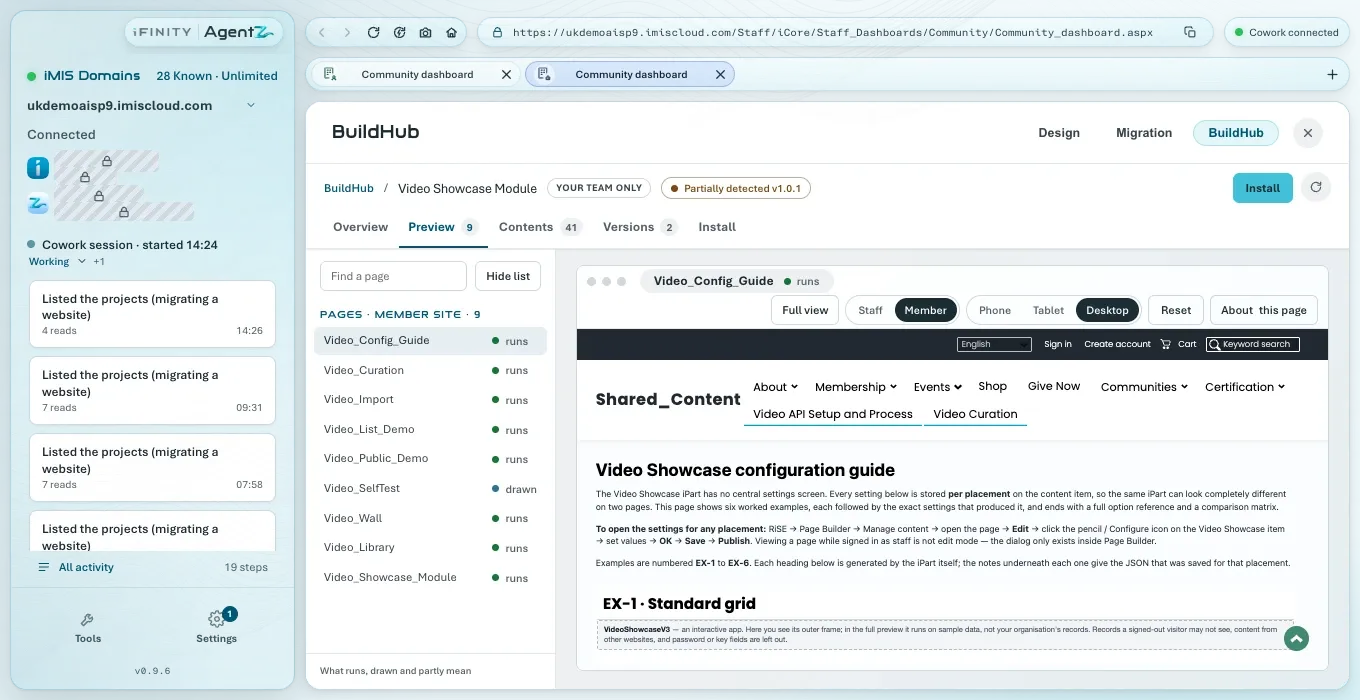
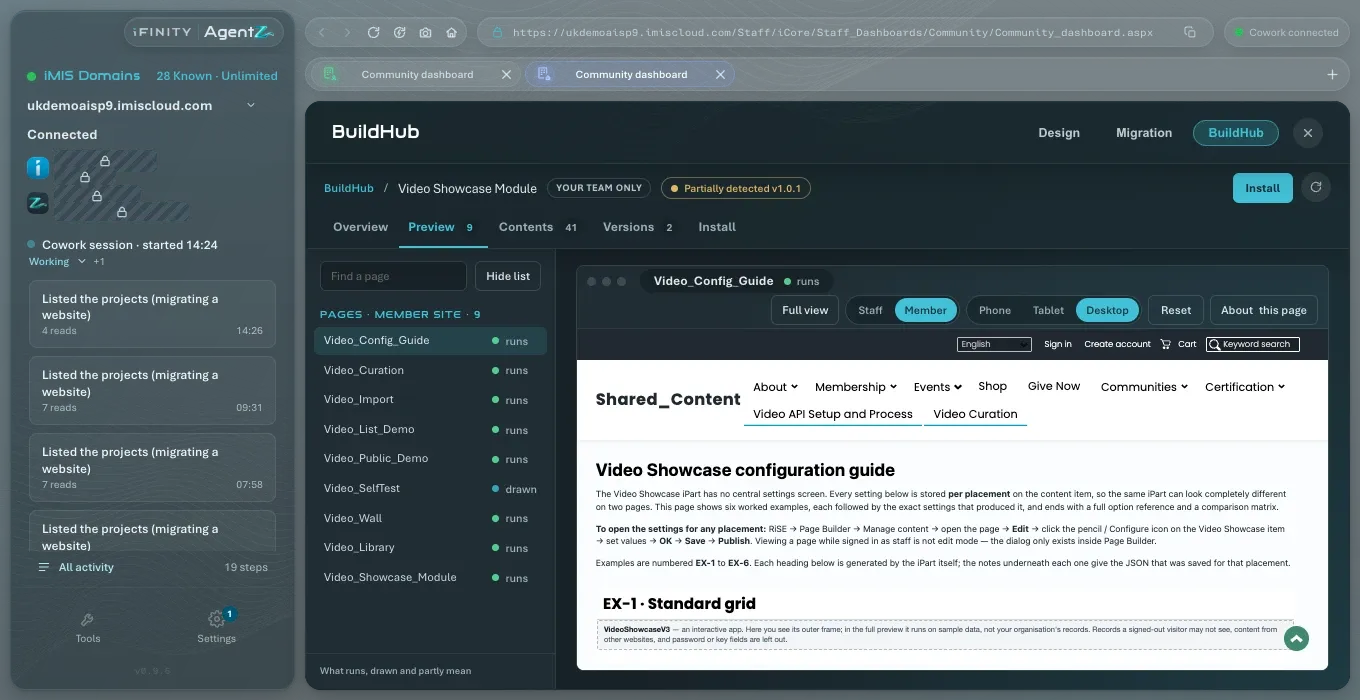
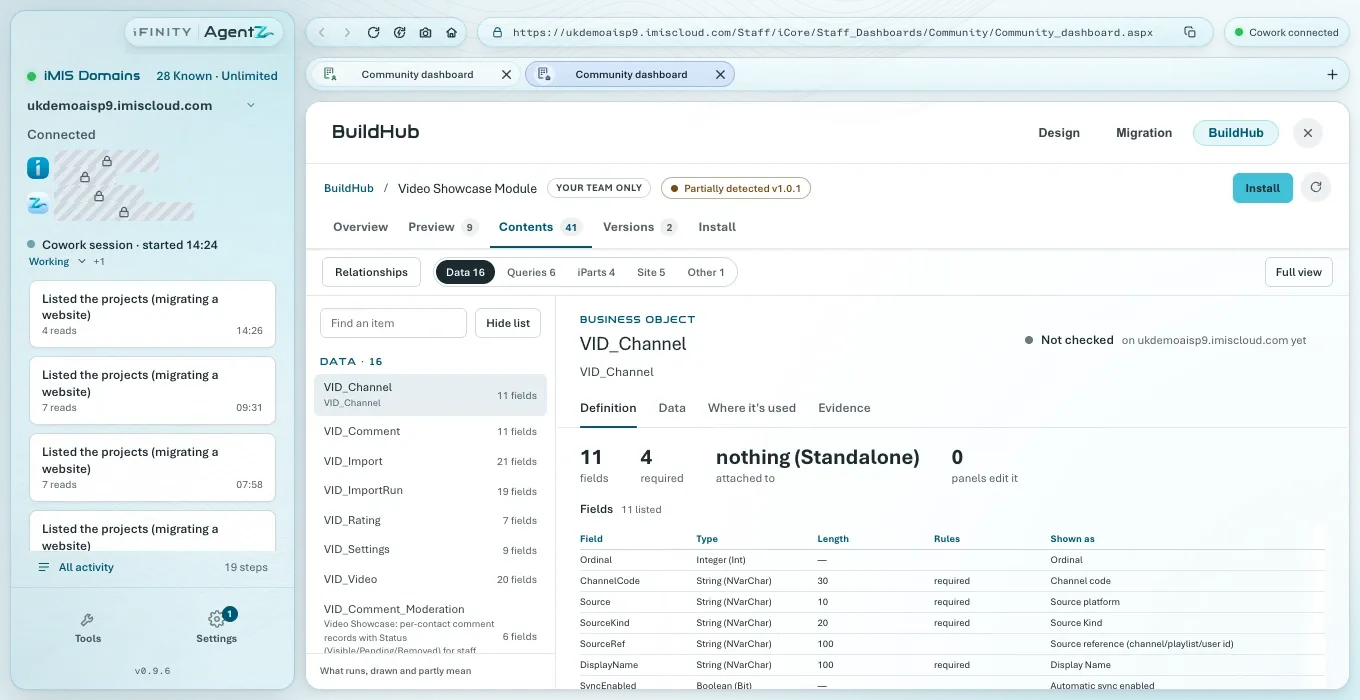
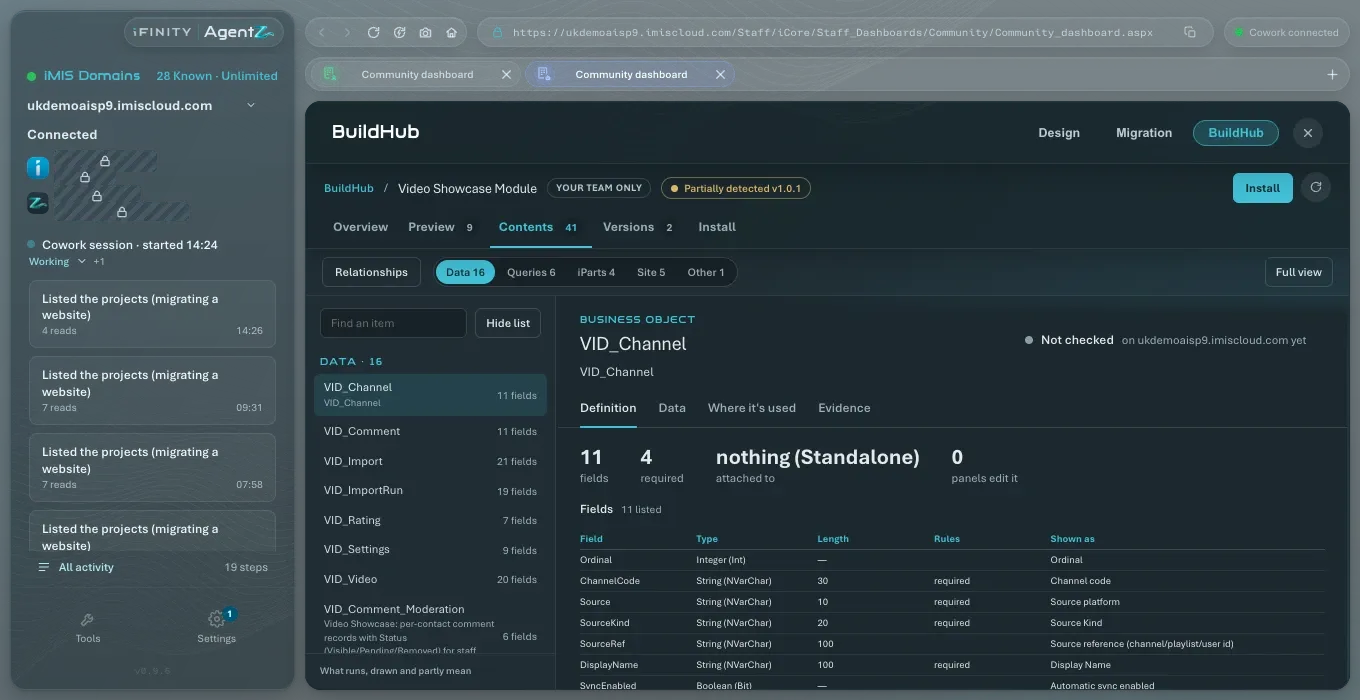
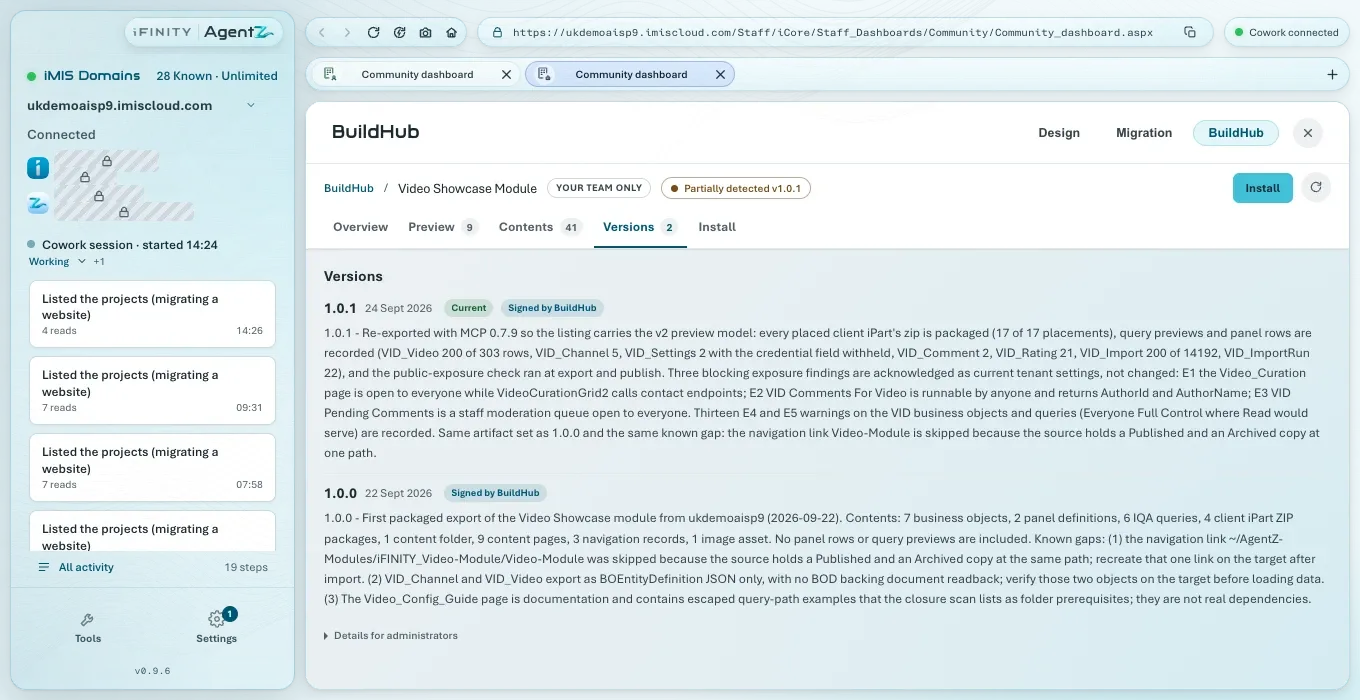
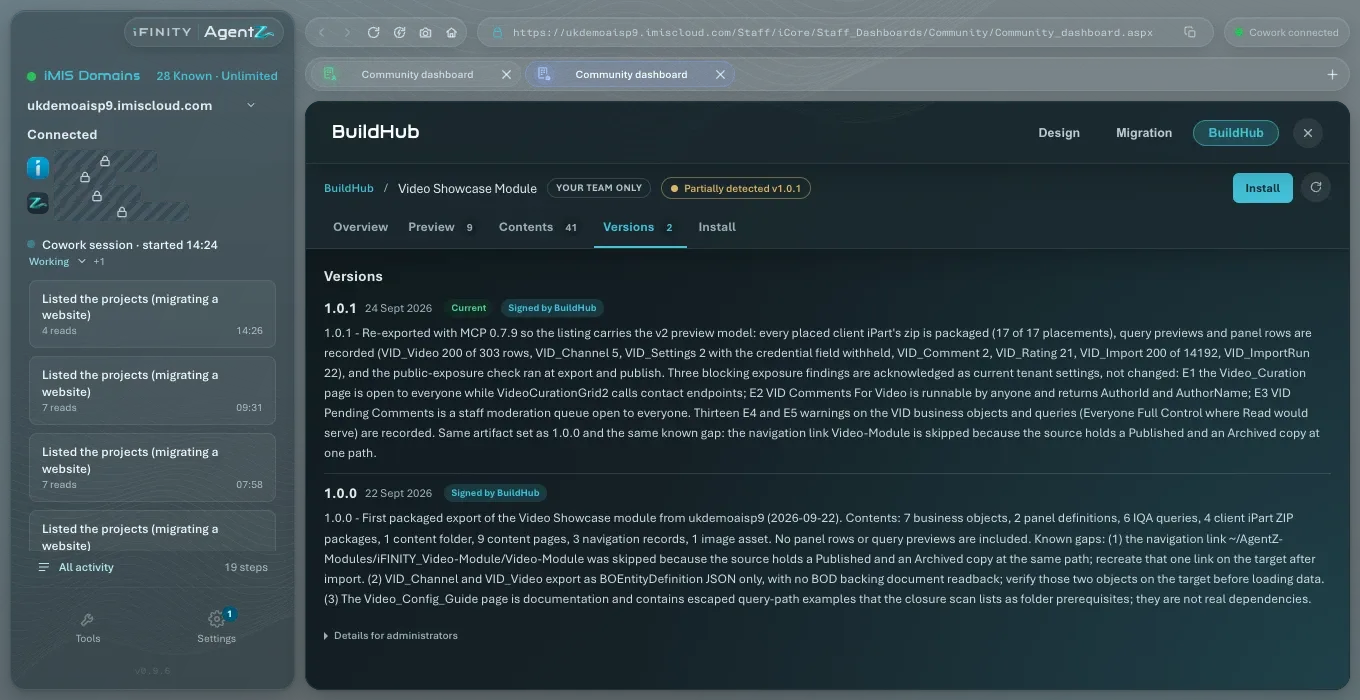
Installed on this iMIS
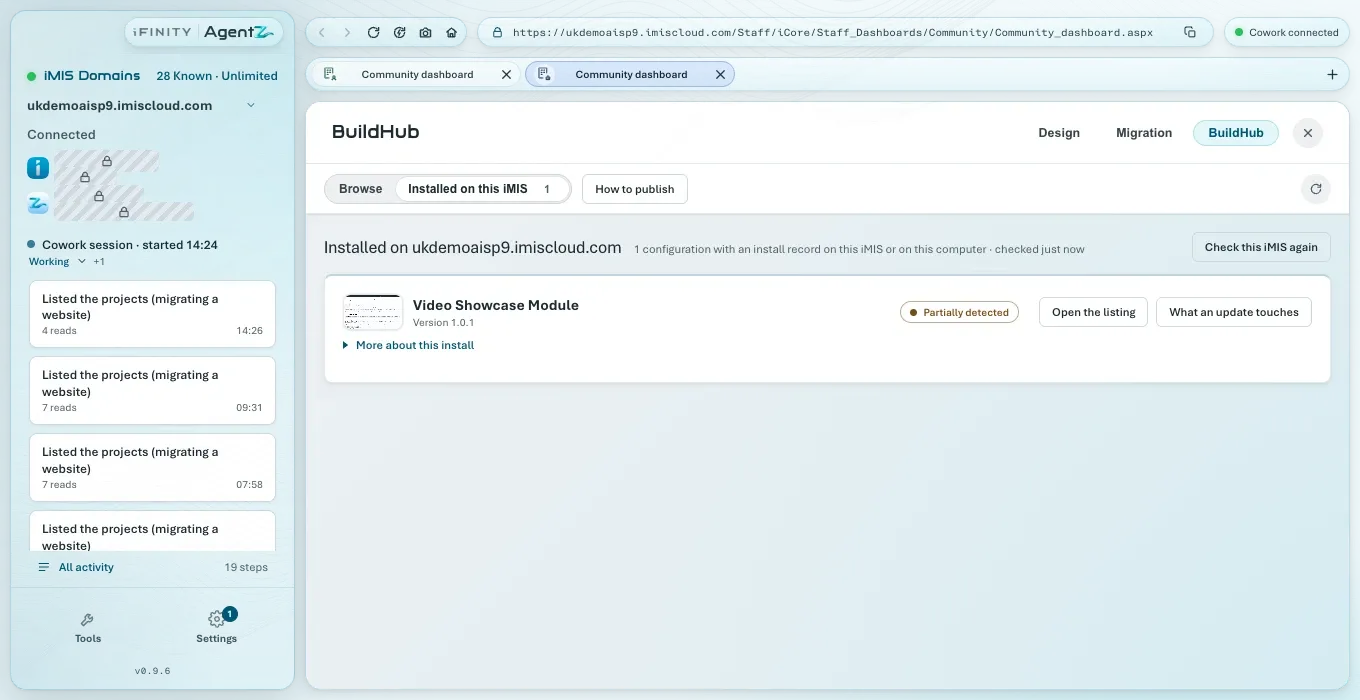
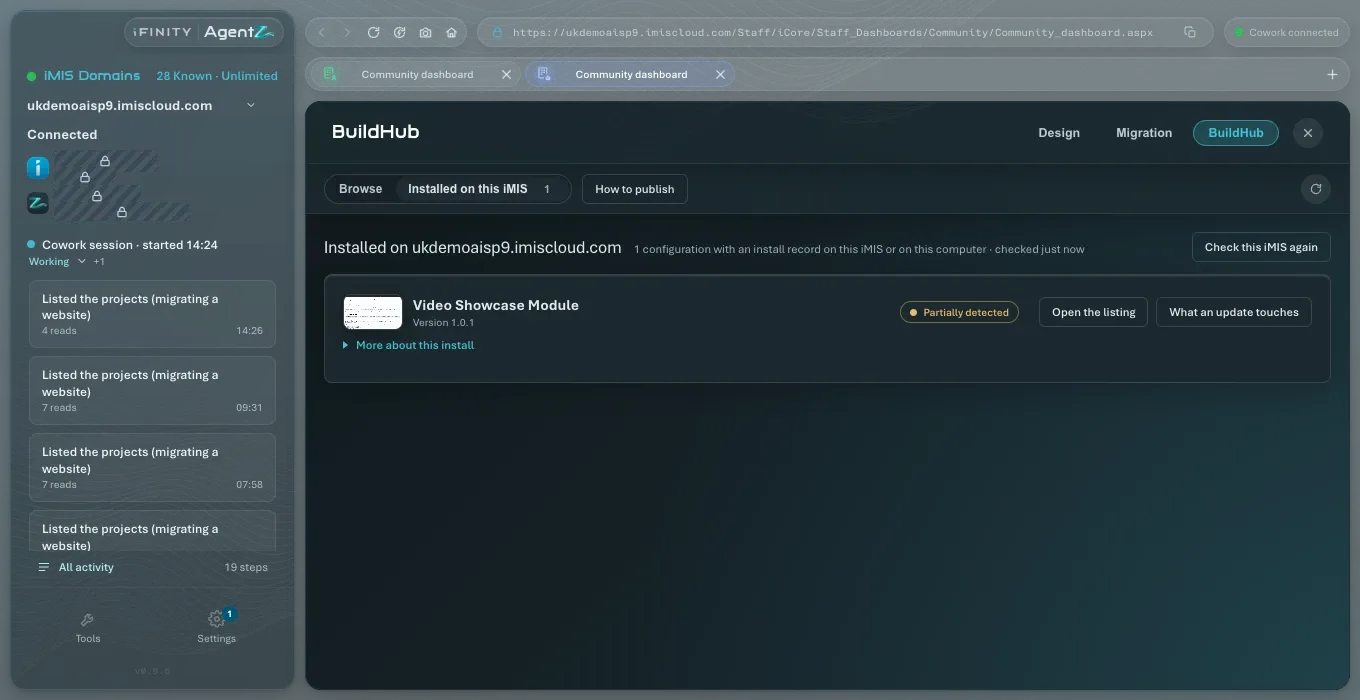
Section titled “Installed on this iMIS”Installed on this iMIS lists each configuration with an install record on your iMIS site or on this computer, with when it was last checked and Check this iMIS again. For each one it shows the version, whether it was found as installed (or only partly, such as Partially detected), Open the listing, What an update touches, and More about this install.
Publishing your team’s listings
Section titled “Publishing your team’s listings”Who can see your team’s listings shows your organisation’s sharing limit: the widest audience any of your team’s listings can have. Every publish and every change of who can see a listing is held within it. Only an Organisation admin can change it. Your team can delist one of its own listings, so nobody outside your team sees it, and relist it later. See Managing your team’s BuildHub listings.
If an install does not finish as expected, see BuildHub install troubleshooting.
Does previewing a listing change anything in iMIS? No. The Preview and Contents tabs draw the package itself. Nothing is installed until you confirm on the Install tab.
Who can see my team’s listings? Your team, and anyone else your team chooses when it publishes, within your organisation’s sharing limit.
What does Partially detected mean? Some of the configuration’s items were found on your iMIS site, but not all. Open the listing to check it before installing or updating.