

Overview of the AgentZ app
The AgentZ app is where you see and control what AgentZ does in your iMIS site. It signs you in to AgentZ and to iMIS, opens iMIS in its own iMIS browser, connects your AI apps, and shows every agent at work. You ask for work in your AI app; you watch, stop and take over that work here.
The window
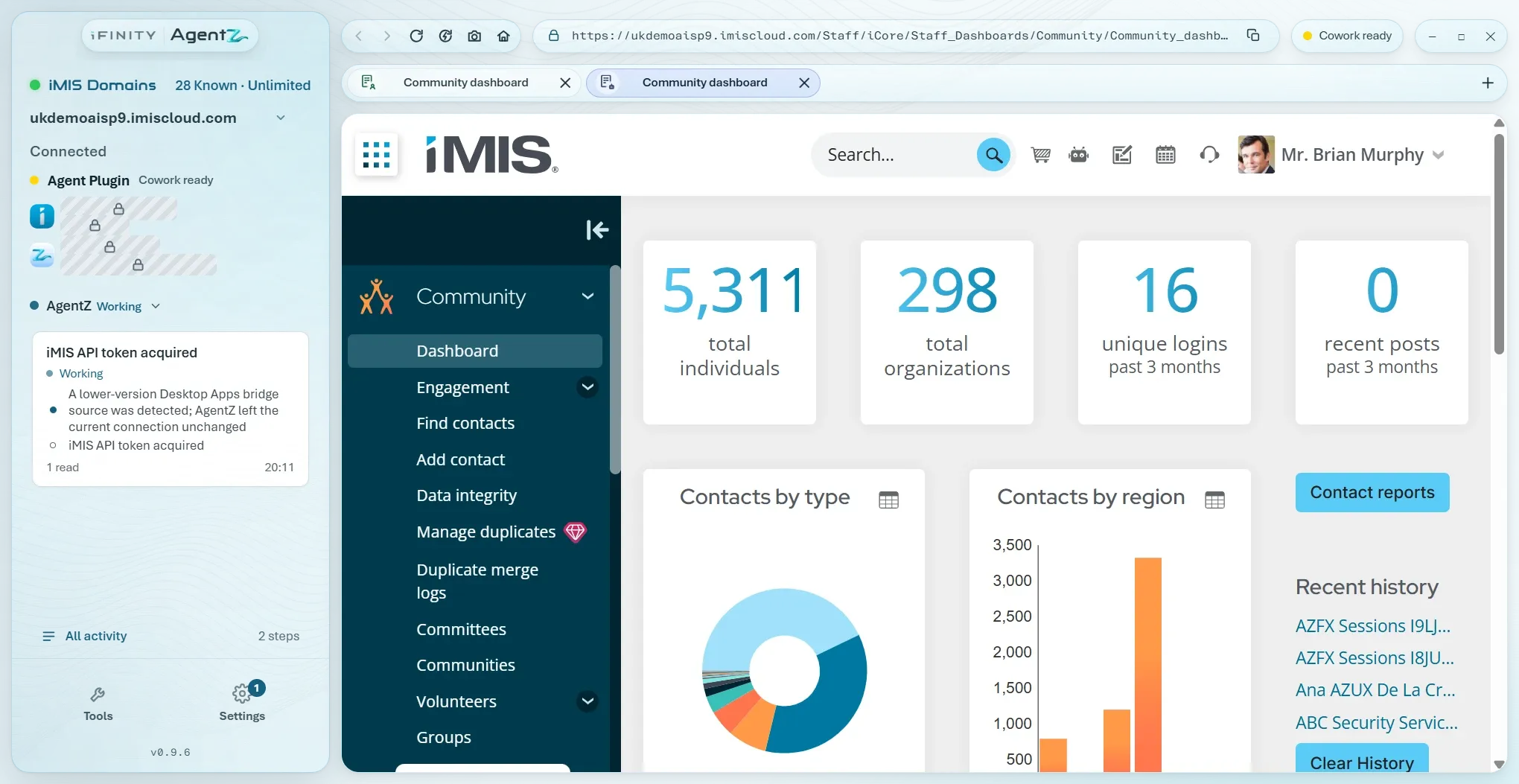
Section titled “The window”The window has a sidebar on the left and the iMIS browser on the right. Settings, Tools and All activity open over the iMIS browser, and close back to it.
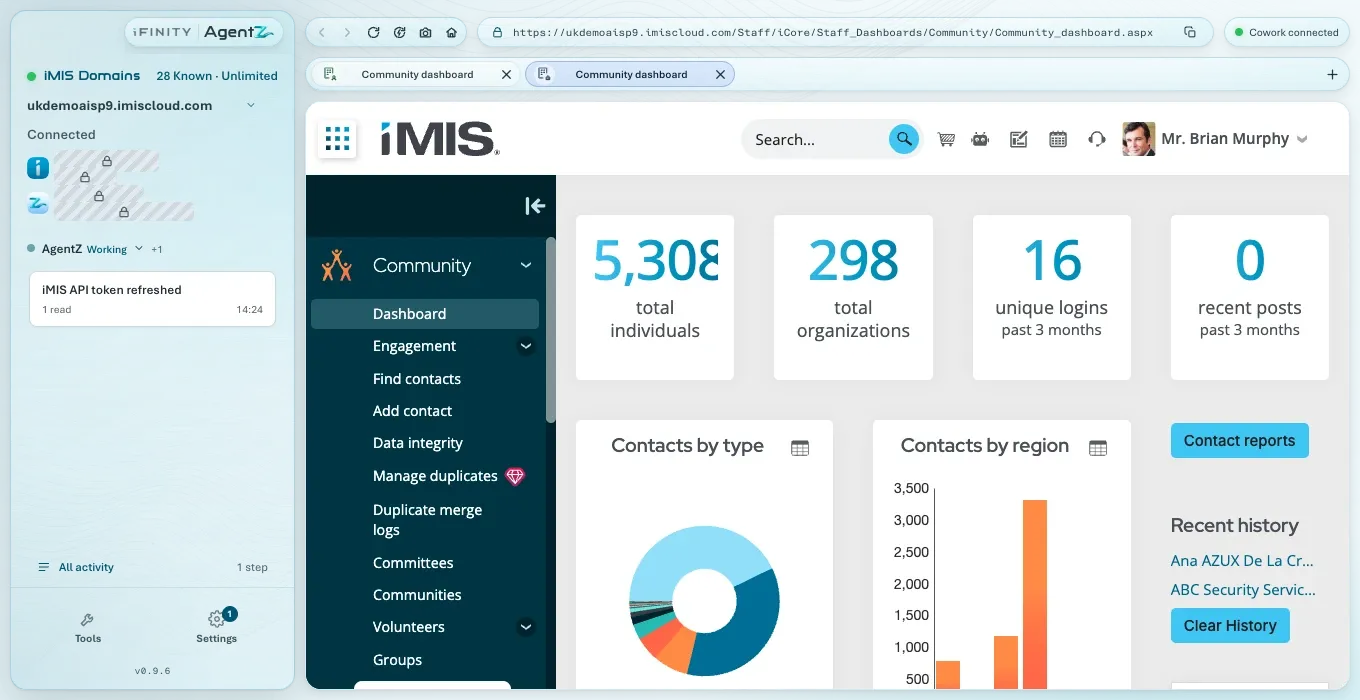
| Part | Where | What it is for |
|---|---|---|
| iMIS site (or iMIS sites) and your iMIS site | Top of the sidebar | The iMIS site AgentZ is working in, with Connected under it once AgentZ is signed in to iMIS. A green dot means connected. Where your organisation works with more than one iMIS site, the line beside it shows how many are known, and the arrow next to the site lets you switch. See Adding another iMIS site. |
| AgentZ plugin | Sidebar, under your iMIS site | On a Mac, the state of the AgentZ plugin in your AI app, such as Cowork ready. On Windows it is shown only when something needs attention. |
| Your iMIS person and your AgentZ seat | Sidebar | The iMIS person the iMIS browser is signed in as, and the work email you signed in to AgentZ with. |
| The agent and its activity cards | Middle of the sidebar | The agent the sidebar is following, whether it is Working, Idle, Waiting or Stopped, and a card for what it is doing. Click the agent’s name to choose another agent. |
| All activity | Foot of the activity cards | Every agent and every step. See Activity and approvals. |
| Tools | Foot of the sidebar | Design, Migration and BuildHub. See AgentZ Design, Website Migration and BuildHub. |
| Settings | Foot of the sidebar | Setting up and checking AgentZ. A number on it shows how many things are left to finish. See Overview settings. |
| Setup | Foot of the sidebar, while setting up | Opens Settings on its Overview tab. |
| The version | Very foot of the sidebar | The AgentZ app’s version. |
| The navigation buttons and address bar | Top of the iMIS browser | Moving around iMIS. See The iMIS browser. |
| The tabs | Under the address bar | Each iMIS page you or an agent has open. |
| The connection pill | Top right | Whether AgentZ is ready for your AI apps, which agent is connected, or how many agents are connected. |
Changing the window
Section titled “Changing the window”-
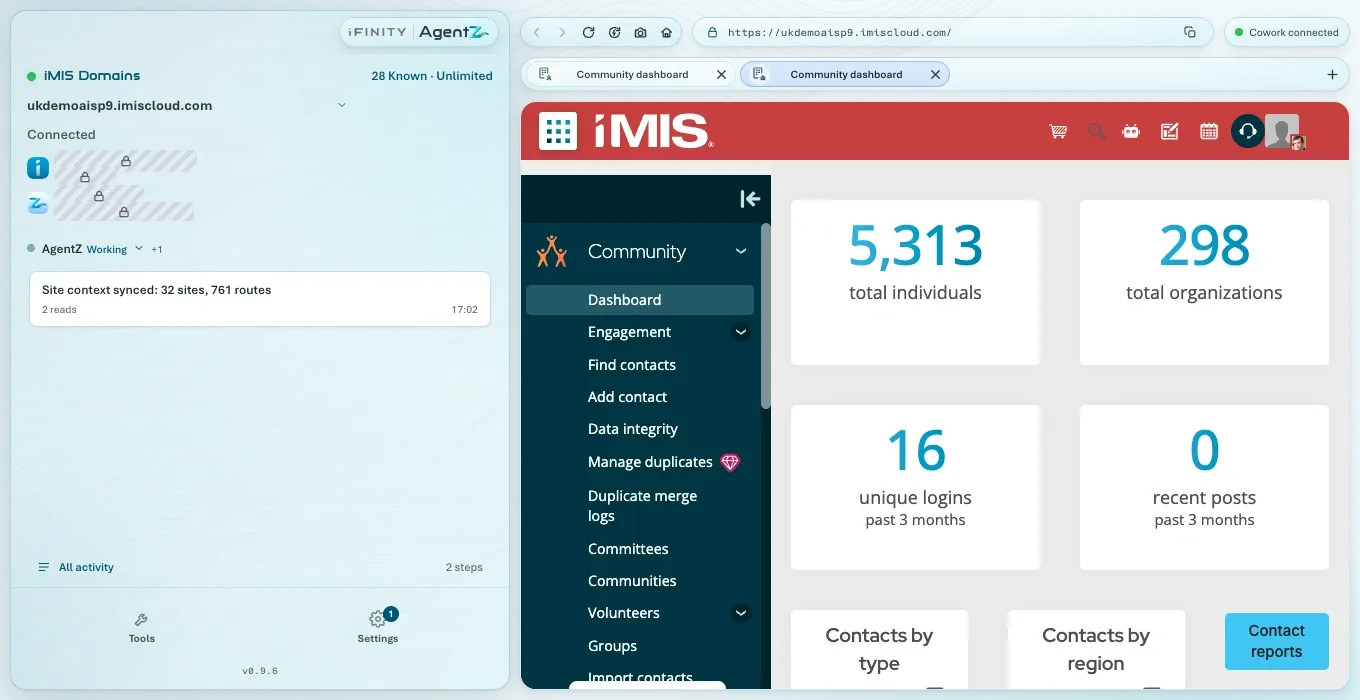
The sidebar’s width: drag the edge between the sidebar and the iMIS browser. It stops at its widest and narrowest.
-
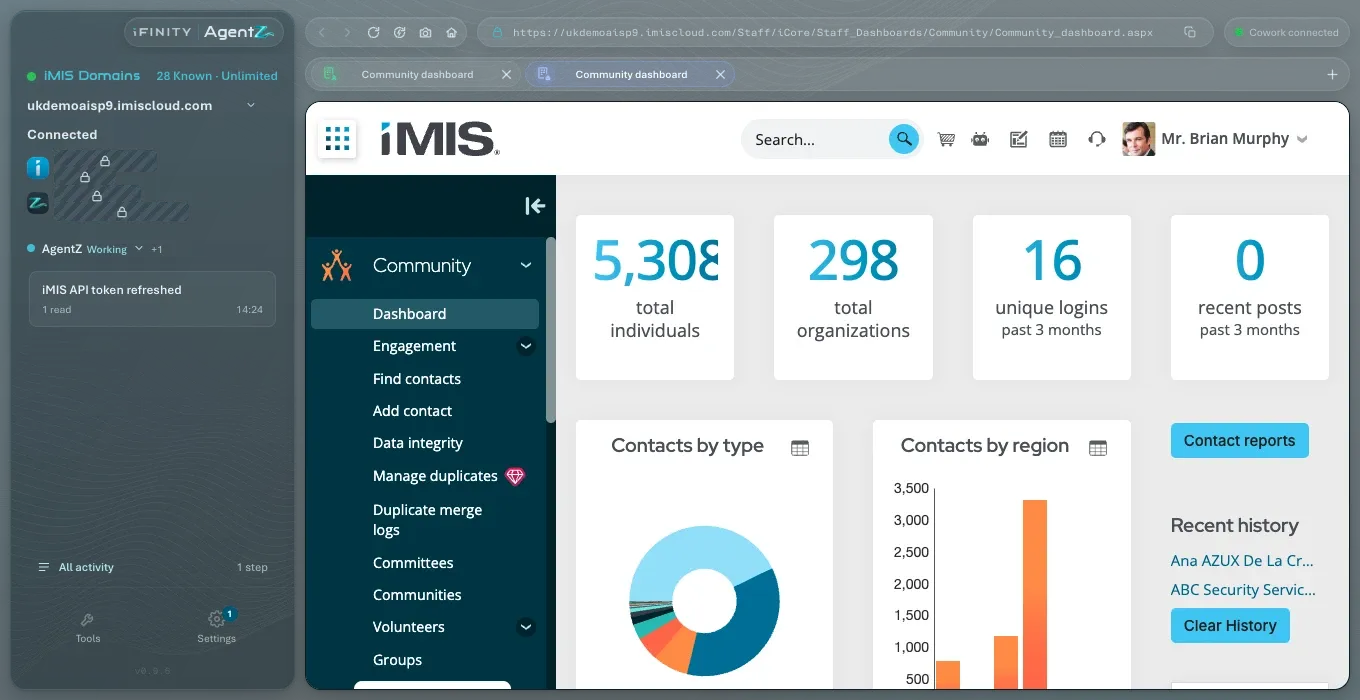
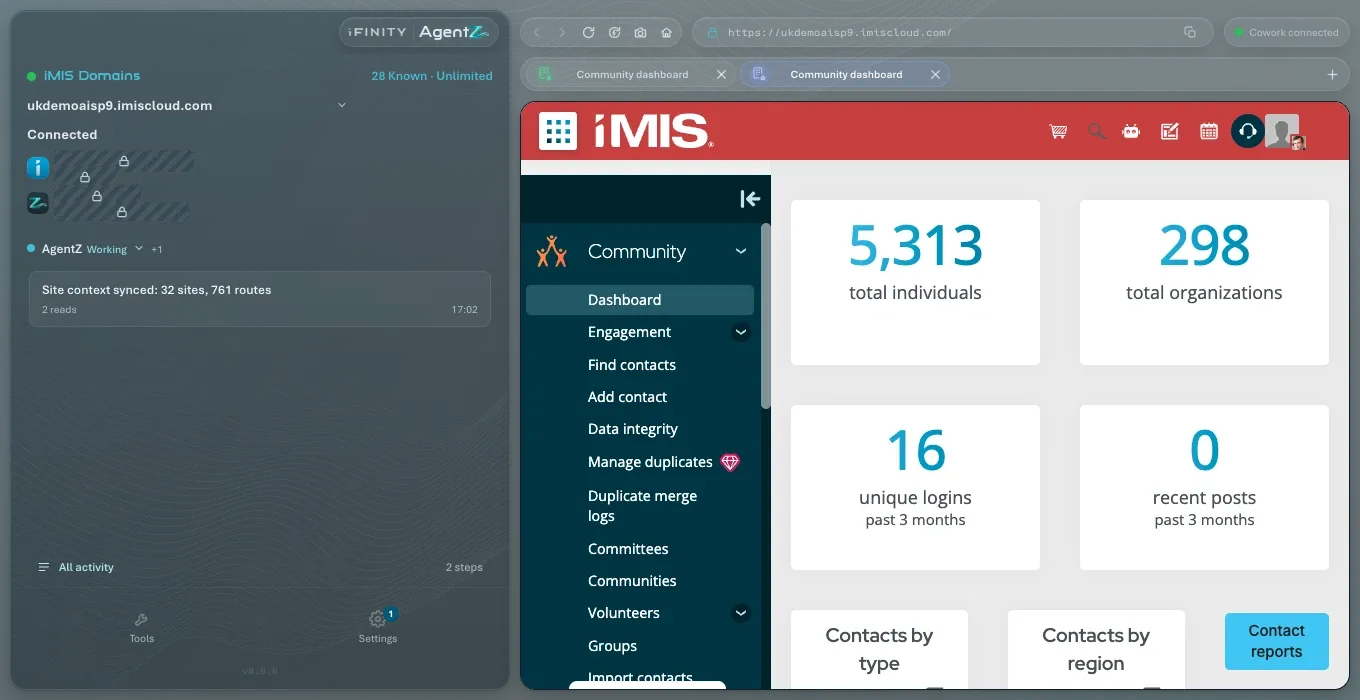
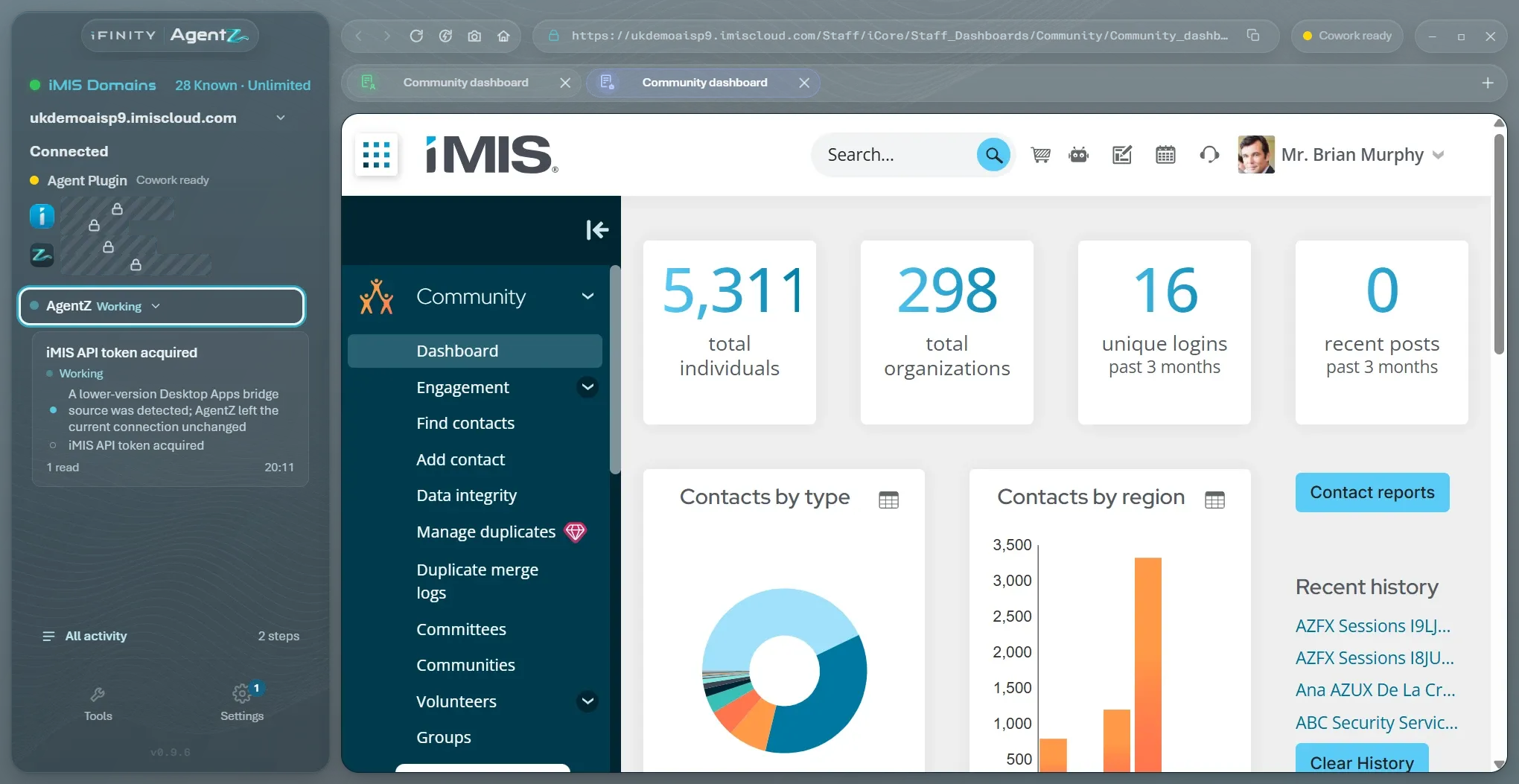
Light or dark: AgentZ follows your computer’s light or dark setting until you choose. In Settings, click the sun or moon button at the top right (Switch to light theme or Switch to dark theme). AgentZ remembers your choice.
-
The iFINITY AgentZ name at the top of the sidebar opens ifinityagentz.co.uk in your usual web browser.
On Windows
Section titled “On Windows”On Windows, AgentZ draws its own minimise, maximise and close buttons at the top right, and the pill beside them counts the connected agents, for example 3 agent sessions connected. On a Mac, the window uses the Mac’s own buttons and the pill names the AI app.
How the screens fit together
Section titled “How the screens fit together”| Screen | Opened from | Used for |
|---|---|---|
| The iMIS browser | Always behind the other screens | iMIS itself, shared by you and your agents |
| Settings | Settings in the sidebar | Tabs Overview, iMIS sites (when you work with more than one iMIS site), iMIS, AgentZ, AI apps and Team (Organisation admins) |
| Tools | Tools in the sidebar | Design, Migration and BuildHub |
| All activity | All activity in the sidebar | All agents and History |
Close any of them with the × at its top right to return to the iMIS browser.
The menu bar on a Mac
Section titled “The menu bar on a Mac”On a Mac, AgentZ has its own menus in the menu bar. On Windows, everything is in the window itself.
| Menu | Items |
|---|---|
| iFINITY AgentZ | About iFINITY AgentZ; Check for Updates… (see Updating AgentZ); Settings… (Cmd+,), which does nothing on the sign-in screen; Services; Hide iFINITY AgentZ, Hide Others and Show All; Sign Out of iFINITY AgentZ… (see Signing out of AgentZ); Quit iFINITY AgentZ (Cmd+Q) |
| Edit | The Mac’s usual Undo, Redo, Cut, Copy, Paste, Paste and Match Style, Delete, Select All and Speech |
| View | Reload iMIS Page (Cmd+R), Hard Refresh iMIS Page (Shift+Cmd+R), Back (Cmd+[), Forward (Cmd+]), Go to Staff Home (Shift+Cmd+H), and full screen |
| Window | Minimize, Zoom, Bring All to Front and the list of windows |
| Help | The search box the Mac adds to every Help menu; iFINITY AgentZ Website, which opens ifinityagentz.co.uk; Email Support, which starts an email to helpdesk@ifinity.co.uk |
Choosing which agent the sidebar follows
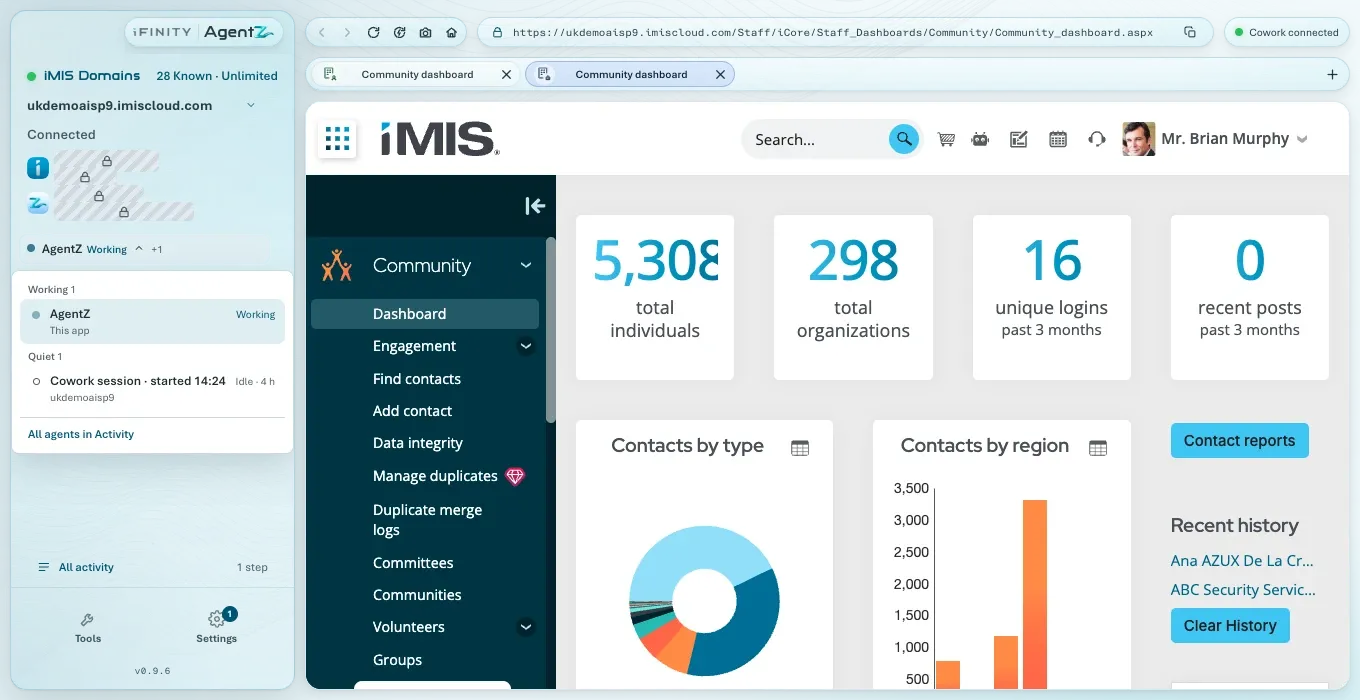
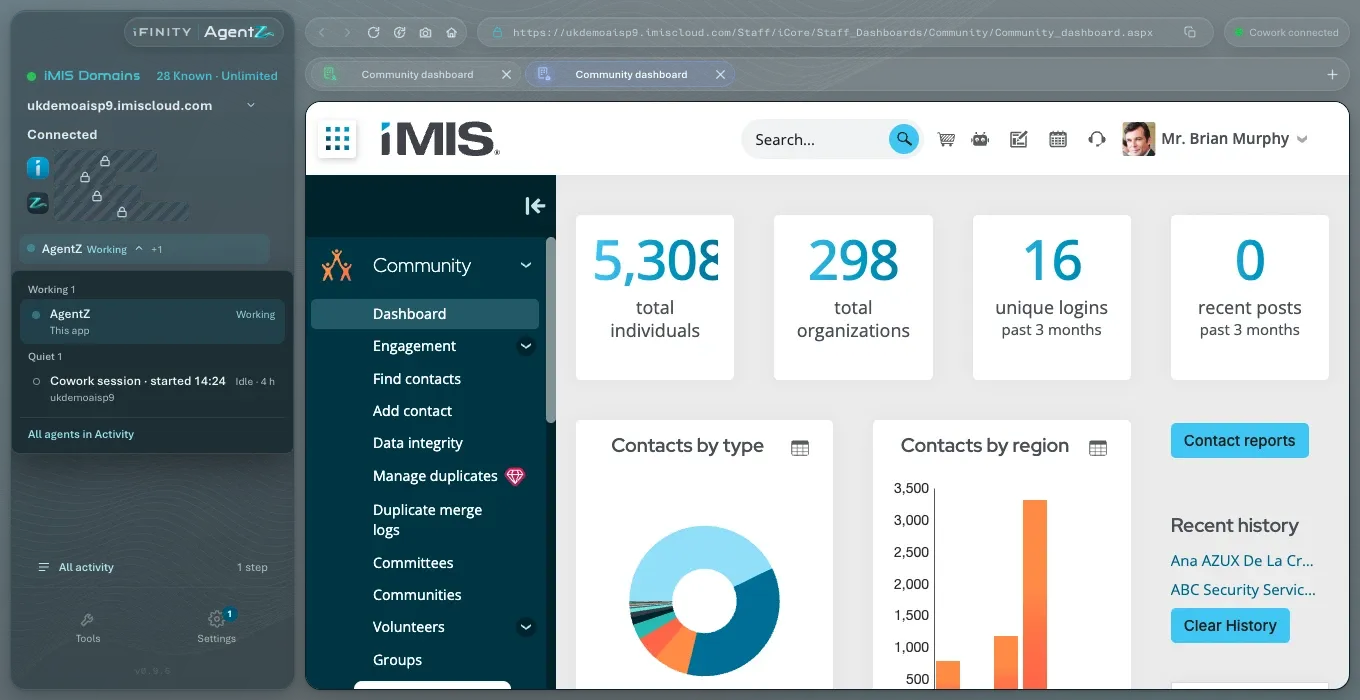
Section titled “Choosing which agent the sidebar follows”Click the agent’s name above the activity cards. The list shows the agents working now, the AgentZ entry for this app’s own work (This app), and All agents in Activity.
Example
Section titled “Example”Do I have to keep the AgentZ app open? Yes. Your AI app works in iMIS through it.
Can I use iMIS in the iMIS browser myself? Yes. You and your agents share it. If an agent is using it, take it over first. See Taking over from an agent.
Does quitting AgentZ stop my agents? Yes. Your AI apps cannot work in iMIS until you open AgentZ again.
Why does the Windows window look different from the Mac one? Each uses its own system’s window buttons. Everything inside the window is the same.