

Seats and team members
Each person who uses AgentZ holds a seat in your organisation’s licence. Your licence sets how many seats your organisation has. Organisation admins see everyone who holds a seat on the Team tab of Settings, and can free a seat or sign a device out.
How a person gets a seat
Section titled “How a person gets a seat”There is no button to add someone. A colleague gets a seat by signing in to the AgentZ app with their work email, when your organisation has a free seat. See Signing in to AgentZ.
- Their work email must be an address, or at an email domain, that your organisation registered with AgentZ.
- If every seat is in use, no sign-in link is sent. The email AgentZ sends instead is titled All of your organisation’s seats are in use, and asks them to ask your AgentZ administrator to release a seat that is no longer used, or to add more seats.
- One seat covers one person on every computer they sign in on.
Organisation admins and team members
Section titled “Organisation admins and team members”| Organisation admin | Team member | |
|---|---|---|
| Uses AgentZ in their AI app | Yes | Yes |
| Sees the Team tab in Settings | Yes | No |
| Removes people and signs devices out | Yes | No |
| Sets up the iMIS API connection for your licensed iMIS site | Yes | No |
| Sets up the iMIS API connection for another iMIS site | Yes | Only if Team members can set up API connections is on |
| Chooses how long iFINITY keeps your organisation’s records | Yes | No |
Settings shows your role beside your work email: Organisation admin, or Team member. On the Team tab, an Organisation admin’s row has the badge Organisation admin.
Who is an Organisation admin is set on your organisation’s licence by iFINITY. To make someone an Organisation admin, or to stop them being one, contact iFINITY.
What a team member sees
Section titled “What a team member sees”A team member uses AgentZ in the same way, but Settings shows them less:
- The header of Settings reads Team member beside their work email.
- There is no Team tab. The iMIS sites tab shows only if your organisation’s licence lets AgentZ work with more than one iMIS site.
- On Settings > iMIS, step 3 iMIS API says “API connection is managed by your Organisation admin.” for any site they may not set up.
- Until an Organisation admin has set up the iMIS API connection for your iMIS site, the Overview tab lists iMIS API under Waiting, as Waiting for your Organisation admin: “Your Organisation admin connects the iMIS API for” the site. There is nothing for the team member to do; once it is set up, their AgentZ uses it. See Setting up the iMIS API connection.
The main contact is the Organisation admin named on your organisation’s licence. The Team tab marks them Main contact. Nobody can remove the main contact from the Team tab: contact iFINITY support to change who that is.
The Team tab
Section titled “The Team tab”Go to Settings > Team. Under People with an AgentZ seat, it shows your organisation, how many people use AgentZ, and Refresh. Each person’s row shows:
- A dial for how much they use AgentZ, from their last 30 days of activity, with a word for it (for example Power user, Heavy, Regular or Getting started) and whether it is Rising, Steady or Falling.
- Their name and work email, and You, Organisation admin or Main contact where it applies.
- When they last used AgentZ, on how many days in the last 30, and on how many devices they are signed in.
- Remove, except on your own row and the main contact’s, where a note says why.
- Signed in on n devices, which opens the list of their devices, each with when it was signed in and last active, and Sign out. Below the list, Sign out everywhere signs them out of every device; on your own row it is Sign out my other devices.
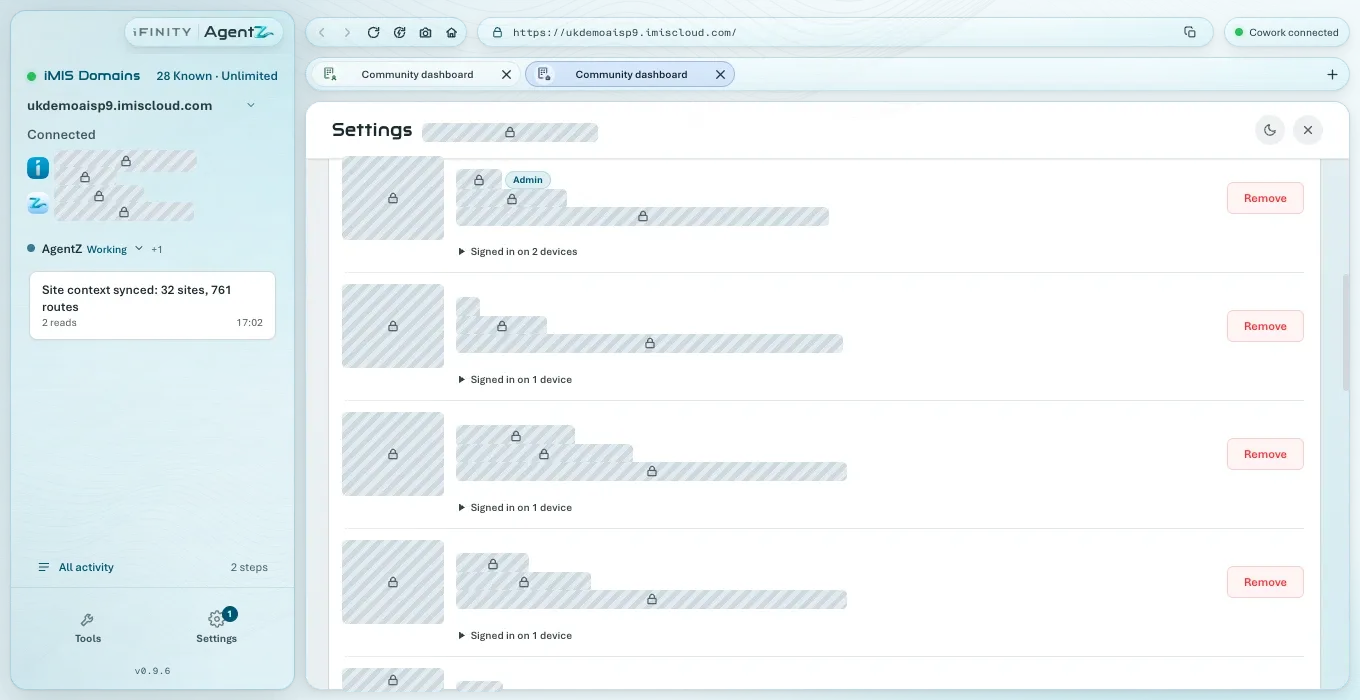
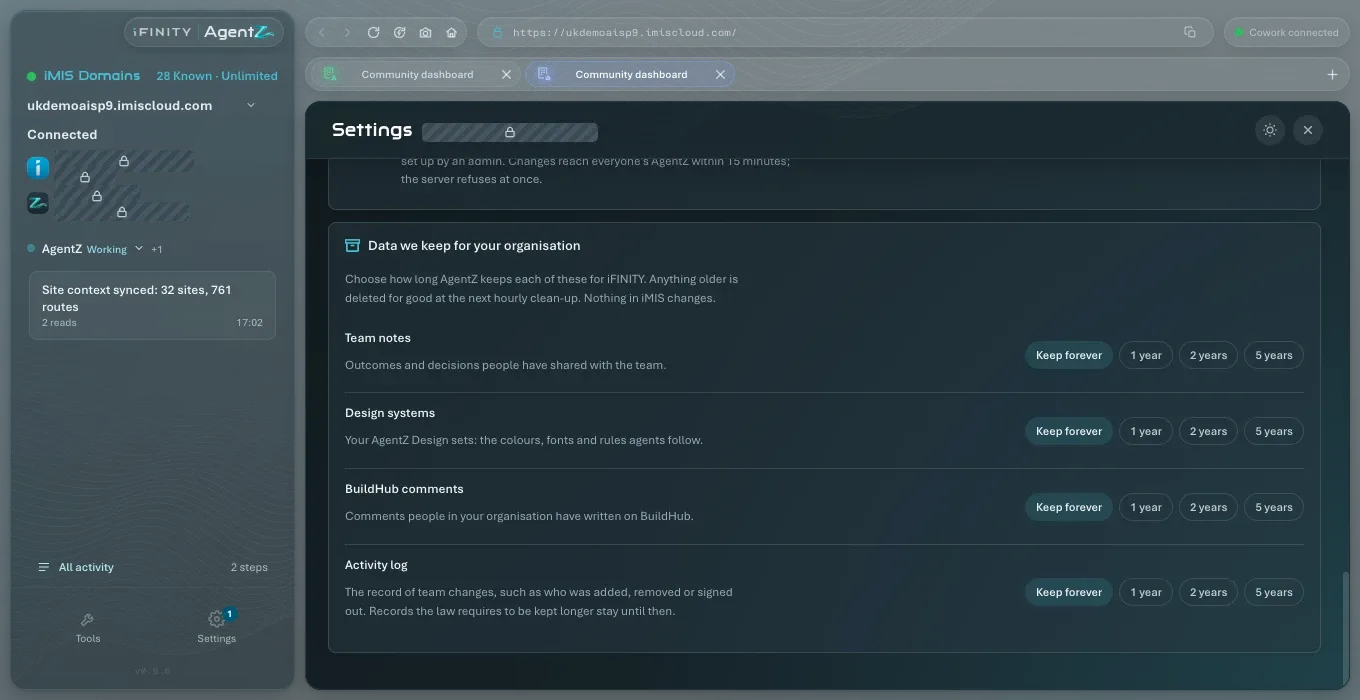
Use the filters above the list to see All, Organisation admins, or Not using AgentZ. In a long list, type a name in Find a person.
Removing someone or signing out a device changes nothing in iMIS. The note at the top of the tab says so: “Signing someone out of a device ends AgentZ there until they sign in again; removing someone also frees their seat for a colleague. Neither changes anything in iMIS.”
Signing a device out
Section titled “Signing a device out”Signing a device out ends AgentZ on that device: it returns to its sign-in screen within 15 minutes. The person stays on your team, keeps their seat, and can sign in again straight away. Use it for a lost or shared computer. You cannot sign out the device you are using from here; to sign out on it, use Sign out of AgentZ on Settings > AgentZ.
Do the following to sign a device out:
-
Go to Settings > Team and find the person.
-
Click Signed in on n devices to open their devices.
-
Click Sign out on the device, or Sign out everywhere below the list (on your own row, Sign out my other devices).
AgentZ asks you to confirm, for example Sign out device: “Sign” the person “out of the device they signed in on” when”?”, or Sign out everywhere: “Sign” the person “out of every device they are signed in on”, with how many there are now. It explains that AgentZ there returns to its sign-in screen within 15 minutes, that they stay on your team, and that nothing in iMIS changes. Cancel is the default.
-
Click Sign out or Sign out everywhere.
The Team tab says what happened, for example “That device was already signed out.”, “They were not signed in on any device.” or, if it did not work, “AgentZ could not sign them out. No device was signed out.” If you clicked Cancel, it says “Cancelled; no device was signed out.”
Team permissions
Section titled “Team permissions”Team members can set up API connections lets anyone on the team create or adopt the iMIS Client Application for the other iMIS sites they switch AgentZ to. Your licensed iMIS site is always set up by an Organisation admin. A change reaches everyone’s AgentZ within 15 minutes.
When you change it, the tab confirms, for example “Team members can now set up API connections for the other iMIS sites they use.” or “Only Organisation admins can set up API connections now. Team members already connected keep working.” If another Organisation admin changed the settings at the same moment, your choice is not saved and the tab says so: check the setting and choose again. If the change did not go through, it says “AgentZ could not change the setting. Nothing was changed.”
Data we keep for your organisation
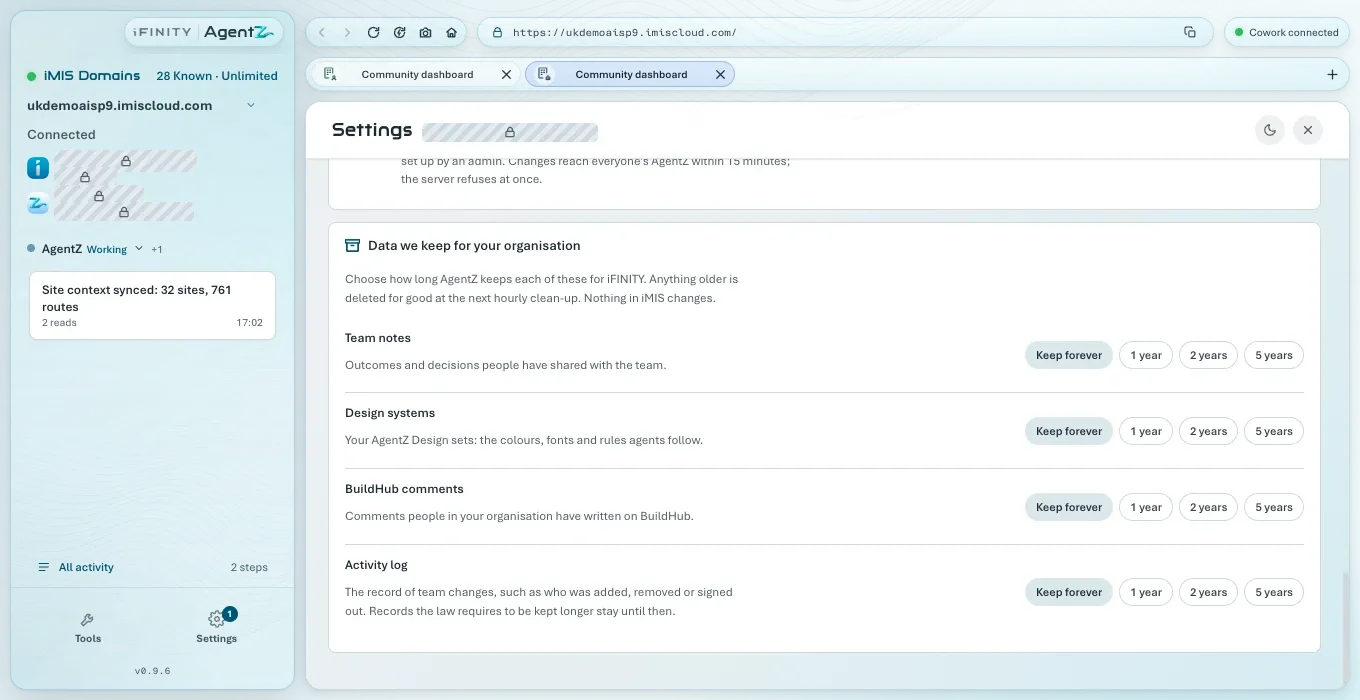
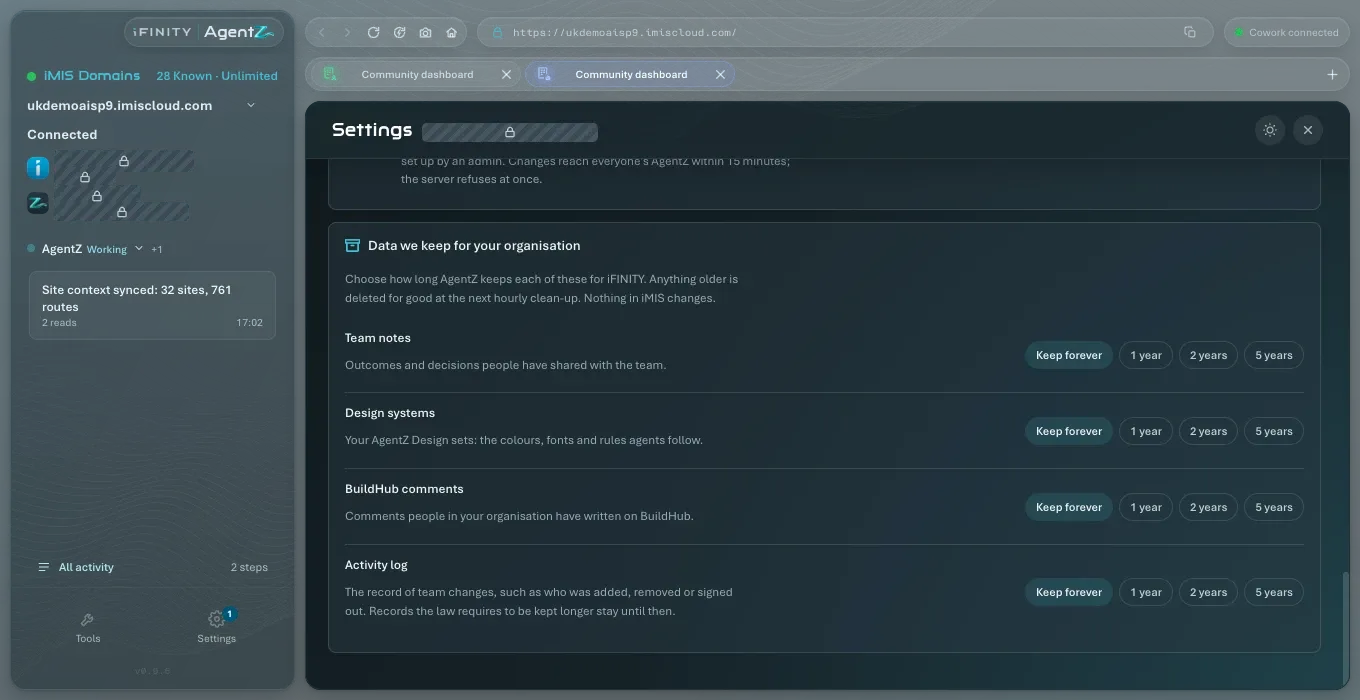
Section titled “Data we keep for your organisation”Data we keep for your organisation sets how long iFINITY keeps four kinds of your organisation’s records: Team notes, Design sets, BuildHub comments and Team changes. For each, choose Keep forever, 1 year, 2 years or 5 years. What this means for your data is described in What iFINITY’s licensing service receives and stores.
Can I add a team member from the Team tab? No. A colleague takes a free seat by signing in to AgentZ with their work email.
Does removing someone stop them using iMIS? No. Nothing in iMIS changes. It only frees their AgentZ seat and signs them out of AgentZ.
Can someone I removed sign in again? Yes, if your organisation has a free seat and their email is still registered.
Why can’t I remove myself? An Organisation admin cannot remove their own seat. Ask another Organisation admin, or contact iFINITY support.