

Install and set up AgentZ
This guide puts the set-up pages together, in the order you follow them. Each part is also a page of its own.
Download this guide as a PDF to print it or share it.
1. AgentZ requirements
Section titled “1. AgentZ requirements”The computer, licence, iMIS site and AI app you need before you set up AgentZ, and what happens if one is missing.
On its own page: AgentZ requirements
AgentZ needs a supported computer, a licence for your organisation, a staff sign-in to your organisation’s iMIS site, and an AI app. Check each of these before you install AgentZ.
| You need | Why | If it is missing |
|---|---|---|
| A supported computer: macOS on Apple silicon and 64-bit Windows | The AgentZ app runs on your computer | AgentZ cannot be installed. Intel Macs and Linux computers are not supported. |
| Permission to install apps on that computer | You install the AgentZ app yourself | Ask whoever looks after your computer to install it, or to give you permission. |
| Your organisation’s AgentZ licence | It gives you a seat and lets you sign in | You cannot sign in. Ask iFINITY about a licence. |
| Your work email, at an address or email domain your organisation registered with AgentZ | You sign in with it, and unlock the downloads with it | The sign-in email explains why you cannot sign in yet. Ask your Organisation admin to register your address. |
| Your organisation activated, with the auth code iFINITY sent | Nobody can sign in with a work email until it is | Your Organisation admin activates it once. See Signing in to AgentZ. |
| A staff username and password for your organisation’s iMIS site | AgentZ signs in to iMIS as you, with your iMIS permissions | AgentZ cannot sign in to iMIS. Ask whoever looks after iMIS for a staff sign-in. |
| Your iMIS site linked to your licence | AgentZ works with the iMIS site your organisation licensed | Settings > Overview shows Not linked yet. Ask your Organisation admin, or email helpdesk@ifinity.co.uk. |
| The iMIS API connection, set up once for your iMIS site by an Organisation admin who is also a system administrator in iMIS | It lets AgentZ read and change records through the iMIS API as you | AgentZ can still use the iMIS browser, but not the iMIS API. See Setting up the iMIS API connection. |
| A supported AI app: Claude Code (command line), Claude desktop app, Codex, OpenCode, GitHub Copilot, Cursor, Grok Build, Devin and Hermes Agent, with its own account | You ask for work in iMIS in your AI app | Settings > Overview shows No AI app found. Install an AI app and sign in to it. |
| An internet connection to ifinityagentz.co.uk and to your iMIS site | AgentZ checks your licence with iFINITY’s service and works in your iMIS site | AgentZ shows AgentZ can’t reach the AgentZ service and keeps trying. |
What to do next
Section titled “What to do next”Install the AgentZ app. See Installing AgentZ.
Does AgentZ work on an Intel Mac? No. The Mac app runs only on Macs with Apple silicon.
Does AgentZ work with iMIS on premises? AgentZ is made for, and checked on, iMIS EMS in the cloud. Ask iFINITY before using it with iMIS on premises.
Do I need a Claude subscription? You need an account for whichever supported AI app you use. AgentZ does not include one.
Do I need to be a system administrator in iMIS? No, not to use AgentZ. Setting up the iMIS API connection, once for your iMIS site, needs a system administrator.
Does Claude on Windows need anything else? Claude’s own workspace on Windows can ask for the Windows Virtual Machine Platform feature. See Windows installation troubleshooting.
2. Installing AgentZ
Section titled “2. Installing AgentZ”Unlocking the AgentZ download page, downloading the installer for your computer, and installing the AgentZ app on Windows or a Mac.
On its own page: Installing AgentZ
Installing AgentZ puts the AgentZ app on your computer. You download it from the AgentZ download page, which is open to people in licensed organisations.
Before you begin
Section titled “Before you begin”- A supported computer: macOS on Apple silicon and 64-bit Windows. Intel Macs are not supported. The installer for the wrong kind of computer will not run.
- Permission to install apps on your computer. If you do not have it, ask whoever looks after your computer.
- Your work email, at an address your organisation registered with AgentZ, or, for your Organisation admin, your organisation’s auth code. The download page opens only for licensed organisations.
Unlocking the download page
Section titled “Unlocking the download page”Do the following to unlock the download page:
- Go to ifinityagentz.co.uk/download.
- Choose how to unlock it:
- Work email – enter your work email and click Send access link. Open the email on the same computer, click its link, and on the page that opens click Unlock Downloads. The download page opens.
- Auth code – enter your organisation’s auth code and click Open downloads. This only opens the downloads: it does not activate your organisation or take a seat.
The page shows your organisation’s name and the Available downloads, one card for each kind of computer.
Installing on Windows
Section titled “Installing on Windows”Do the following to install AgentZ on Windows:
-
On the Windows card, click Download next to the installer, named
iFINITY-AgentZ-Setup-followed by the version and.exe. -
Open the downloaded installer.
If Windows shows Windows protected your PC (Microsoft Defender SmartScreen), click More info, check that the publisher is iFINITY Ltd, then click Run anyway. Windows can show this for a newly published app.
-
The installer installs AgentZ for you without asking any questions, then opens it.
AgentZ opens on its sign-in screen. Windows lists it as iFINITY AgentZ, in the Start menu and under Settings > Apps > Installed apps.
Installing on a Mac
Section titled “Installing on a Mac”Do the following to install AgentZ on a Mac:
-
On the macOS (Apple Silicon) card, click Download next to the disk image, whose name ends in
-arm64.dmg. -
Open the downloaded disk image.
-
Drag iFINITY AgentZ into the Applications folder.
-
Open iFINITY AgentZ from your Applications folder.
The first time, macOS may ask whether you are sure you want to open an app downloaded from the internet. Click Open.
AgentZ opens on its sign-in screen.
How AgentZ installers are signed, and how you can check them, is described in AgentZ updates and code signing.
What comes next
Section titled “What comes next”Sign in to AgentZ. See Signing in to AgentZ.
If the installer does not run on Windows, see Windows installation troubleshooting.
Do I need to download the plugin as well? No. You add the AgentZ plugin to your AI app after signing in, from the AgentZ app. See Connecting your AI app.
Do I need to install each new version myself? No. Once installed, the AgentZ app updates itself. See Updating AgentZ.
Does unlocking the download page with the auth code use a seat? No. A seat is taken only when someone signs in to the AgentZ app.
Can I install AgentZ on more than one computer? Yes. Sign in on each computer with your work email.
3. Signing in to AgentZ
Section titled “3. Signing in to AgentZ”Signing in to the AgentZ app with your work email, or activating AgentZ for your organisation with its auth code.
On its own page: Signing in to AgentZ
Signing in to AgentZ connects the AgentZ app on your computer to your organisation’s licence, and gives you a seat. You sign in once on each computer; AgentZ keeps you signed in after that.
Before you begin
Section titled “Before you begin”- Your work email. It must be the address your organisation registered with AgentZ, or at an email domain your organisation registered. If it is not, the email AgentZ sends explains why you cannot sign in yet, and no sign-in link is sent.
- Your email on this computer. You open the sign-in link on the same computer as the AgentZ app. The link opens in your web browser and then returns you to AgentZ. A link opened on your phone cannot sign in the app on your computer.
- A free seat. Each person who signs in takes one seat in your organisation’s licence. If every seat is taken, ask your Organisation admin to free one. See Seats and team members.
- An activated organisation. The first person to use AgentZ in your organisation, normally the Organisation admin, activates it with the auth code iFINITY sent. Until then, nobody in your organisation can sign in with a work email. See Activating AgentZ for your organisation.
Signing in with your work email
Section titled “Signing in with your work email”Do the following to sign in to AgentZ:
-
Open the AgentZ app. The sign-in screen shows Sign in and the Work email field.
-
In Work email, enter your work email, for example
name@yourorganisation.org. -
Click Email me a sign-in link.
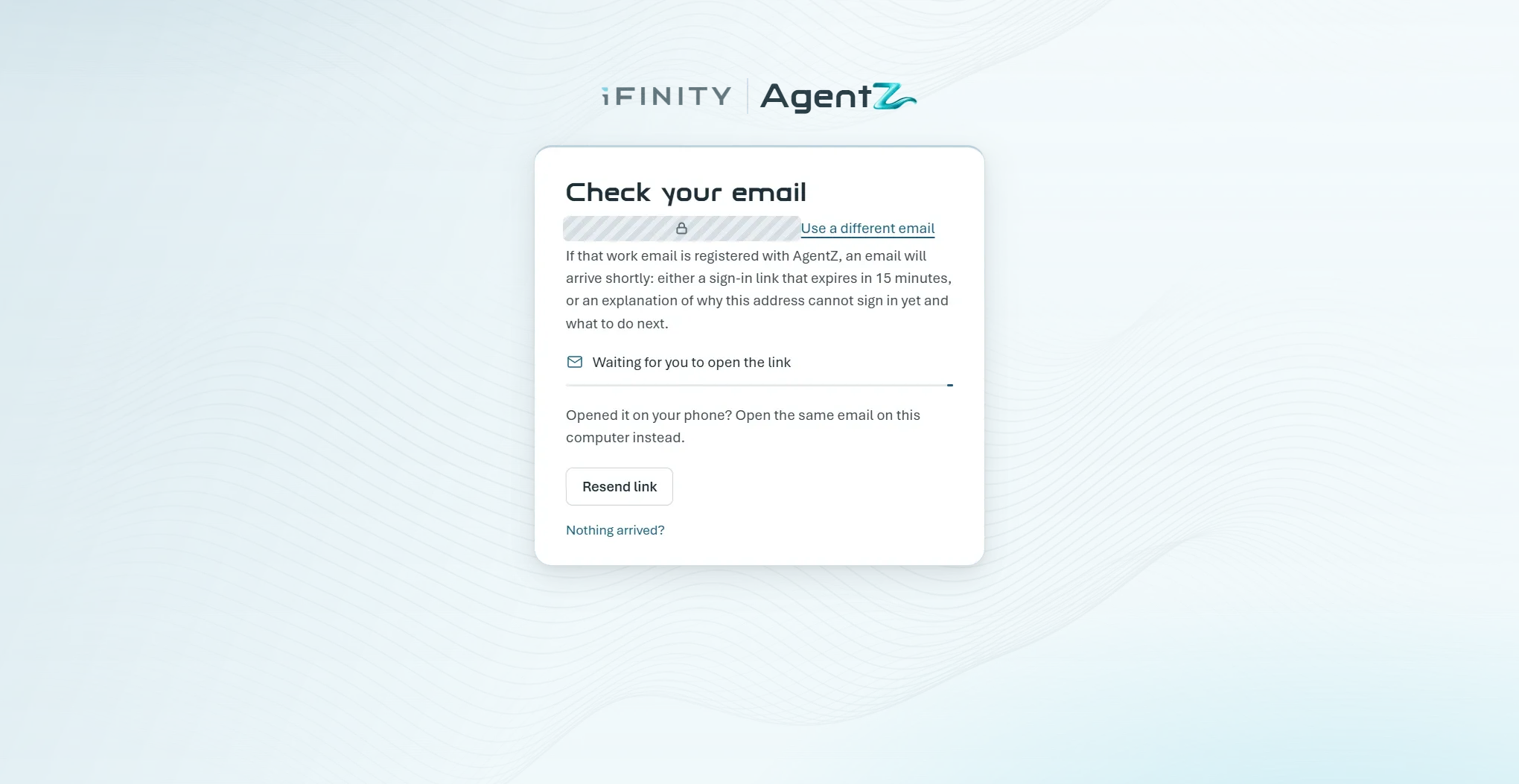
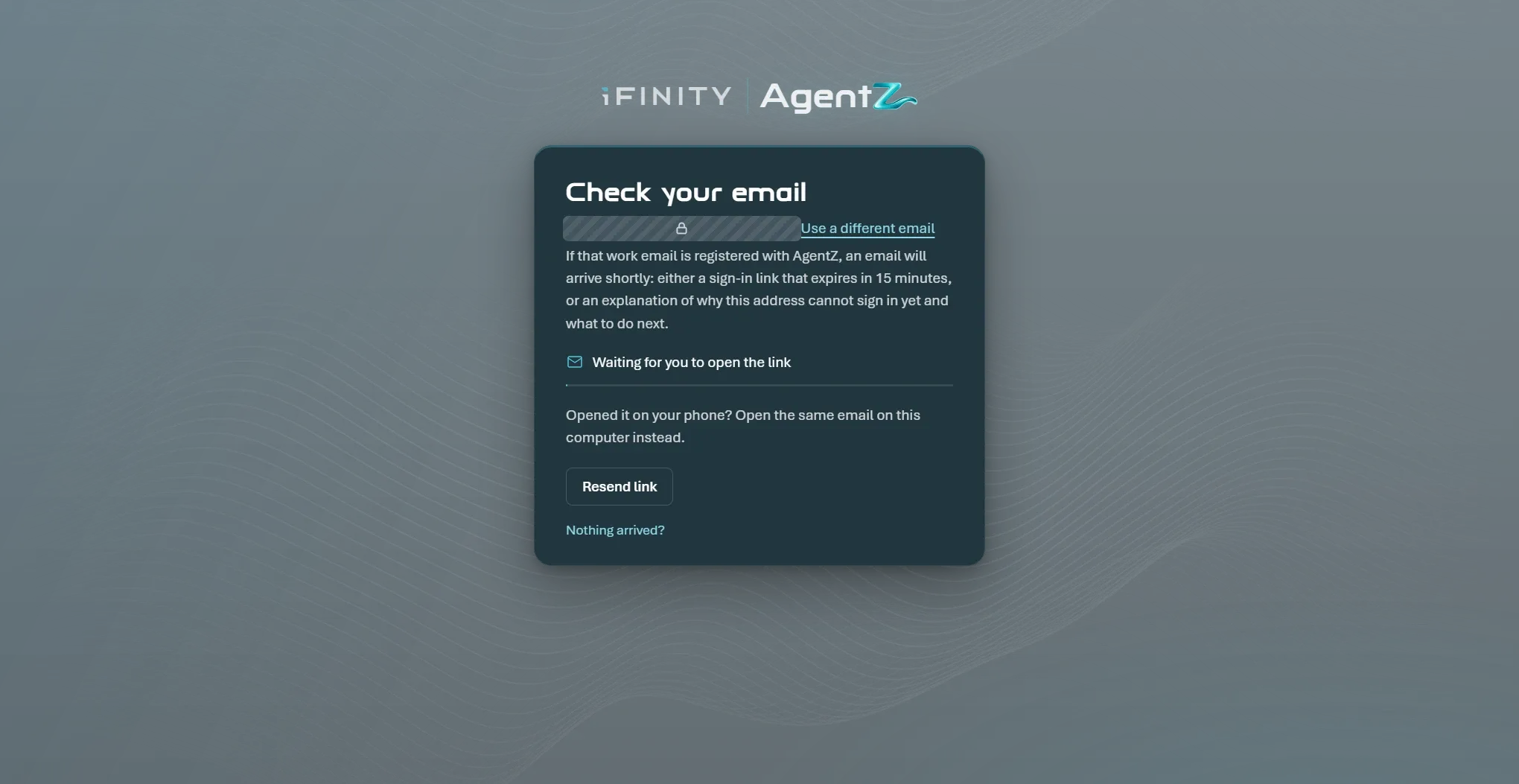
The screen changes to Check your email, with your address and the words Waiting for you to open the link. Below them it reminds you: “Opened it on your phone? Open the same email on this computer instead.”
-
On the same computer, open the email from AgentZ and click its Sign In button.
Your web browser opens a page on ifinityagentz.co.uk that reads “Confirm that you want to sign in to iFINITY AgentZ for” and your organisation’s name, with your email below it.
-
Check that the page names your organisation and your email, then click Sign In on the page.
The page shows Signed In and opens the AgentZ app. Your browser may ask whether to open iFINITY AgentZ: allow it.
The AgentZ app shows Finishing setting up and “You’re signed in. AgentZ will reopen in a moment to finish.” AgentZ then opens its main window.
If the email does not arrive
Section titled “If the email does not arrive”The Check your email screen shows Resend link in 30 s, which becomes Resend link after 30 seconds. Under Nothing arrived? it lists what to check:
- Look in your junk or quarantine folder for an email from AgentZ.
- Check this is the work email your organisation registered with AgentZ.
- Still nothing after a few minutes? Email helpdesk@ifinity.co.uk.
To try a different address, click Use a different email.
Activating AgentZ for your organisation
Section titled “Activating AgentZ for your organisation”You activate your organisation once. After that, everyone in it signs in with their work email and never needs the code.
Do the following to activate AgentZ for your organisation:
-
Open the AgentZ app.
-
Under the sign-in card, next to Activating AgentZ for your organisation?, click Use your auth code.
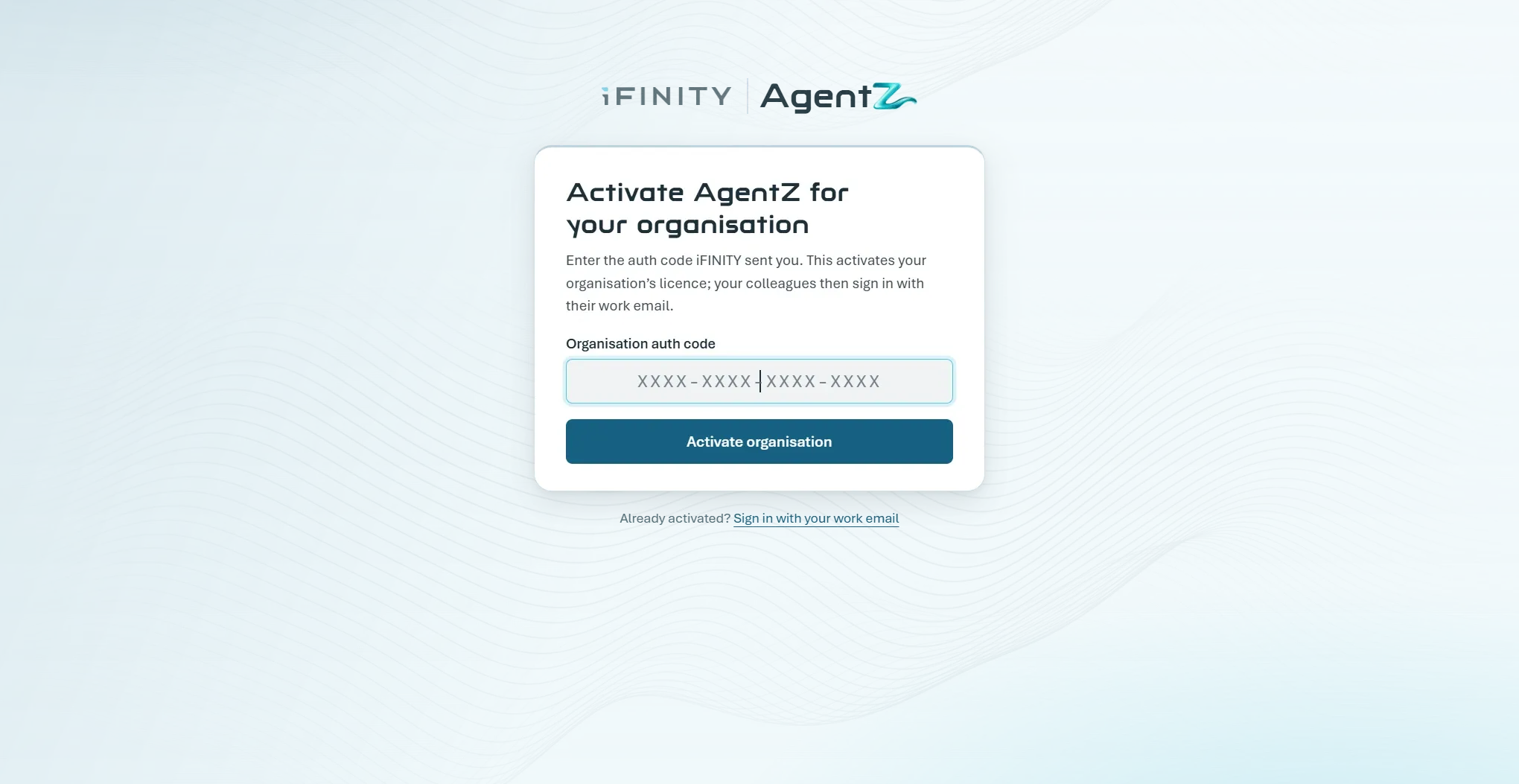
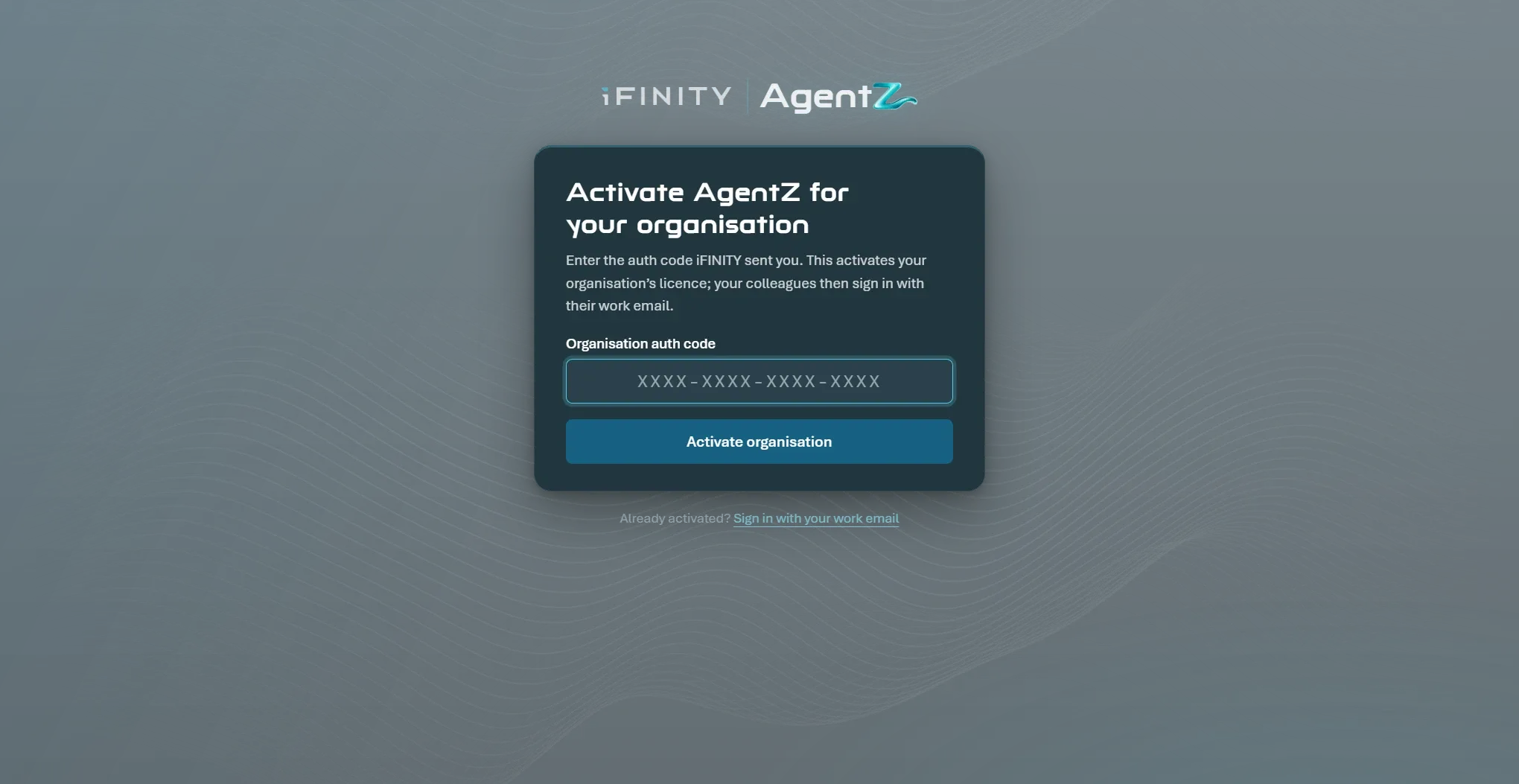
The card shows Activate AgentZ for your organisation.
-
In Organisation auth code, enter the code iFINITY sent you. It has four groups of four letters and numbers; AgentZ adds the dashes for you.
-
Click Activate organisation.
The card shows your organisation’s name and is ready on AgentZ.
-
Click Continue to sign in, then sign in with your work email as described in Signing in with your work email.
Why the sign-in screen is showing
Section titled “Why the sign-in screen is showing”AgentZ shows the sign-in screen again when you need to do something before you carry on. A note at the top of the card says why:
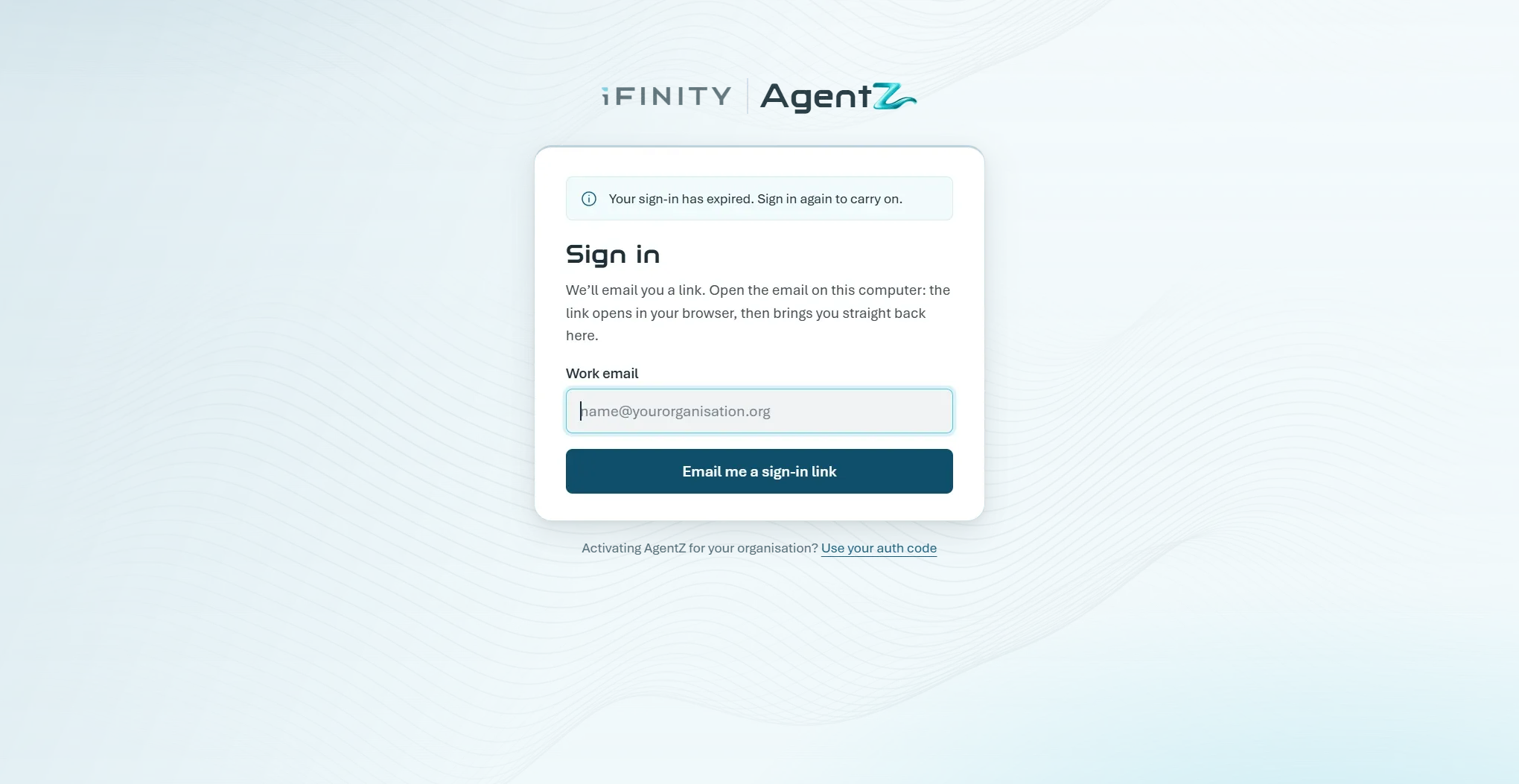
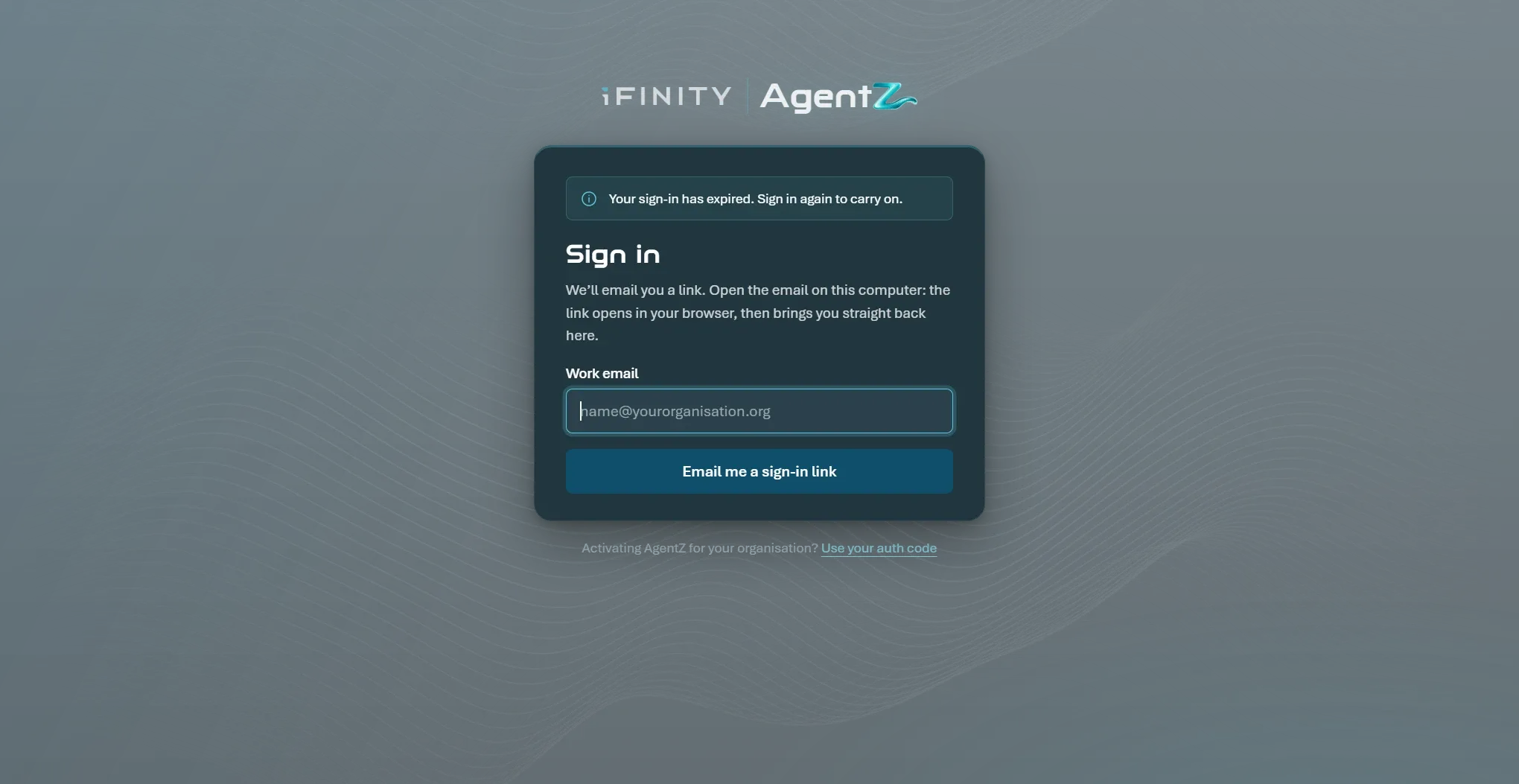
| What the note says | What it means | What to do |
|---|---|---|
| Your sign-in has expired. Sign in again to carry on. | Your AgentZ sign-in on this computer has ended. | Sign in with your work email again. |
| The AgentZ licence for your organisation has ended. | Your organisation’s licence is no longer active. | Ask your Organisation admin to renew it, then sign in again. |
| The AgentZ licence for your organisation is paused. | Your organisation’s licence is paused. | Ask your Organisation admin about it. |
| Your organisation hasn’t been activated on AgentZ yet. | Nobody has entered your organisation’s auth code. | Your Organisation admin activates it. See Activating AgentZ for your organisation. |
| You’ve signed out of AgentZ. Your iMIS settings are kept on this computer. | You, or someone on this computer, clicked Sign out of AgentZ. | Sign in again when you are ready. |
| This computer was signed out of AgentZ. Your iMIS settings are kept on this computer. Sign in again to carry on. | This computer’s AgentZ sign-in was ended before it expired. | Sign in with your work email again. |
If AgentZ cannot reach iFINITY’s service, the card shows AgentZ can’t reach the AgentZ service and Try again. You are still signed in, so you do not need a new link: check your internet connection, and AgentZ keeps trying in the background.
For other problems, see AgentZ sign-in troubleshooting.
Signing out
Section titled “Signing out”To sign out of AgentZ on this computer, go to Settings > AgentZ and click Sign out of AgentZ. Your iMIS sign-in and settings stay on this computer, so when you sign in again you carry on where you were. See AgentZ settings.
If you no longer use AgentZ on this computer, you can remove it without signing in: under the sign-in card, next to No longer using AgentZ on this computer?, click Remove AgentZ. See Removing AgentZ completely.
Do I need the auth code to sign in? No. Only the person who activates your organisation uses it, once. Everyone signs in with their work email.
Can I open the sign-in link on my phone? No. Open the email on the computer where the AgentZ app is installed. The link signs in the app on the computer where it is opened.
Does the sign-in page ask for my iMIS password? No. Signing in to AgentZ only uses your work email. You enter your iMIS username and password in the AgentZ app afterwards. See Connecting your iMIS site.
Do I sign in again every day? No. AgentZ keeps you signed in on this computer until you sign out, your sign-in expires, or your Organisation admin signs this computer out.
4. Connecting your iMIS site
Section titled “4. Connecting your iMIS site”Saving your iMIS staff sign-in in the AgentZ app, so that AgentZ signs in to your iMIS site as you.
On its own page: Connecting your iMIS site
Connecting your iMIS site saves your iMIS staff username and password in the AgentZ app, so that AgentZ can sign in to iMIS as you. What that means for your iMIS permissions is described in Security and trust.
Before you begin
Section titled “Before you begin”- Your iMIS staff username and password for your organisation’s iMIS site. You enter them in the AgentZ app, never on a web page. If you do not have a staff sign-in, ask whoever looks after iMIS in your organisation.
- Your iMIS site linked to your licence. AgentZ already knows your organisation’s iMIS site from your licence. If Settings > Overview shows Not linked yet for iMIS site, your licence is not linked to an iMIS site yet: ask your Organisation admin, or email helpdesk@ifinity.co.uk. You cannot connect until it is.
- Your security code device, if your iMIS site asks staff for a security code when they sign in (multi-factor authentication). AgentZ enters your username and password, and you enter the code.
Connecting your iMIS site
Section titled “Connecting your iMIS site”The first time you sign in to AgentZ on a computer, AgentZ opens Settings for you on its Overview tab, which lists what is left to set up. The iMIS sign-in row shows No sign-in saved and the button Enter your iMIS sign-in, which takes you to the step below. See Overview settings.
Do the following to connect your iMIS site:
-
In the AgentZ app, click Setup or Settings in the sidebar.
-
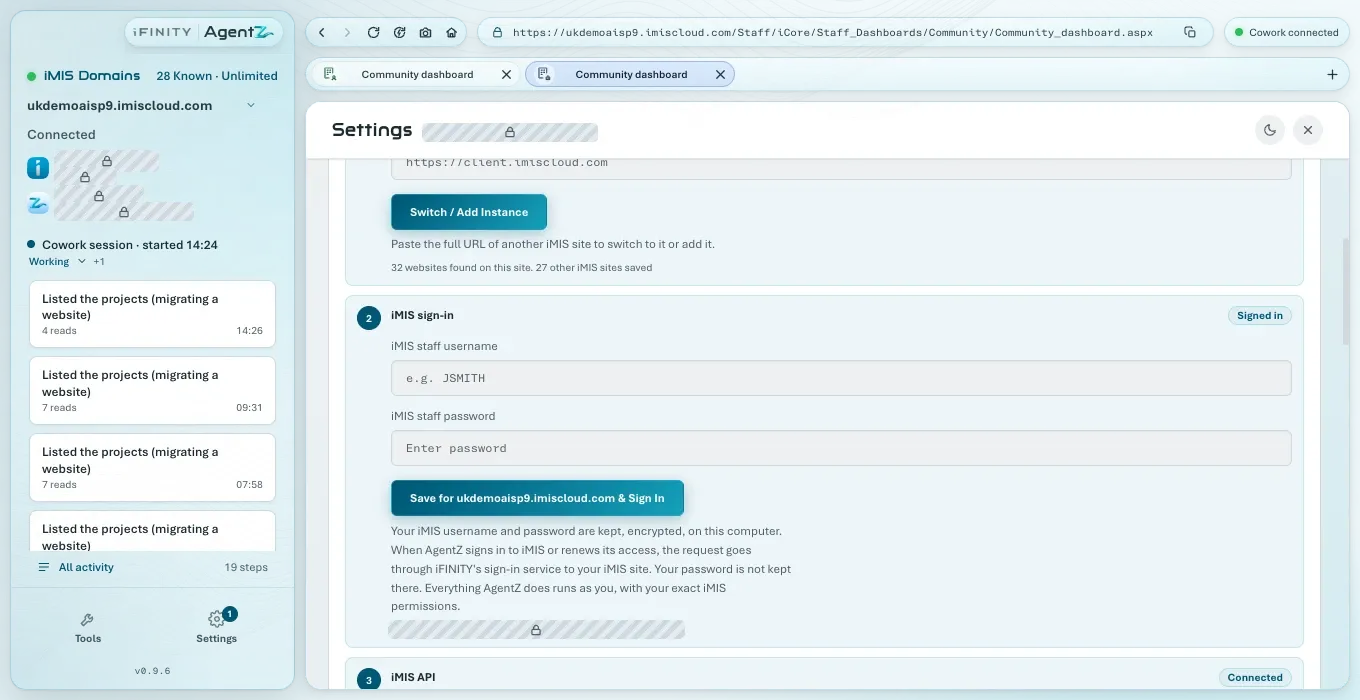
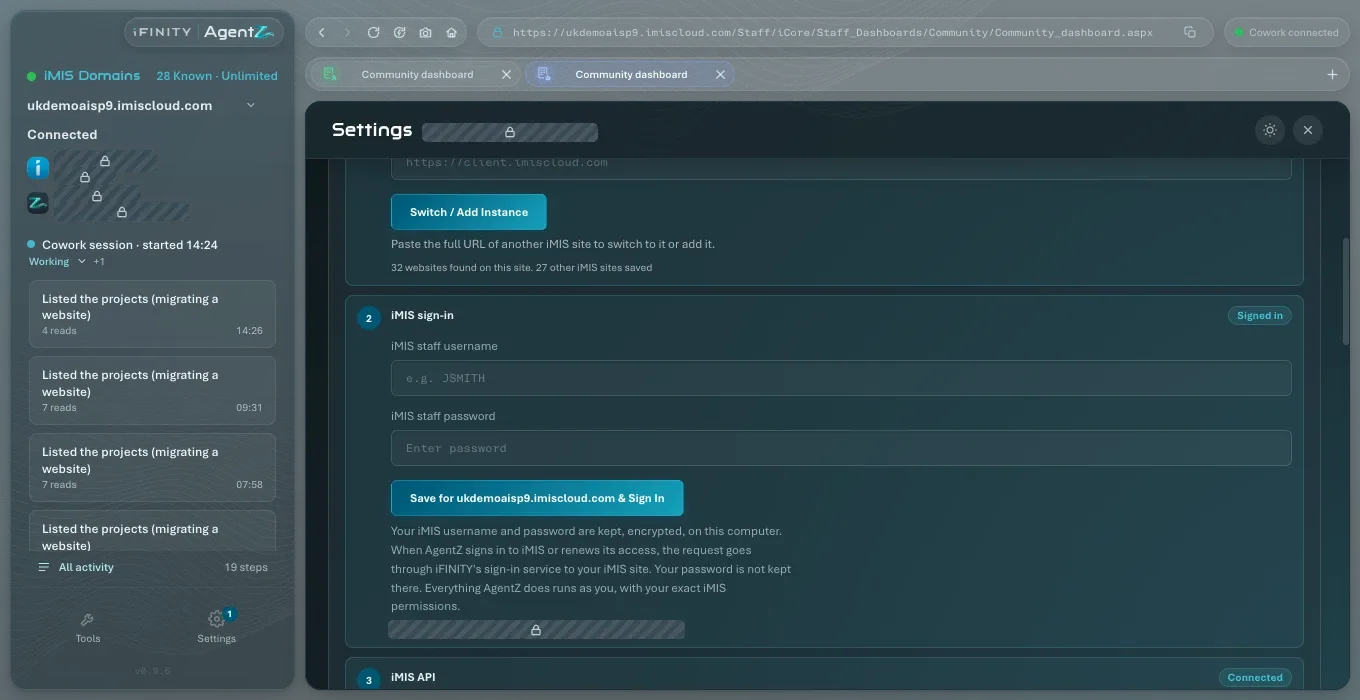
Click the iMIS tab, or Enter your iMIS sign-in on the Overview tab.
Under Connect iMIS, step 1 iMIS site shows your iMIS site’s address, such as
yourorg.imiscloud.com.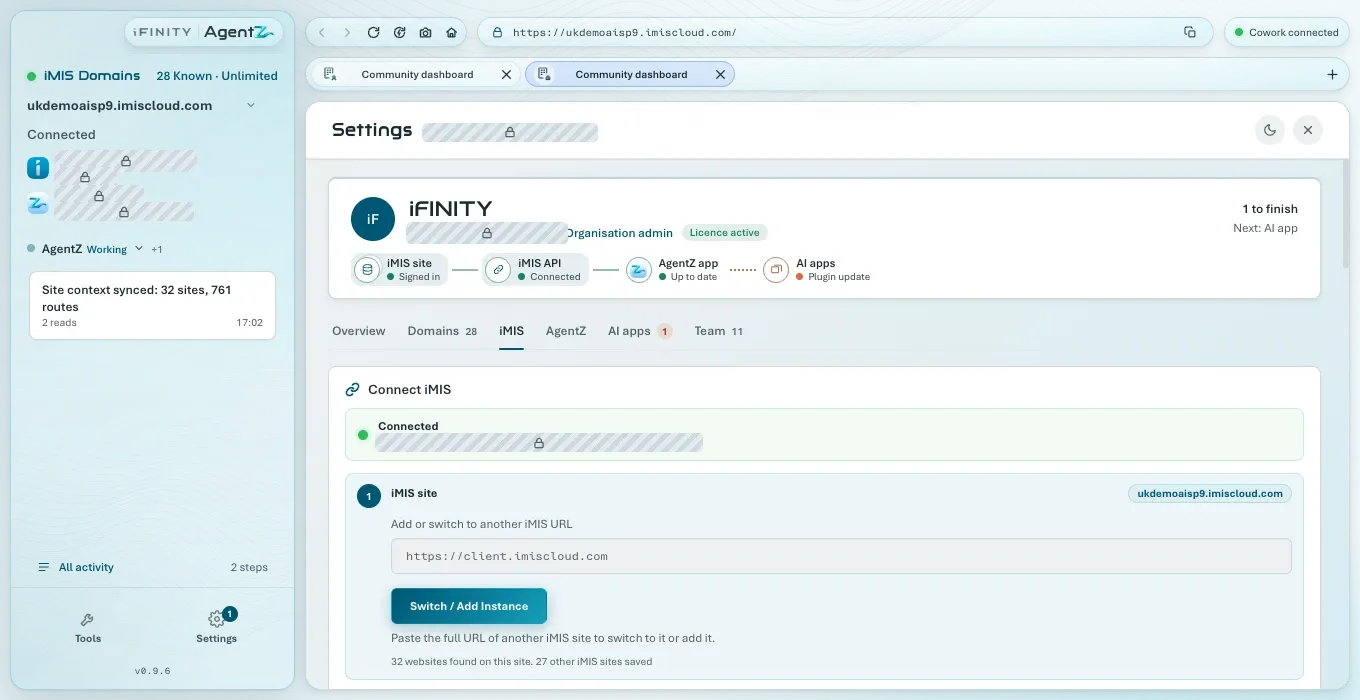
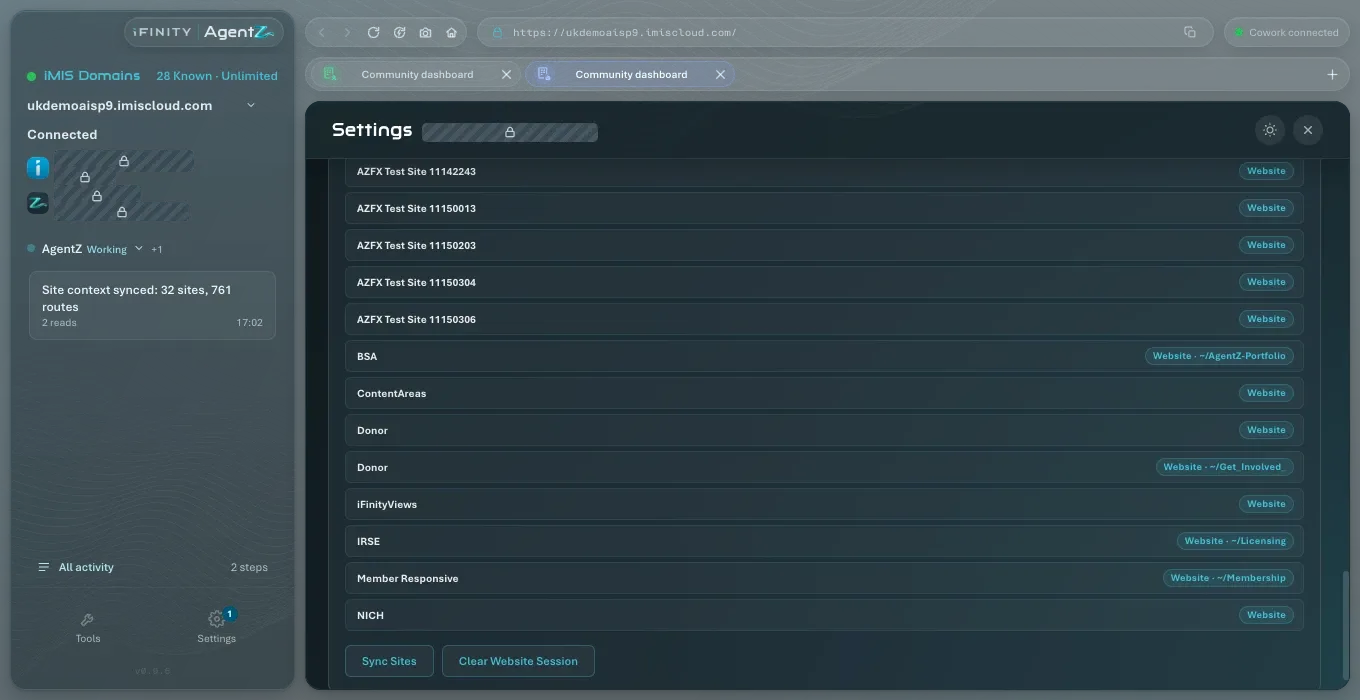
-
In step 2 iMIS sign-in, enter your username in iMIS staff username and your password in iMIS staff password.
-
Click Save and sign in to your iMIS site.
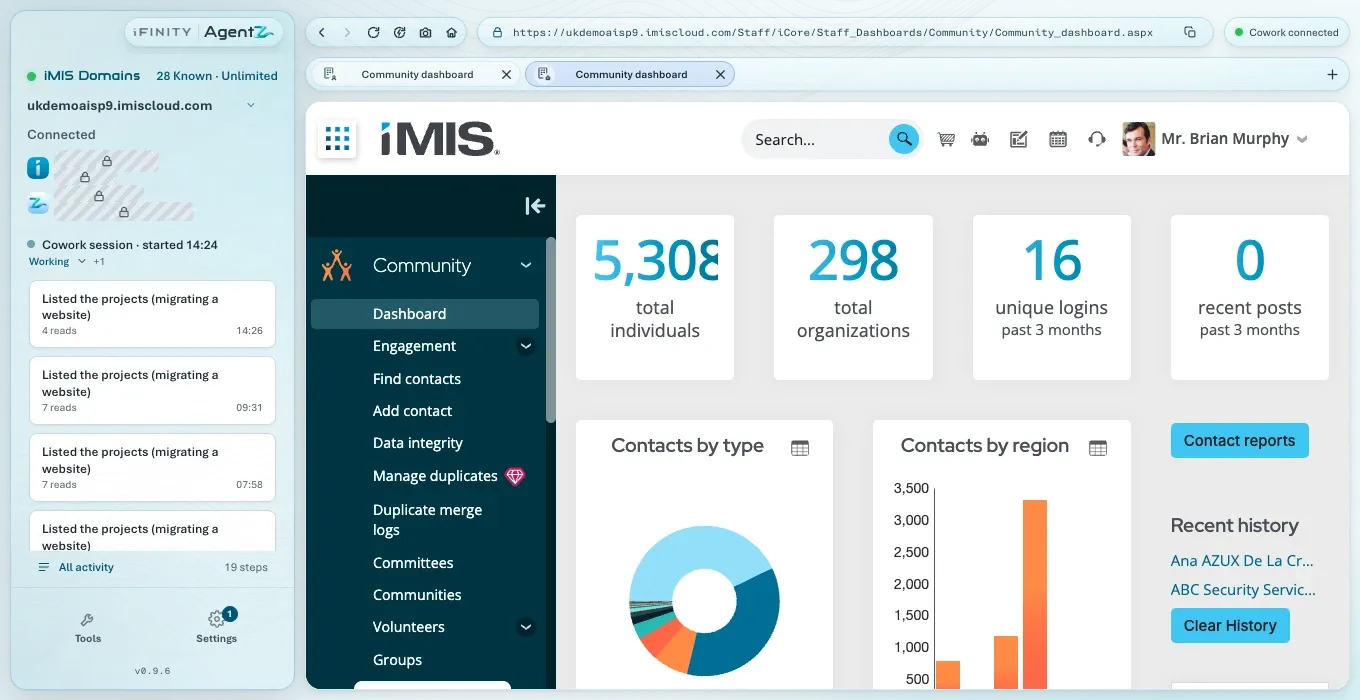
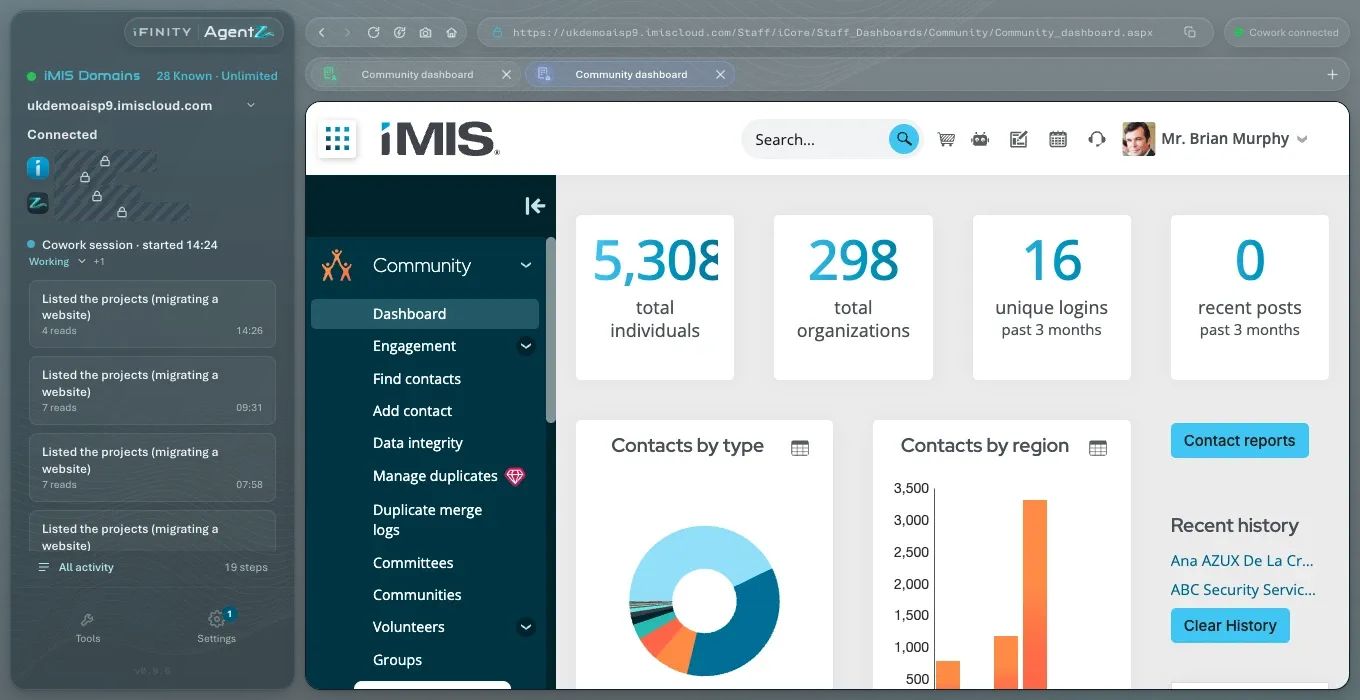
Settings closes. The iMIS browser shows Opening and your iMIS site’s address while AgentZ signs in, and the pill at the top right reads AgentZ: iMIS sign-in.
-
If your iMIS site asks for a security code, the sidebar shows iMIS security code required and “Enter your iMIS security code, then click Sign In”. Enter the code from your device on the iMIS page in the iMIS browser, then click Sign In on that page.
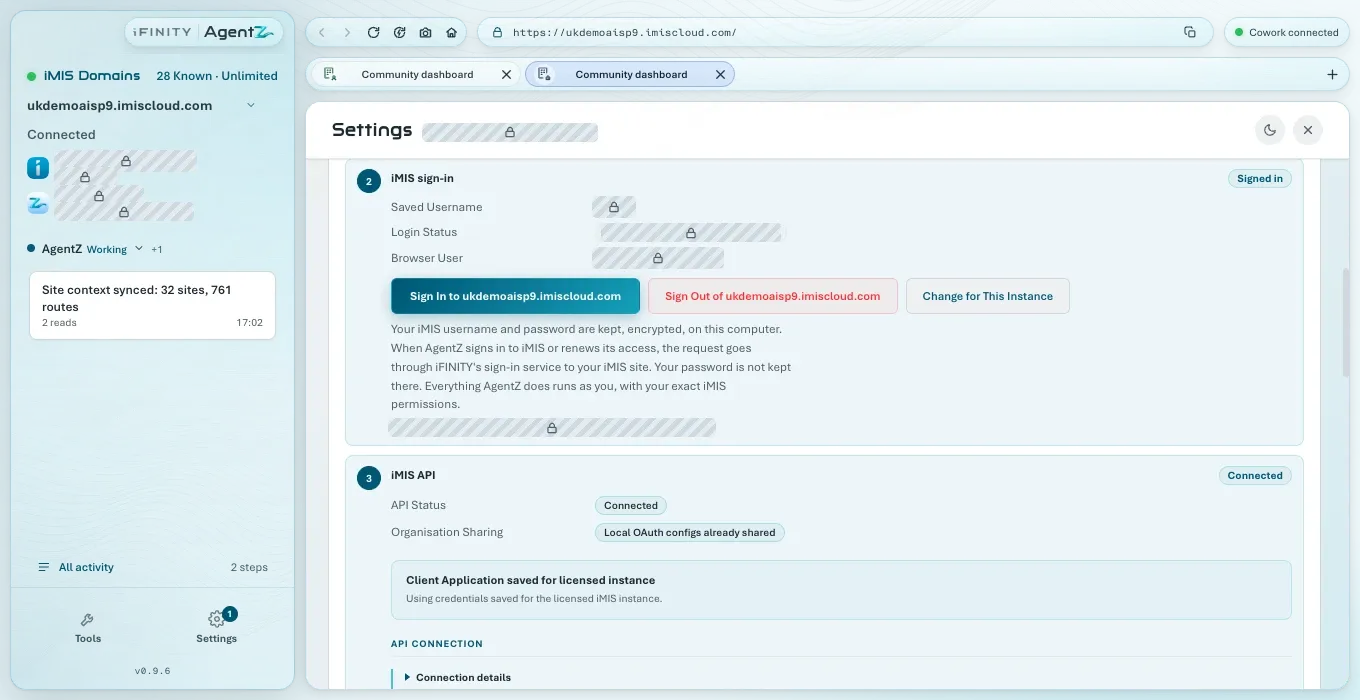
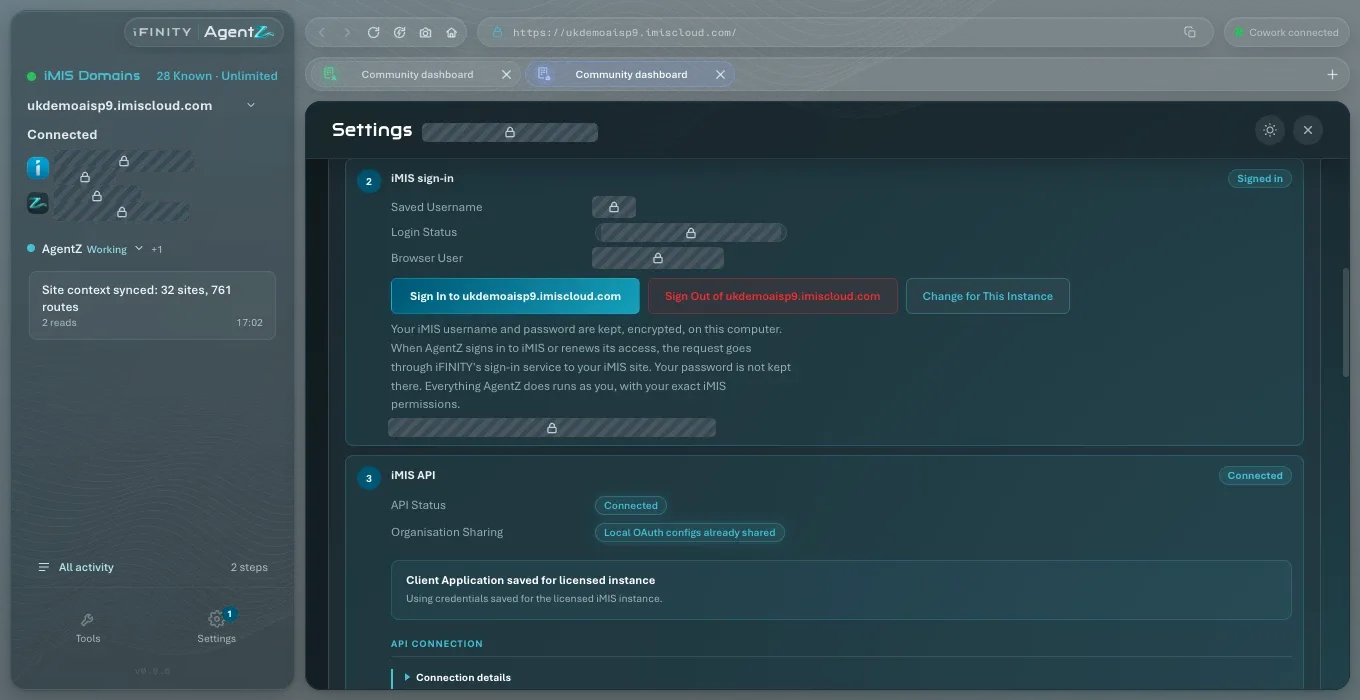
Your iMIS staff site opens in the iMIS browser. The sidebar shows your iMIS site with Connected under it, and your iMIS name. In Settings > iMIS, step 2 iMIS sign-in shows Signed in, your Saved username, and Sign-in status “Signed in as” your name.
The iMIS sign-in step once you are connected
Section titled “The iMIS sign-in step once you are connected”After your sign-in is saved, step 2 iMIS sign-in shows it instead of the form:
- Saved username: the iMIS username AgentZ signs in with.
- Sign-in status: whether the iMIS browser is signed in, and as whom.
- iMIS browser user: the iMIS person the iMIS browser is signed in as.
- Sign in to your iMIS site: signs the iMIS browser out and in again with the saved sign-in. Settings closes while it does.
- Sign out of your iMIS site: signs the iMIS browser out of iMIS. Your saved sign-in stays.
- Change sign-in for your iMIS site: shows the empty form, to save a different username or a new password.
How your iMIS username and password are kept, and where they go, is described in Your iMIS username and password.
What comes next
Section titled “What comes next”Your Organisation admin also sets up the iMIS API connection once for your iMIS site, which lets AgentZ read and change records through the iMIS API as you. Settings > Overview shows it as iMIS API. See Setting up the iMIS API connection.
Then connect your AI app. See Connecting your AI app.
If iMIS does not accept your sign-in, see iMIS sign-in troubleshooting.
Do I sign in to iMIS in the iMIS browser myself? No. You save your username and password in Settings > iMIS once, and AgentZ signs in with them. You only type a security code, if your iMIS site asks for one.
I changed my iMIS password. What do I do? Go to Settings > iMIS, click Change sign-in for your iMIS site, and save your username with the new password.
Can I connect more than one iMIS site? Yes. See Adding another iMIS site.
5. Connecting your AI app
Section titled “5. Connecting your AI app”Adding the AgentZ plugin to the AI app you use, such as the Claude desktop app, Claude Code or Codex, and checking it is ready.
On its own page: Connecting your AI app
Connecting your AI app adds the AgentZ plugin to it. The plugin is what lets the AI app do work in your iMIS site through the AgentZ app. AgentZ works with Claude Code (command line), Claude desktop app, Codex, OpenCode, GitHub Copilot, Cursor, Grok Build, Devin and Hermes Agent.
Before you begin
Section titled “Before you begin”- An AI app installed on this computer, and signed in to its own account. AgentZ does not provide the AI app or its subscription. If no supported AI app is on the computer, Settings > Overview shows No AI app found for AI app.
- The AgentZ app open and signed in. The plugin connects to the AgentZ app on the same computer, so the AgentZ app must be running while you use AgentZ in your AI app.
- Permission to change your AI app’s settings. For some AI apps you type a command in a terminal window (Terminal on a Mac, PowerShell on Windows). The card for that app gives the exact commands.
Where you see your AI apps
Section titled “Where you see your AI apps”Go to Settings > AI apps. The tab shows:
- AgentZ plugin version: the newest AgentZ plugin, whether every app here is up to date, and Update now.
- Keep the AgentZ plugin up to date automatically: on by default. See Updating AgentZ.
- One card for each supported AI app, with a badge that says whether it is on this computer and whether AgentZ is in it, for example Up to date or Not found on this computer.
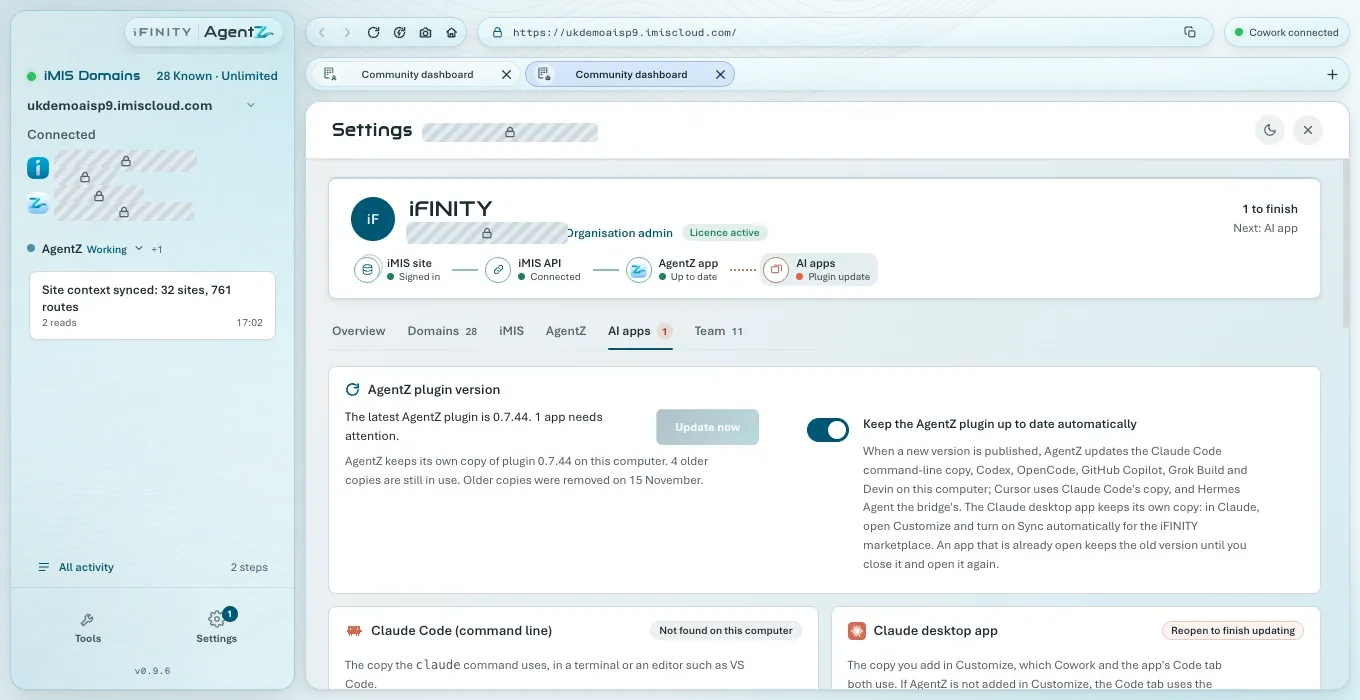
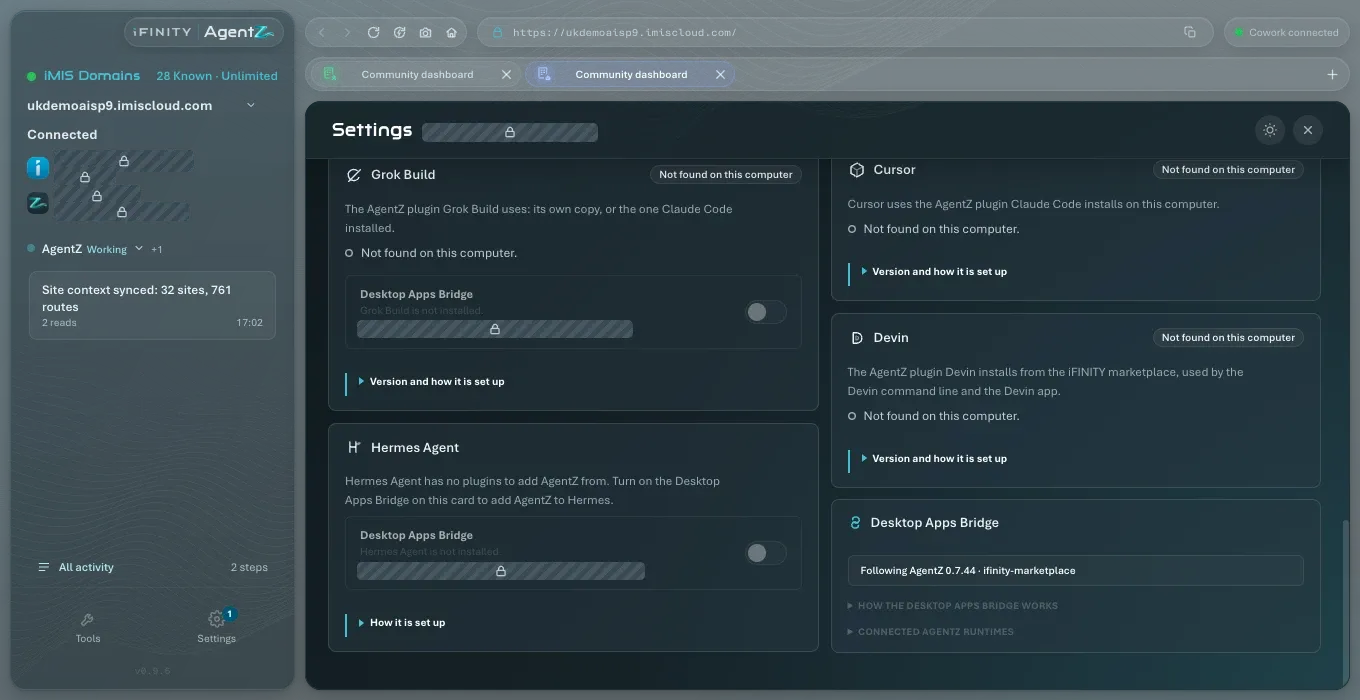
Each card is described in AI apps settings.
How AgentZ is added to each AI app
Section titled “How AgentZ is added to each AI app”AgentZ adds itself to some AI apps, and for others you add it, following the steps on the app’s card.
| AI app | How AgentZ is added |
|---|---|
| Claude desktop app (Chat, Cowork and the Code tab) | You add it in Claude, from the iFINITY marketplace. See Claude desktop app. |
| Claude Code (command line) | Click Install Plugin on its card. |
| Codex | You run two commands in a terminal, then turn on the Desktop Apps Bridge on its card. See Codex. |
| OpenCode, GitHub Copilot, Grok Build and Devin | AgentZ adds itself with the app’s own command when it finds the app on this computer, unless you have taken it out. |
| Cursor | Cursor uses the AgentZ plugin that Claude Code installed. Install it in Claude Code on this computer. |
| Hermes Agent | Turn on the Desktop Apps Bridge on its card. Hermes Agent has no plugins. |
Claude desktop app
Section titled “Claude desktop app”The Claude desktop app keeps its own copy of the AgentZ plugin, which Cowork and the app’s Code tab both use. You add it in Claude.
Do the following to add AgentZ to the Claude desktop app:
- In Claude, click Plugins in the sidebar, then Add, then Add marketplace, then Add from a repository.
- In URL, enter
iFINITY-Ltd/ifinity-marketplace, then click Sync. - In Plugins, search for
agentz, choose Agentz, then click Add. - Go back to Plugins, click Add, then Manage marketplaces. Open the … menu on ifinity-marketplace, turn on Sync automatically, then click Done. Claude then fetches new versions of AgentZ for you.
- Reopen Claude, so that it starts AgentZ:
- On a Mac: Quit Claude completely: choose Claude, then Quit Claude (or press Command-Q). Then open Claude again. Closing its window is not enough.
- On Windows: Quit Claude completely: right-click the Claude icon next to the clock (it may be behind the ^ arrow) and choose Exit. Then open Claude again. Closing its window is not enough.
In AgentZ, the Claude desktop app card shows Up to date.
If your organisation cannot use the marketplace, the card also offers Download ZIP: in Claude, click Plugins > Add > Upload plugin, and drop the ZIP into the upload panel.
Codex starts AgentZ through the Desktop Apps Bridge, so it needs both the plugin and the bridge.
Do the following to add AgentZ to Codex:
- Open a terminal window (Terminal on a Mac, PowerShell on Windows).
- Run
codex plugin marketplace add iFINITY-Ltd/ifinity-marketplace. - Run
codex plugin add agentz@ifinity. - In AgentZ, go to Settings > AI apps and turn on the Desktop Apps Bridge on the Codex card.
- Close Codex, including any open sessions, and open it again.
The Codex card shows that AgentZ is installed. AgentZ keeps it up to date when Keep the AgentZ plugin up to date automatically is on.
Claude Code (command line)
Section titled “Claude Code (command line)”This is the copy the claude command uses, in a terminal or in an editor such as VS Code. When Claude Code is on this computer, its card shows Install Plugin. Click it, then start a new Claude Code session.
Cursor and Grok Build also use this copy, so installing it gives them AgentZ too. On Windows, Grok Build cannot start AgentZ from this copy: turn on Desktop Apps Bridge on Grok Build’s card in Settings > AI apps.
Checking the connection
Section titled “Checking the connection”Go to Settings > Overview. The AI app check shows Ready and names the apps AgentZ works in, for example “AgentZ works in Claude desktop app.”
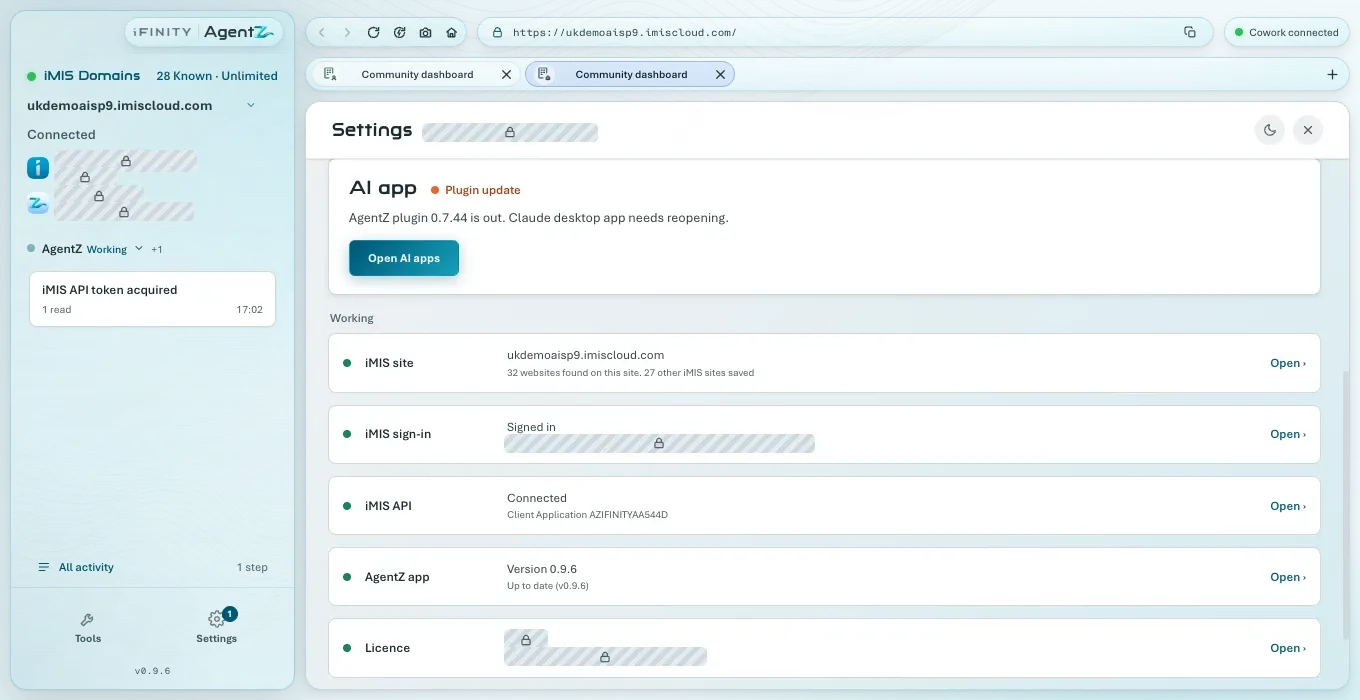
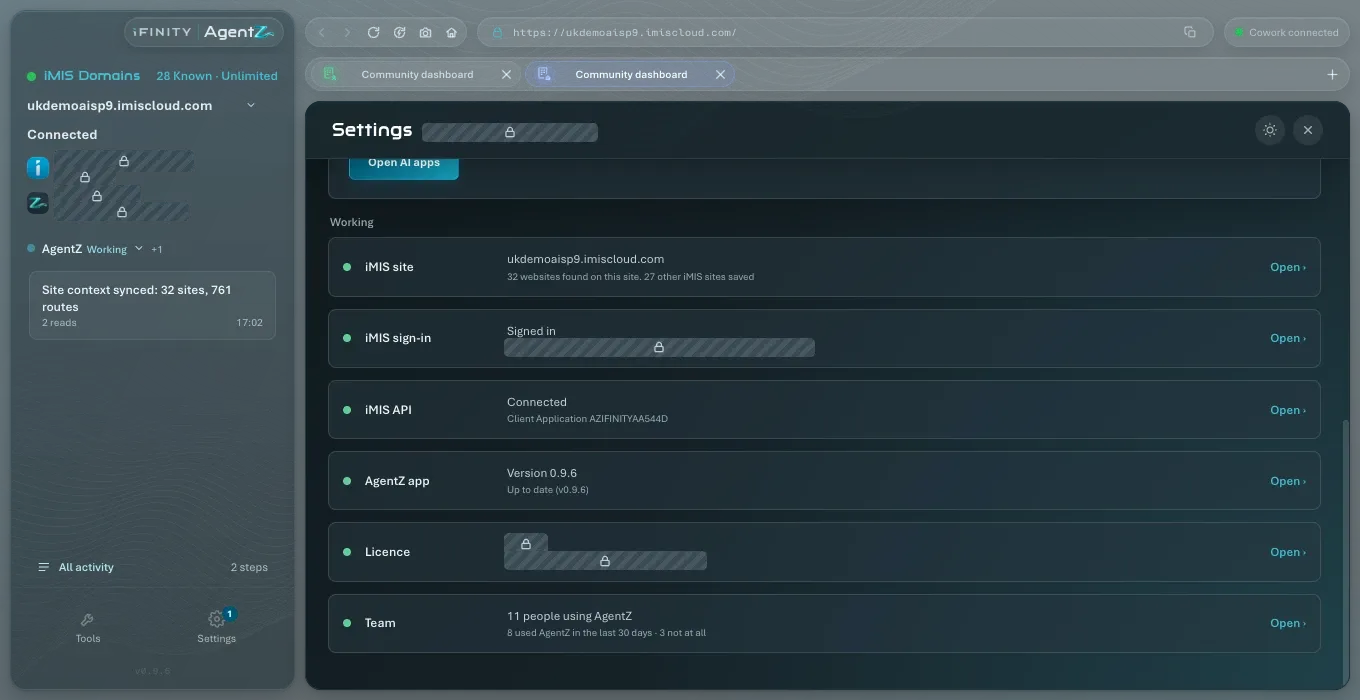
Then ask your AI app something about iMIS. See Making your first request.
If the AI app says AgentZ is not connected, or a card says the app was not found, see AI app connection troubleshooting.
Do I need the AgentZ app running to use AgentZ in my AI app? Yes. The plugin works through the AgentZ app on the same computer, which holds your iMIS sign-in.
Can I use AgentZ in more than one AI app? Yes. Add it to each one. Every AI app you use appears in the AgentZ app’s activity.
Can I install the plugin without the AgentZ app? No. The plugin needs the AgentZ app to sign in to iMIS for it.
Why does Claude show the plugin as “Agentz”? That is how the Claude desktop app shows the plugin’s name in its marketplace. It is the AgentZ plugin.
6. Checking your setup
Section titled “6. Checking your setup”How to tell that AgentZ, your iMIS site and your AI app are all connected, and what to do about anything still to finish.
On its own page: Checking your setup
The Overview tab of Settings checks every part of AgentZ for you and names the one thing to do next. Use it after setting up, and whenever something does not work as you expect.
Checking your setup
Section titled “Checking your setup”Do the following to check your setup:
-
In the AgentZ app, click Settings at the foot of the sidebar, or Setup where the sidebar shows it.
Settings opens on the Overview tab. Its header shows your organisation, your work email, your role and Licence active, and on the right either Everything is working or how many things are left, such as 1 to finish and Next: AI app.
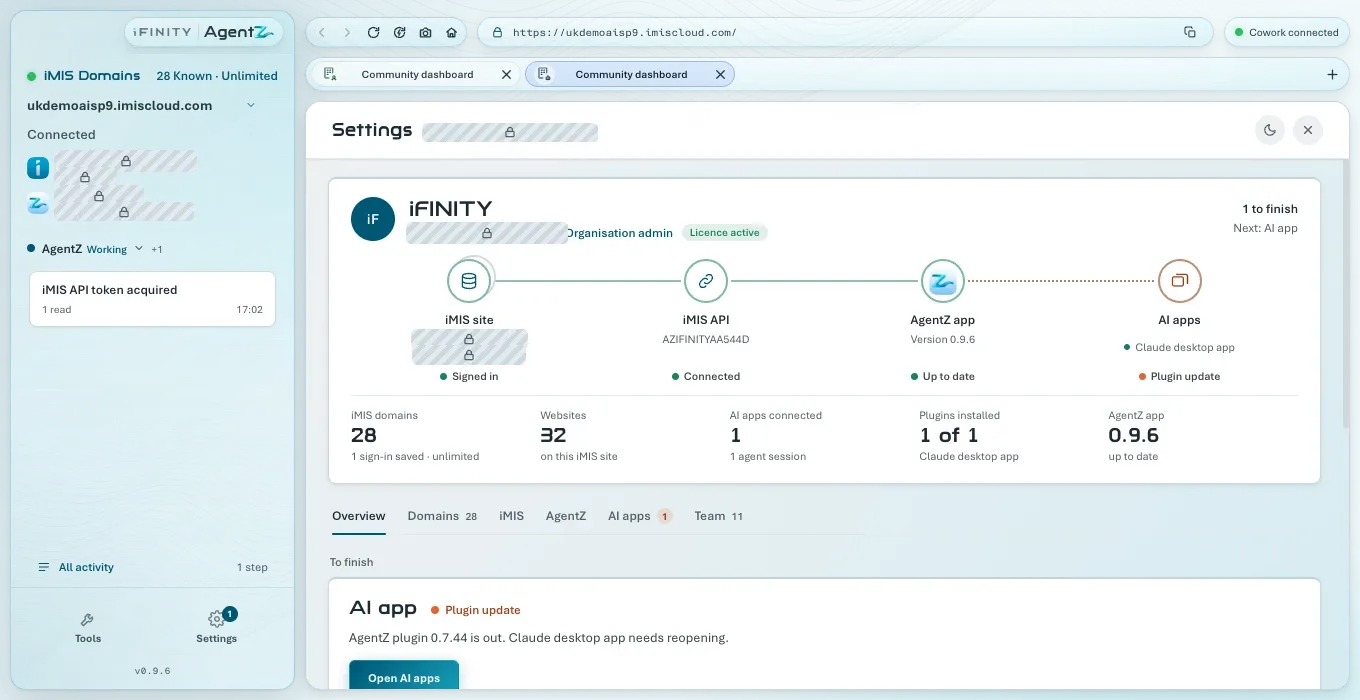
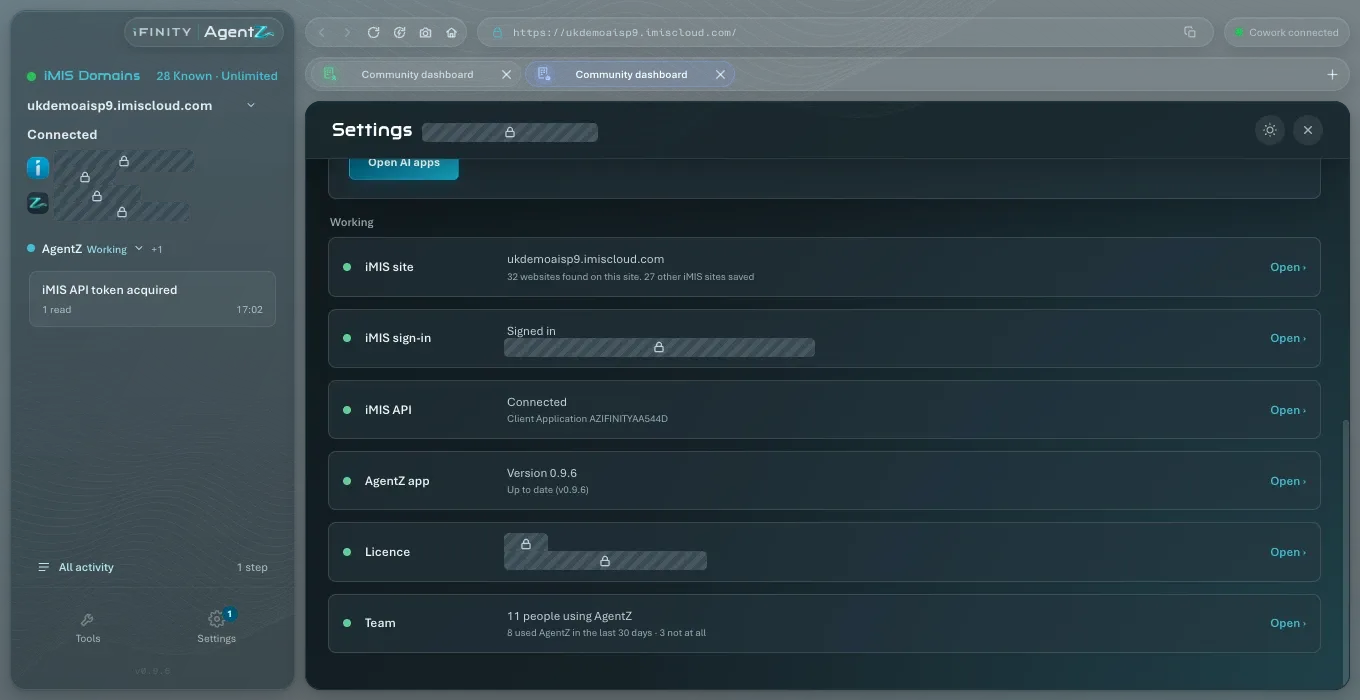
-
Scroll down to the checks. Each row names a part of AgentZ, its state, and Open, which takes you to the tab where you change it.
-
For any check that is not done, click the button on its row. The button names the one thing to do, for example Enter your iMIS sign-in or Add AgentZ to Claude.
When every check is done, the header reads Everything is working and “AgentZ is ready for” your iMIS site.
What each check means
Section titled “What each check means”| Check | Done when it shows | If it is not done |
|---|---|---|
| iMIS site | Your iMIS site’s address, and how many websites AgentZ found on it | Not linked yet: your licence is not linked to an iMIS site; ask your Organisation admin, or email helpdesk@ifinity.co.uk. Not chosen yet: click Choose the iMIS site. |
| iMIS sign-in | Signed in, and the iMIS person you are signed in as | No sign-in saved: click Enter your iMIS sign-in. Password not accepted: click Enter the current password. Security code not entered: click Sign in again. See iMIS sign-in troubleshooting. |
| iMIS API | Connected, and the Client Application it uses | Not set up yet: click Set up the iMIS API (Organisation admins). Waiting for your Organisation admin: your Organisation admin connects it. Not connected: click Check the iMIS API. See Setting up the iMIS API connection. |
| AI app | Ready, with the AI apps AgentZ works in | Not added yet: click the button to add AgentZ to your AI app. Plugin update: an AI app has an older AgentZ plugin; click Open AI apps. No AI app found: install an AI app first. See Connecting your AI app. |
| AgentZ app | The version, and Up to date | “An update is ready. Restart AgentZ to finish updating.” See Updating AgentZ. |
| Licence | Your organisation, your work email and Licence active | Reconnecting to the AgentZ service: AgentZ cannot reach it just now and keeps trying. See AgentZ sign-in troubleshooting. |
| Team | How many people use AgentZ (Organisation admins only, who see the Team tab) | Nothing to do. See Team settings. |
| First answer | Done: your AI app has worked with iMIS through AgentZ | Ask your AI app: click Copy the question and ask it in your AI app. See Making your first request. |
A check that depends on an earlier one says so, for example After the iMIS site or After iMIS sign-in, until the earlier one is done.
Other places that show your setup
Section titled “Other places that show your setup”- The sidebar shows your iMIS site with Connected under it once AgentZ is signed in to iMIS.
- Settings > AgentZ shows the AgentZ app’s Version and Update status. See AgentZ settings.
- Settings > AI apps shows the AgentZ plugin’s version, and on each AI app’s card whether it is up to date. See AI apps settings.
The Overview says Everything is working, but my AI app says AgentZ is not connected. What do I check? Reopen the AI app, so that it starts the current AgentZ plugin: Reopen to finish updating gives the steps for each AI app. Closing the Claude desktop app’s window is not enough. If that does not help, see AI app connection troubleshooting.
Do I need every check done before I can use AgentZ? No, but AgentZ can only do in iMIS what the done checks allow. Without the iMIS API, for example, AgentZ cannot read or change records through the iMIS API.
Why do I not see the Team check? It is shown only to Organisation admins.
7. Making your first request
Section titled “7. Making your first request”Asking your AI app for something in iMIS for the first time, and seeing the work in the AgentZ app.
On its own page: Making your first request
Your first request checks that everything works together: your AI app asks AgentZ, AgentZ works in your iMIS site as you, and the AgentZ app shows each step as it happens. The Overview tab of Settings suggests a first request that only reads your own contact record, so nothing in iMIS changes.
Before you begin
Section titled “Before you begin”- Every check on Settings > Overview done, apart from First answer. If First answer shows After the steps above, finish the checks above it first.
- The AgentZ app open while you ask. Your AI app works through it.
Making your first request
Section titled “Making your first request”Do the following to make your first request:
-
In the AgentZ app, go to Settings > Overview and find First answer.
The row says where to ask, for example “In Claude, start a new conversation in Cowork or the Code tab and ask:”, followed by the question.
-
Click Copy the question. It copies:
Use AgentZ to show my own contact record in iMIS.
-
In your AI app, start a new conversation or session, paste the question and send it.
Your AI app may ask you to allow AgentZ’s tools the first time it uses them. Allow them, so that it can use AgentZ.
-
Look at the AgentZ app while your AI app works. The sidebar shows your agent by name, Working, and a card for what it is doing.
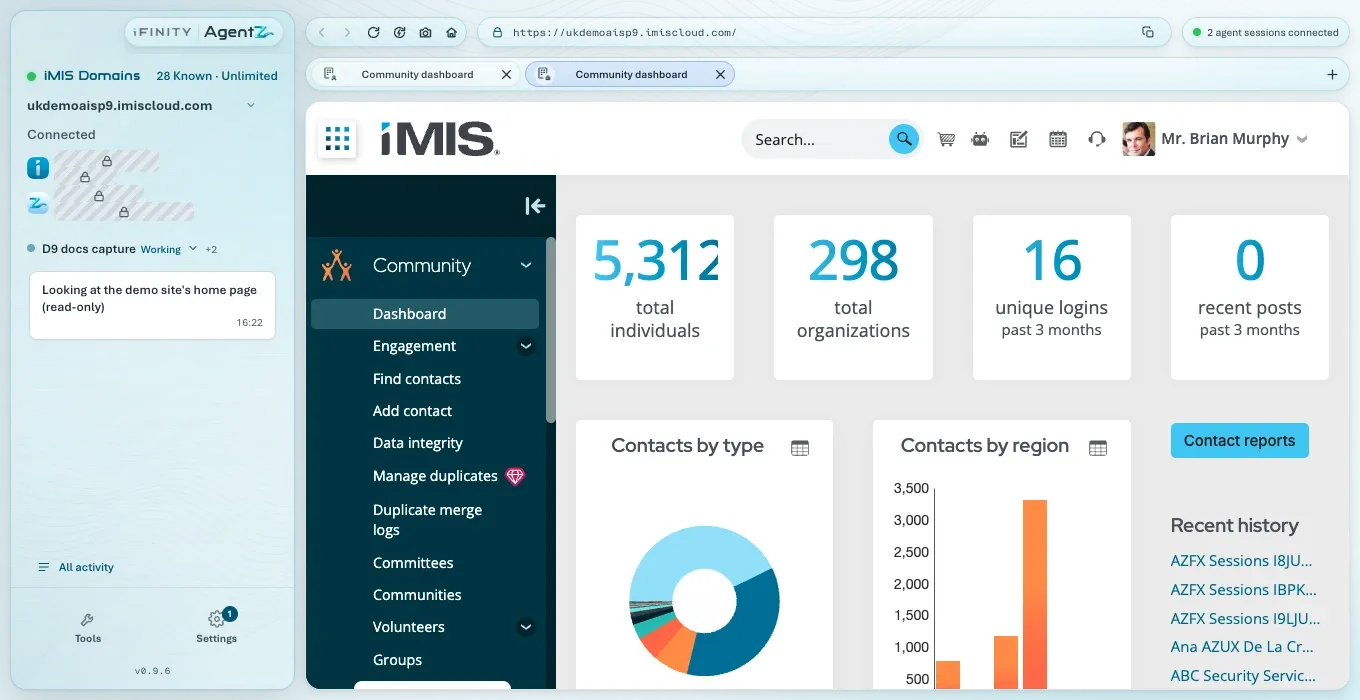
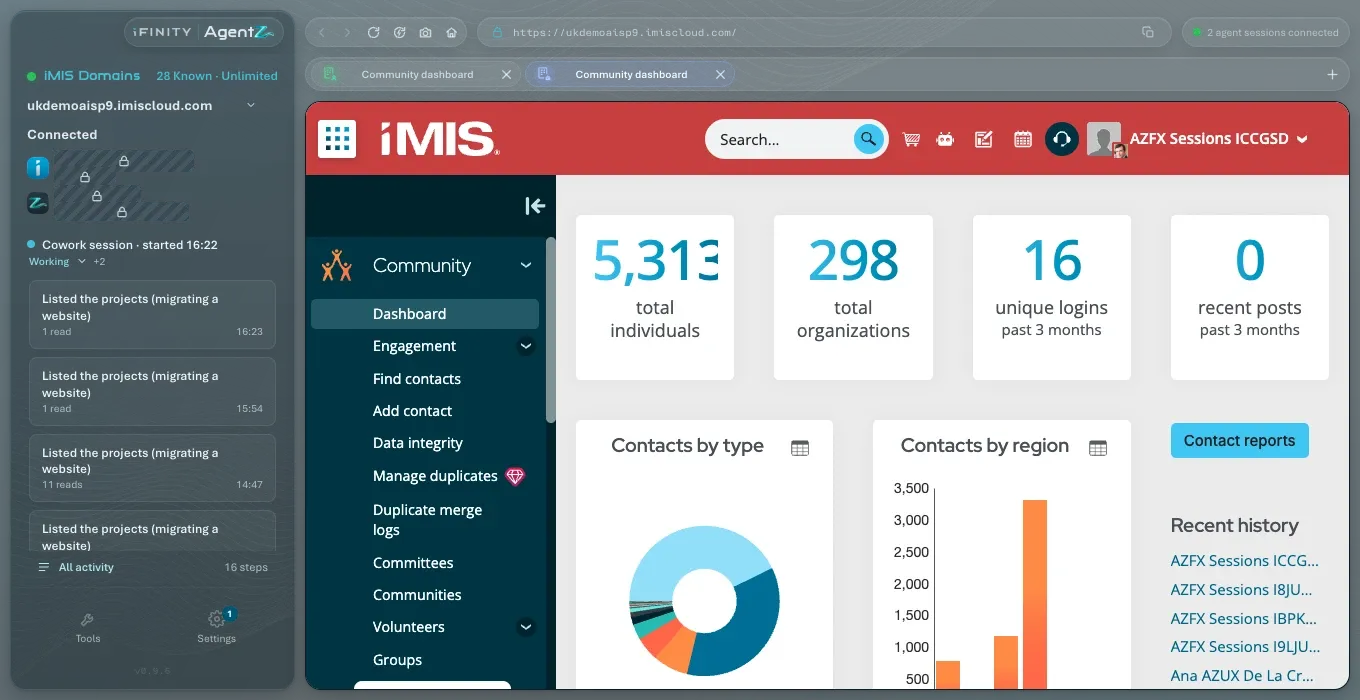
Your AI app answers with your own contact record from your iMIS site, and the lookup appears in the AgentZ app’s activity on the left. Settings > Overview then shows First answer as Done: “Your AI app has worked with iMIS through AgentZ.”
What you see in the AgentZ app
Section titled “What you see in the AgentZ app”While an agent works, the AgentZ app shows:
-
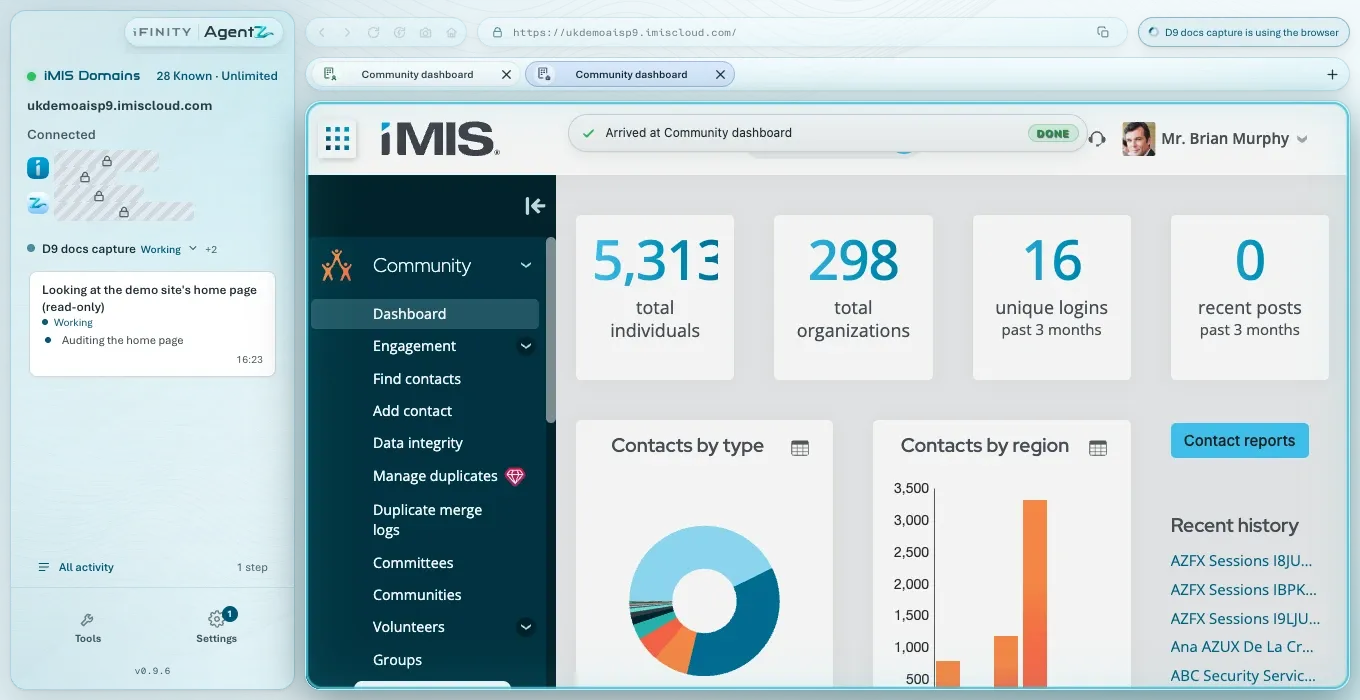
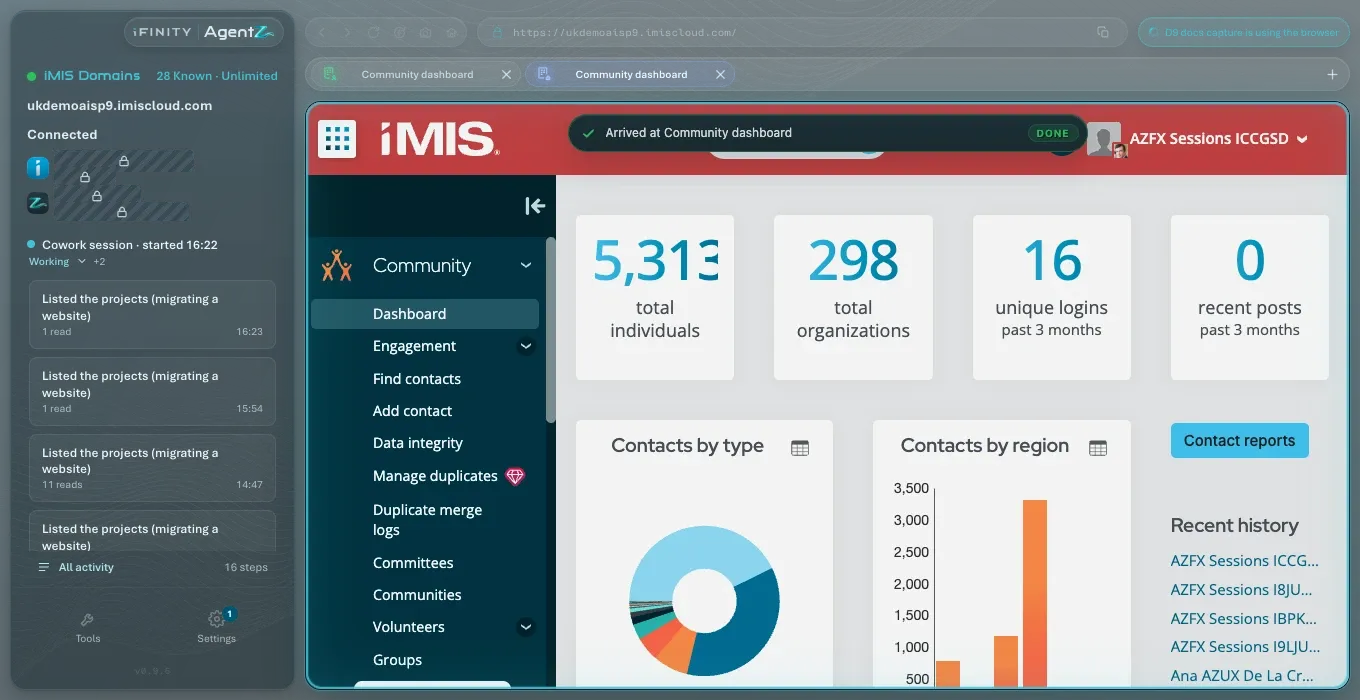
In the sidebar: the agent’s name and whether it is Working, Idle, Waiting or Stopped; a card for each thing it does, such as “Audited the home page”, with how many reads it has made; and All activity, with the number of steps.
-
In the iMIS browser: any iMIS page the agent opens, as it opens it. The agent shares the iMIS browser with you.
-
When it finishes: what the agent reports it did, for example “Rendered the public home page of the demo site. Nothing in iMIS changed.”
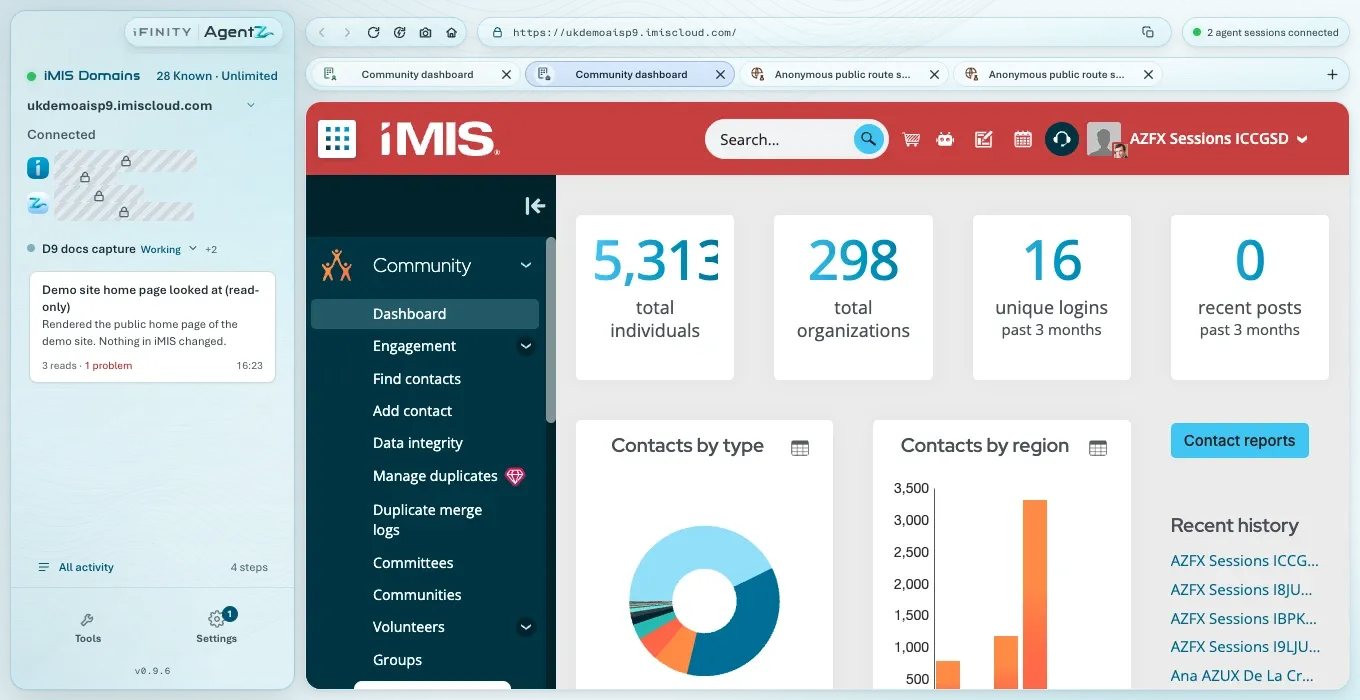
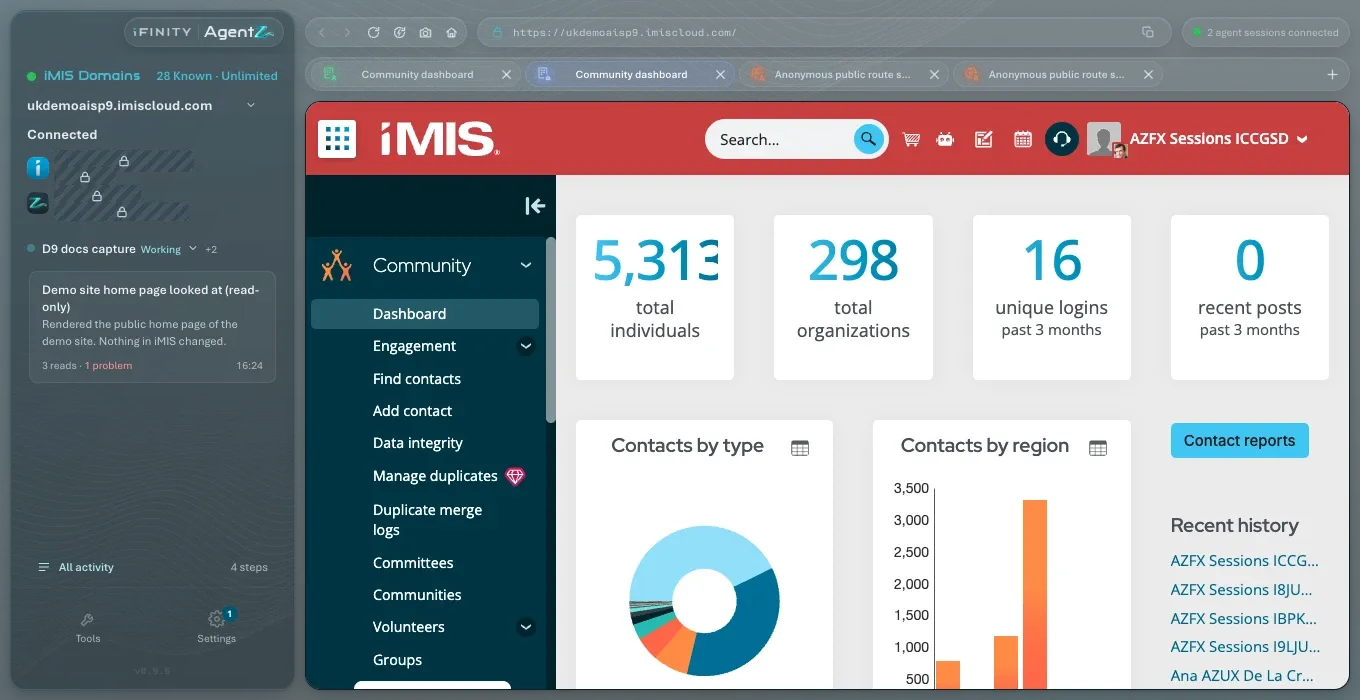
Click All activity to see every step of every agent. See Activity and approvals.
What to try next
Section titled “What to try next”- Ask about your own work in iMIS, in your own words. See Asking AgentZ to do iMIS work.
- Use a ready-made request from the recipes. See Recipes.
- Before AgentZ changes anything in iMIS, it shows you a preview and waits for you to approve it. See Activity and approvals.
Does the first request change anything in iMIS? No. It only reads your own contact record.
My AI app answered without using AgentZ. What do I do? Start a new conversation and ask again, including the words “Use AgentZ”. If it still does not use AgentZ, see AI app connection troubleshooting.
Do I have to keep the AgentZ app open? Yes. Your AI app works in iMIS through the AgentZ app, so it must be running.
8. Updating AgentZ
Section titled “8. Updating AgentZ”How the AgentZ app and the AgentZ plugin in your AI apps update themselves, and how to update now.
On its own page: Updating AgentZ
AgentZ keeps itself up to date. The AgentZ app checks for a new version when it starts and every 30 minutes after that, downloads it by itself, and asks you to restart to finish. The AgentZ plugin in your AI apps is updated by the AgentZ app, apart from the Claude desktop app’s copy, which Claude updates.
Before you begin
Section titled “Before you begin”- Finish what you are doing in the iMIS browser before you restart. AgentZ closes and opens again to finish an update, and your agents cannot work in iMIS while it is closed.
- Know which AI apps you use. An AI app that is already open keeps the plugin it started with until you close it and open it again.
Updating the AgentZ app
Section titled “Updating the AgentZ app”When a new version is published:
- A notice appears in the AgentZ app: Downloading update with the version, then the download’s progress.
- When the download has finished, the notice says Update v followed by the version and ready, with Update & Restart.
- Click Update & Restart.
AgentZ closes, installs the new version and opens again. Settings > AgentZ shows the new Version and Update status Up to date.
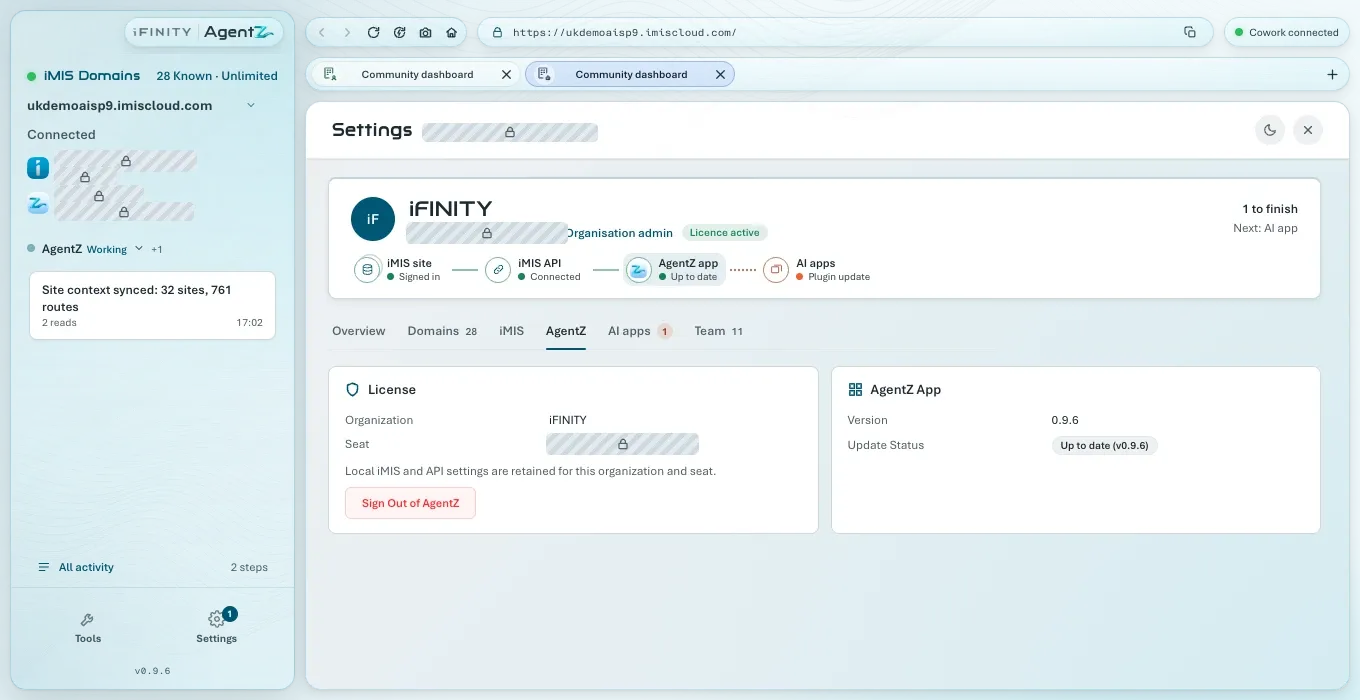
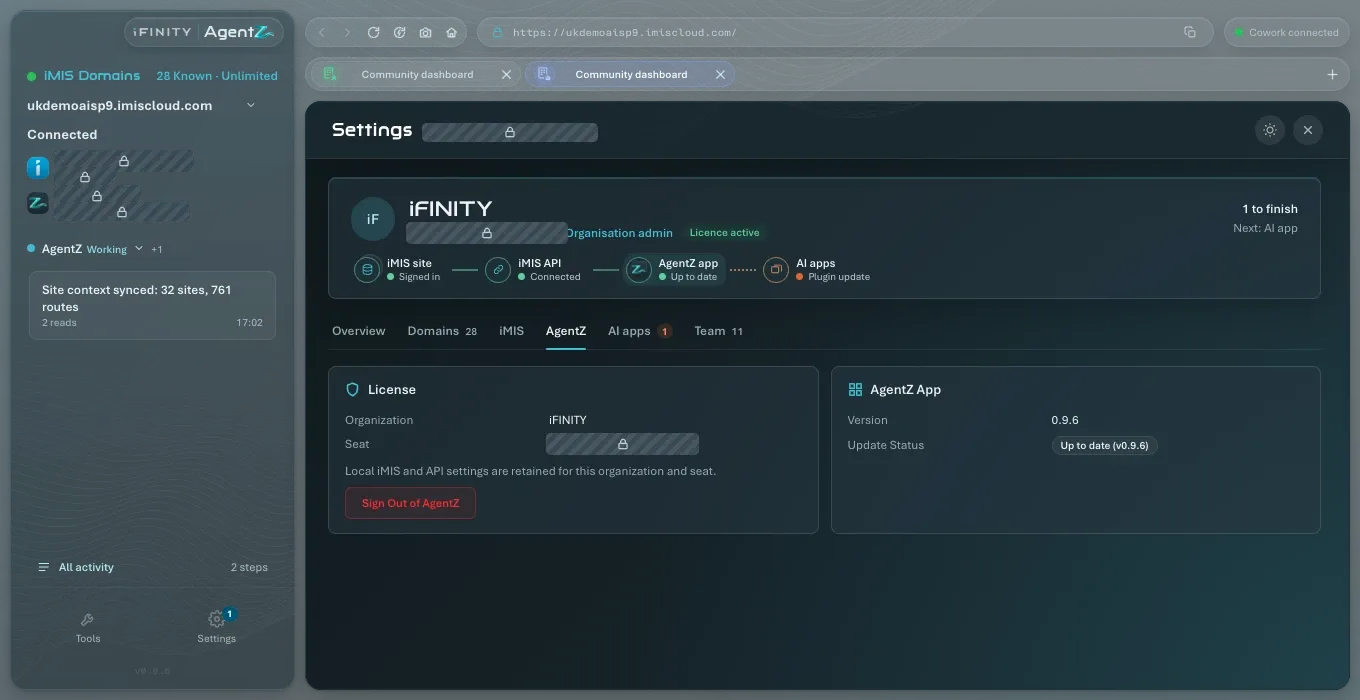
If you do not click Update & Restart, AgentZ installs the update the next time you quit it. Until then, Settings > Overview shows “An update is ready. Restart AgentZ to finish updating.”
If AgentZ cannot check for updates, the notice says Update check failed and Settings > AgentZ gives the reason under Update status. AgentZ tries again at the next check. If the update service is not ready, Update status reads “Update feed not ready; will retry”, and AgentZ tries again by itself.
Update status on Settings > AgentZ follows each stage: Checking for updates…, Downloading update v and the version, Update v and the version ready, and Up to date with the version.
Your AI apps during an update on Windows
Section titled “Your AI apps during an update on Windows”On Windows, updating the AgentZ app leaves AgentZ running in the AI apps you have open. Claude and your other AI apps keep working with AgentZ, and start the new version the next time you close them and open them again.
The first update that installs AgentZ this way stops AgentZ in the AI apps that are open, once. The AgentZ plugin version card on Settings > AI apps then says “This AgentZ update stopped AgentZ in the AI apps that were open. Quit Claude, and any other AI app that uses AgentZ, completely and open it again.” The message goes once an AI app has connected to AgentZ again.
When a screen asks you to restart
Section titled “When a screen asks you to restart”Until you restart to finish an update, a few screens that need the new version say so instead of working, for example “AgentZ needs to restart to finish updating before you can add an iMIS site.” or “…before you can manage your team.” Click Update & Restart on the update notice, or quit AgentZ and open it again.
Intel Macs
Section titled “Intel Macs”AgentZ is made for Macs with Apple silicon. On a Mac with an Intel processor, once a new version is no longer built for it, Update status says that the version you have “is the last version for Intel Macs. It keeps working; new versions are for Apple Silicon Macs and Windows.” AgentZ then stops offering updates on that Mac. See AgentZ requirements.
How updates are signed and checked is described in AgentZ updates and code signing.
Updating the AgentZ plugin in your AI apps
Section titled “Updating the AgentZ plugin in your AI apps”Go to Settings > AI apps. The AgentZ plugin version card shows the newest plugin, and whether every app is up to date.
- Keep the AgentZ plugin up to date automatically is on by default. When a new plugin is published, AgentZ updates the Claude Code command-line copy, Codex, OpenCode, GitHub Copilot, Grok Build and Devin. Cursor uses Claude Code’s copy, and Hermes Agent the bridge’s.
- Update now updates them straight away. It is greyed out when there is nothing to update.
The Claude desktop app keeps its own copy, which Cowork and its Code tab use. To have Claude update it for you, turn on Sync automatically for the iFINITY marketplace: in Claude’s Plugins, click Add > Manage marketplaces, then the marketplace’s … menu. To update it now: In Claude, choose Plugins in the sidebar. Under Your plugins, choose Show all, then Agentz, then Update. If Update is greyed out and shows "On latest version", Claude already has the new version.
Then reopen each AI app, so that it starts the new plugin. Until you do, its card on Settings > AI apps may show Reopen to finish updating, with the steps for that app. For the Claude desktop app:
- On a Mac: Quit Claude completely: choose Claude, then Quit Claude (or press Command-Q). Then open Claude again. Closing its window is not enough.
- On Windows: Quit Claude completely: right-click the Claude icon next to the clock (it may be behind the ^ arrow) and choose Exit. Then open Claude again. Closing its window is not enough.
Reopen to finish updating gives the steps for every AI app.
If an AI app keeps an older plugin, see Plugin update troubleshooting.
Do I have to update? Yes. AgentZ updates itself, and an AgentZ plugin much older than the AgentZ app cannot connect to it.
Will updating lose my settings or sign-ins? No. Your AgentZ sign-in, iMIS sign-in and settings stay on this computer.
Do my colleagues update at the same time? Each person’s AgentZ app updates itself, at its own next check.
What changed in this version? See What’s new.