

Making your first request
Your first request checks that everything works together: your AI app asks AgentZ, AgentZ works in your iMIS site as you, and the AgentZ app shows each step as it happens. The Overview tab of Settings suggests a first request that only reads your own contact record, so nothing in iMIS changes.
Before you begin
Section titled “Before you begin”- Every check on Settings > Overview done, apart from First answer. If First answer shows After the steps above, finish the checks above it first.
- The AgentZ app open while you ask. Your AI app works through it.
Making your first request
Section titled “Making your first request”Do the following to make your first request:
-
In the AgentZ app, go to Settings > Overview and find First answer.
The row says where to ask, for example “In Claude, start a new conversation in Cowork or the Code tab and ask:”, followed by the question.
-
Click Copy the question. It copies:
Use AgentZ to show my own contact record in iMIS.
-
In your AI app, start a new conversation or session, paste the question and send it.
Your AI app may ask you to allow AgentZ’s tools the first time it uses them. Allow them, so that it can use AgentZ.
-
Look at the AgentZ app while your AI app works. The sidebar shows your agent by name, Working, and a card for what it is doing.
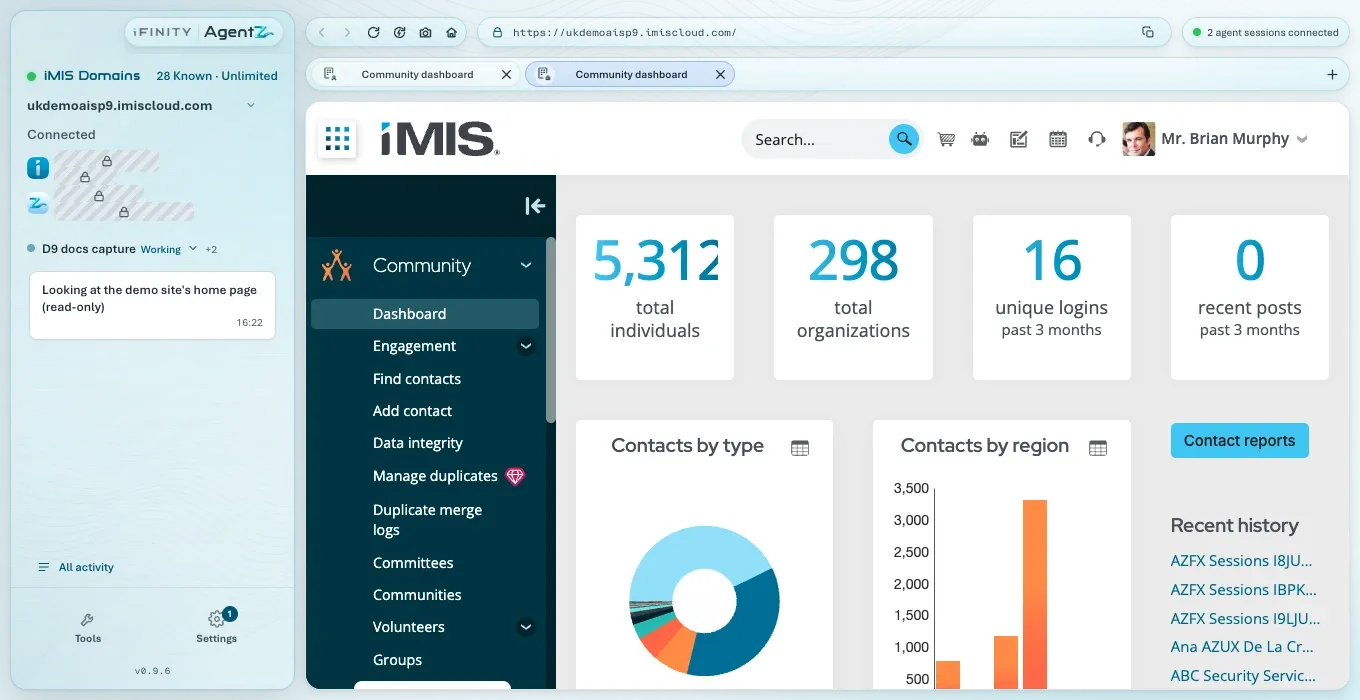
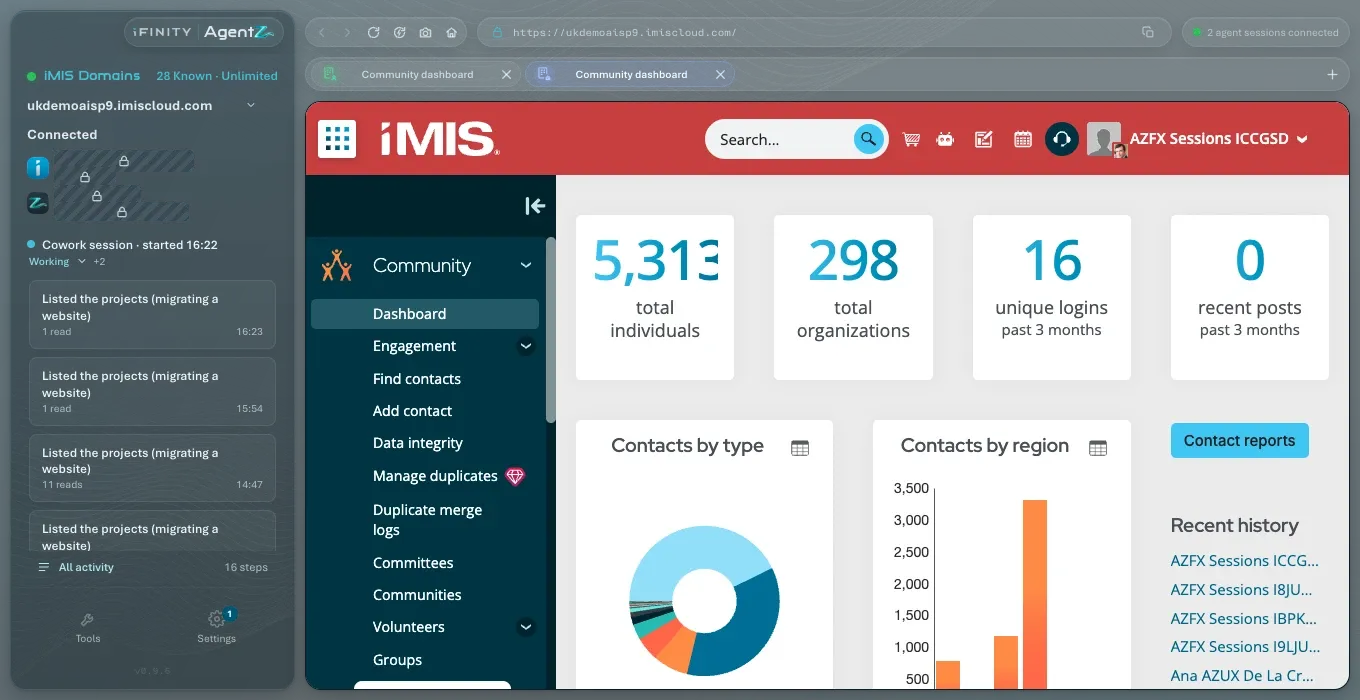
Your AI app answers with your own contact record from your iMIS site, and the lookup appears in the AgentZ app’s activity on the left. Settings > Overview then shows First answer as Done: “Your AI app has worked with iMIS through AgentZ.”
What you see in the AgentZ app
Section titled “What you see in the AgentZ app”While an agent works, the AgentZ app shows:
-
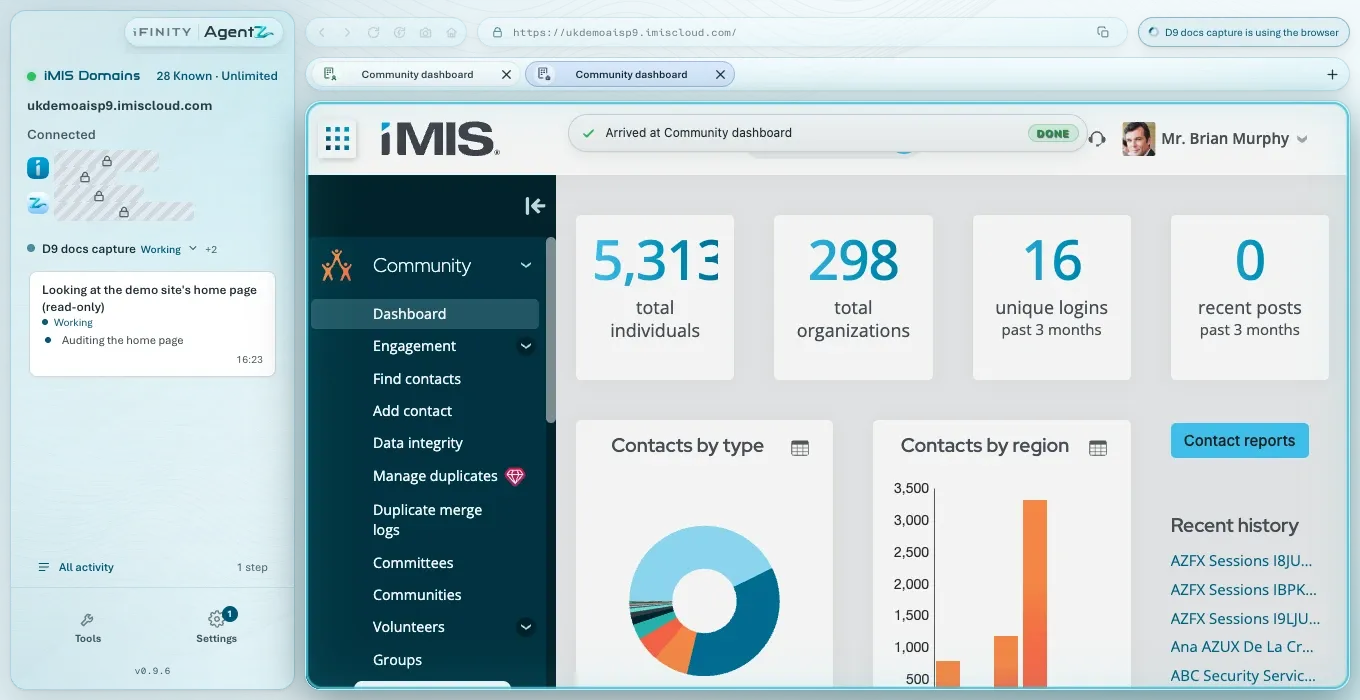
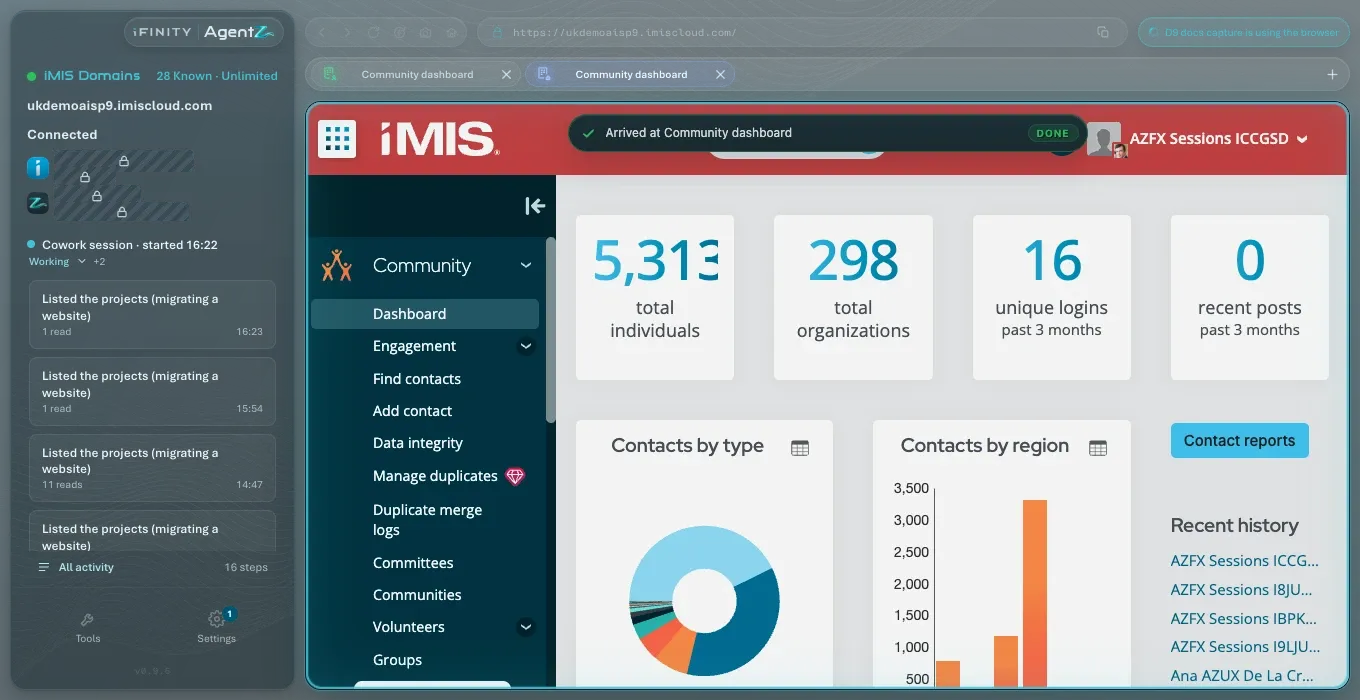
In the sidebar: the agent’s name and whether it is Working, Idle, Waiting or Stopped; a card for each thing it does, such as “Audited the home page”, with how many reads it has made; and All activity, with the number of steps.
-
In the iMIS browser: any iMIS page the agent opens, as it opens it. The agent shares the iMIS browser with you.
-
When it finishes: what the agent reports it did, for example “Rendered the public home page of the demo site. Nothing in iMIS changed.”
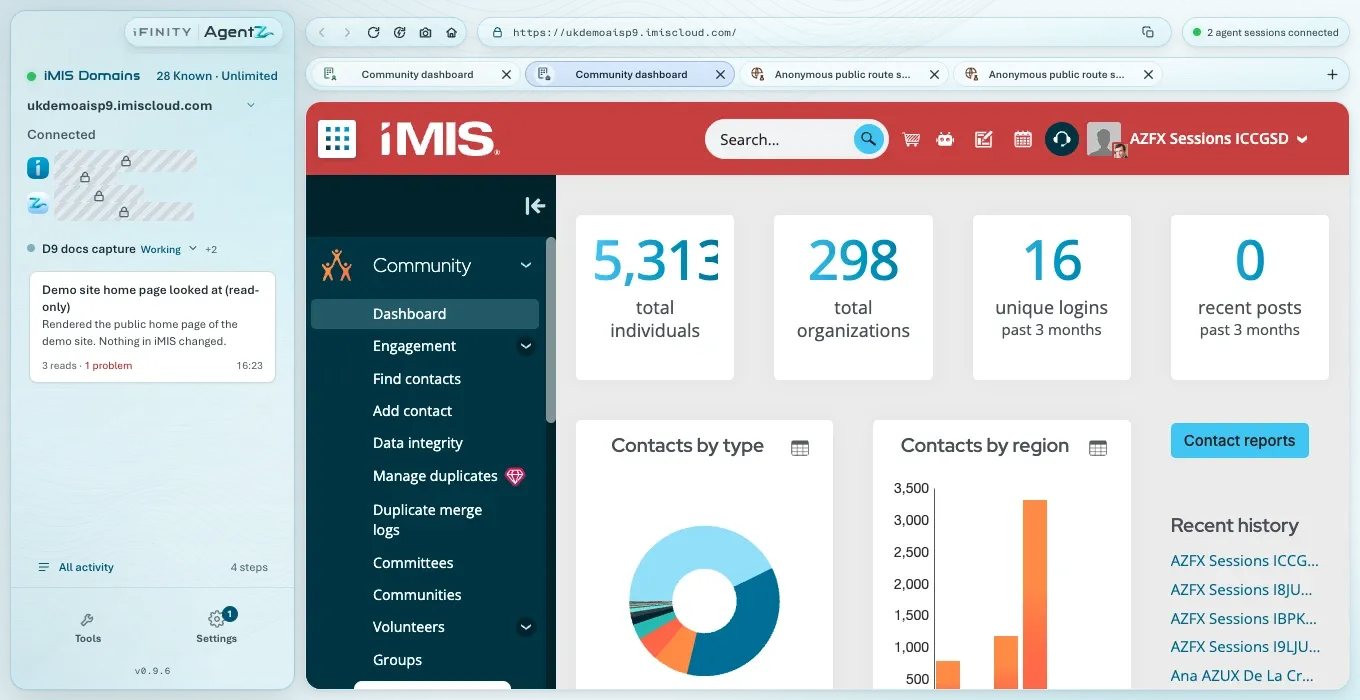
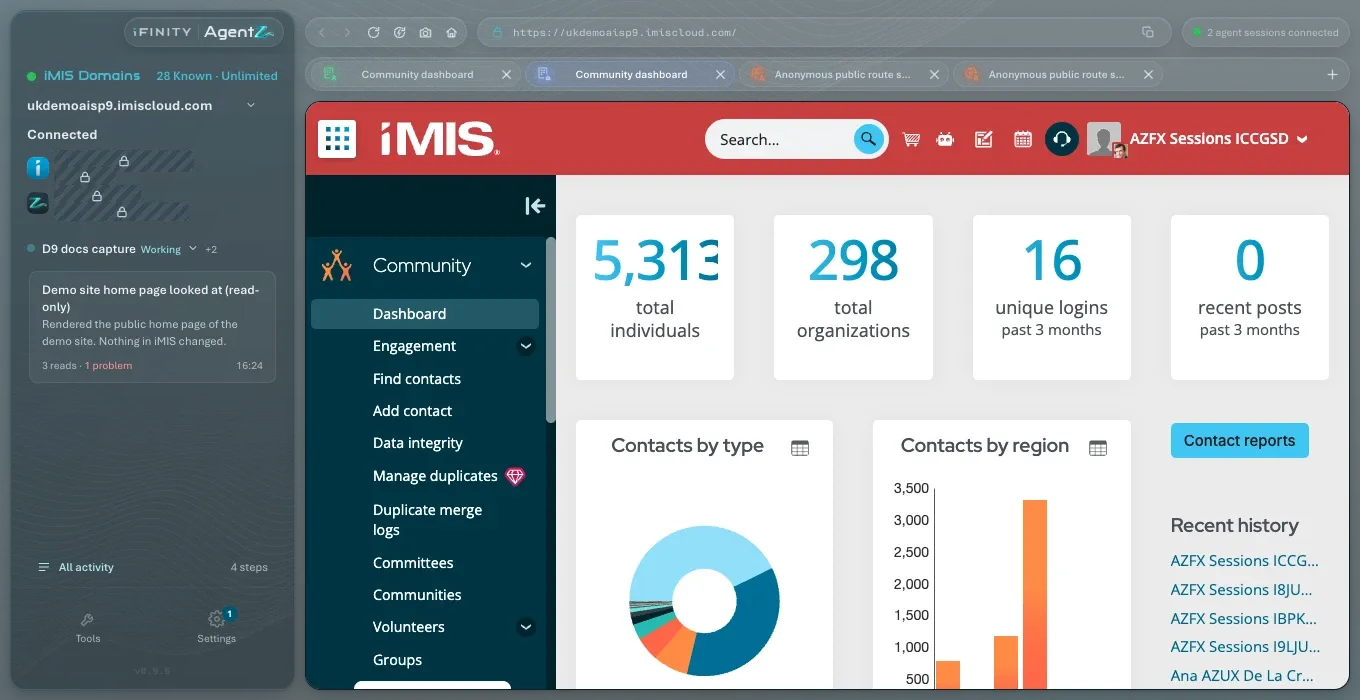
Click All activity to see every step of every agent. See Activity and approvals.
What to try next
Section titled “What to try next”- Ask about your own work in iMIS, in your own words. See Asking AgentZ to do iMIS work.
- Use a ready-made request from the recipes. See Recipes.
- Before AgentZ changes anything in iMIS, it shows you a preview and waits for you to approve it. See Activity and approvals.
Does the first request change anything in iMIS? No. It only reads your own contact record.
My AI app answered without using AgentZ. What do I do? Start a new conversation and ask again, including the words “Use AgentZ”. If it still does not use AgentZ, see AI app connection troubleshooting.
Do I have to keep the AgentZ app open? Yes. Your AI app works in iMIS through the AgentZ app, so it must be running.