

Taking over from an agent
You and your agents share one iMIS browser. To use it yourself while an agent is working, take over the browser; when you are done, hand it back. While you hold it, agents wait for it rather than working over you.
Before you begin
Section titled “Before you begin”- The agent is listed in All activity. Take over the browser is on the agent’s own page there.
- The agent may be in the middle of a step. You get the browser once that step has finished.
Taking over the iMIS browser
Section titled “Taking over the iMIS browser”Do the following to take over the iMIS browser:
-
In the sidebar, click All activity.
-
In All agents, choose the agent, then click its name above its list of work.
-
Click Take over the browser.
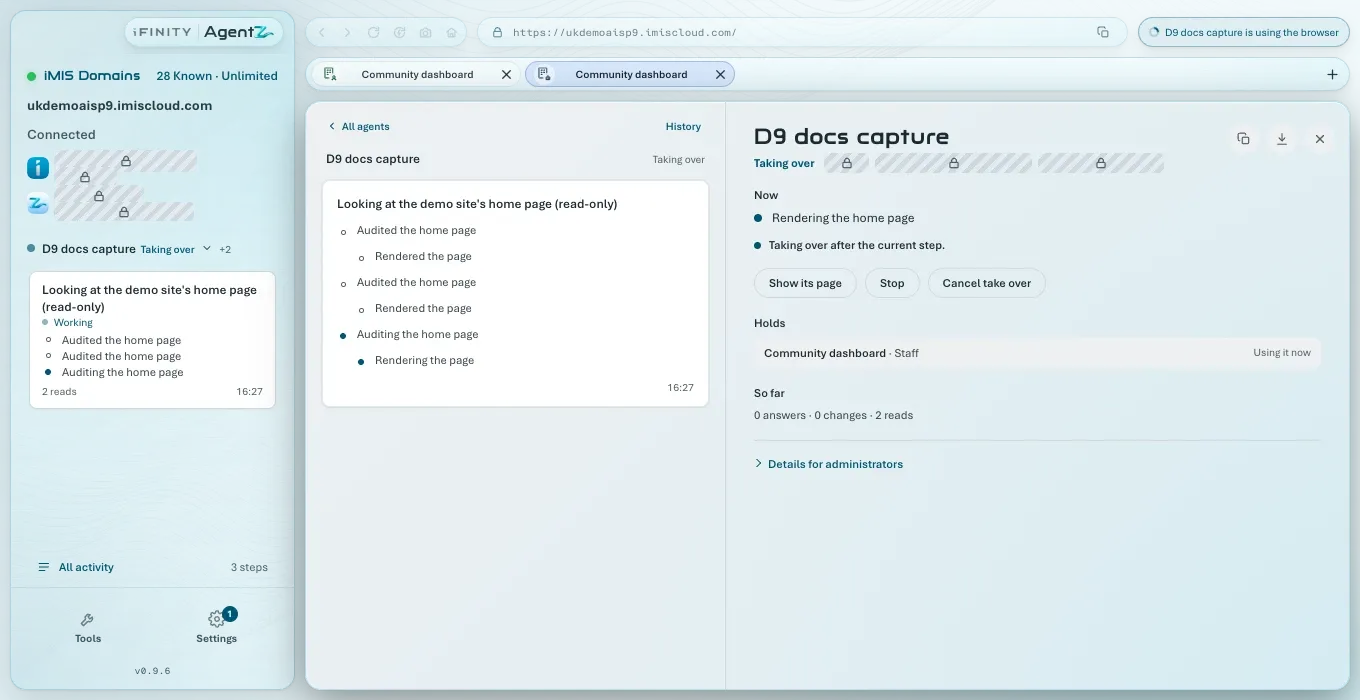
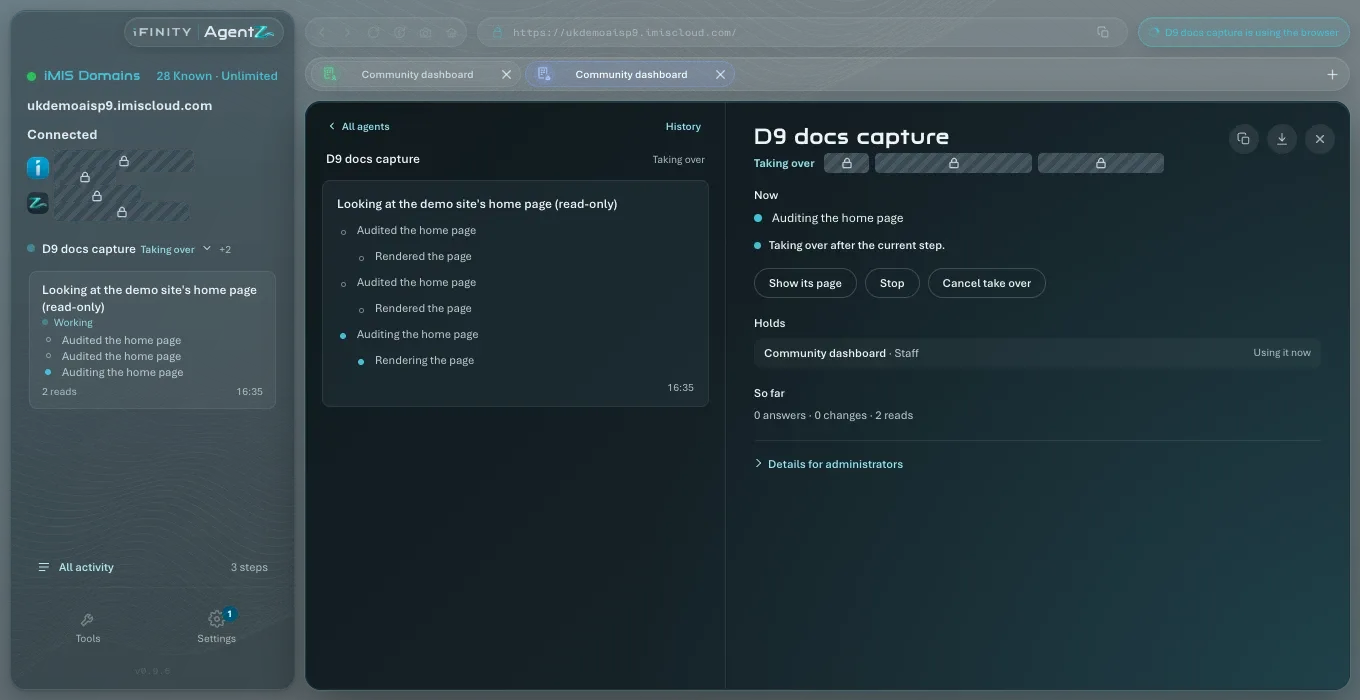
If the agent is taking a step, its state shows Taking over, the page says “Taking over after the current step.”, and the browser is yours once the step finishes.
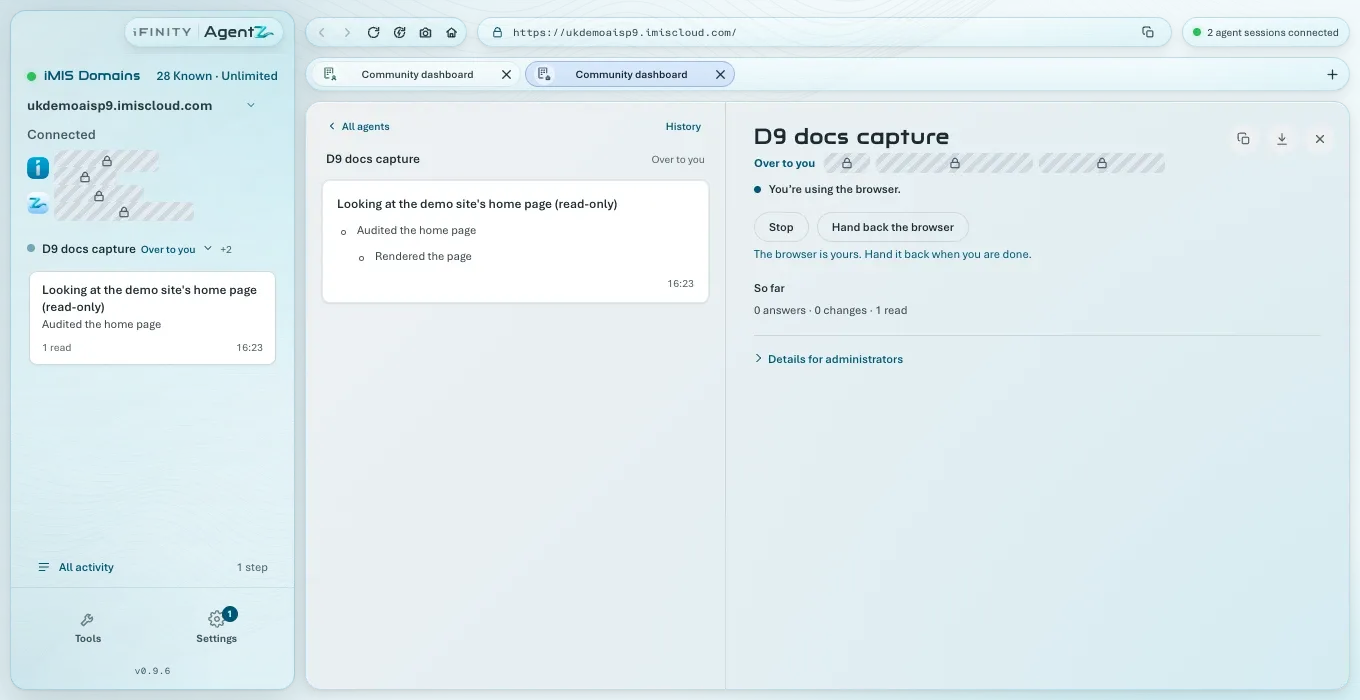
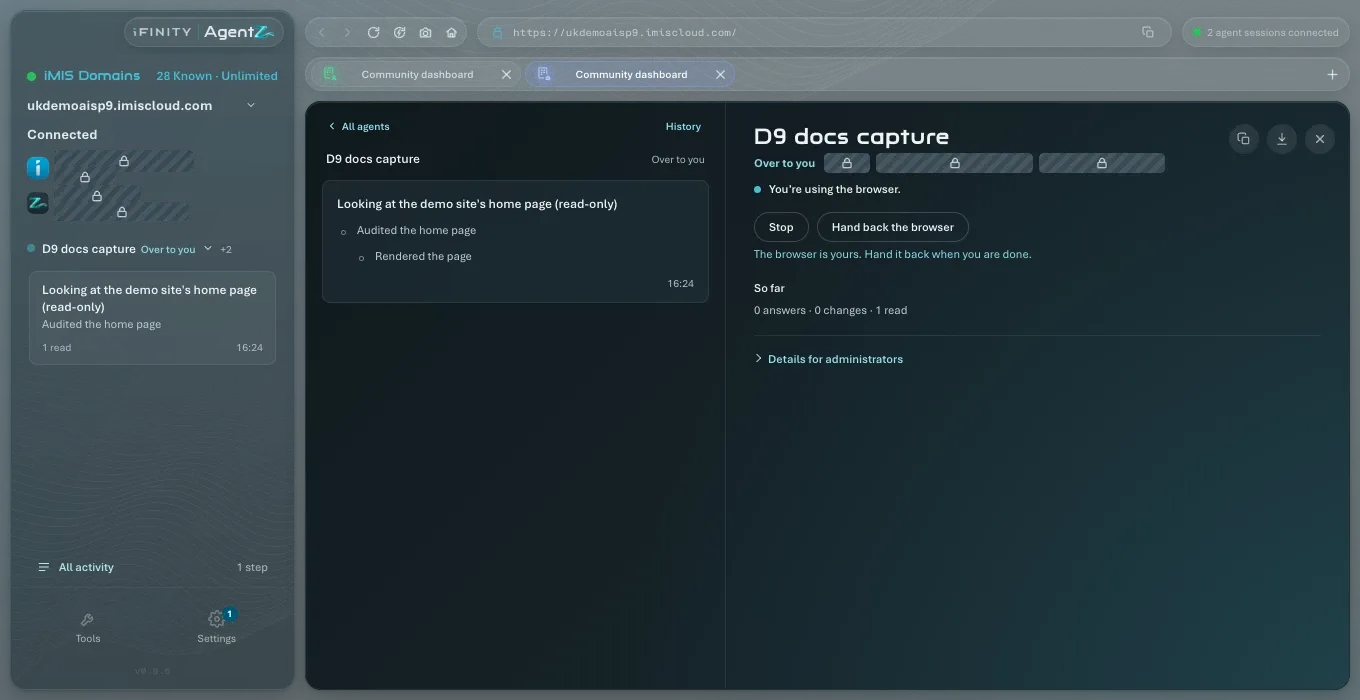
The agent’s state becomes Over to you. The page says “You’re using the browser.” and “The browser is yours. Hand it back when you are done.” Take over the browser becomes Hand back the browser.
Close All activity and use the iMIS browser as normal.
While you hold the browser
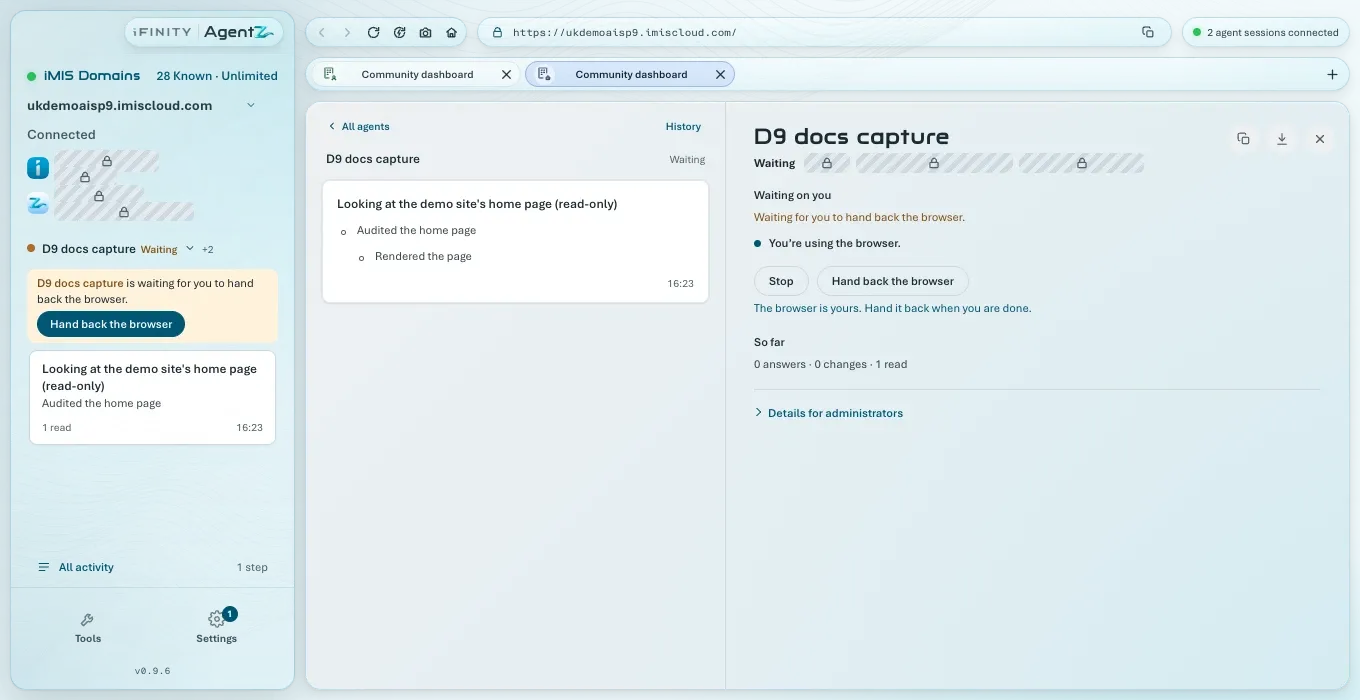
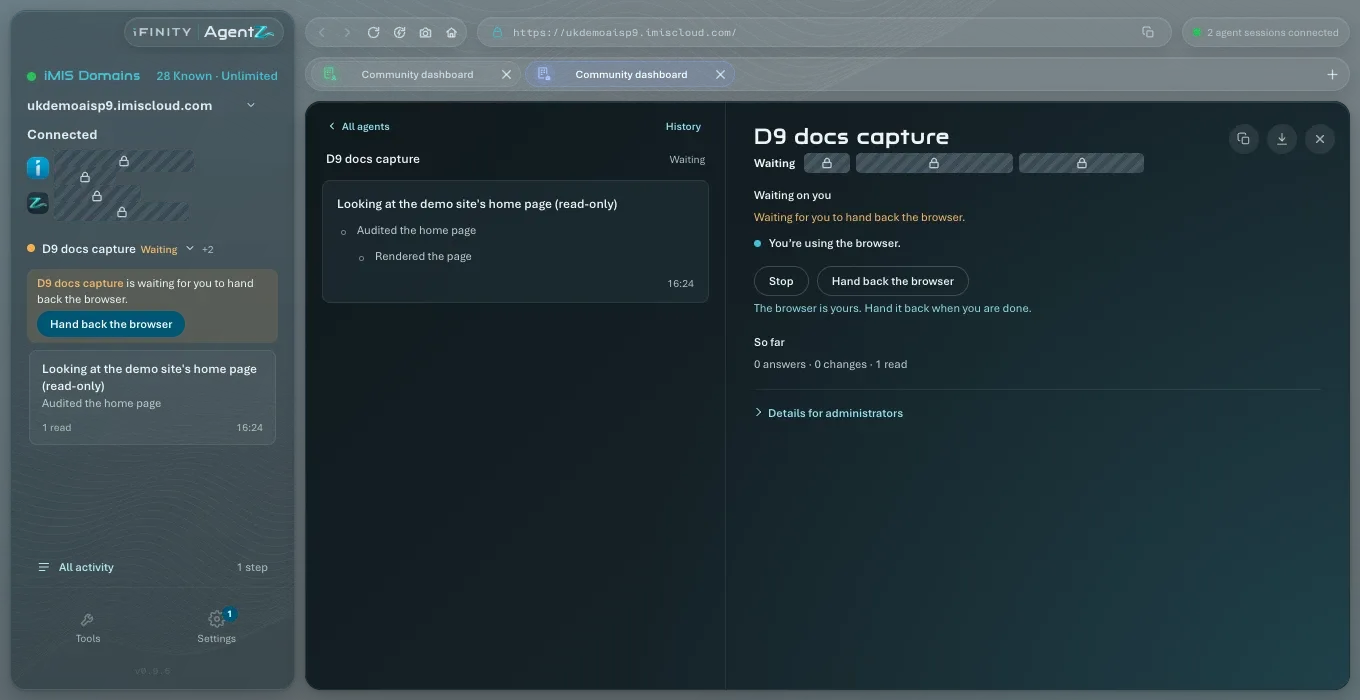
Section titled “While you hold the browser”If the agent needs the browser while you hold it, it waits. Its state becomes Waiting, and its page says Waiting on you and “Waiting for you to hand back the browser.”
Handing the browser back
Section titled “Handing the browser back”Do the following to hand the browser back:
- Go back to the agent’s page in All activity.
- Click Hand back the browser.
The page says “Handed back. The agent can use the browser again.” A step the agent was waiting to take goes ahead, and its state goes back to Working.
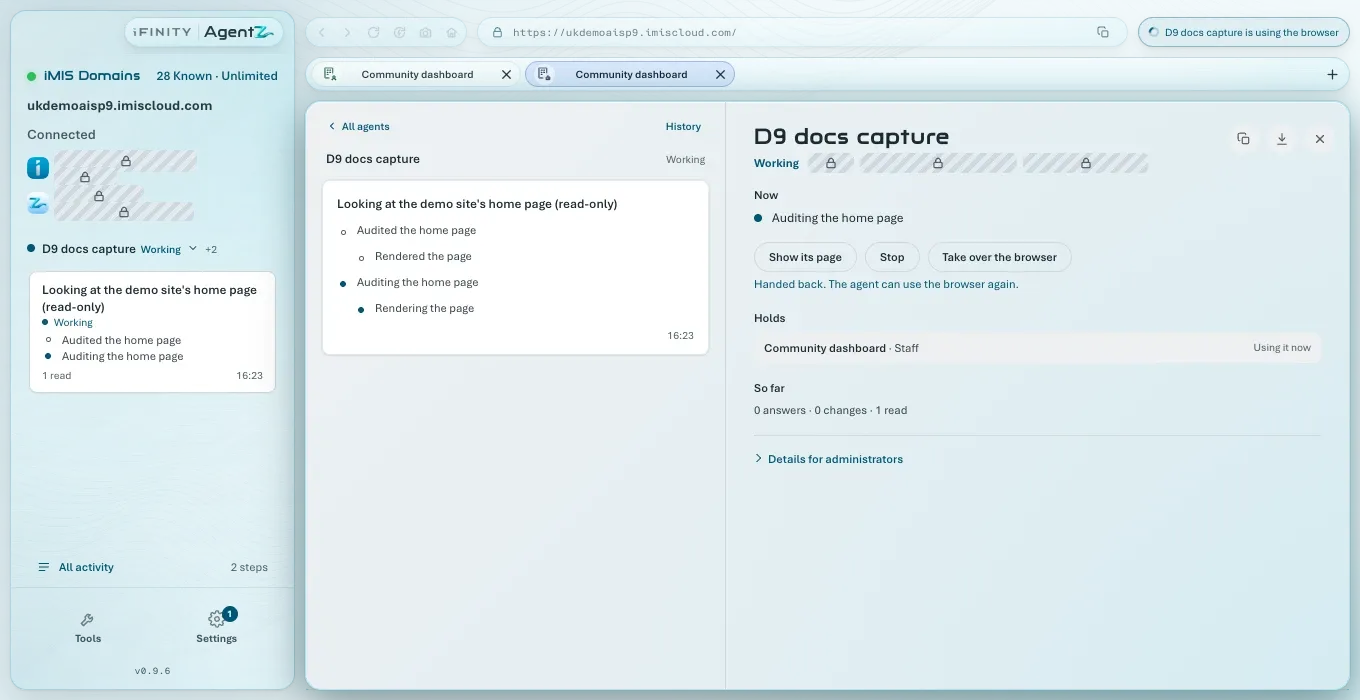
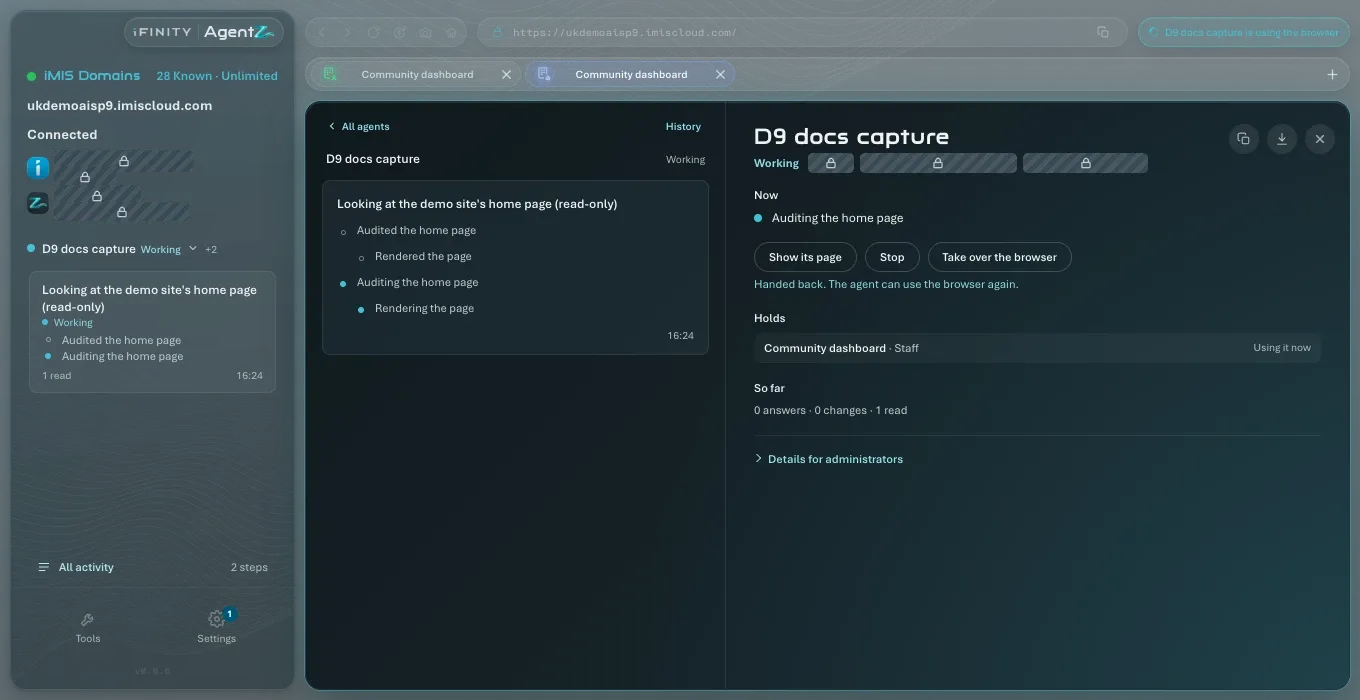
You can also hand the browser back without opening All activity. Click the agent’s name at the top of the sidebar: an agent waiting for the browser is listed with “Waiting for you to hand back the browser.” and its own Hand back the browser button.
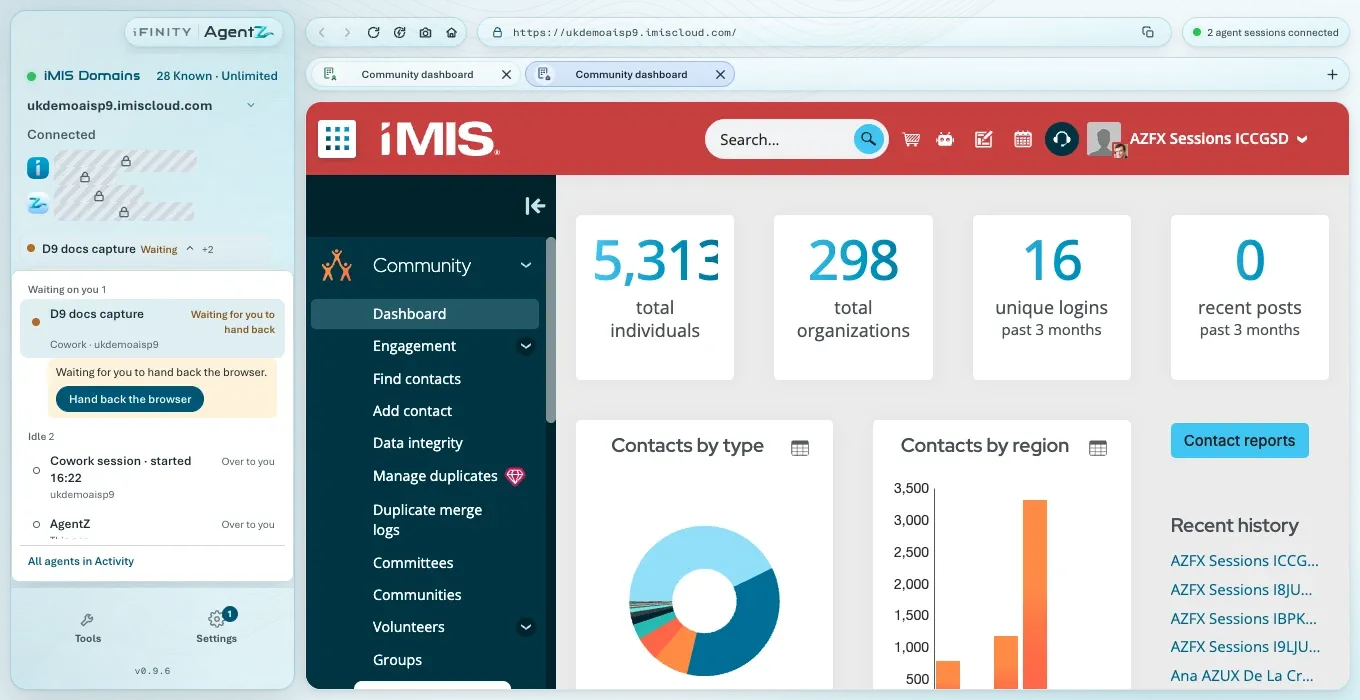
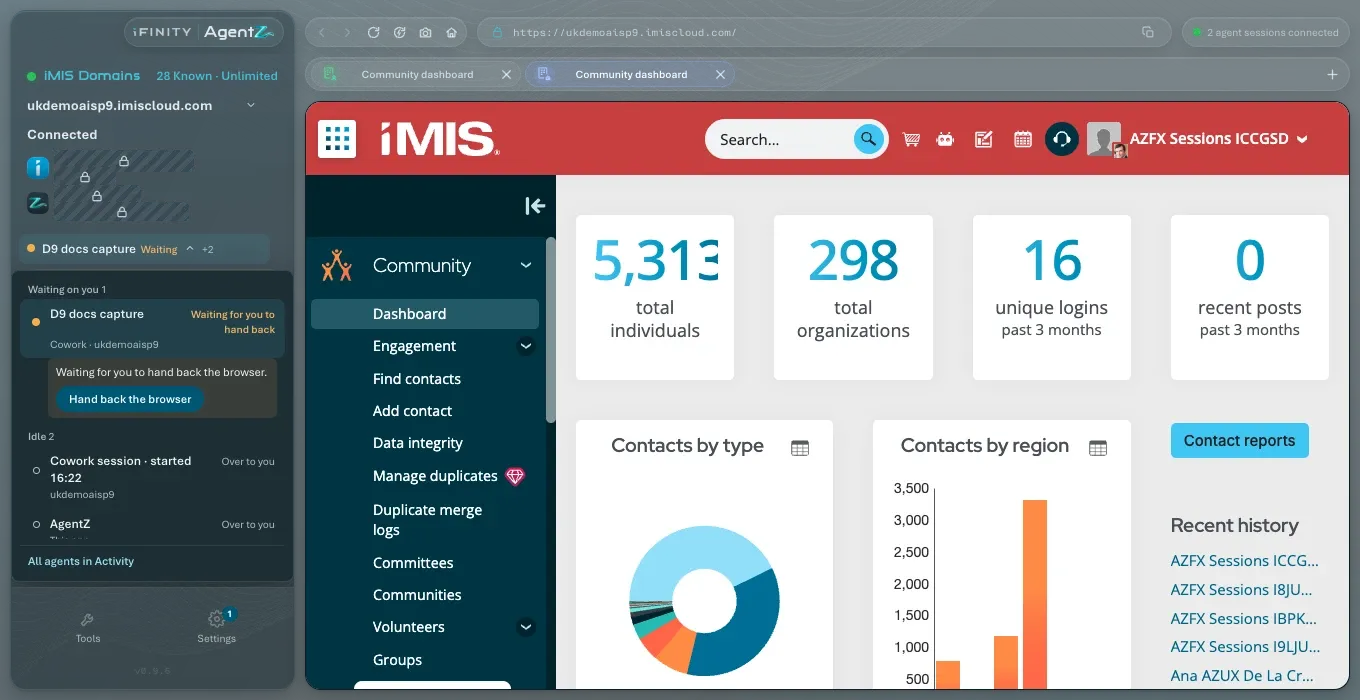
Does taking over stop the agent? No. The agent stays connected, and when it next needs the browser it waits until you hand it back. To stop the agent, use Stop. See Stopping and resuming agent work.
What happens if I forget to hand the browser back? The agent waits, and shows Waiting on you. Hand the browser back when you are done.
Can I change pages the agent opened? Yes, once you hold the browser. The agent sees the browser as you left it when you hand it back.