

AgentZ Design
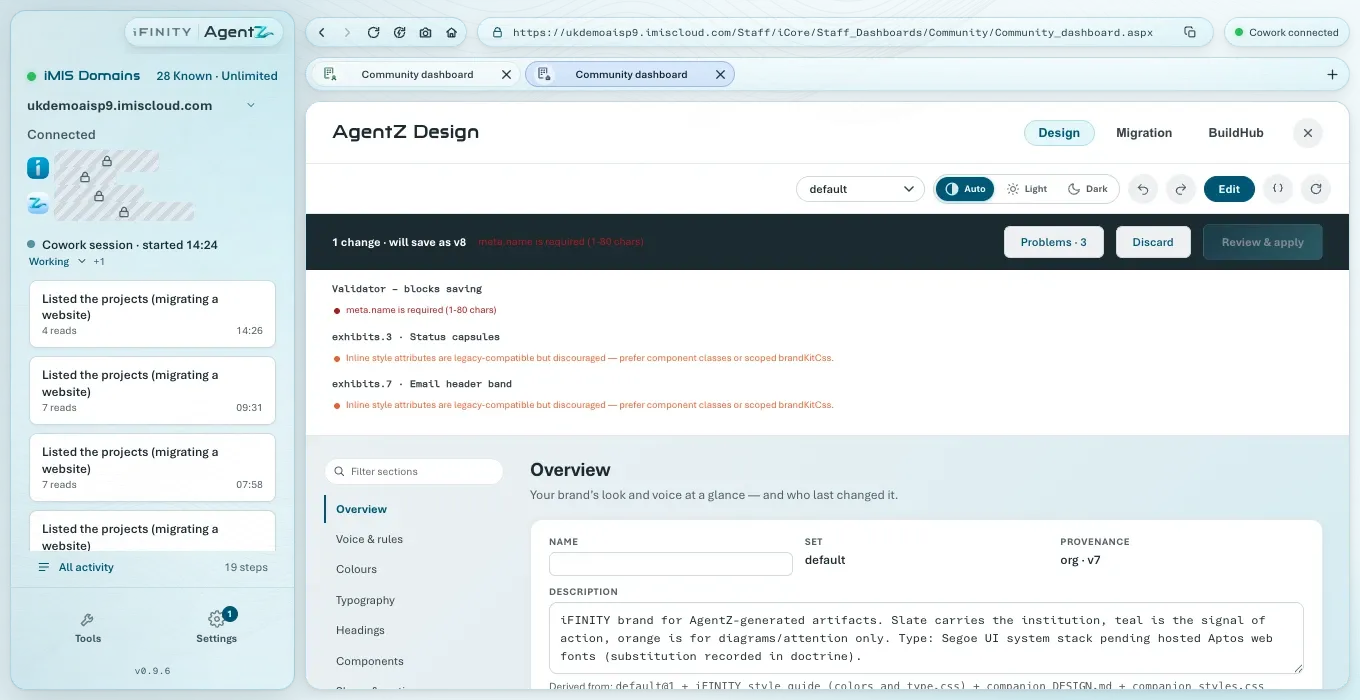
AgentZ Design holds your organisation’s colours, fonts, logos and design rules. Agents follow it when they build pages, dashboards, emails and themes in your iMIS site, so what they make looks like your brand. The Design tab of Tools shows it as it will be used, and lets you change it.
AgentZ Design belongs to your organisation and your iMIS site: everyone on your team sees the same design, and a change made here is used by every agent from then on.
Opening AgentZ Design
Section titled “Opening AgentZ Design”Click Tools at the foot of the sidebar. Tools opens on Design unless you last used another tab; the tabs Design, Migration and BuildHub are at the top right.
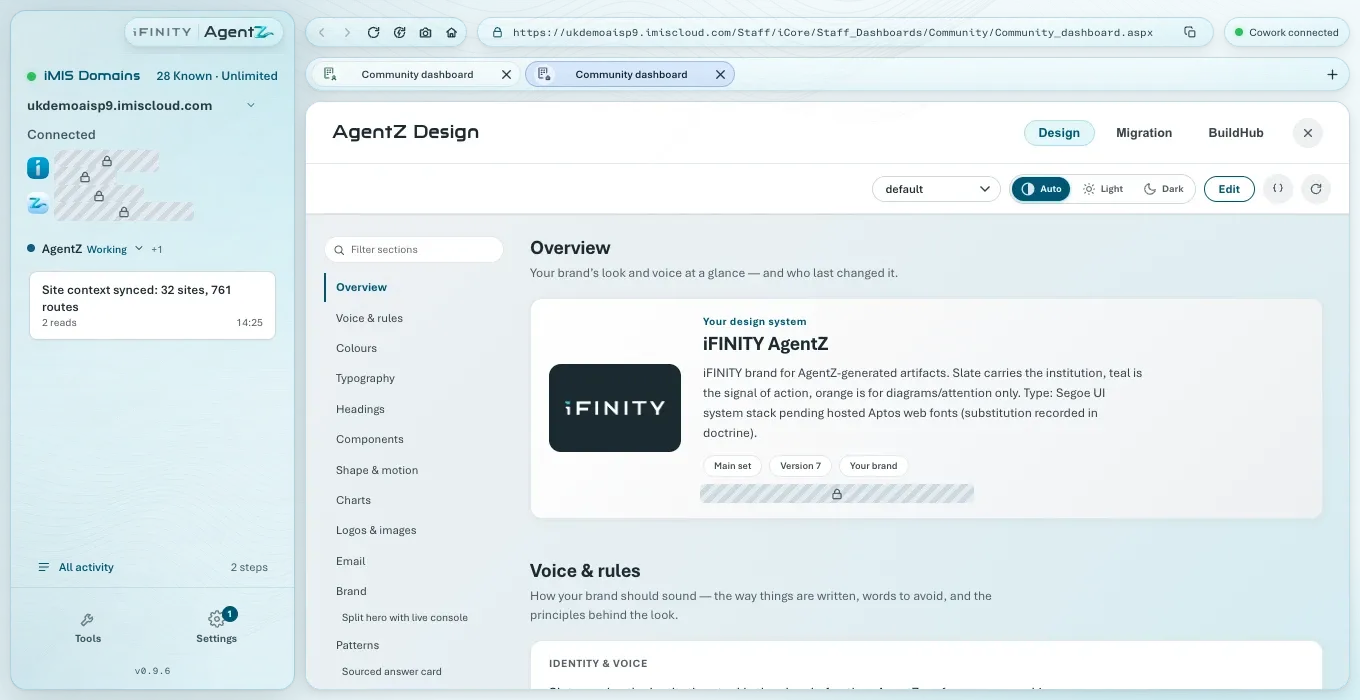
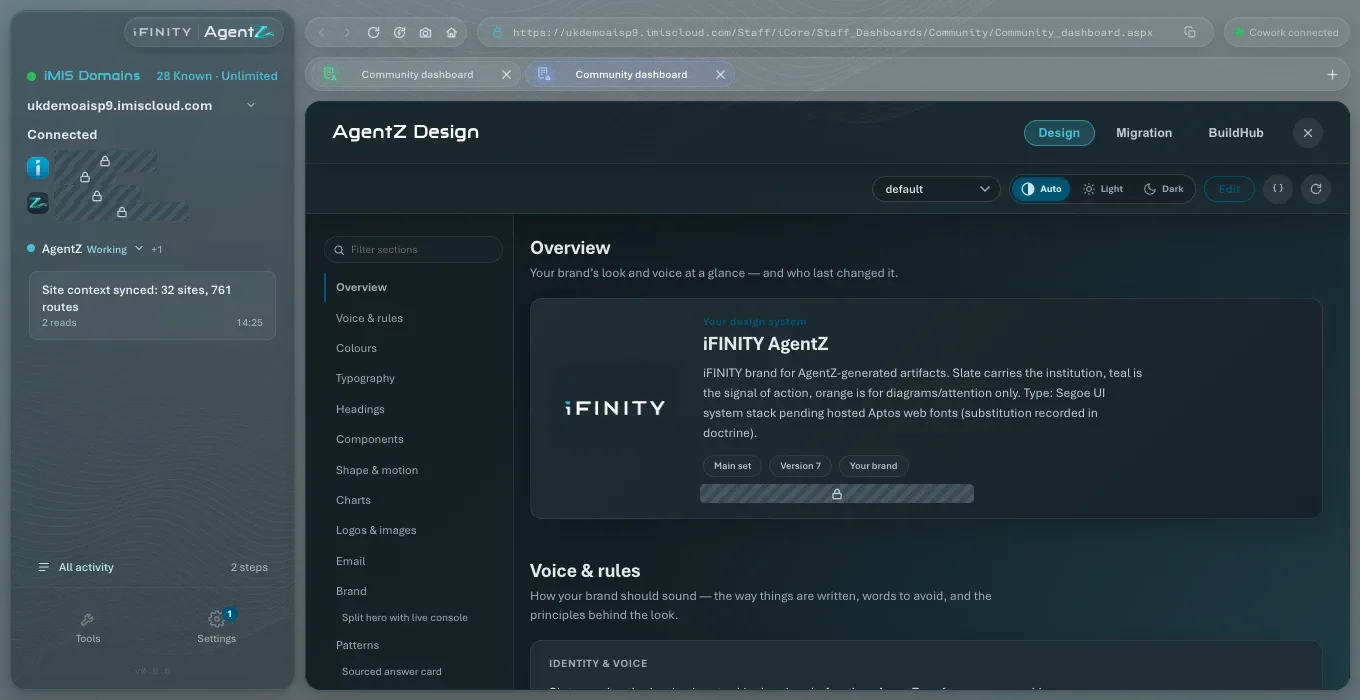
The toolbar
Section titled “The toolbar”| Control | What it does |
|---|---|
| The set chooser (default at first) | Chooses which design set you are looking at. A website or a sub-brand can have its own set. Switching sets while you have unsaved changes asks whether to discard them |
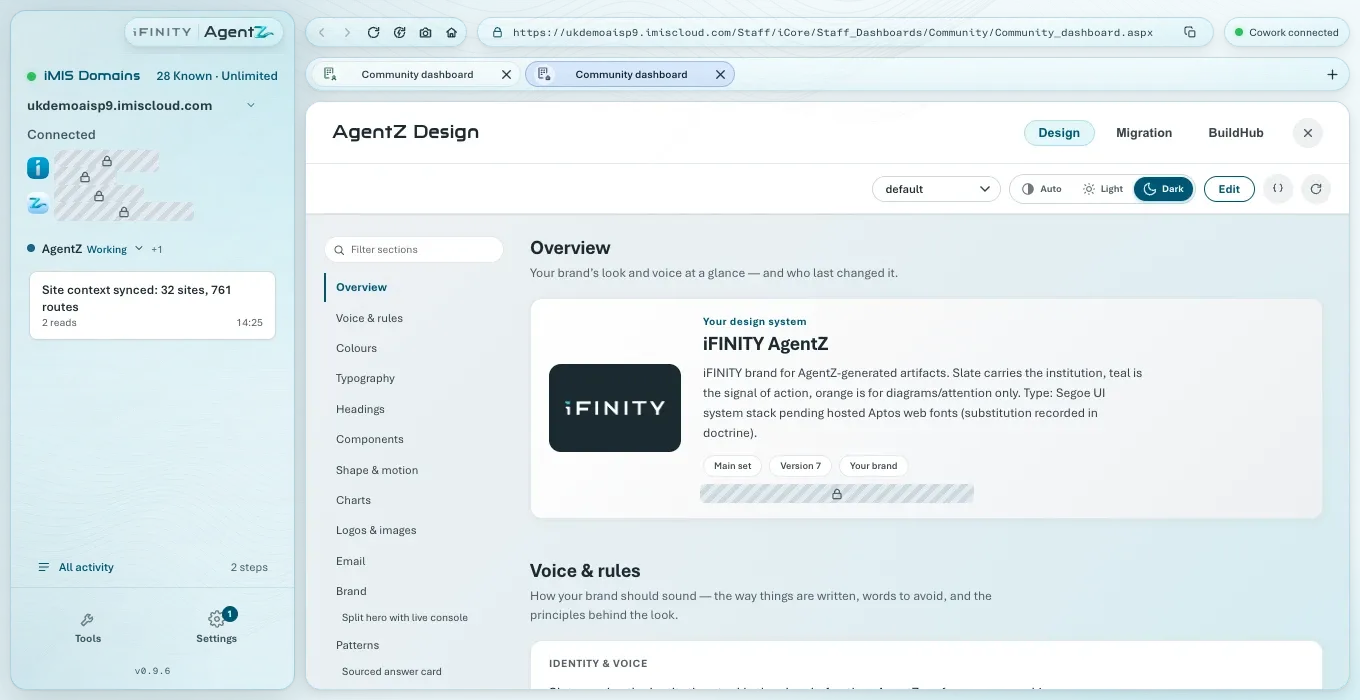
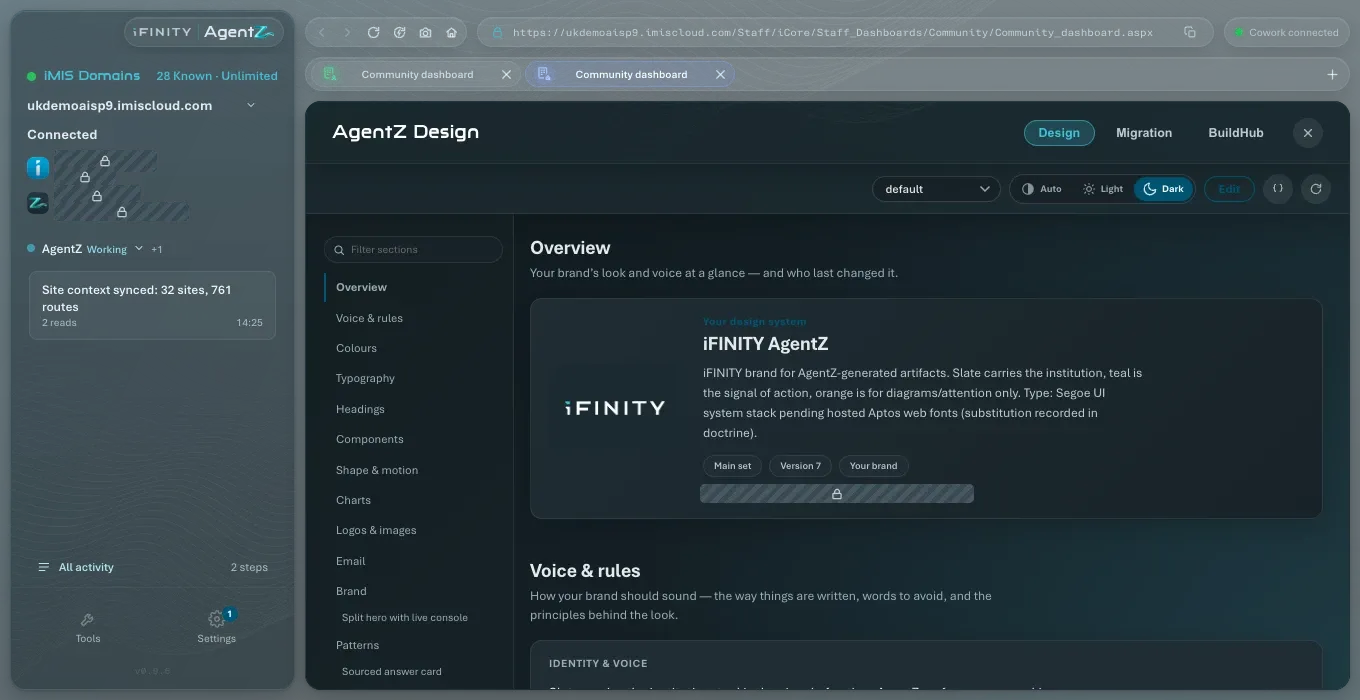
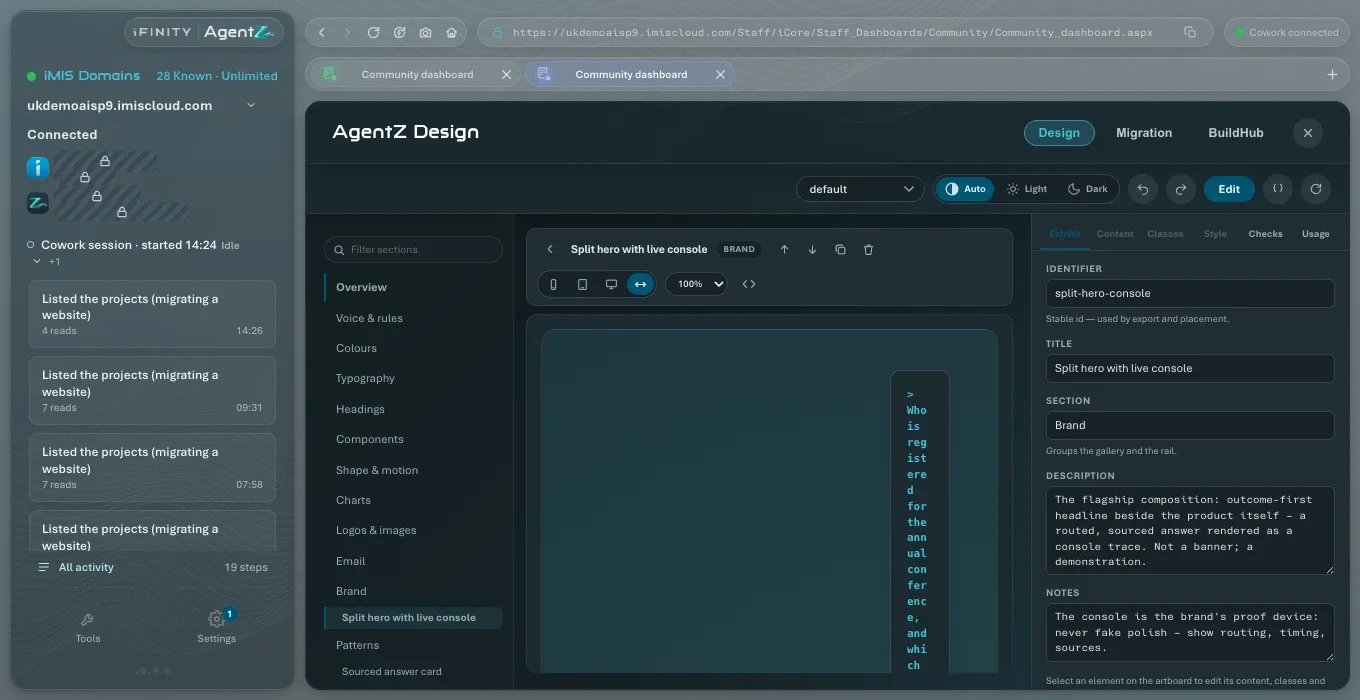
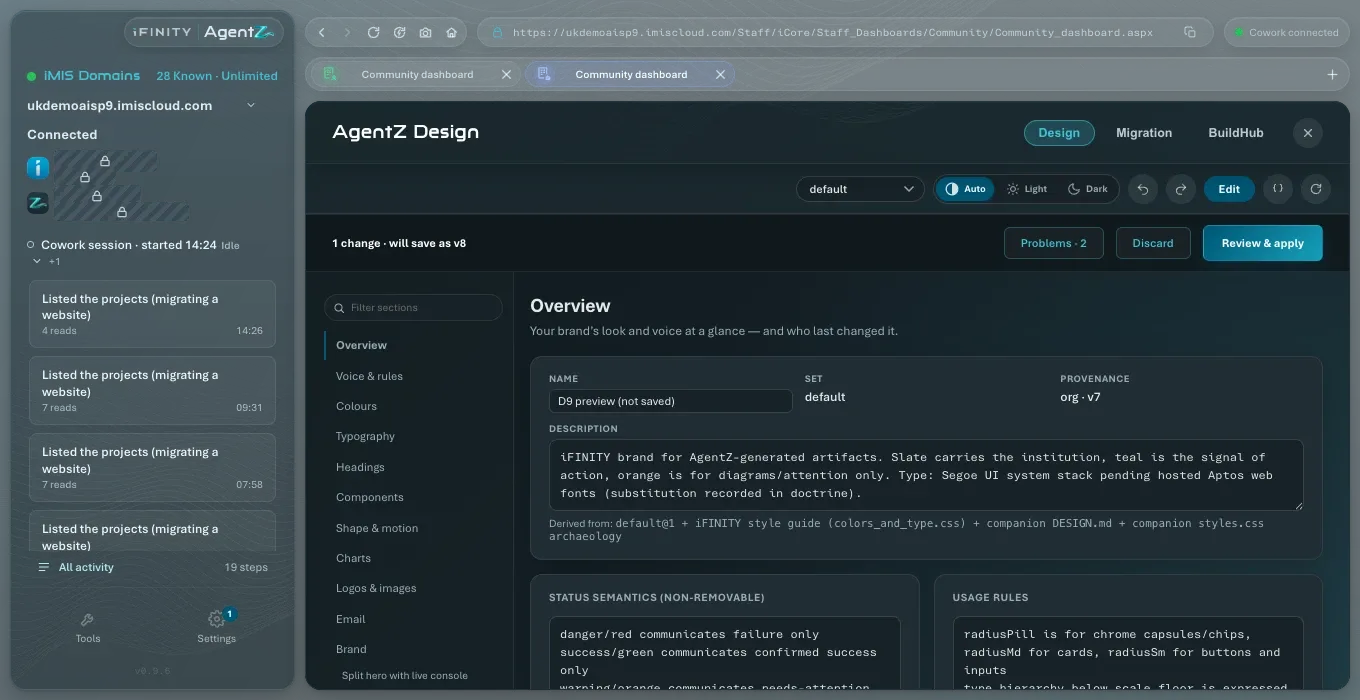
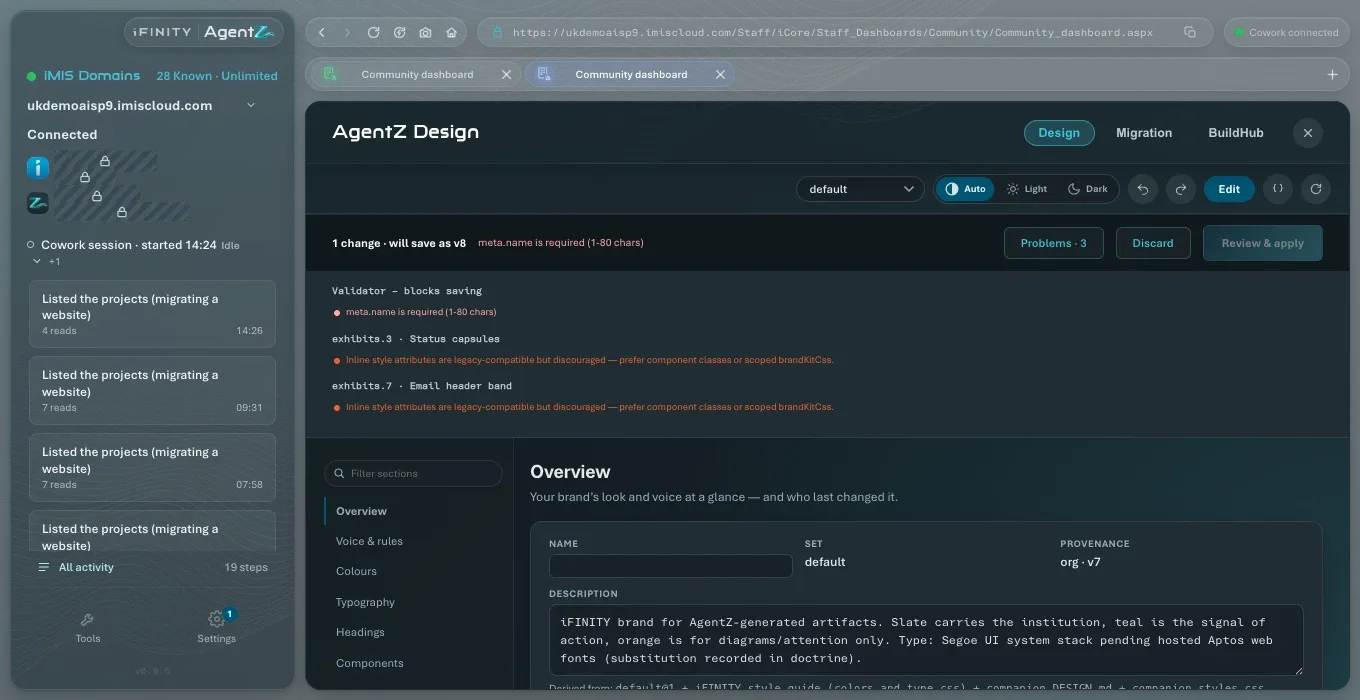
| Auto, Light, Dark | Shows the design in the light or dark version, or in the one that matches the app. If your design has no dark version, it says “No dark theme in this org — showing light” |
| Edit | Turns on editing. While editing, undo and redo buttons appear beside it |
| { } (Edit the full document as JSON) | Opens the whole design as text, for people who know its format |
| ↻ (Reload from the AgentZ service) | Loads the design again from the AgentZ service. The page shows “Loading AgentZ design…” while it does |
The sections
Section titled “The sections”The list on the left, with Filter sections above it, moves through the design:
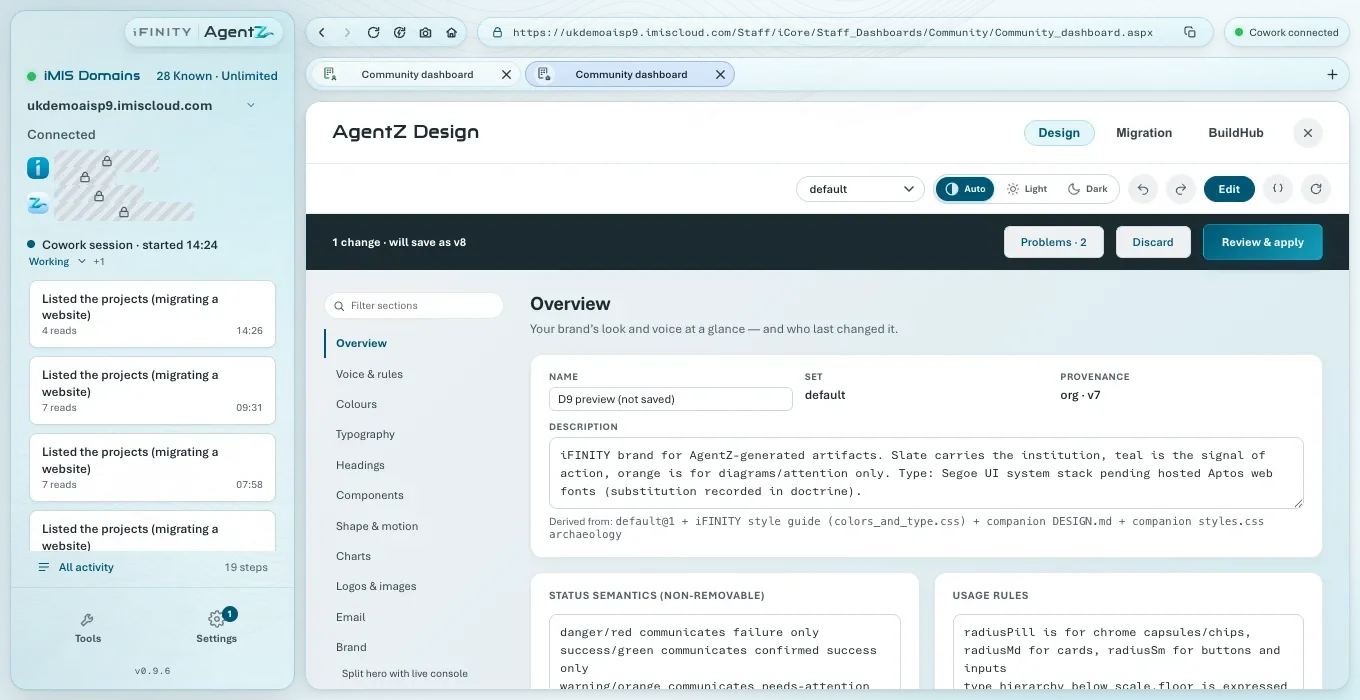
- Overview: your design’s name and description, which set it is, its version, and who last changed it and when.
- Voice & rules: how your brand should sound, words to use and to avoid, and the principles behind the look.
- Colours, Typography, Headings: the colours, fonts and heading styles, each shown in use.
- Components, Shape & motion, Charts: buttons, cards, chips, corners, movement and chart colours.
- Logos & images: your logos for light and dark backgrounds, the email logo and the favicon.
- Email: how emails look, with a sample email.
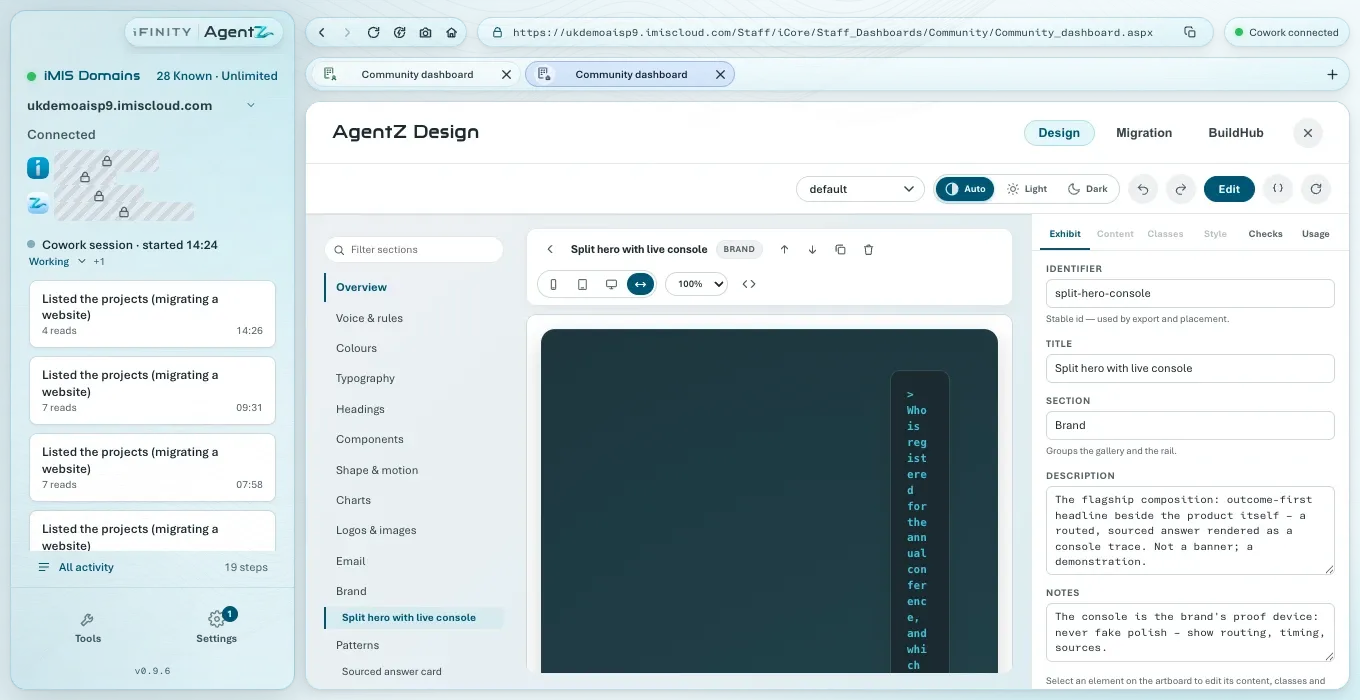
- Brand and Patterns: named examples, such as page heroes and answer cards, that agents can reuse. These grow as you and your agents add them.
While you are editing, three more tools are in the sections:
- Add section, under Add a ready-made section, adds a named example to Brand or Patterns.
- Clicking an example’s name in the list opens it in the visual editor, with its preview and the tabs Exhibit, Content, Classes, Style, Checks and Usage. Built-in examples are read only; Promote to exhibit… copies one into your own.
- Open the styling workbench, under Custom styling, shows your design’s own styling rules.
Changing the design
Section titled “Changing the design”Do the following to change your design:
-
In Tools > Design, choose the set in the set chooser.
-
Click Edit.
-
Change what you need in any section. The design updates as you type, and a bar appears above the sections with the number of changes and the version they will save as, for example “1 change · will save as v8”, and Problems, Discard and Review & apply.
-
Click Review & apply.
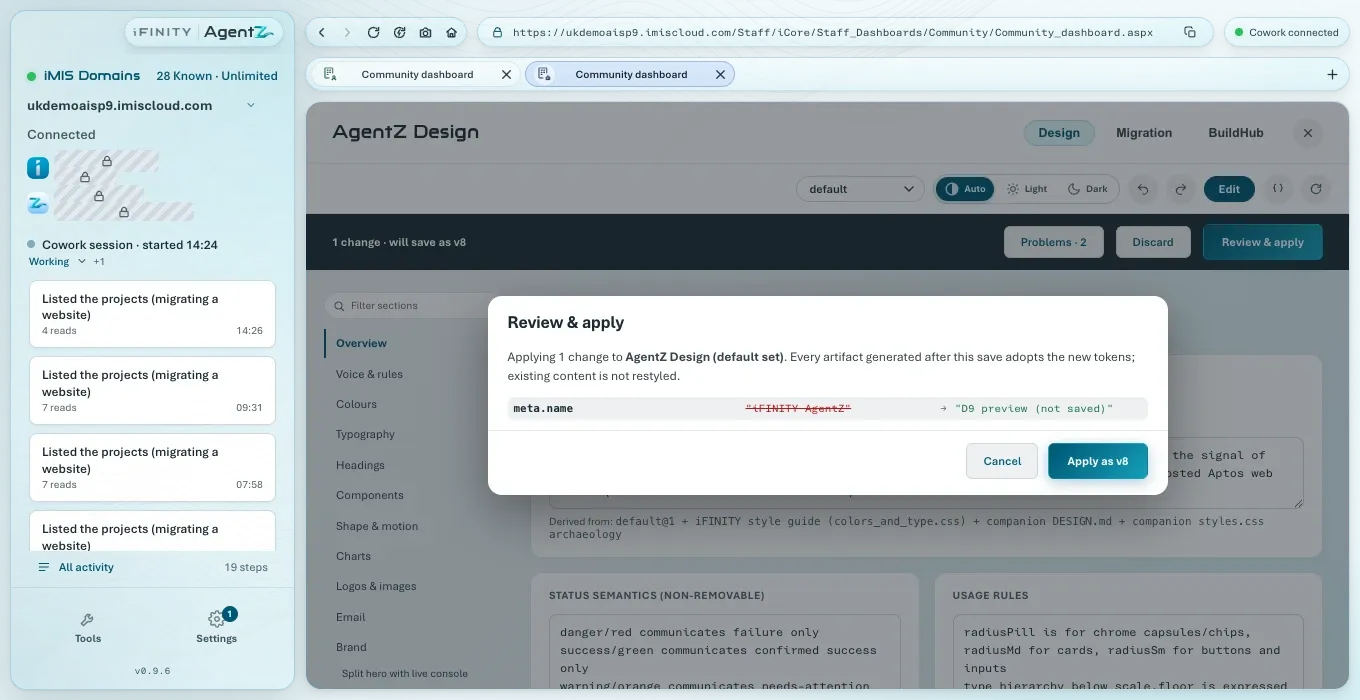
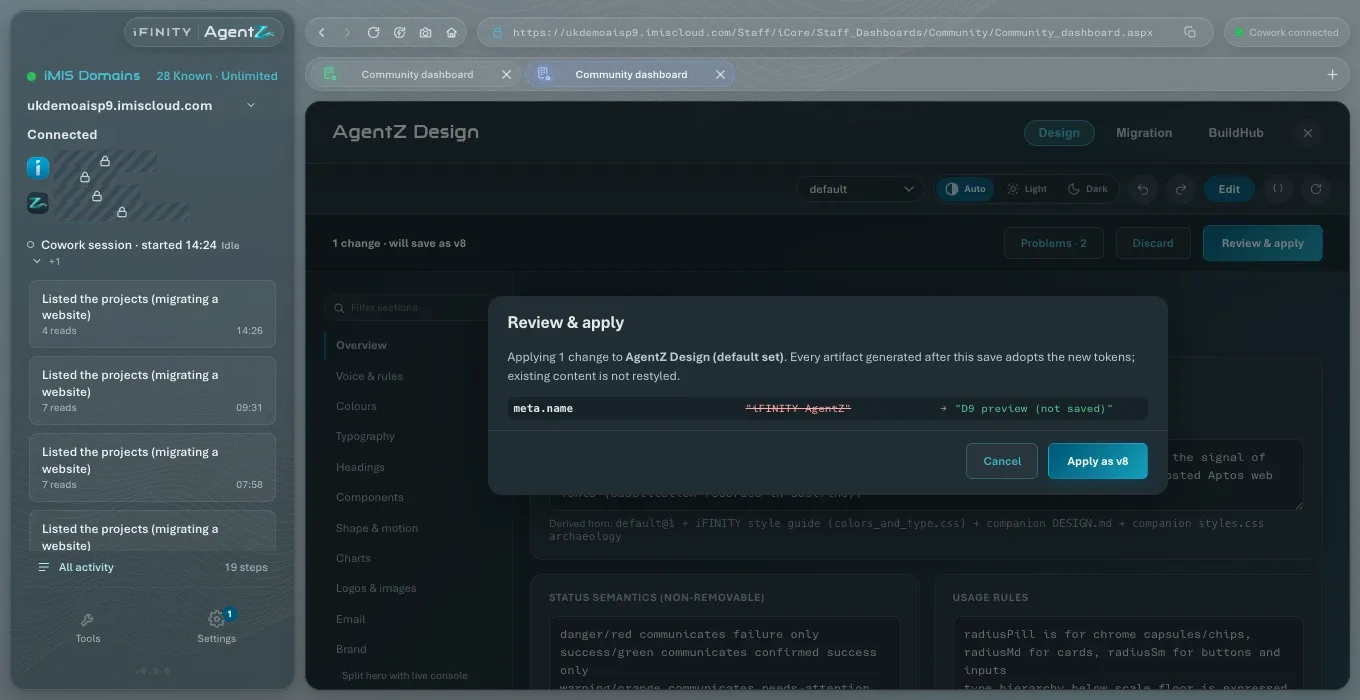
Review & apply lists every change, from the old value to the new one, and says that everything agents make after the save uses the new design, and that existing content is not restyled.
-
Click Apply as v followed by the new version number, or Cancel to go back to editing.
AgentZ saves the change to the AgentZ service and reads it back; the Overview shows the new version and your name.
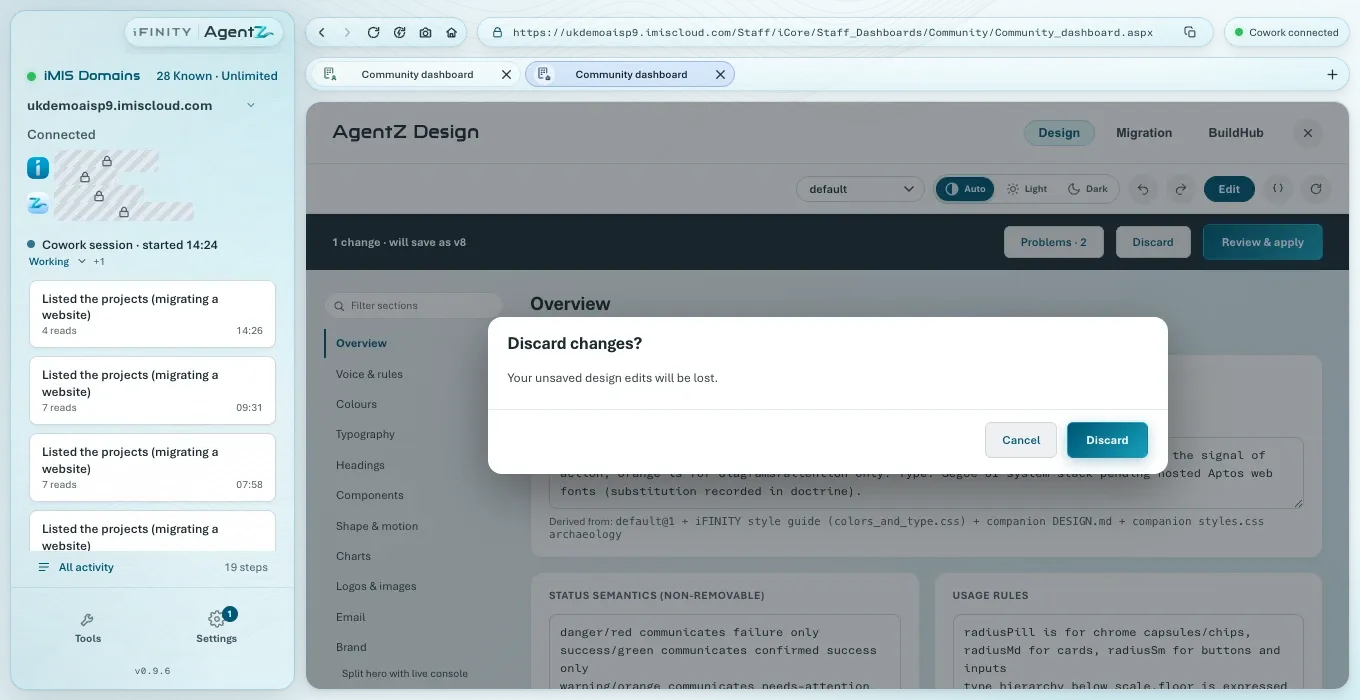
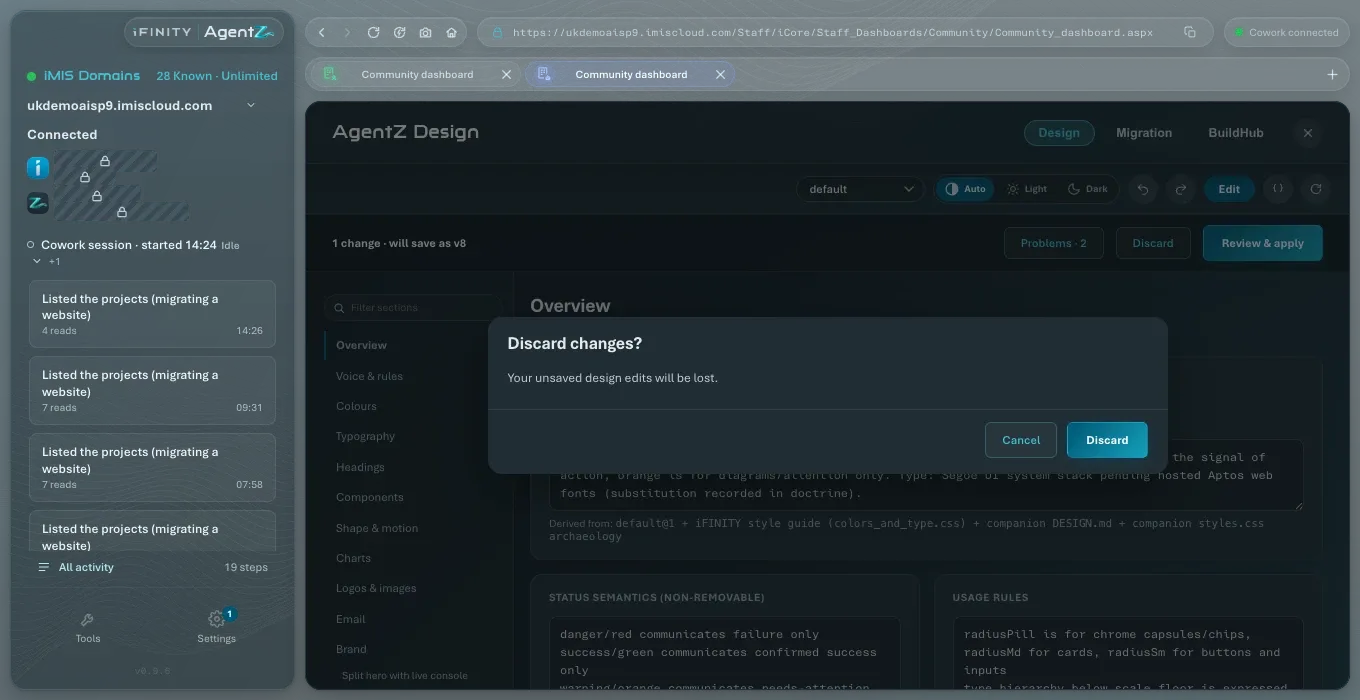
To abandon your changes, click Discard in the bar. If you click Edit to leave editing while you have unsaved changes, AgentZ asks Discard changes? first: “Your unsaved design edits will be lost.”
When a change has a problem
Section titled “When a change has a problem”Problems in the bar shows how many problems the design has. Click it to see them: those under Validator — blocks saving must be fixed before the change can be applied, and the others are advice. While a problem blocks saving, its message also shows in the bar, and clicking Review & apply shows Fix validation first.
Copying design sets from another account
Section titled “Copying design sets from another account”If your organisation’s design sets were made under another AgentZ account for this iMIS site, Sync copies the sets that are missing here. Sets that already exist here are never overwritten.
Does changing the design restyle pages already in iMIS? No. Only what agents make after the change uses it. Ask an agent to update existing pages if you want them restyled.
Can my AI app change the design? Yes. Agents can read and change AgentZ Design, and you see the result here.
Is the design kept in iMIS? No. It is kept by the AgentZ service for your organisation and iMIS site, for as long as the Team tab’s Design sets setting says.