

Checking your setup
The Overview tab of Settings checks every part of AgentZ for you and names the one thing to do next. Use it after setting up, and whenever something does not work as you expect.
Checking your setup
Section titled “Checking your setup”Do the following to check your setup:
-
In the AgentZ app, click Settings at the foot of the sidebar, or Setup where the sidebar shows it.
Settings opens on the Overview tab. Its header shows your organisation, your work email, your role and Licence active, and on the right either Everything is working or how many things are left, such as 1 to finish and Next: AI app.
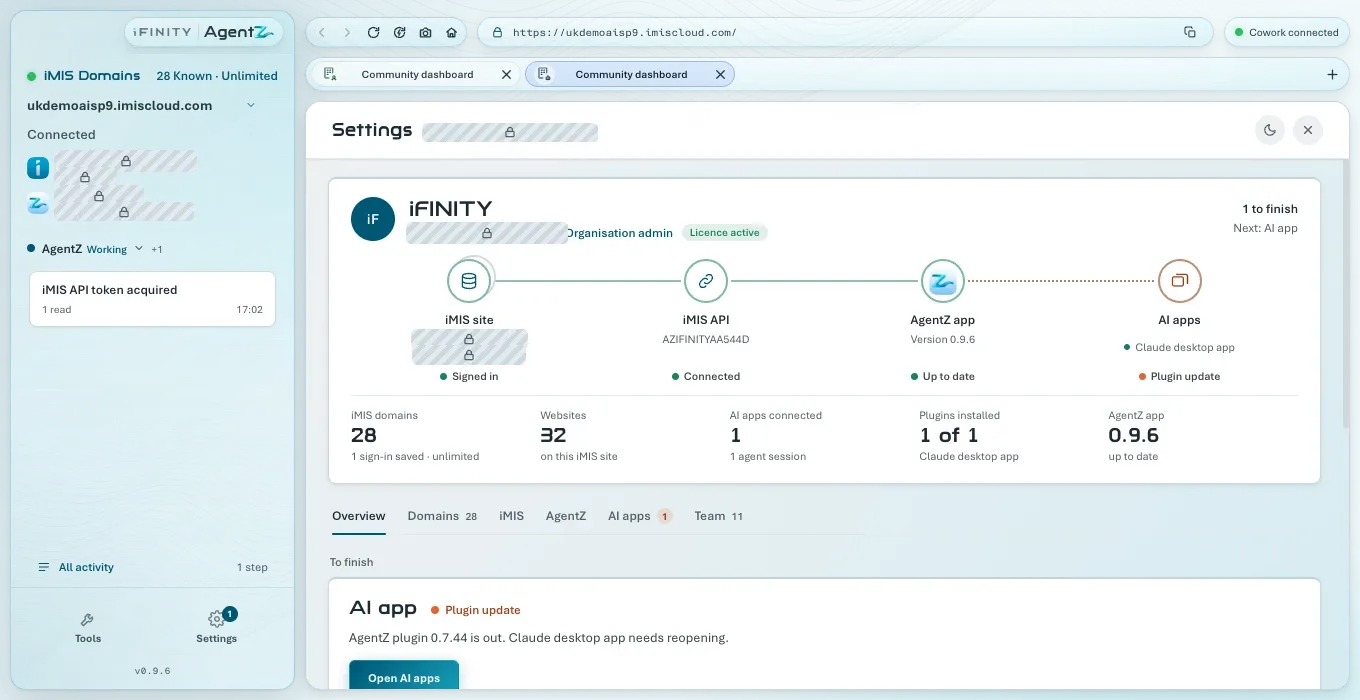
-
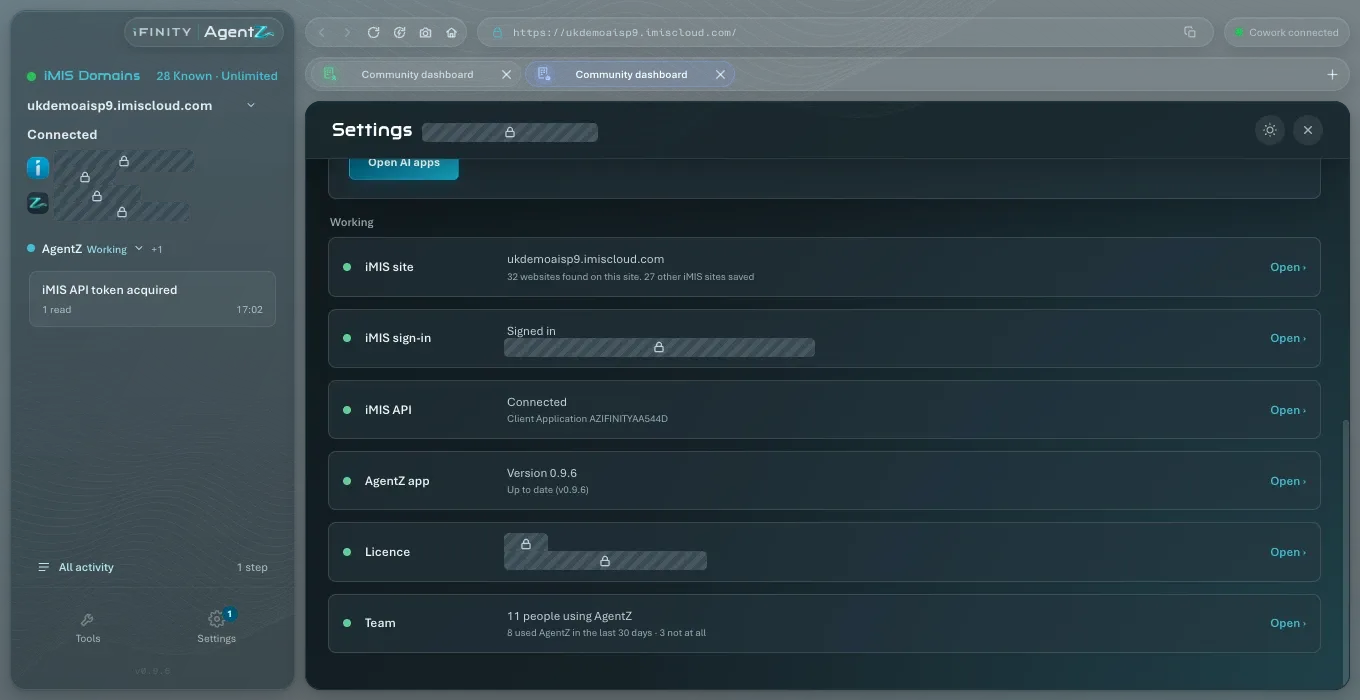
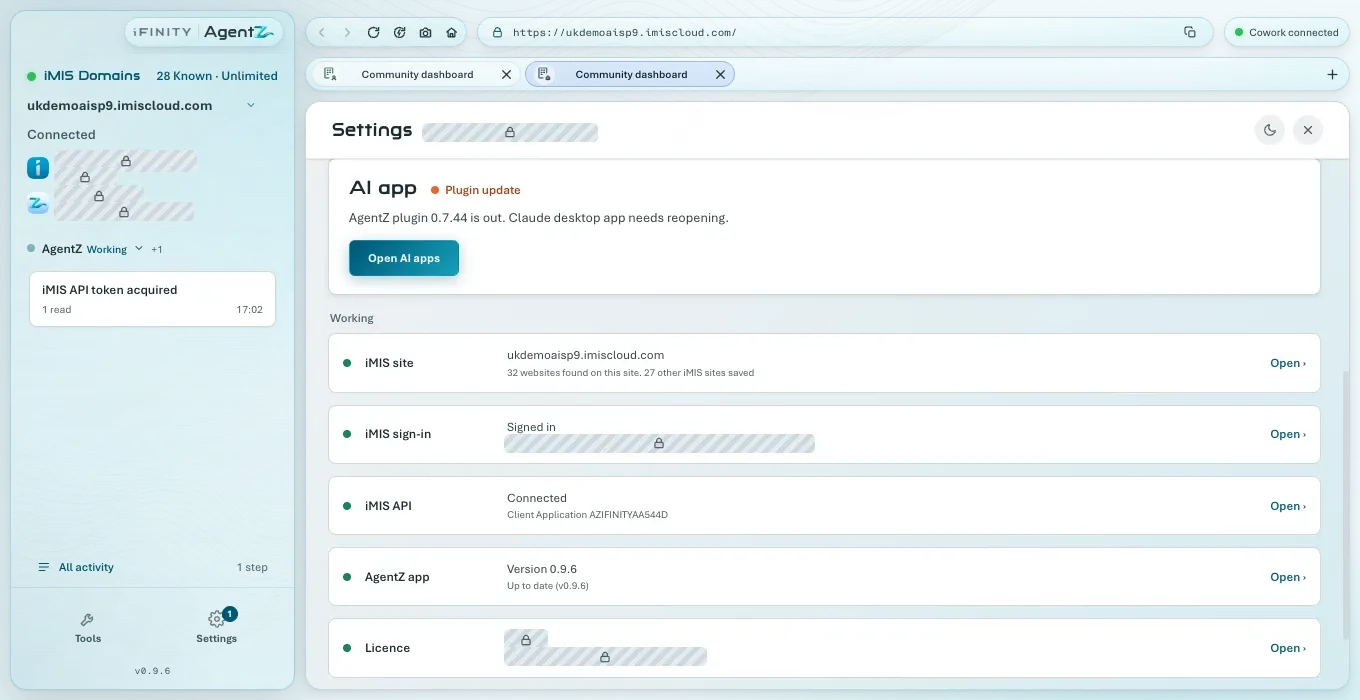
Scroll down to the checks. Each row names a part of AgentZ, its state, and Open, which takes you to the tab where you change it.
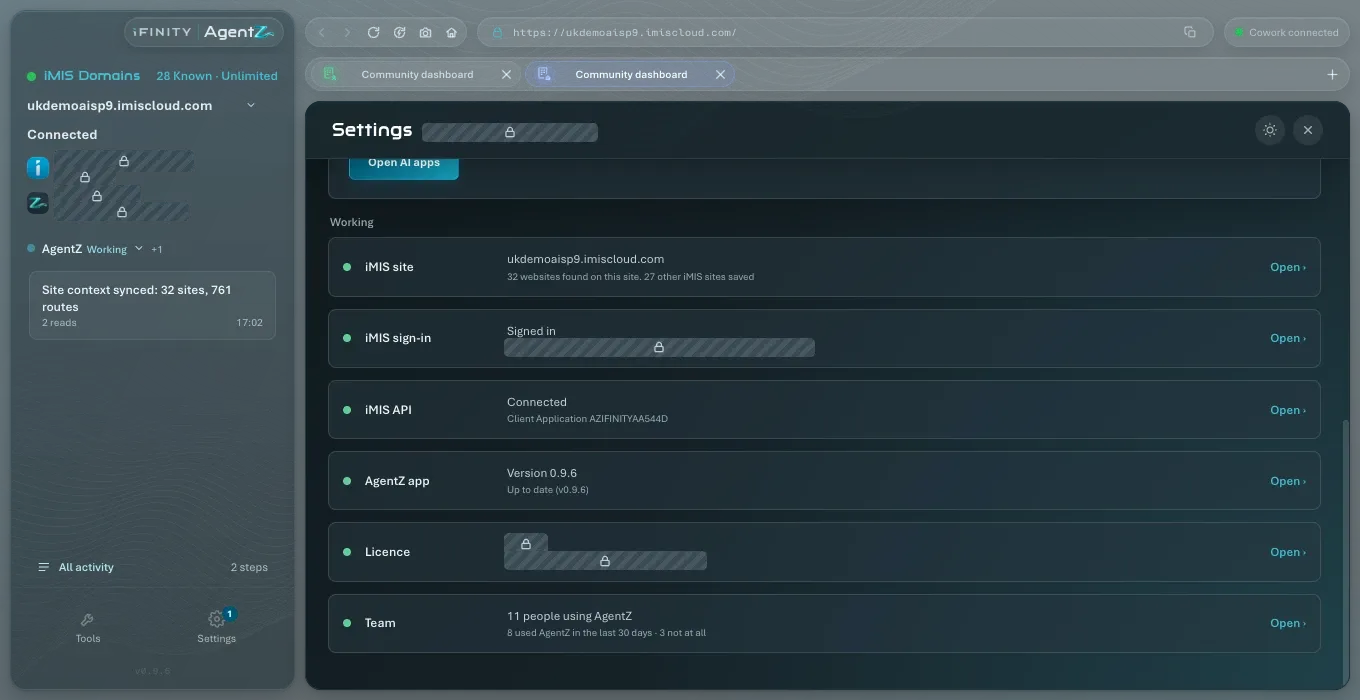
-
For any check that is not done, click the button on its row. The button names the one thing to do, for example Enter your iMIS sign-in or Add AgentZ to Claude.
When every check is done, the header reads Everything is working and “AgentZ is ready for” your iMIS site.
What each check means
Section titled “What each check means”| Check | Done when it shows | If it is not done |
|---|---|---|
| iMIS site | Your iMIS site’s address, and how many websites AgentZ found on it | Not linked yet: your licence is not linked to an iMIS site; ask your Organisation admin, or email helpdesk@ifinity.co.uk. Not chosen yet: click Choose the iMIS site. |
| iMIS sign-in | Signed in, and the iMIS person you are signed in as | No sign-in saved: click Enter your iMIS sign-in. Password not accepted: click Enter the current password. Security code not entered: click Sign in again. See iMIS sign-in troubleshooting. |
| iMIS API | Connected, and the Client Application it uses | Not set up yet: click Set up the iMIS API (Organisation admins). Waiting for your Organisation admin: your Organisation admin connects it. Not connected: click Check the iMIS API. See Setting up the iMIS API connection. |
| AI app | Ready, with the AI apps AgentZ works in | Not added yet: click the button to add AgentZ to your AI app. Plugin update: an AI app has an older AgentZ plugin; click Open AI apps. No AI app found: install an AI app first. See Connecting your AI app. |
| AgentZ app | The version, and Up to date | “An update is ready. Restart AgentZ to finish updating.” See Updating AgentZ. |
| Licence | Your organisation, your work email and Licence active | Reconnecting to the AgentZ service: AgentZ cannot reach it just now and keeps trying. See AgentZ sign-in troubleshooting. |
| Team | How many people use AgentZ (Organisation admins only, who see the Team tab) | Nothing to do. See Team settings. |
| First answer | Done: your AI app has worked with iMIS through AgentZ | Ask your AI app: click Copy the question and ask it in your AI app. See Making your first request. |
A check that depends on an earlier one says so, for example After the iMIS site or After iMIS sign-in, until the earlier one is done.
Other places that show your setup
Section titled “Other places that show your setup”- The sidebar shows your iMIS site with Connected under it once AgentZ is signed in to iMIS.
- Settings > AgentZ shows the AgentZ app’s Version and Update status. See AgentZ settings.
- Settings > AI apps shows the AgentZ plugin’s version, and on each AI app’s card whether it is up to date. See AI apps settings.
The Overview says Everything is working, but my AI app says AgentZ is not connected. What do I check? Reopen the AI app, so that it starts the current AgentZ plugin: Reopen to finish updating gives the steps for each AI app. Closing the Claude desktop app’s window is not enough. If that does not help, see AI app connection troubleshooting.
Do I need every check done before I can use AgentZ? No, but AgentZ can only do in iMIS what the done checks allow. Without the iMIS API, for example, AgentZ cannot read or change records through the iMIS API.
Why do I not see the Team check? It is shown only to Organisation admins.