

Adding another iMIS site
AgentZ works in one iMIS site at a time: the one your licence names, or another one you add and switch to, for example a test site beside your live one. Each site has its own iMIS sign-in and its own iMIS API connection.
Before you begin
Section titled “Before you begin”- The iMIS sites tab. If Settings has no iMIS sites tab, your licence covers only your licensed iMIS site. Contact iFINITY to work with more sites.
- The site’s full address, starting
https://, such ashttps://yourorg-test.imiscloud.com. AgentZ refuses an address that does not start withhttps://. - A staff username and password for that site. You sign in to each site separately.
- Its iMIS API connection. Each site needs its own. Your Organisation admin sets it up, or a team member can when Team members can set up API connections is on. See Setting up the iMIS API connection.
- Your organisation’s site limit. The iMIS sites tab shows Site limit. When it is reached, AgentZ says that all your plan’s iMIS sites are in use: “To add another, remove one or upgrade your plan.” It adds no more.
The iMIS sites tab
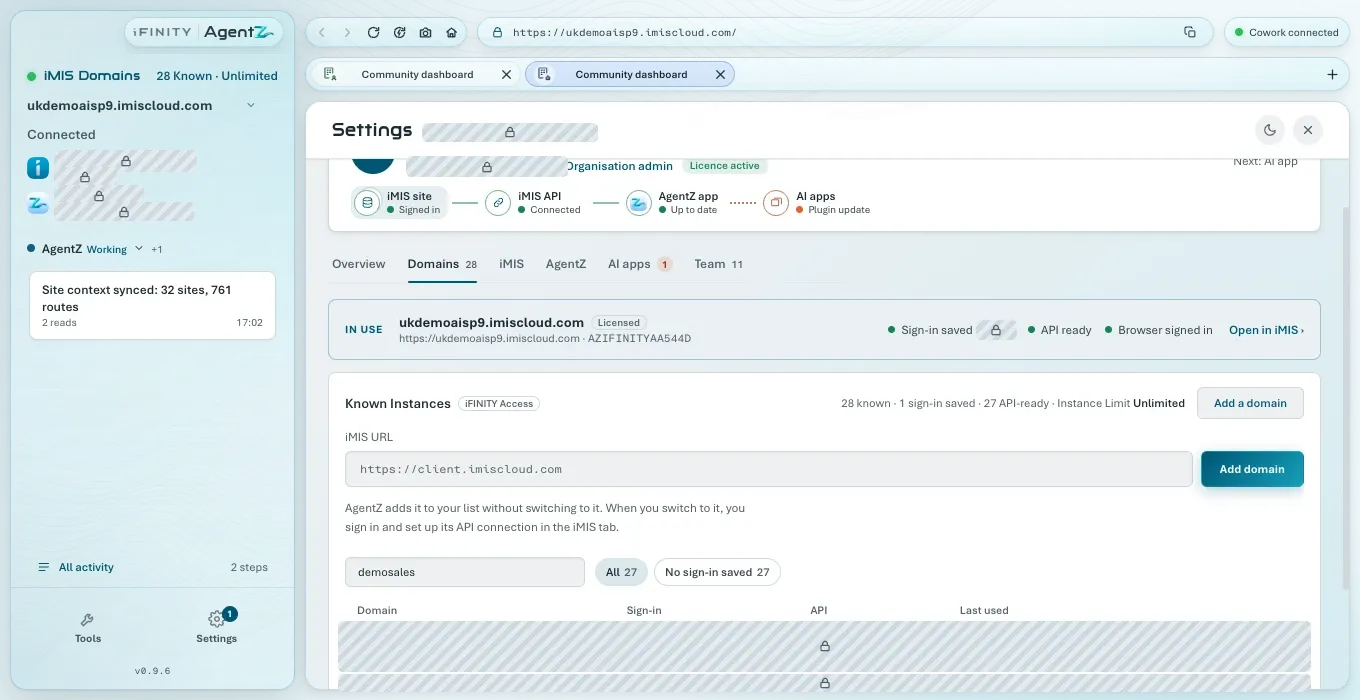
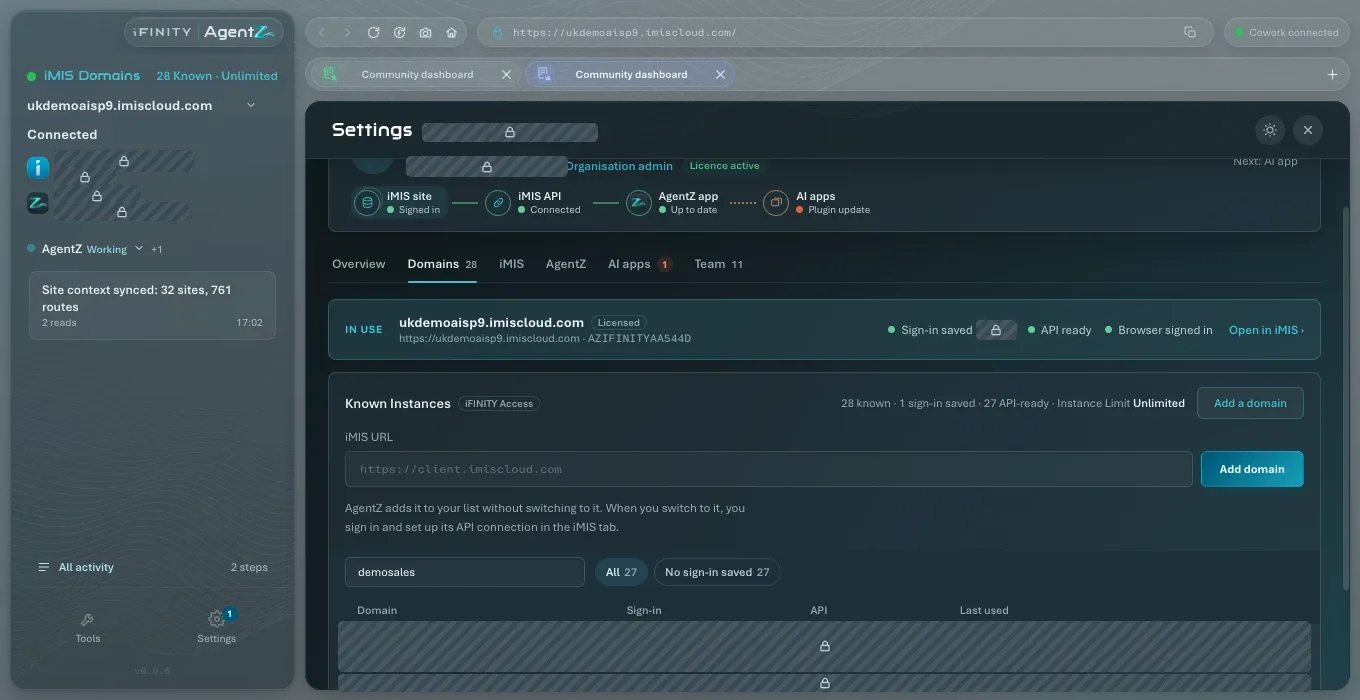
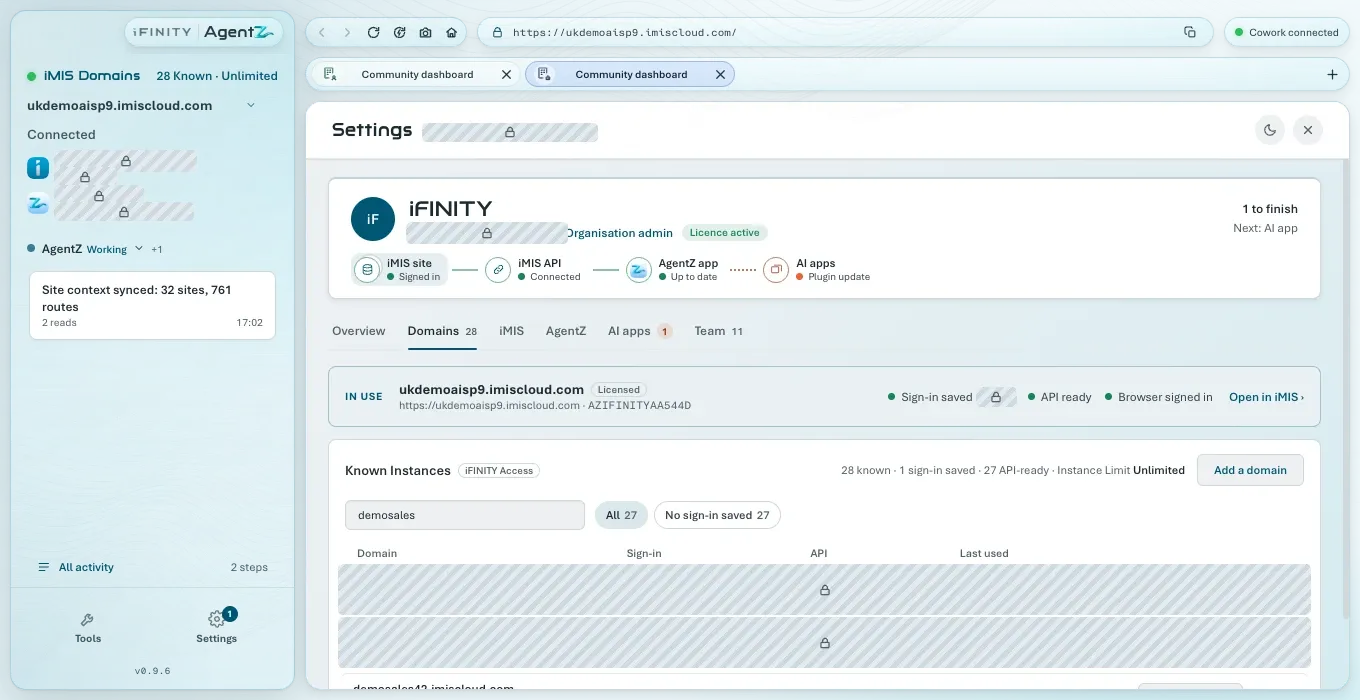
Section titled “The iMIS sites tab”Go to Settings > iMIS sites. It shows:
- In use: the site AgentZ works in now, marked Licensed if it is your licensed site, with whether its sign-in is saved, its API is ready, and the iMIS browser is signed in. Open in iMIS › opens the iMIS tab for it.
- Your iMIS sites: how many sites you have, how many have a sign-in saved and how many are API-ready, the Site limit, and Add an iMIS site.
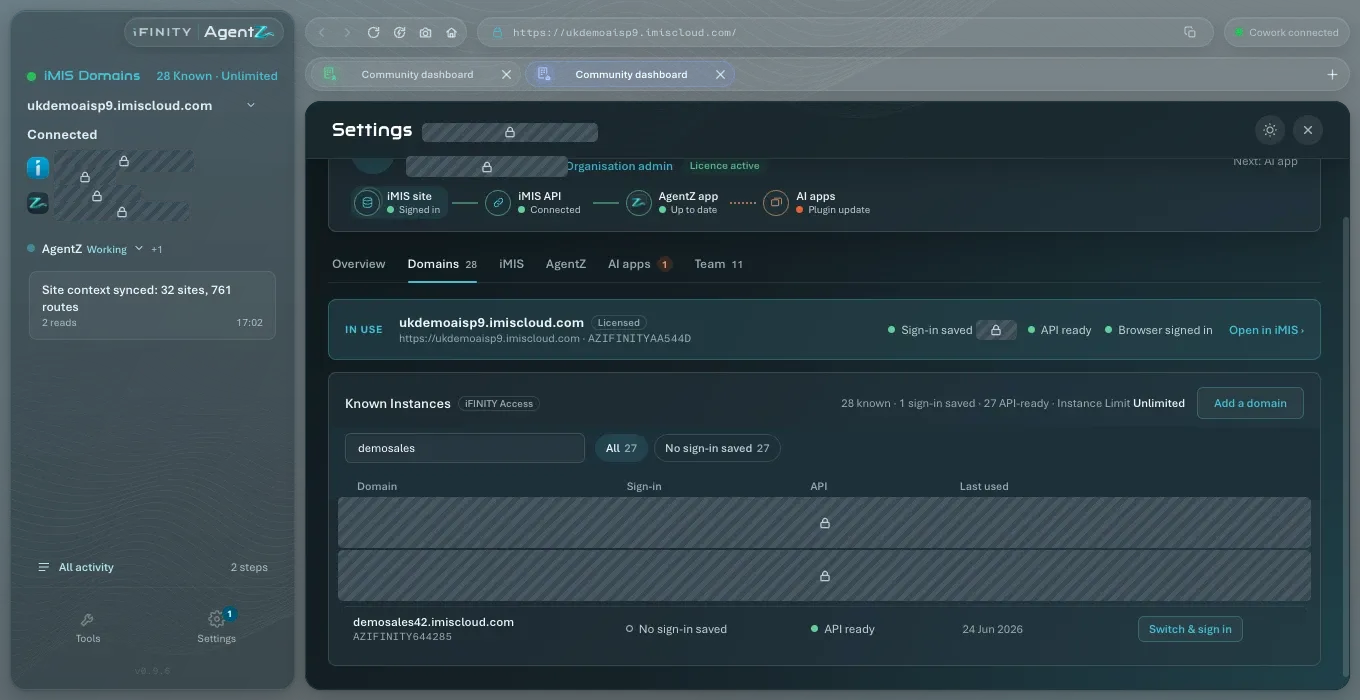
- The list of your other sites, with iMIS site, Sign-in, API and Last used, and a button to switch to each. Filter it with All, Ready, Needs API setup or No sign-in saved, or type in Find an iMIS site.
Adding an iMIS site
Section titled “Adding an iMIS site”Do the following to add an iMIS site:
- Go to Settings > iMIS sites.
- Click Add an iMIS site.
- In iMIS site address, enter the site’s full address.
- Click Add iMIS site.
The site appears in your list. AgentZ adds it without switching to it: “AgentZ adds it to your list without switching to it. When you switch to it, you sign in and set up its API connection in the iMIS tab.”
If the site is not added, a line under the field says why:
- AgentZ could not add that iMIS site., or a reason from iFINITY’s service, such as the site limit: check the address and your Site limit.
- AgentZ could not add that iMIS site. Try again in a moment.: AgentZ could not reach iFINITY’s service. Try again.
- AgentZ needs to restart to finish updating before you can add an iMIS site.: restart AgentZ to finish its update, then add the site. See Updating AgentZ.
Switching to another iMIS site
Section titled “Switching to another iMIS site”Do the following to switch to another iMIS site:
- Go to Settings > iMIS sites.
- Find the site in the list and click its button. The button says what comes next:
- Switch – the site is ready: its sign-in is saved and its API is set up.
- Switch & sign in – no sign-in is saved for it yet. AgentZ switches and opens step 2 iMIS sign-in on the iMIS tab.
- Switch & set up – its sign-in is saved but its API connection is not set up. AgentZ switches and opens step 3 iMIS API.
- Finish the step AgentZ opens, if any. See Connecting your iMIS site.
The site moves to In use, and the sidebar shows its address.
Switching from the sidebar
Section titled “Switching from the sidebar”When you have more than one site, the site’s address at the top of the sidebar is a list. Click it, and choose another site to switch to it. Beside iMIS sites, the sidebar counts your sites: for example 28 saved · no limit, or 3 of 5 used when your organisation has a site limit. While an agent is working, the list cannot be changed.
If BuildHub is open when you switch, it says “The iMIS site in use changed. Refresh to check what is installed there.” Refresh BuildHub before you install anything. See BuildHub.
Removing an iMIS site
Section titled “Removing an iMIS site”Do the following to remove an iMIS site:
-
Go to Settings > iMIS sites.
-
On the site’s row in the list, click Remove.
AgentZ asks you to confirm. For a site you have only added, it says “Nothing else has been saved for it yet.” For a site you have used, it says “This deletes its saved sign-in, API credentials and browser cookies from this seat, and removes it from your organisation’s list of iMIS sites.”, and, if it is the site in use, “It is the iMIS site in use, so AgentZ switches back to your licensed iMIS site first.”
-
Click OK to remove it, or Cancel to keep it.
The site leaves your list. Nothing changes in iMIS itself.
Your licensed iMIS site has no Remove button and cannot be removed.
Can I work in two iMIS sites at the same time? No. AgentZ works in one site at a time. Switch to the other site when you need it.
Do I sign in to each site separately? Yes. Each site has its own saved iMIS sign-in.
Does adding a site change anything in iMIS? No. Adding only puts the site on your list. Setting up its iMIS API connection creates a Client Application in that site.
Why is there no iMIS sites tab? Your organisation’s licence covers one iMIS site. Contact iFINITY to work with more.