

Installing a BuildHub package
Installing a BuildHub package adds a ready-made configuration, such as its queries, pages, panels and business objects, to your iMIS site. AgentZ downloads the package, checks it, looks at what is already on your iMIS site, shows you the plan, and installs it only after you confirm. The install is a background job: it keeps going if you close the page.
Before you begin
Section titled “Before you begin”- The right iMIS site in use. AgentZ installs on the iMIS site the AgentZ app is using now. Check it at the top of the sidebar.
- The iMIS API connected for that iMIS site. See Setting up the iMIS API connection.
- iMIS permissions to create what the package installs. AgentZ installs as you, so iMIS refuses anything your iMIS account may not create.
- A test iMIS site, where you have one. Install there first and check the result before installing on your live site.
Installing a package
Section titled “Installing a package”Do the following to install a BuildHub package:
-
Click Tools, then BuildHub, and open the listing.
-
Click the Install tab.
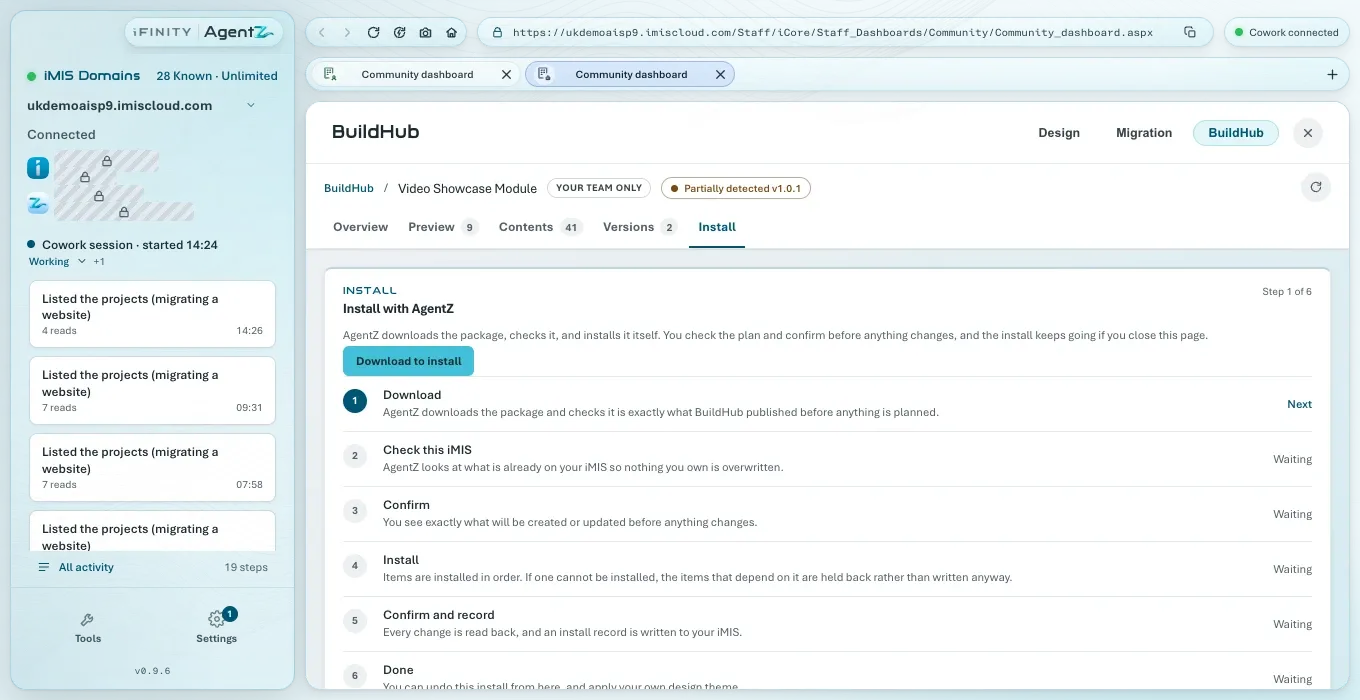
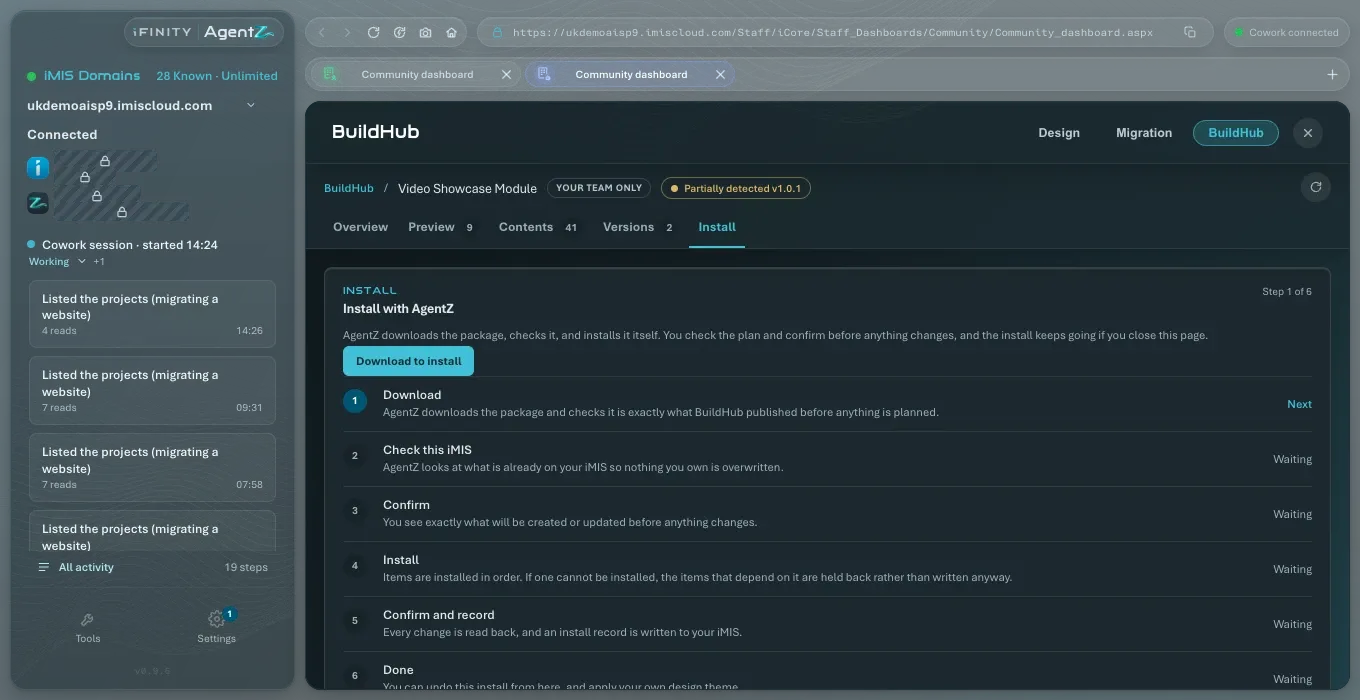
The card Install with AgentZ shows Step 1 of 6 and the six steps: Download, Check this iMIS, Confirm, Install, Confirm and record and Done.
-
Click Download to install.
AgentZ downloads the package and checks it is exactly what BuildHub published, before anything is planned.
-
Click Check this iMIS.
AgentZ looks at what is already on your iMIS site, so that nothing you own is overwritten, and plans the install.
-
Read the plan. It lists exactly what will be created or updated on your iMIS site. Click Prepare to install, then Confirm install.
Items are installed in order. If one cannot be installed, the items that depend on it are held back rather than written anyway.
-
Wait for Confirm and record. Every change is read back from iMIS, and an install record is written to your iMIS site.
The last step, Done, shows the result. From there you can undo the install, and apply your own design theme to what was installed.
Applying your design theme
Section titled “Applying your design theme”The pages an install creates still carry the design of the iMIS site they came from. After an install, the listing’s Design card, Apply your design theme, recommends applying your own AgentZ Design so they match the rest of your site.
Do the following to apply your design theme to what was installed:
-
Open the listing and go to the Design card, Apply your design theme.
-
In Agent session, choose the agent session to use.
-
Click Preview your design theme.
The card lists what would be re-themed among the items this install created, and anything it does not cover. If every item already matches, it says “Nothing to apply: every item found already matches your design theme.”
-
Click Prepare to apply theme. The card reads “Applying your theme needs your confirmation. A backup is kept and every change is read back.”
-
Click Confirm theme, or Cancel to apply nothing.
The card reads “Your design theme was applied to” the number of items, each read back to confirm. Open the pages on your site to check the look.
If the preview returns nothing that can be applied, click Preview again, or apply the theme from an agent session. If the agent session changes between the preview and confirming, preview again in the session you chose. If a theme change never reported back, see BuildHub install troubleshooting.
Undoing an install
Section titled “Undoing an install”Do the following to undo an install:
-
Open the listing, or find it under Installed on this iMIS.
-
On the Install tab, click Plan the undo.
The undo plan lists exactly what will be removed or restored. Nothing changes until you confirm.
-
Click Prepare to undo, then Confirm undo.
AgentZ removes what the install created and restores what it changed, and reads the result back from iMIS.
Can I close BuildHub while it installs? Yes. The install carries on, and you can open the listing again to follow it.
Does installing overwrite my own work in iMIS? No. AgentZ checks what is already on your iMIS site first, and the plan you confirm shows anything it would update.
Why is installing refused because another install holds this listing? Another install or undo of the same listing is running, from this computer or another. Let it finish, then click Check the hold.
Can I install the same package on another iMIS site? Yes. Switch to that iMIS site first, then install it there.